web
You’re offline. This is a read only version of the page.
close
Skip to main content

Notifications

Announcements

No record found.

Community site session details

Community site session details

Session Id :
Microsoft Dynamics 365 | Integration, Dataverse...
Unanswered

Customise Ribbon Workbench for qualify leads

(0) ShareShare
ReportReport
Posted on by 5

I have a custom field of type Boolean in the lead entity.. What i want to achieve is 

if the CRP Signed Field is No the qualify button for leads should be disable and if the CRP Signed Field is Yes, the qualify button should be enable.

i've try to achieve this using the ribbon workbench - Enable rule - Value Rule. below is a screen capture of my steps, but still could not achieve that.. don't know what i've been missing.

pastedimage1593768434360v2.png

Great if the team can shread some light upon this issue.

Thanks in advance.

I have the same question (0)
  • Miguel Lourenco Profile Picture
    on at

    Hi, instead of "yes" can you try with "true" ?

  • Bhemant1 Profile Picture
    5 on at

    Hi Miguel,

    Thanks for your time and response.. but this also didn't resolve the issue... it's dynamic 365 platform..

    in the field, should we type the display name of the field or the internal of the field?

    in the ribbon workbench i've click on the qualify button - commands and then enable rule and use value rule... is there something else to be done or i'm missing something?

  • Miguel Lourenco Profile Picture
    on at

    Hi Bhemant1, it should be the internal name.

  • LeoAlt Profile Picture
    16,331 Moderator on at

    Hi Bhemant1,

    Based on one and only one value, the button will be visible or disabled.

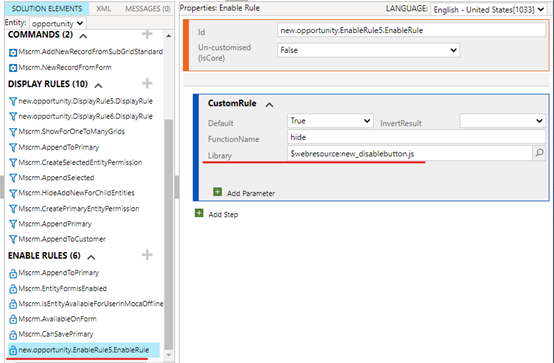
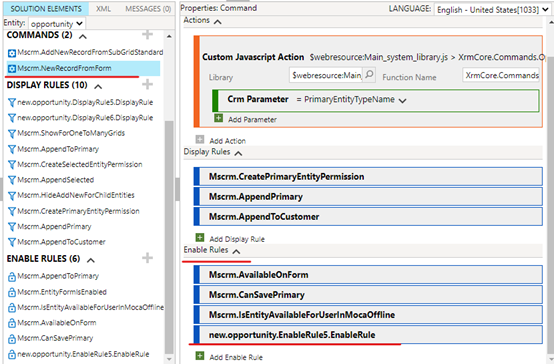
    If you have to hide button based on 2 or more form field values go with “Custom Rule”.

    In my example, when you fill CRP Signed field with Yes, New button will display in the form, otherwise, it will be hidden.


    Here are steps.

    1.write JS code and associate it to the form.

    function hide(){
    
     var crp = Xrm.Page.getAttribute("new_crpsigned").getValue();
    
     if(crp==true)
    
     return true;
    
    else
    
     return false;
    
    }


    function refreshRibbonOnChange()
    
    {
    
       Xrm.Page.ui.refreshRibbon();
    
    }
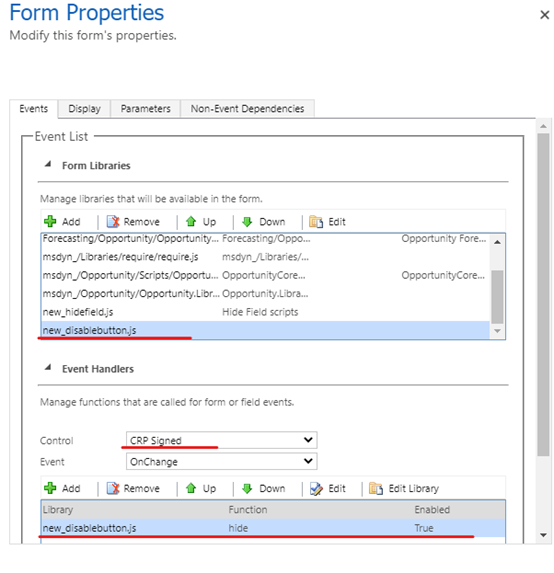


    7711.png

    2.Go to- Enable rules- Custom Rule.

    In my example, I set New button Instead of qualify button.
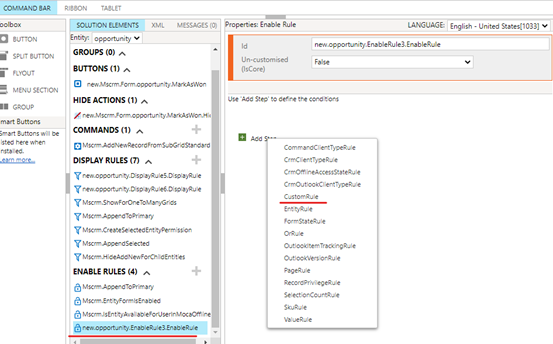
     6786.png

    5773.fff.png

    4135.png

    3.Test.

    (1) When field is ‘Yes’, the New button will display.
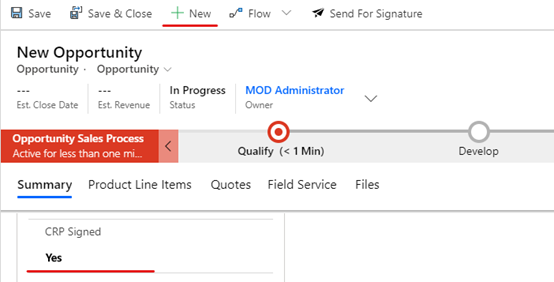
     71673.png

    (2) When field is ‘No’, the New button will be hidden
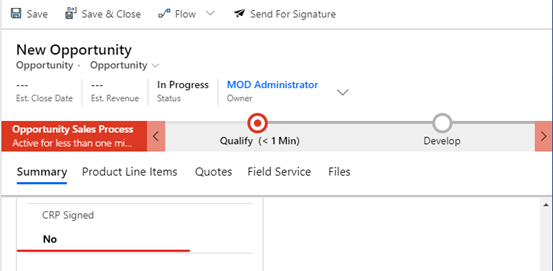
    555.png

    Hope it helps.

    Best Regards,

    Leo

Under review

Thank you for your reply! To ensure a great experience for everyone, your content is awaiting approval by our Community Managers. Please check back later.

Helpful resources

Quick Links

Responsible AI policies

As AI tools become more common, we’re introducing a Responsible AI Use…

Neeraj Kumar – Community Spotlight

We are honored to recognize Neeraj Kumar as our Community Spotlight honoree for…

Leaderboard > Microsoft Dynamics 365 | Integration, Dataverse, and general topics

#1
Siv Sagar Profile Picture

Siv Sagar 93 Super User 2025 Season 2

#2
#ManoVerse Profile Picture

#ManoVerse 80

#3
Martin Dráb Profile Picture

Martin Dráb 64 Most Valuable Professional

Last 30 days Overall leaderboard

Product updates

Dynamics 365 release plans