Hi Nsyrax,
You need the wildcard to find the keyword for 'Contains' Operator.
-Smith, Mrs
-Smith Suarez, etc
- Smith Edward Junior Johnson Elle Adam Raphael, whatever....
Otherwise, use no wildcard for 'Begin With' Operator
For example:
-John Smith Lampard
-Angel Santos Smith
-Michael Smith
Okay, I give you the screenshot to make more detail.
For example:
In the Opportunity:
I have these data:

Then, I want to search all Opportunity with keyword: order
From the data in the above, you can see, I have 4 Opportunities with Name (a single field, an one field), containing 'Order'
Then, I type:
1. First, I type: 'Order' --> without * wildcard
You can see, only 1 record

Since we don't use wildcard, so that we use 'Begin with' Operator
Then use Wildcard:

It will find the records with 'Contains' keyword operator
"If it had been broken into several fields, one for first name and so on, it would have searched as I'm wanting?"
--> Yes. You're right. But you need to configure the find columns in Quick Find View Setting.
For example in the Contact, we have two fields: First Name and Last Name sometimes can have middle names as well:
I want to find Thomas Mueller, by searching using keyword: Mueller, without wildcard (*)

Because I have different fields:

Now, the result if different if I changed to use only Last Name, as one field to store the whole words

Now, I type in the Keyword: Mueller:
.....*it will show nothing:

I have to use wildcard, now

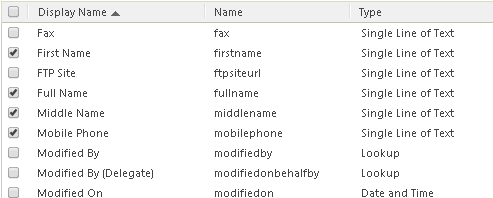
But, you need to configure the Quick Find Column as well,

but in this case, Contact and Account I think should have been set to these columns:
Well, the wildcard is just like:
LIKE '%Smith%'
in SQL,
and without wildcard is having similar function in SQL
LIKE '%Smith'
Hope it helps!
Thank you







