web
You’re offline. This is a read only version of the page.
close
Skip to main content

Notifications

Announcements

No record found.

Community site session details

Community site session details

Session Id :
Microsoft Dynamics 365 | Integration, Dataverse...
Suggested Answer

Adding related entities to related entities

(0) ShareShare
ReportReport
Posted on by 40

In Microsoft Dynamics I'd like to print details of Products (using "Export to PDF" button) that are part of a specific Quote. In template generator I can use "Quote" as starting entity and then add related "Quote Product", but it doesn't contain all of the "Product" columns. While I begin from "Quote Product" I see all of columns that I need, but then I cannot generate the PDF from Quote (it's associated with Quote Product, so Quote "doesn't see" it). How could I achieve my goal?

I have the same question (0)
  • Suggested answer
    Mahendar Pal Profile Picture
    45,095 on at

    Hi,

    Yes, you are correct you won't be able to get those fields in the quote, for that you need to make those extra field available in the quotedetails entity so that you can refer them in the template.

    One possible option is to create those extra fields in the quote line entity, and then you can write a logic using plugin to copy those fields to quotedetails (from product to the new field which you created) and finally you can refer them in quote.

  • Suggested answer
    Yuri ji Profile Picture
    on at

    Hi alqueen,

    Mahender's solution is feasible.

    You can create a flow to copy field values from a product to quote line automatically.

    Here's my example, maybe it can help you.

    The specific steps are as follows.

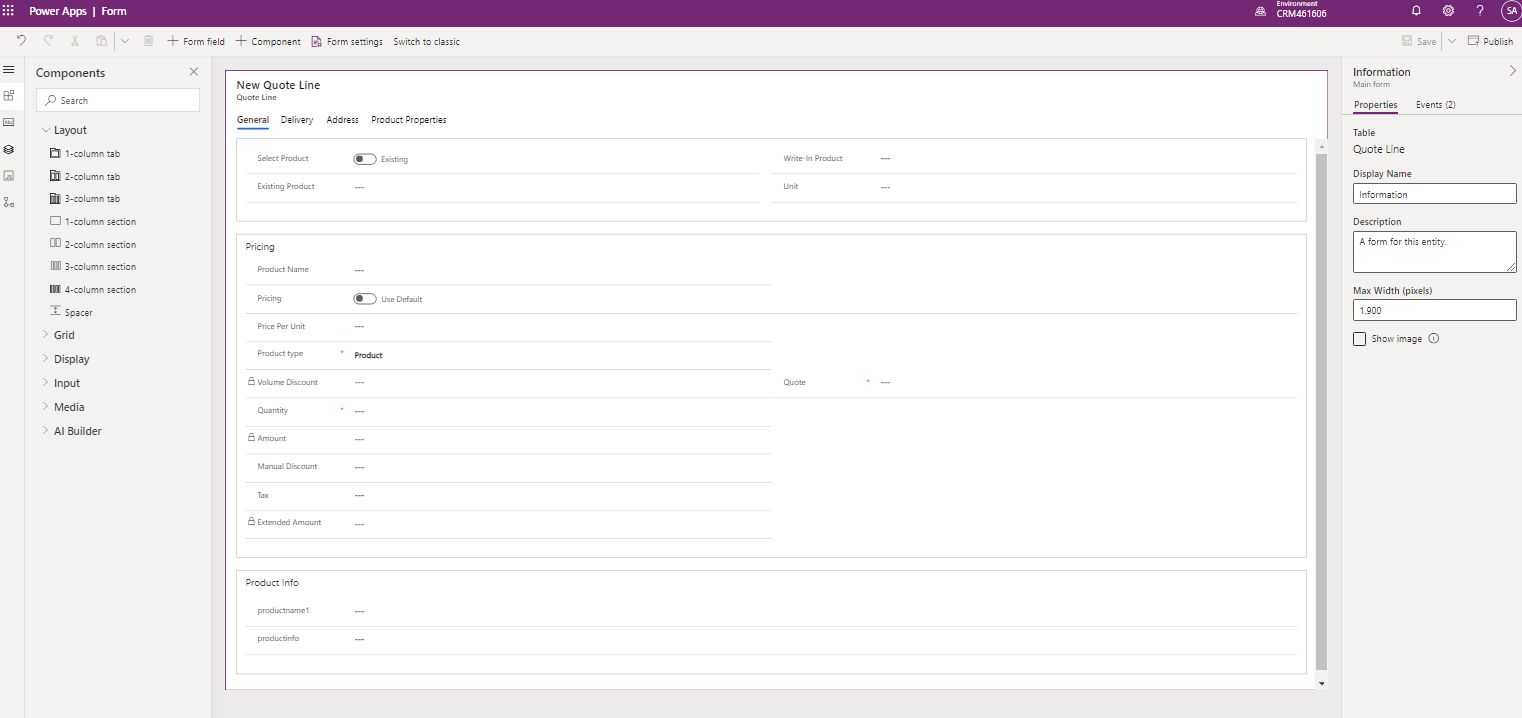
    1. Created several custom fields that I want. Add them to a section called Product Infopastedimage1659610573992v12.png
    2. Create an automated cloud flow, select When a row is added or modified as a trigger
      pastedimage1659608831623v2.png
    3. Add a new step in order to get a row by ID, select Existing Product(value) as Row ID.
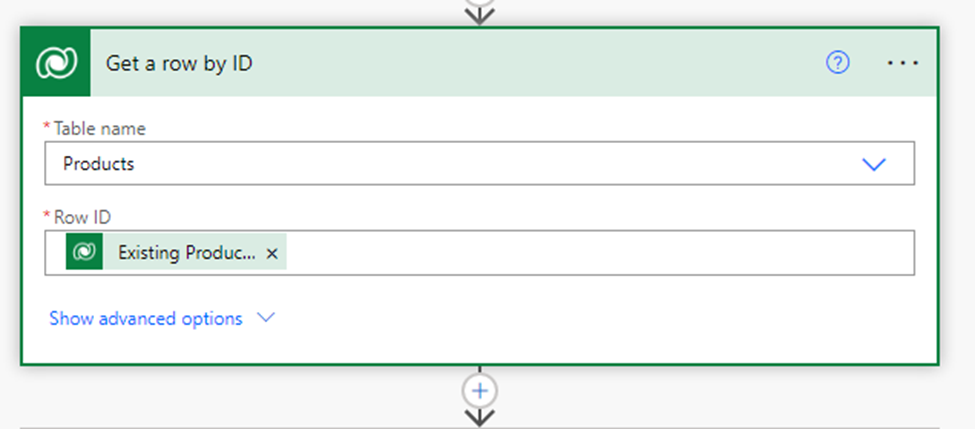
      pastedimage1659608847153v3.png
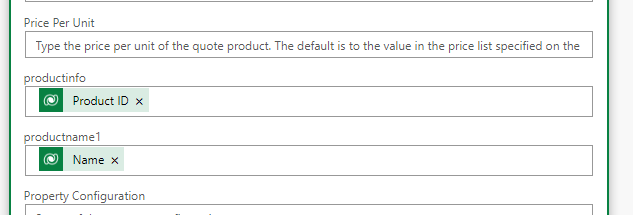
    4. Add a new step in order to update the rows you want.
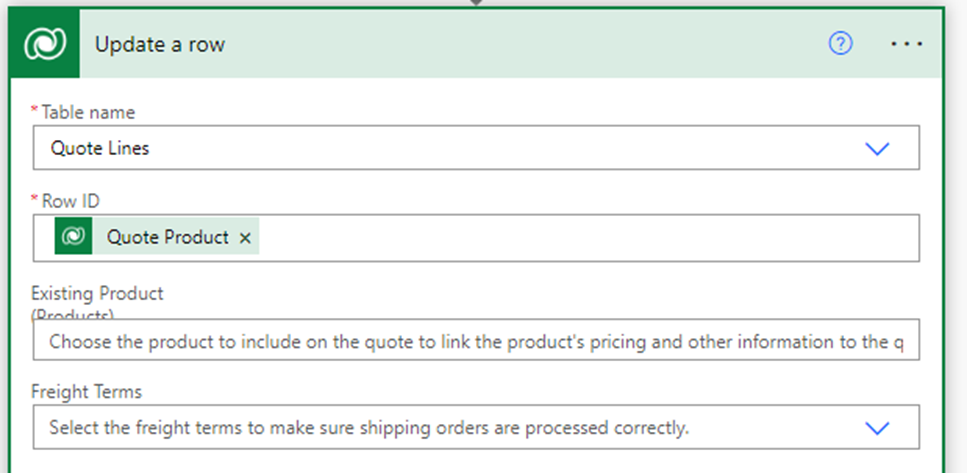
      pastedimage1659608862324v4.pngpastedimage1659608898288v5.png
    5. Save and test the flow.

    Finally, the result is displayed.

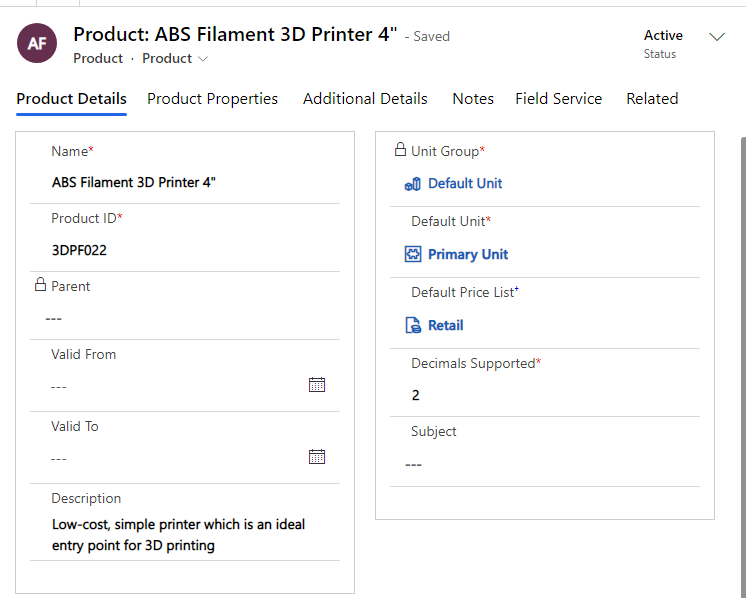
    When I add an Existing Product in Quote Line, select save and refresh it. The field into Product Info will change.
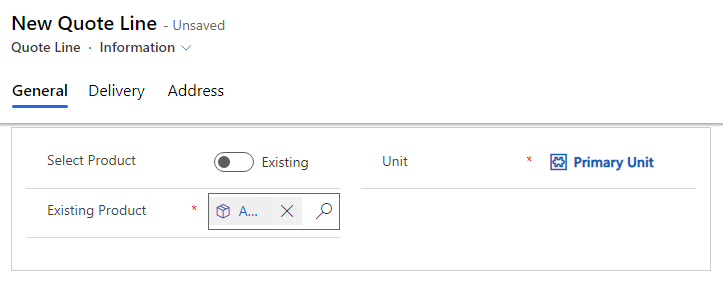
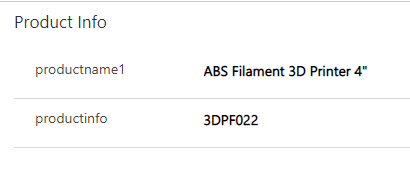
    pastedimage1659609543365v7.png

    pastedimage1659609578498v8.png

    pastedimage1659610212887v9.png

    Regards,

    Yuri Ji

Under review

Thank you for your reply! To ensure a great experience for everyone, your content is awaiting approval by our Community Managers. Please check back later.

Helpful resources

Quick Links

Responsible AI policies

As AI tools become more common, we’re introducing a Responsible AI Use…

Neeraj Kumar – Community Spotlight

We are honored to recognize Neeraj Kumar as our Community Spotlight honoree for…

Leaderboard > Microsoft Dynamics 365 | Integration, Dataverse, and general topics

#1
Siv Sagar Profile Picture

Siv Sagar 93 Super User 2025 Season 2

#2
#ManoVerse Profile Picture

#ManoVerse 76

#3
Martin Dráb Profile Picture

Martin Dráb 66 Most Valuable Professional

Last 30 days Overall leaderboard

Product updates

Dynamics 365 release plans