web
You’re offline. This is a read only version of the page.
close
Skip to main content

Notifications

Announcements

No record found.

Community site session details

Community site session details

Session Id :
Microsoft Dynamics 365 | Integration, Dataverse...
Answered

Importing into Case Notes

(0) ShareShare
ReportReport
Posted on by 1,136

Hi All,

I have been tasked to import Ticket data from another CRM system into D365. I have successfully imported the Core Ticket data into Cases but I now need to import the related Ticket Notes into D365 Case Notes. I do not have access to a 3rd party application do achieve this so I'm hoping it is possible through the standard import tool or Flow? If so can anyone point me in the right direction please.

I have the same question (0)
  • Verified answer
    Community Member Profile Picture
    on at

    Hi Adam,

    You can refer following steps:

    1.Go to Settings > Templates > Data Management
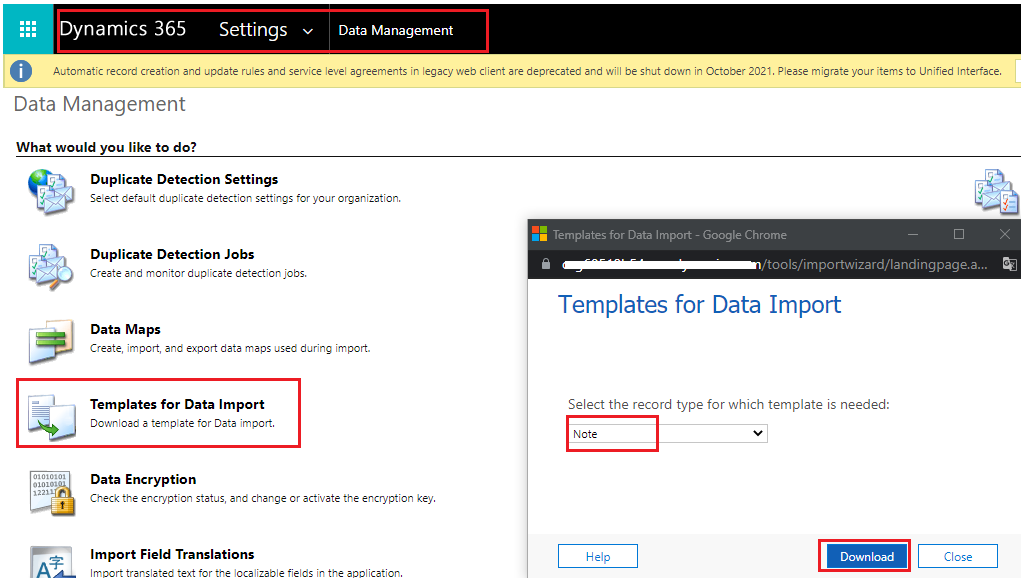
    2570.pastedimage1626338347163v6.png

    2.Now, since you don’t have the Regarding field in the Excel you exported from Templates, here’s what you need to do:

    Add a column yourself, give it a proper name based on what the Notes’ Parent entity should be. In this example, I’m importing Notes for Case. So, I’m adding a column called ‘Case’, then a new column will be created as below
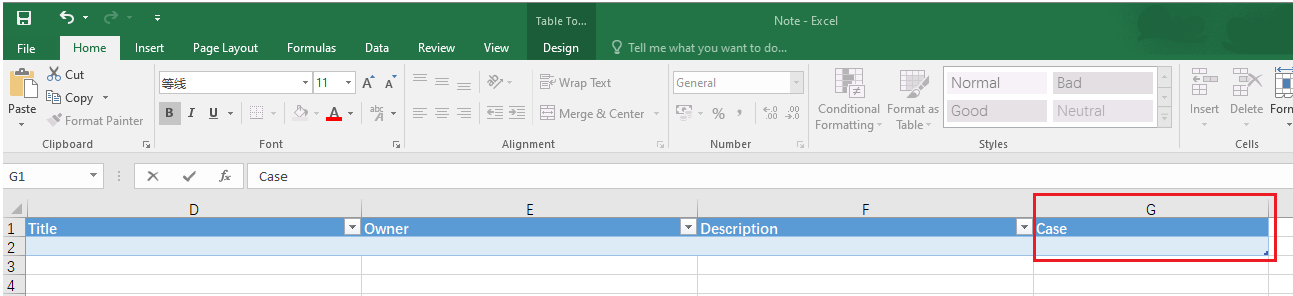
    1031.pastedimage1626338573180v7.png

    3.Now, populate your data based on how the Notes should be imported and tagged to which records.
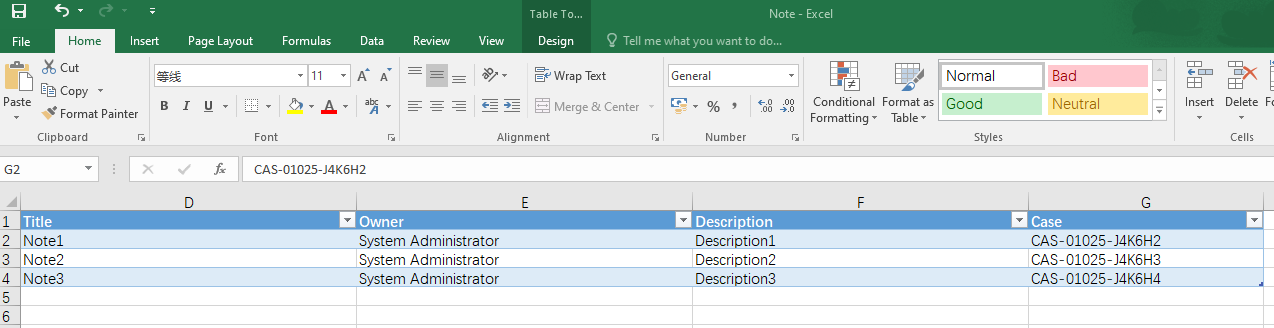
    8738.pastedimage1626338734505v8.png

    4.Now, by default, this template is exported in Microsoft Excel Worksheet (xlsx) format. You’ll need to Save As in CSV format
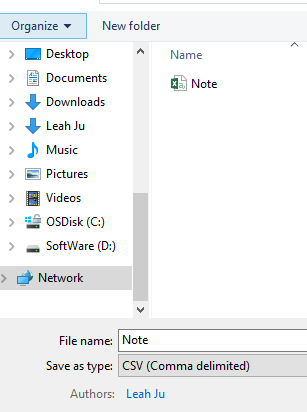
    6646.pastedimage1626339756795v9.png

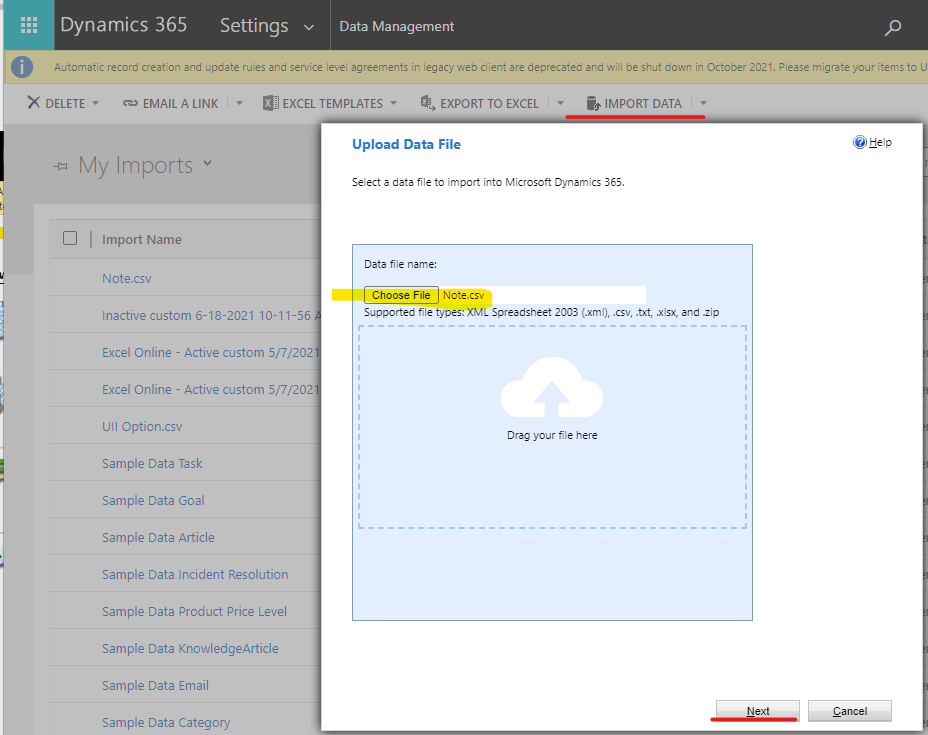
    5.Go Settings > Data Management > Imports to import the file.
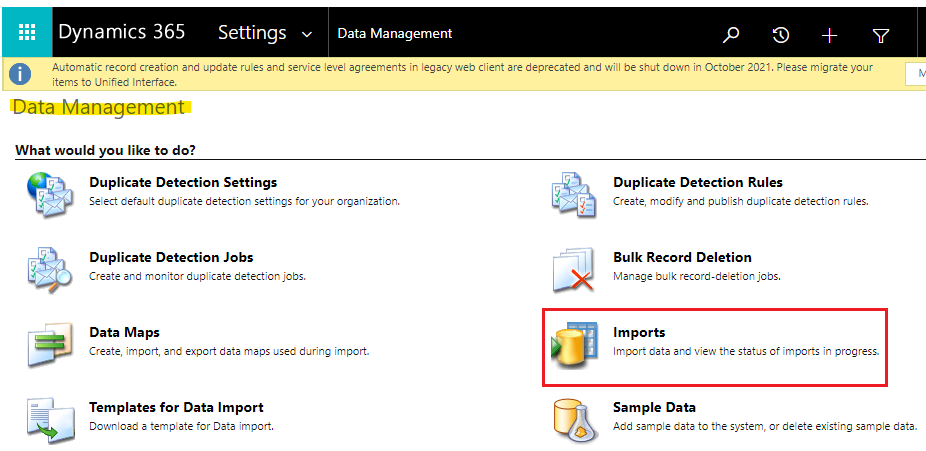
    8182.pastedimage1626339930588v10.png

    0160.pastedimage1626339952090v11.png

    6.Then, you’ll need to manually select the Note entity from the drop-down and then proceed
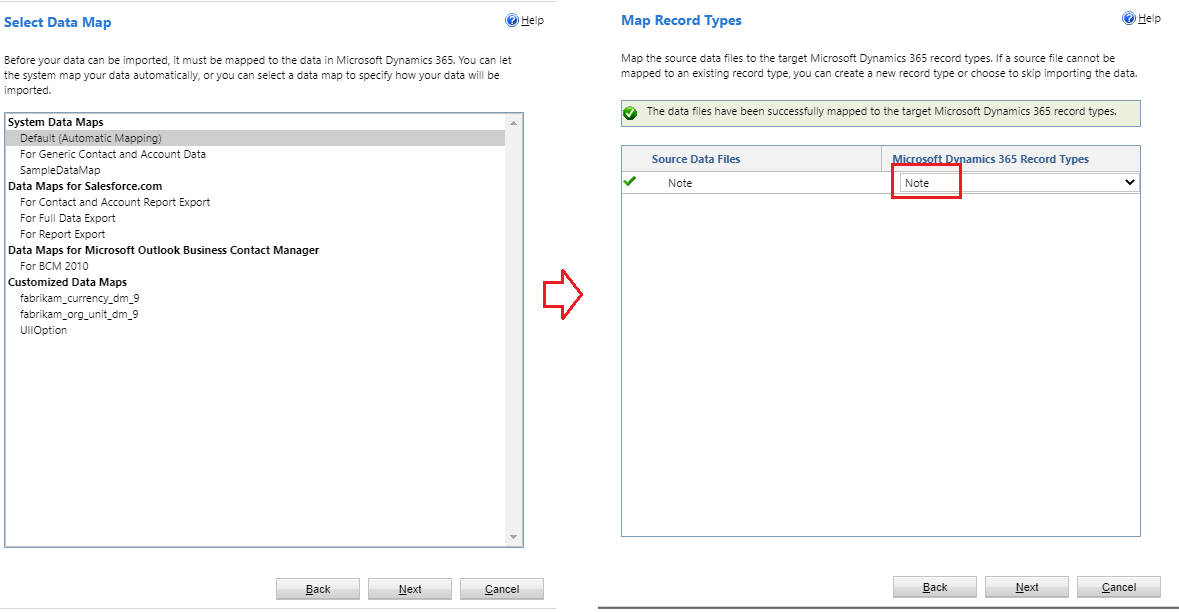
    3250.pastedimage1626340061711v12.png

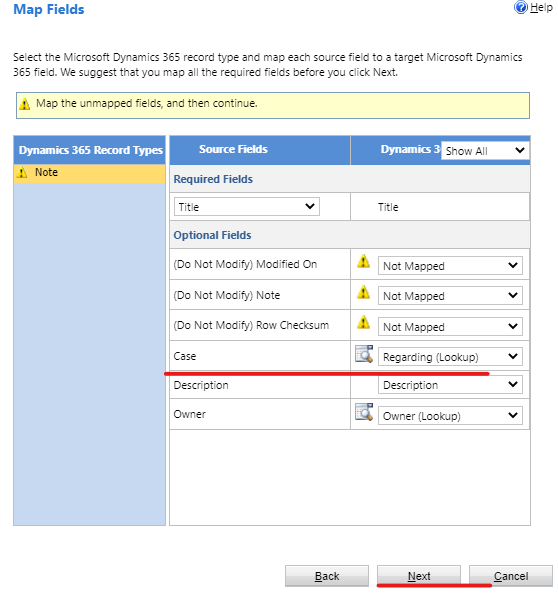
    7.Now, whatever is mapped automatically will be mapped. For the newly created Case field, you’ll need to expand the Not Mapped dropdown and select Regarding (Lookup), then  you’ll need to select the entity you want the Notes to appear under. In my example, this is Case, so I have it right there.
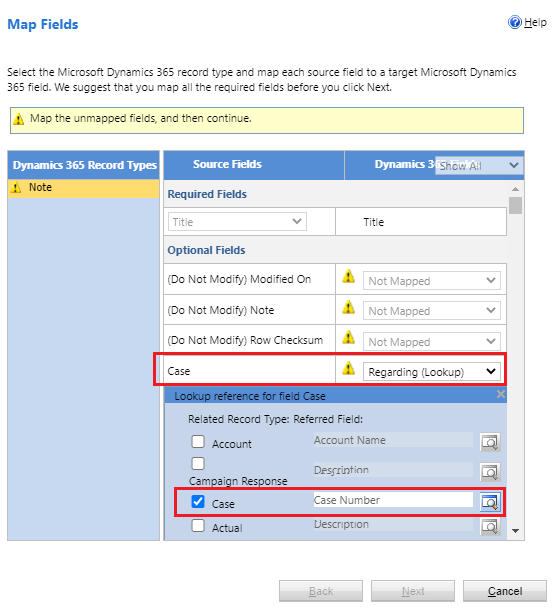
    1057.pastedimage1626340151377v13.png

    8.Since this Regarding fields supports several entities, scroll all the way down to Confirm your selection

    8765.pastedimage1626340242738v14.png

    9.Now, your Regarding field is set and you are ready to confirm and Import
    7673.pastedimage1626340291417v15.png

    10.Import results:

    0118.pastedimage1626340353447v16.png

    2654.pastedimage1626340464846v17.png

    Regards,

    Leah Ju

    Please mark as verified if the answer is helpful. Welcome to join hot discussions in Dynamics 365 Forums.

  • empath-e CRM Profile Picture
    1,136 on at

    Hi Leah,

    This is great! Thank you so much for taking the time to put this together.

Under review

Thank you for your reply! To ensure a great experience for everyone, your content is awaiting approval by our Community Managers. Please check back later.

Helpful resources

Quick Links

Responsible AI policies

As AI tools become more common, we’re introducing a Responsible AI Use…

Neeraj Kumar – Community Spotlight

We are honored to recognize Neeraj Kumar as our Community Spotlight honoree for…

Leaderboard > Microsoft Dynamics 365 | Integration, Dataverse, and general topics

#1
#ManoVerse Profile Picture

#ManoVerse 74

#2
Martin Dráb Profile Picture

Martin Dráb 64 Most Valuable Professional

#3
Pallavi Phade Profile Picture

Pallavi Phade 49

Last 30 days Overall leaderboard

Product updates

Dynamics 365 release plans