web
You’re offline. This is a read only version of the page.
close
Skip to main content

Notifications

Announcements

No record found.

Community site session details

Community site session details

Session Id :
Microsoft Dynamics CRM (Archived)

Outlook Add Contacts Wizard

(0) ShareShare
ReportReport
Posted on by

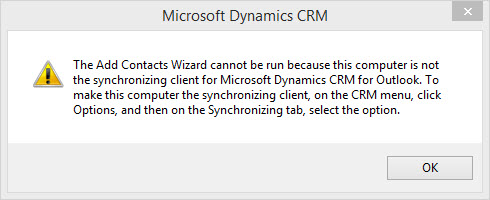
When I try to run this in Dynamics CRM 2016 online I get, 

"The Add Contacts Wizard cannot be run because this computer is not the synchronizing client for Microsoft Dynamics CRM for Outlook."
2364.2016_2D00_04_2D00_26_5F00_8_2D00_54_2D00_59.jpg

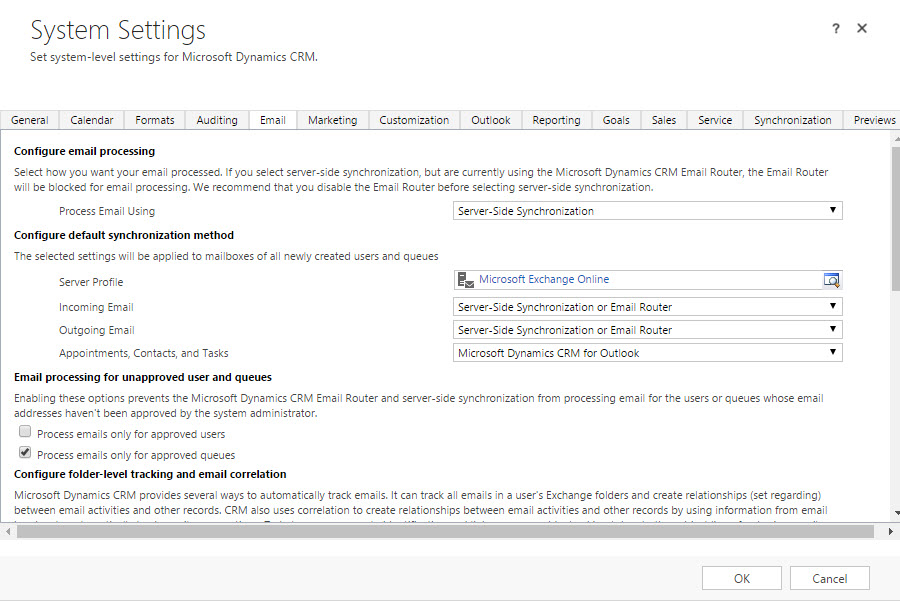
However my default synchronization method for Appointments, Contacts, and "Tasks is Microsoft Dynamics CRM for Outlook"
2016_2D00_04_2D00_26_5F00_9_2D00_08_2D00_58.jpg

Why can't I Import my Contacts?

*This post is locked for comments

I have the same question (0)
  • Suggested answer
    ThomasN Profile Picture
    3,190 on at

    Hi Tim, Thanks for reaching out.

    The synchronizing the error message is referring to is at the personal options for CRM for Outlook. Your screenshot is from the System Settings in CRM. From within Outlook go to File > CRM > Personal Options. Then this will open a screen below. Click on Synchronization tab and you will see a checkbox to "Set this computer to be the client..." Check that and click OK.

    This can happen if the user synchronizes another profile on another device. This has nothing to do with contact import. Once you correct this the contact import should work correctly.

    CRM_5F00_oulook_5F00_PersonalOptions.png

  • Suggested answer
    Gary Letter Profile Picture
    1,267 on at

    In Outlook, go to File -> CRM -> Options -> Set Personal Options -> Synchronization tab. Check the setting for "Set this computer to be the client to perform synchronization between Outlook and your primary Microsoft Dynamics CRM organization." The box should be checked on computer where you want to import the Contacts.

    If it's not checked, you probably have the CRM client installed on another computer with the same CRM user/CRM organization.

  • tim794 Profile Picture
    on at

    Thanks for the help and thanks also to Gary.  For some reason I don't seem to have those options at all.  Is this option not available in the Office 365 version?

    2016_2D00_04_2D00_26_5F00_13_2D00_20_2D00_54.jpg

  • Suggested answer
    ThomasN Profile Picture
    3,190 on at

    Hi Tim,

    Hi Tim, you have to access your personal options following the steps from within the Outlook client. The screen you shared is from within CRM. Follow steps in mine or Gary from within outlook and you will see the same screen but matches the screenshot in earlier post.

    Hope this helps.

    -Tom

  • tim794 Profile Picture
    on at

    I suspect this is one of those things Microsoft has changed without bothering to explain it.  I got to that screen by pressing this button:

    2016_2D00_04_2D00_26_5F00_14_2D00_41_2D00_16.jpg

  • Suggested answer
    ThomasN Profile Picture
    3,190 on at

    Hi Tim,

    Okay thank you for verifying. If you are not seeing the option then your profile is NOT connected multiple Outlook Clients for the same organization. Another place to look for synchronization is in Microsoft Dynamics CRM Diagnostic app that is installed with the client. You can find that under your apps in a Microsoft Dynamics folder. Open that and make sure the first box is checked to synchronize Outlook and CRM.

    If that is checked, the next step would be to uninstall the client and reinstall to get a fresh start. Also think about where the last time you logged into another computer with Outlook and loaded CRM Client. There are lots of variables. I hope this helps. Let me know if not.

    -Tom

  • Community Member Profile Picture
    on at

    I have same situation. When I check diagnostics, sync is enabled. 
    no_5F00_option_5F00_to_5F00_select_5F00_sync.PNG

    When I check in Outlook, File->CRM->Options->Synchronization tab, there is no option to make this computer client for sync.
    no_5F00_option_5F00_to_5F00_select_5F00_sync.PNG

    When I try to run Add Contacts Wizard, I get the same error as tim794.


    Please advise? I wanted to set this up on my machine to test as my clients are complaining that their contacts are not being sync-ed. Outlook client was not installed for this user on any other computer - that is a nonsense. This is fresh account provisioned few days ago.

  • tim794 Profile Picture
    on at

    Hi Zec,

    What this turned out to be was simply that the Mailbox settings for the user in the CRM override the client.  Also the system settings for Email are basically just the defaults.  Therefore you have to find the mailbox for the user under Settings --> Email Configuration --> Mailboxes and change the setting from "Server-Side Synchronization" to "Microsoft Dynamics CRM for Outlook".  Then you restart Outlook and you should be able to sync manually and run the wizard.  

    2016_2D00_06_2D00_27_5F00_12_2D00_48_2D00_22.jpg

    One thing to note is that the server side synchronization will boost performance so after you import your contacts you may want to change this back.

  • Community Member Profile Picture
    on at

    Thank you so much! This worked for me well.

  • paul sexstone Profile Picture
    on at

    that whole section of sync client is not present in my settings screen shown above,  what next?

Under review

Thank you for your reply! To ensure a great experience for everyone, your content is awaiting approval by our Community Managers. Please check back later.

Helpful resources

Quick Links

Responsible AI policies

As AI tools become more common, we’re introducing a Responsible AI Use…

Neeraj Kumar – Community Spotlight

We are honored to recognize Neeraj Kumar as our Community Spotlight honoree for…

Leaderboard > 🔒一 Microsoft Dynamics CRM (Archived)

#1
SA-08121319-0 Profile Picture

SA-08121319-0 4

#1
Calum MacFarlane Profile Picture

Calum MacFarlane 4

#3
Alex Fun Wei Jie Profile Picture

Alex Fun Wei Jie 2

Last 30 days Overall leaderboard

Featured topics

Product updates

Dynamics 365 release plans
