web
You’re offline. This is a read only version of the page.
close
Skip to main content

Notifications

Announcements

No record found.

Community site session details

Community site session details

Session Id :
Small and medium business | Business Central, N...
Suggested Answer

Next available ID for each object type

(0) ShareShare
ReportReport
Posted on by 891

Is there a way (programmatic or manual) to determine the next available ID for an object type within the customization range: 50,000-99,999 on a particular installation of Business Central? For instance, if there are already two other custom extensions installed using up ID's, plus Designer containing page extensions created by users. Are the ID's across all of these stored in a table that can be interrogated?

I have the same question (0)
  • Suggested answer
    JAngle Profile Picture
    133 on at

    Vs code may provide a valid answer. I use AZ AL extension to be able to view the contents of .app files. You can then navigate through the base app or custom one’s. Some of the code might be hidden but the object ids are present.

    marketplace.visualstudio.com/items

    There is also this one: marketplace.visualstudio.com/items

    Apart from these you could create a page. Not aware of a standard one showing all objects. This way you could control it to show custom objects only as the mentioned tools show standard objects as well. Lookups to the object table happen in various places like configuration packages for example

  • Suggested answer
    Tabrez Ajaz Profile Picture
    785 on at

    Dear Nick,

    You can do a workaround to know what ids were consumed:

    Use the below URL's to know:

    My server instance is BC140 if your is different then change it accordingly, or if you are using an online version then replace "">">">http://localhost:8080/BC140/" with your Business Central Online URL:

    To see all the base or custom used objects by directly accessing the table or page: 
    For Page: localhost:8080/.../
    For Table: localhost:8080/.../
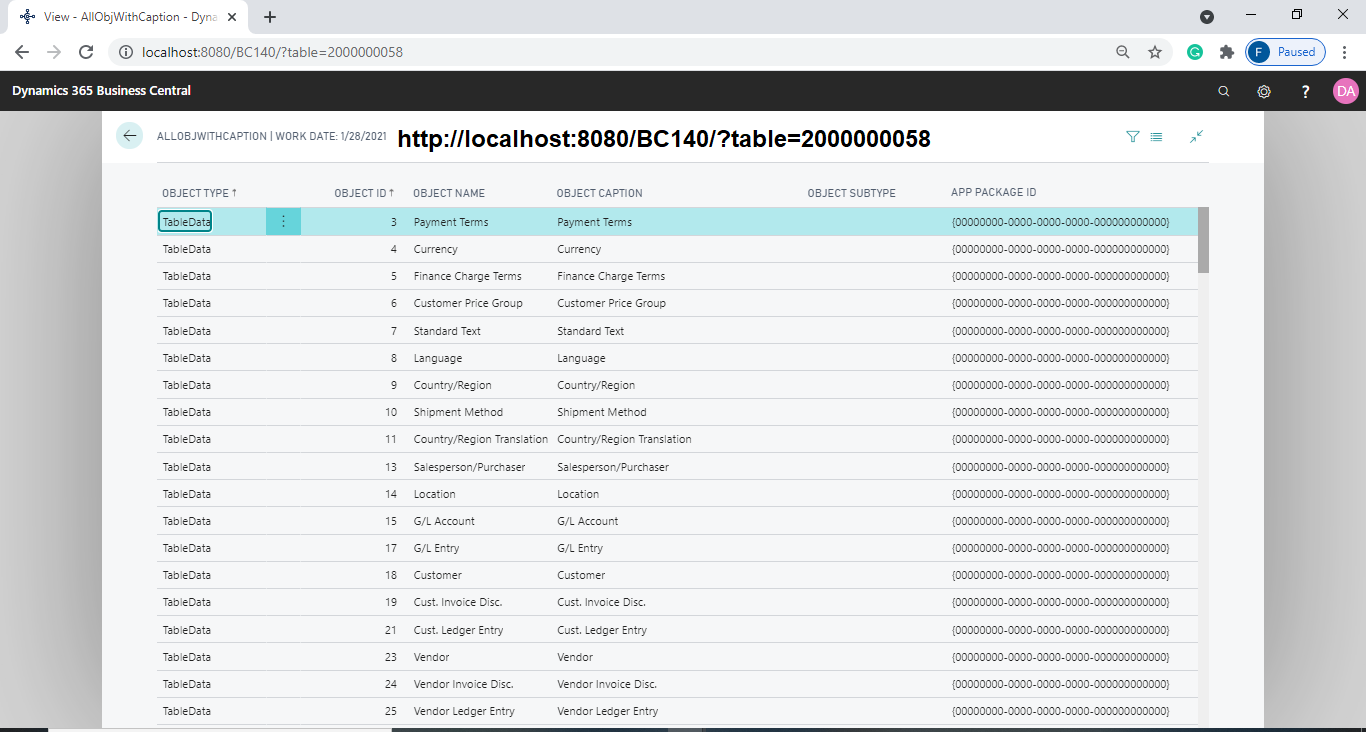
    pastedimage1624471067056v4.png

    To check all the used objects in an extension follow the below steps:

    1: Identify App Package ID:
    pastedimage1624471122118v5.png

    2: Open this URL: localhost:8080/.../ filter based on App Package ID by doing this you will find all the objects information that you used in the extension
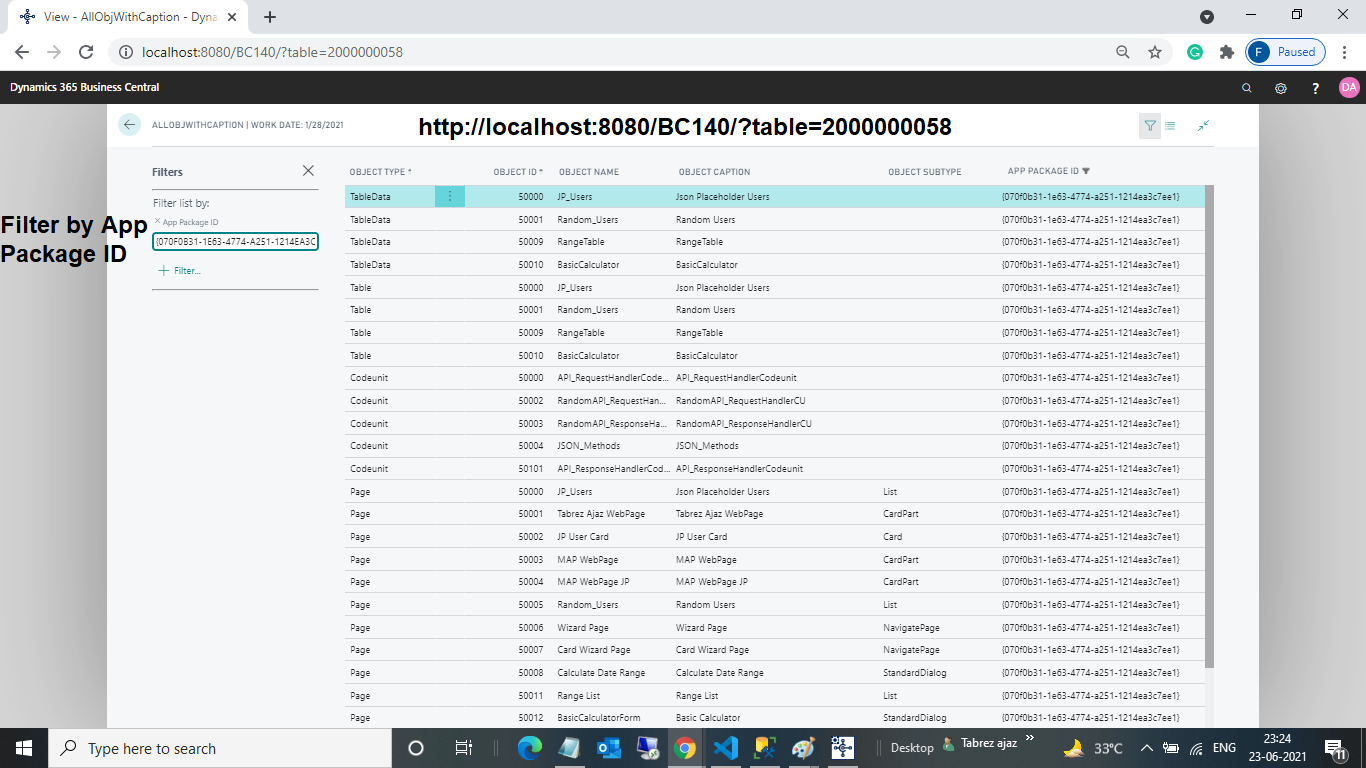
    pastedimage1624470893560v3.png

    http:// localhost:8080/BC140/?page=9174&filter=AllObjWithCaption.'Object ID' IS '50000'
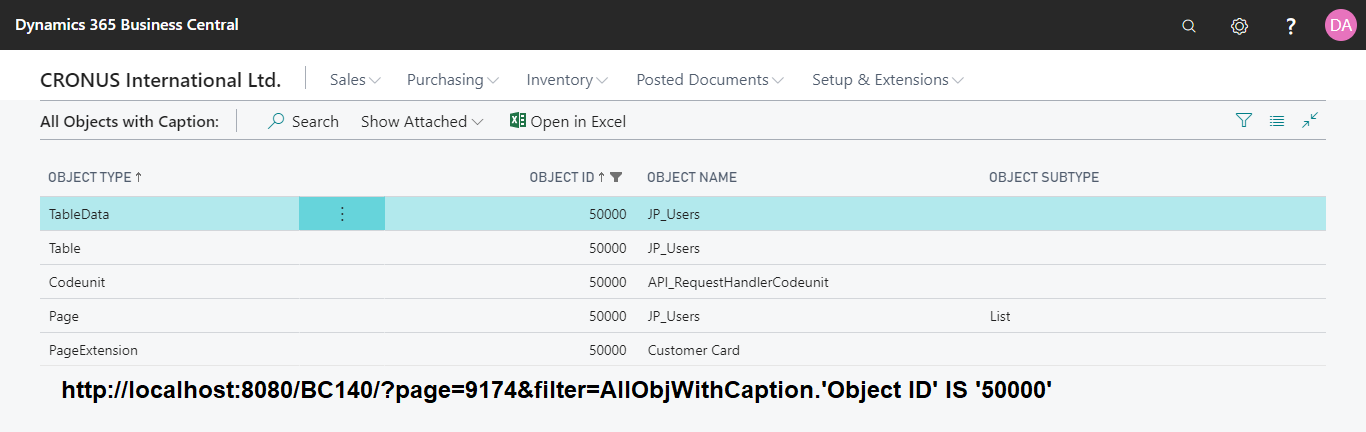
    pastedimage1624470639502v2.png

    http:// localhost:8080/BC140/?page=9174&filter=AllObjWithCaption.'App Package ID' IS '070f0b31-1e63-4774-a251-1214ea3c7ee1' 
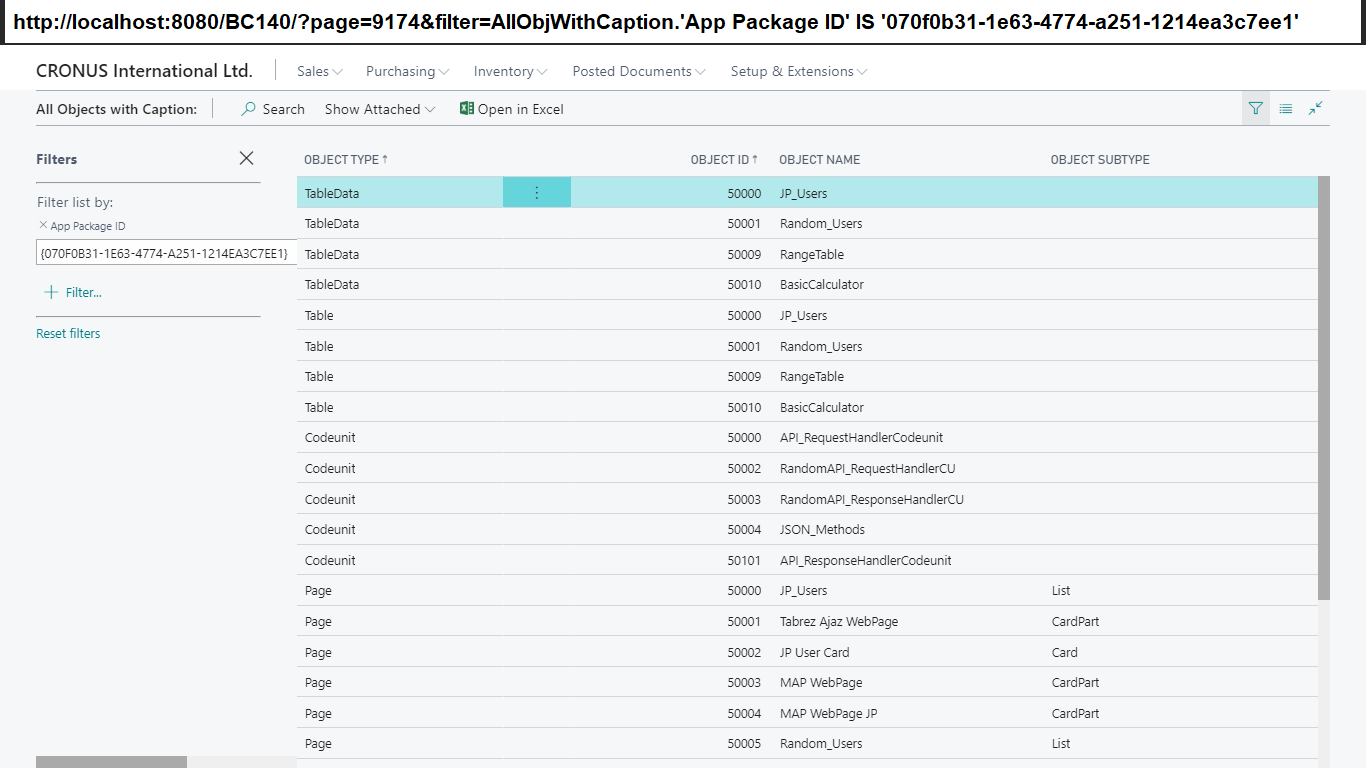
    pastedimage1624471526620v6.png

    Another Workaround you can use: 
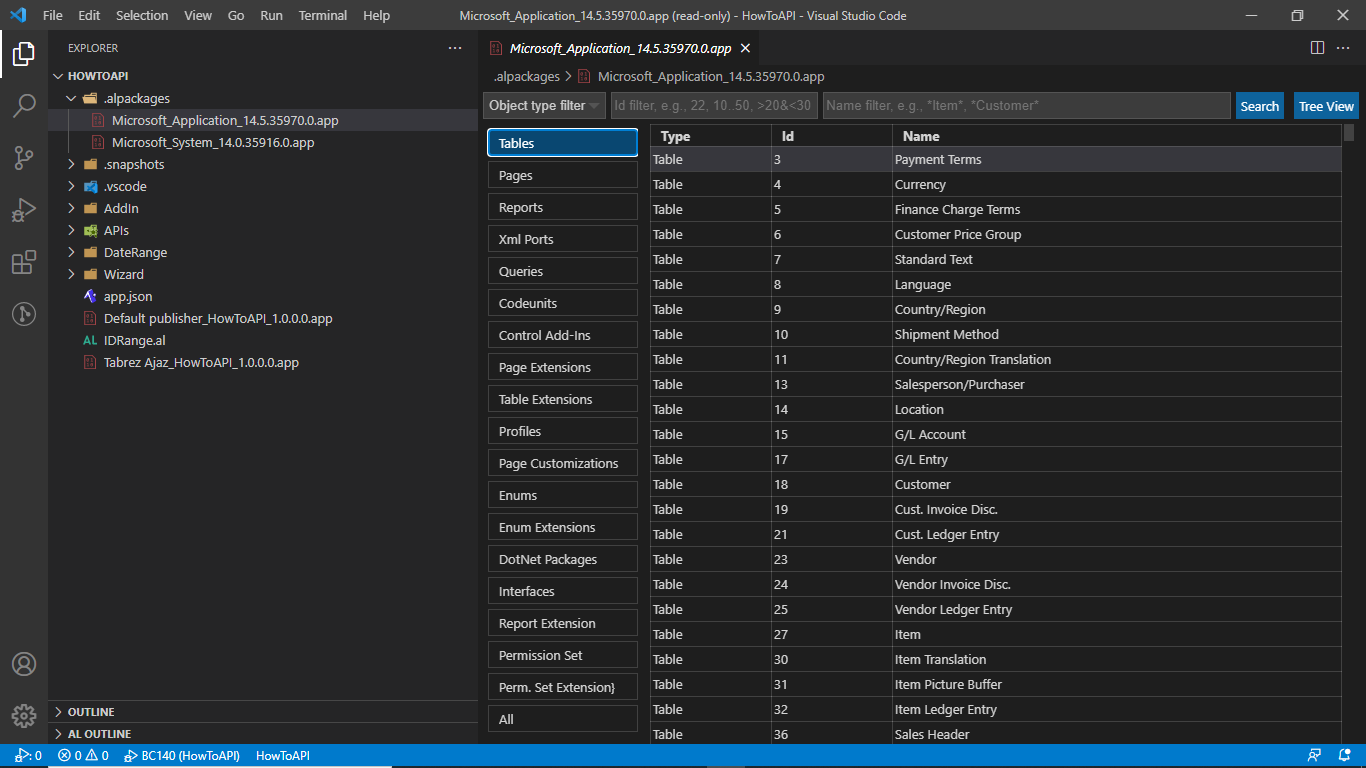
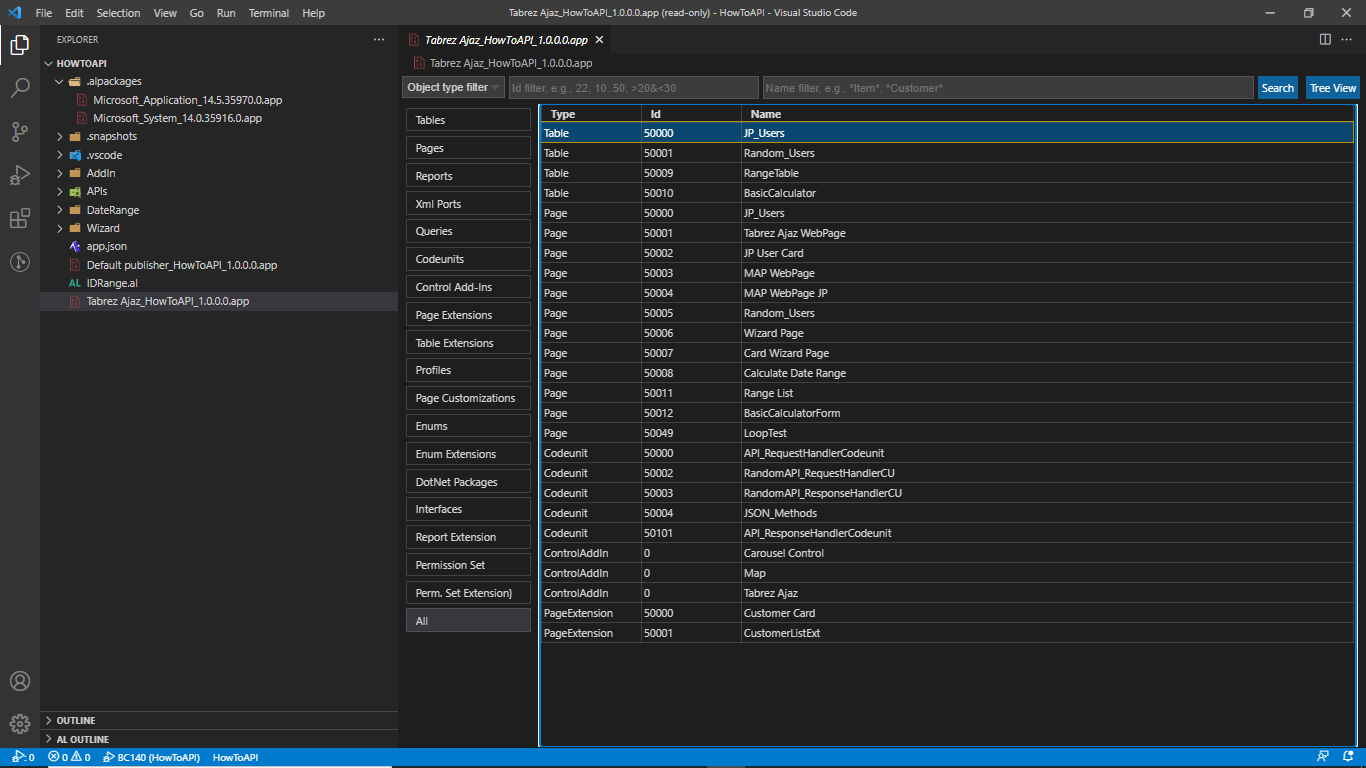
    You can also Explore AZ AL Dev Toolz/AL Code Outline to see Object ID's in different App Package ID:
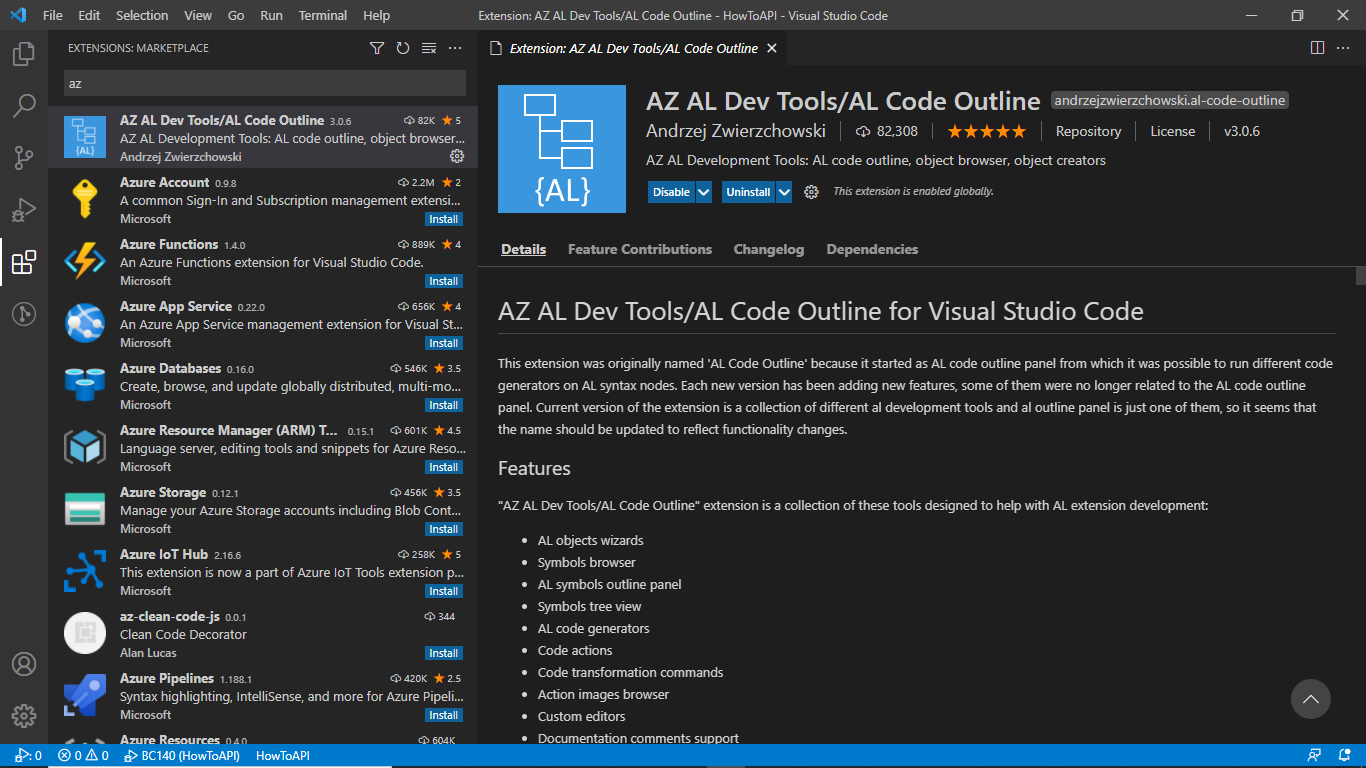
    pastedimage1624472251740v1.png

    Microsoft_Application BC14 Objects:

    pastedimage1624472319623v2.png

    My Custom Solution App Objects:
    pastedimage1624472360239v3.png


    I know this is not the exact solution, but using this workaround at least you will have an idea to know what objects id are consumed if you just copy the filtered records in excel and sort by Object ID this will be very helpful.


    As you asked a very good question, very soon I will try to find a better solution for sure to identify all the used object ID and will share it with you. 


  • Nick Webb Profile Picture
    891 on at

    Thanks for the useful info. Just to add that, if you filter the Object ID column on '>49999&<100000' you get all ID's in the customization range.

  • Suggested answer
    Marco Mels Profile Picture
    on at

    Thank you for the addition. This really helps others.

Under review

Thank you for your reply! To ensure a great experience for everyone, your content is awaiting approval by our Community Managers. Please check back later.

Helpful resources

Quick Links

Responsible AI policies

As AI tools become more common, we’re introducing a Responsible AI Use…

Neeraj Kumar – Community Spotlight

We are honored to recognize Neeraj Kumar as our Community Spotlight honoree for…

Leaderboard > Small and medium business | Business Central, NAV, RMS

#1
OussamaSabbouh Profile Picture

OussamaSabbouh 3,151

#2
Jainam M. Kothari Profile Picture

Jainam M. Kothari 1,443 Super User 2025 Season 2

#3
YUN ZHU Profile Picture

YUN ZHU 1,092 Super User 2025 Season 2

Last 30 days Overall leaderboard

Featured topics

Product updates

Dynamics 365 release plans