web
You’re offline. This is a read only version of the page.
close
Skip to main content

Announcements

Community site session details

Community site session details

Session Id :
Customer experience | Sales, Customer Insights,...
Suggested Answer

Customer Insight and D365 Sales linking

(0) ShareShare
ReportReport
Posted on by 1,241

Hi,

I had installed the Customer Insight solution into Sales hub, how can I link the contact in Sales hub with Customer Insight contact data?

Customer-insight-configuration-in-CE.jpg

I had also configured the solution. But seem like is not working.

Thanks.

Regards,

Teh

I have the same question (0)
  • Suggested answer
    Community Member Profile Picture
    on at

    Teh,

    It appears that your solution configuration is setup correctly as the Save Configuration button is active.

    After you have the Customer Insights solution setup in Dynamics 365 you still need to assign Control configuration to fields on the Contact form. In my example I have used existing Address fields but in a production environment you should create new fields for this purpose.
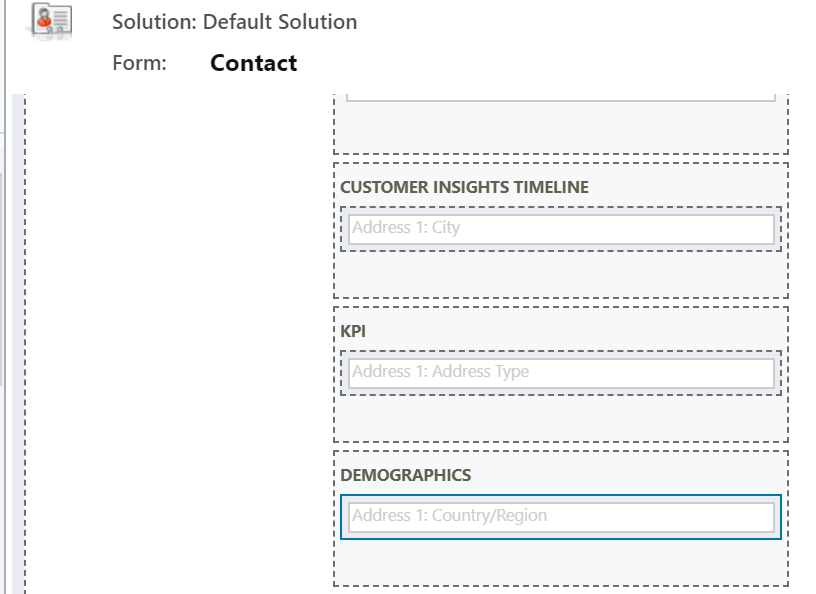
    pastedimage1593027006892v1.png

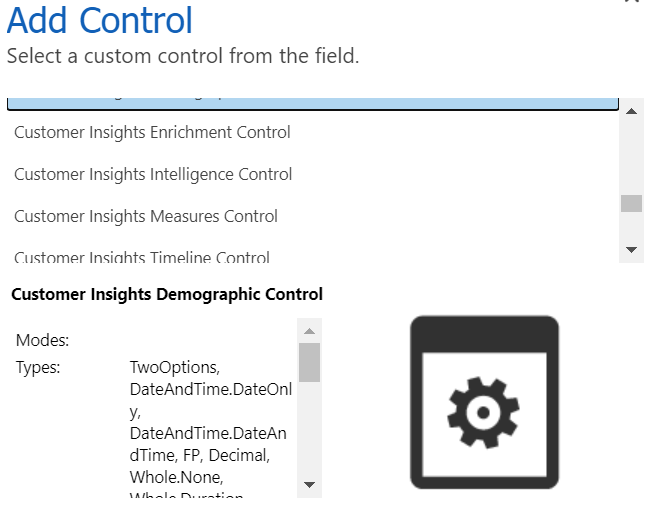
    There are 5 different Customer Insights Controls that are available as a part of the Solution, they are Customer Insights Demographic Control, Customer Insights Enrichment Control, Customer Insights Intelligence Control, Customer Insights Measures Control & Customer Insights Timeline Control .  You can use any or all of these Controls as needed.  To set the Control Configuration on each field open the Field Properties, choose the Controls tab, choose Add Control, scroll and select the correct Control for Customer Insights and then select that you want the Control to use on Web, Phone and Tablet. 
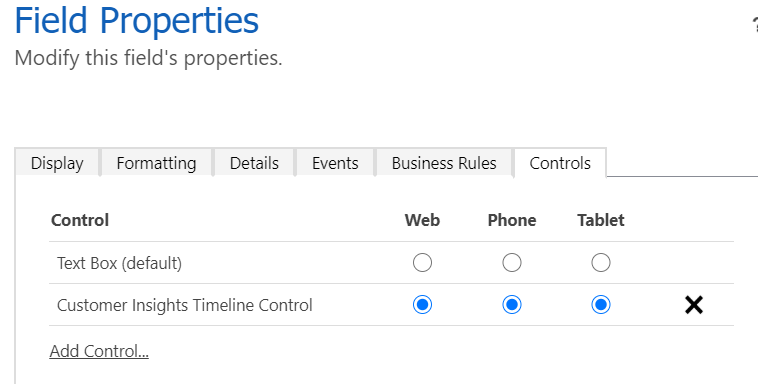
    pastedimage1593027208084v2.png

    pastedimage1593027892249v4.png

    So with the Customer Insights Solution for Dynamics 365 installed and configured you can add fields to the Contact form to hold the Customer Insights field controls which will then display Customer Insights data in place of the fields.
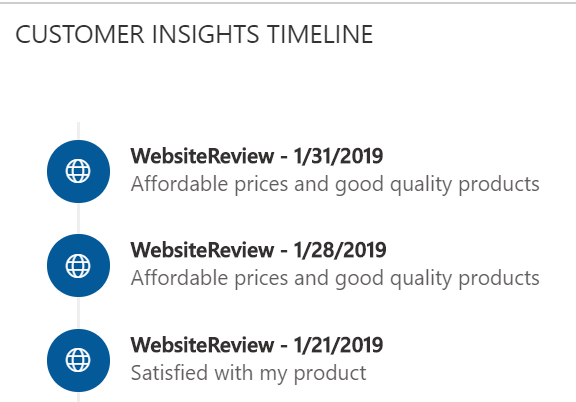
    pastedimage1593028287277v5.png

    I hope this helps, please mark as Verified if it solved your problem.

    Thanks,

    Scott Roller

  • Venedict Profile Picture
    1,241 on at

    Hi,

    I understand we still need to add the custom control.

    What I meant is, currently I'm creating a contact with a custom field called contact Id in CE. I have my dataset in CI with the same contact Id. Take note that the data in CI is imported using text file. So I manually create the same contact with the custom Contact Id in CE. How the system know which contact it should mapped to in CE?

    Regads,

    Teh

  • Suggested answer
    Community Member Profile Picture
    on at

    The Export Destination functionality only uses the D365 system ContactID for matching currently.  You will need to connect your D365 Contacts to CI using the CDS connector then in the CI Unify process you will need to match the D365 Contacts to your existing dataset using your custom Contact ID as the key. Then you will have a D365 system ContactID that is matched that you can use to configure the Export Destination.  Please let me know if the issue is more complex than that.

    pastedimage1593110091451v2.png

  • Community Member Profile Picture
    on at

    Hi there,

    You may want to try making your contactid the primary key for your customer table.

    You can do this in the Map step when you set the unique IDs for each entity you're going to be matching and merging.

    pastedimage1594915618568v2.png

    As a preliminary step to verify the contact IDs from your two tables are aligning, you can ingest both tables in your data source and merge the two tables to see whether there is a relational structure. Similarly to how you would do a merge in Power BI or a SQL join.

    You do not need to load this entity either (right-click and select "Enable load"):

    pastedimage1594915586821v1.png

    Hope you come right.

    Halen

  • Community Member Profile Picture
    on at

    Hi there,

    You may want to try making your contactid the primary key for your customer table.

    You can do this in the Map step when you set the unique IDs for each entity you're going to be matching and merging.

    0652.pastedimage1594915618568v2.png

    As a preliminary step to verify the contact IDs from your two tables are aligning, you can ingest both tables in your data source and merge the two tables to see whether there is a relational structure. Similarly to how you would do a merge in Power BI or a SQL join.

    You do not need to load this entity either (right-click and select "Enable load"):

    4188.pastedimage1594915586821v1.png

    Hope you come right.

    Halen

Under review

Thank you for your reply! To ensure a great experience for everyone, your content is awaiting approval by our Community Managers. Please check back later.

Helpful resources

Quick Links

Introducing the 2026 Season 1 community Super Users

Congratulations to our 2026 Super Stars!

Congratulations to our 2025 Community Spotlights

Thanks to all of our 2025 Community Spotlight stars!

Leaderboard > Customer experience | Sales, Customer Insights, CRM

#1
Tom_Gioielli Profile Picture

Tom_Gioielli 56 Super User 2026 Season 1

#2
Eugen Podkorytov Profile Picture

Eugen Podkorytov 49

#3
Jimmy Passeti Profile Picture

Jimmy Passeti 31 Most Valuable Professional

Last 30 days Overall leaderboard

Product updates

Dynamics 365 release plans