web
You’re offline. This is a read only version of the page.
close
Skip to main content

Notifications

Announcements

No record found.

Community site session details

Community site session details

Session Id :
Microsoft Dynamics CRM (Archived)

how to configure the action buttons on entity forms to work

(0) ShareShare
ReportReport
Posted on by

please I need help with how to configure action buttons like cancel case, reopen case , closecase

 and also add comment buttons

will appreciate a step by step approach 

thank you so much 

*This post is locked for comments

I have the same question (0)
  • Suggested answer
    Charles Abi Khirs Profile Picture
    3,569 on at

    Hello,

    You can use the ribbon workbench by downloding the solution that gives you a very user friendly interface to work with ribbon buttons and add, delete, hide, change any ribbon button (www.develop1.net/.../ribbonworkbench.aspx).

    As a recommendation, create a new solution in CRM, and add the needed entities that you have to work with, and select it when you open the ribbon workbench.

    Hope this helps!!!

    If you found this useful, please mark this answer as verified.

    Charles Abi Khirs.

  • Community Member Profile Picture
    on at

    what does the new solution that I need to create do?

  • Suggested answer
    Charles Abi Khirs Profile Picture
    3,569 on at

    In this solution, you will add only the entities you want to change their ribbon buttons. In your case, it is the "Case" entity. This way when the ribbon workbench publishs your changes, it will not take much time to do it.

  • Suggested answer
    Aric Levin - MVP Profile Picture
    30,190 Moderator on at

    Hi,

    I am not sure, but based on the questions and the tags that you have, are you looking for a solution on the application side or on the portal side?

    The answer that you were provided is for application.

    If you need on the portal, you can add buttons that run a workflow for example. You would do that in the Additional Settings tab of the entity form.

    Select the action that you are looking for (such as Workflow), and choose the name of the Workflow, which will execute it.

    Hope this helps.

  • Kit Englund Profile Picture
    57 on at

    Firstly, I am not a user of Cases, so I hope someone can build on these steps and point you to the specific component you need to make the change.  Therefore, I upload these as more a guide to how I would go through finding this structure myself.

    Next, I assume you will be doing this from your development environment.  Therefore, you would open a Solution, as suggested by Charles.  If you haven't used solutions before, read the intro:

    [View:https://docs.microsoft.com/en-us/dynamics365/customer-engagement/developer/introduction-solutions:750:50] (pay particular attention to managed/unmanaged).

    Then follow the creation steps for a new Solution at:

    [View:https://docs.microsoft.com/en-us/dynamics365/customer-engagement/customize/create-solution:750:50]

    Steps after adding a solution:

    1. Now, you most likely want to start with adding a Process to your solution.  In the long left-hand menu of the solution you have created, find Process (this is where your Workflows live, as also suggested):

    Solution8.png

    2. Now, click on Add Existing to scroll through all your processes and workflows:

    Solution2.png

    3. Admittedly, I don't use Cases, so not sure which work flow you need.  Let's say that this is driven by the Case to Work Order Business Process.  However, look through the list and find the most likely Select that process by clicking on it to tick it, then click OK:
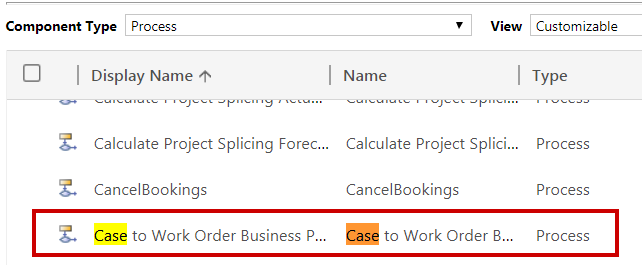
    Solution3.png

    4. It will now appear on your Process list in your solution.  Double click it to open it.  Now, check it out and see if it looks familiar.  If it is the right workflow, you can start updating it by adding and removing components, or it sounds like you need to check out the corresponding Business Rules:
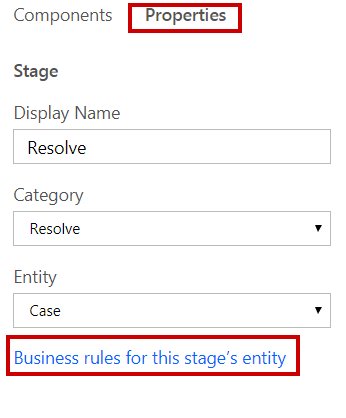
    Solution4.png

    5. You may also want to check Business Rules on the entity. 

    a. Add an Existing Entity 

    Solution5.png

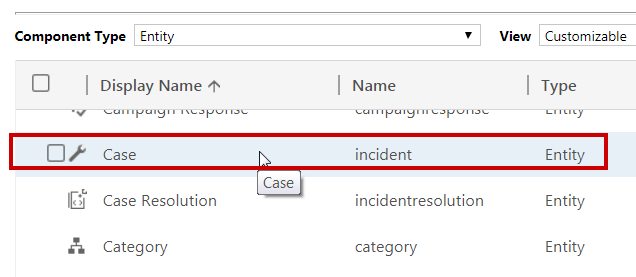
    b. Select Case 

    Solution6.png

    c. Note, when it asks what parts of the entity to bring across, I would recommend selecting "Add All Assets" in the top right hand if this is the first time you have done this.  If you know exactly what you are doing, you can be far more specific as to what you want to bring across. 

    Solution7.png

    d. And keep the existing radial button.  Again, not normally recommended, but I find you have problem promoting if the Missing Required Component is the actual Entity you are adding.  On the downside, this often means you have to bring across a range of other entities due to relationships.  You are best to ascertain the actual requirements during Import of the Solution to your test environment, rather than on Export.
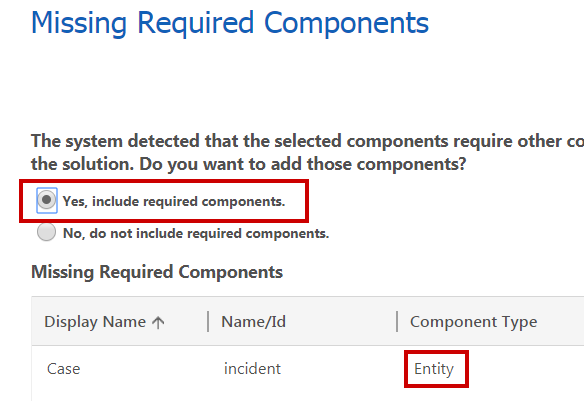
    Solution8.png

    6. Once the Entity is on your left-hand menu, open that entity and check through each of the subcomponents of the entity to check if any of these control the Case structure you are looking to address:
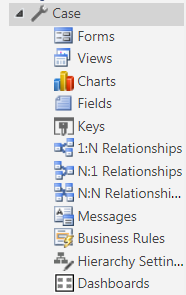
    Solution9.png

    7. Lastly, if you can't find it in any of the above, you may find that you are working with a Web Resource.  Again, this is in the left-hand menu and takes a long time to load, so be prepared.  If it is in here, it will most likely be a script and you'll have to put Java knowledge to use.  This is probably how you'll end up adding a Comment Button.  Try some instructions like this:

    https://community.dynamics.com/crm/f/117/t/265943

    Hope this provides some help.  Still, if someone can answer you directly and specifically, you'll be better off.

  • Suggested answer
    Mahendar Pal Profile Picture
    45,095 on at

    Hi,

    You can add these buttons using entity form configuration, you can refer SDK or check this: nishantrana.me/.../adding-actions-qualify-workflow-delete-etc-for-entity-form-in-portal-in-dynamics-365  and if you are looking for adding html button you can refer this post: http://himbap.com/blog/?p=2975

Under review

Thank you for your reply! To ensure a great experience for everyone, your content is awaiting approval by our Community Managers. Please check back later.

Helpful resources

Quick Links

Responsible AI policies

As AI tools become more common, we’re introducing a Responsible AI Use…

Neeraj Kumar – Community Spotlight

We are honored to recognize Neeraj Kumar as our Community Spotlight honoree for…

Leaderboard > 🔒一 Microsoft Dynamics CRM (Archived)

#1
SA-08121319-0 Profile Picture

SA-08121319-0 4

#1
Calum MacFarlane Profile Picture

Calum MacFarlane 4

#3
Alex Fun Wei Jie Profile Picture

Alex Fun Wei Jie 2

Last 30 days Overall leaderboard

Featured topics

Product updates

Dynamics 365 release plans