Hi RicksterBC44,
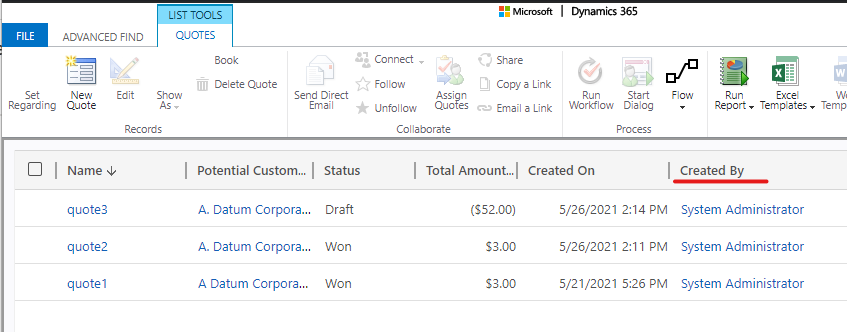
In fact, the ‘created by’ field of quote shows who created the record, which shows an 1:N relationship between User and Quote entities.

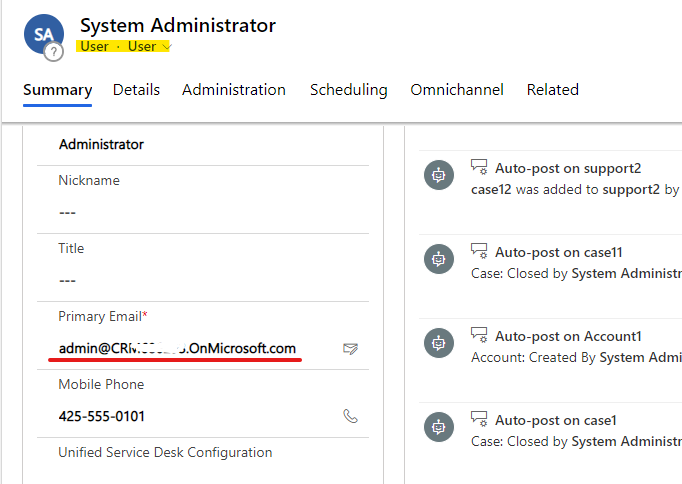
And the ‘created by’ field just show the user name of the user in the quote entity, the email address of the quote creator is in the user entity.
Quote view:
User Form:
So you need select related entity records(User) associated with our chosen (quote) entity when you create quote template.

Download it and define the Word template.
Expand the related entity(lk_quotebase_createdby) to see all available fields.

Right-click the field(internalemailaddress) you wish to add, and then select Insert Content Control > Plain Text.


Test:
Upload the template to the crm.

Open one quote record, and click the template you just uploaded.
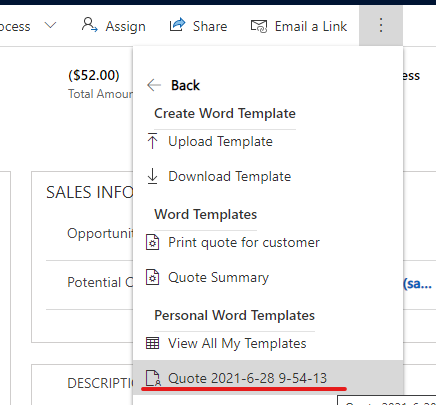
Now, you can view quote creator's email address.

Regards,
Leah Ju
Please mark as verified if the answer is helpful. Welcome to join hot discussions in Dynamics 365 Forums.


