This post has the goal to address FAQ related to several printing options within web client.
NOTE: this community post refers as latest update considering version 16.x.
First differentiation has to be done between SaaS (cloud based) and On-Premise deployment
Dynamics 365 Business Central SaaS (16.x)
- Client side direct Printing is allowed through cloud printer extensions. It is not possible to add network or local printers with SaaS.
Cloud printers typically accept PDF formats as attachment of a PDF file sent over a specific address.
EMAIL PRINTER is the out-of-the-box generic cloud printer service that will enable sending an email to a specific address with attached PDF file.
This is performed through print jobs and requires SMTP setup.
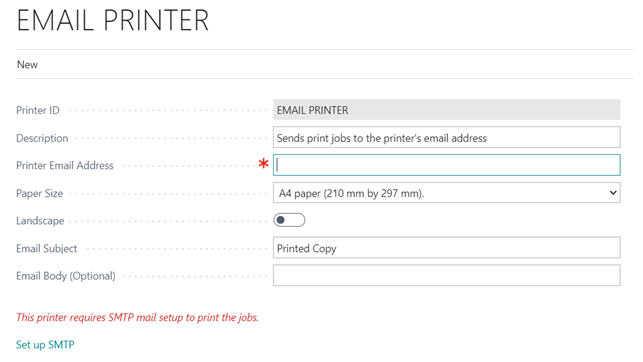
- Find Printer Extension in the AppSource marketplace.
Just visit
https://appsource.microsoft.com/en-us/marketplace/apps?product=dynamics-365%3Bdynamics-365-business-central&page=1
As of now, below a couple of them as example.
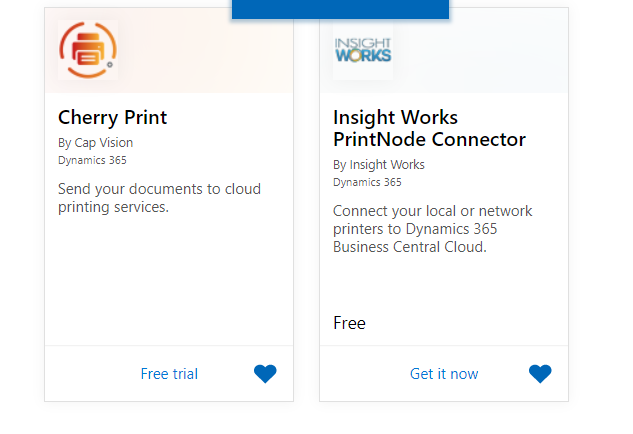
- Create your own Cloud Printer Extension
As described herehttps://docs.microsoft.com/en-us/dynamics365/business-central/dev-itpro/developer/devenv-reports-printing
- Custom development solutions through Azure Functions.
These are also possible as per https://demiliani.com/2019/01/29/dynamics-365-business-central-and-direct-printing/
- Server side printing (Schedule A Report feature) is not allowed for SaaS deployment.
See below the typical info message received when trying to select a server printer
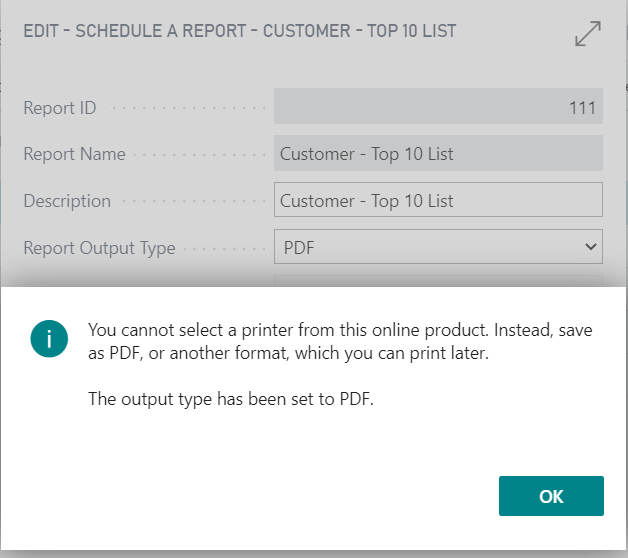
NOTE: this might be submitted to changes to open for cloud printers through printer extensions also server side.
Dynamics 365 Business Central On-Premise (up to 16.x)
- Client side direct Printing is allowed through cloud printer extensions.
- Since version 16.x, it is possible to add network (local) printers but these will not print directly client side and are meant to be used server side
The same assumption proposed for SaaS, then, is valid with a very important exception.
Server side printers (local to the server or network ones) are mapped in the Printer Management table and these are shown by default.
See below a typical example.
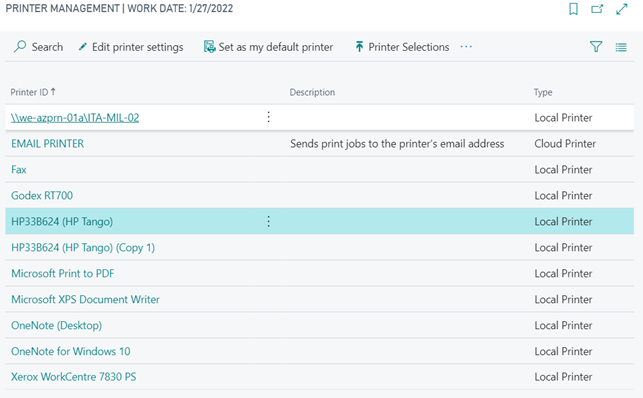
Local and network printers added in the Printer Management catalogue does not allow for client side printing.
The scope of unblocking local and network printer scenarios in Printer Management table is to redirect and load the specific printer setup when enabling server side printing feature through schedule a report feature.
This could be a combination of Printer Management and Printer Selections.
Just as example, if setting up the first network printer (\\we-azprn-01a\ITA-MIL-02) as dedicated printer for a specific report in the printer selection by adding the following record
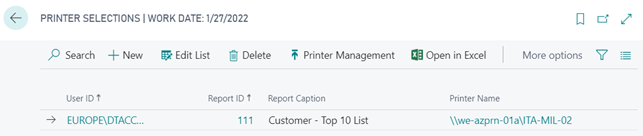
This will trigger the printer to be selected when choosing the print option when scheduling a report server side while does not have any influence client side unless being shown as “Selected Printer” in the request page. Again, this is the selected printer to be used when you SCHEDULE a report server side and does not influence on browser printing (when you click the PRINT button in the request page)
To find more information, please visit
https://docs.microsoft.com/en-us/dynamics365/business-central/ui-specify-printer-selection-reports
- “Selected Printer” field in client side request page it is used to show the selected printer within report selection that could be used for server side printing.
Below a simple example
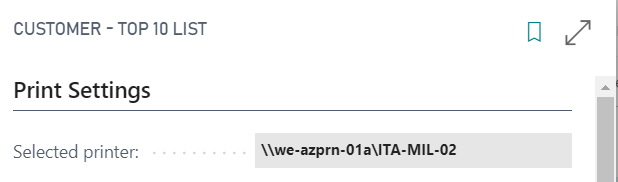
Once again, what is shown here is the selected printer that is chosen for server side printing.
Server side printing is enabled by using Schedule option in the request page.
NOTE: Schedule a report feature will default to the appropriate printer added in the printer selection page starting from 16.4 (August 2020).
- IMPORTANT: Selected Printer to be used server side does not influence client side browser printer page.
Whenever clicking PRINT in the report request page then a modal browser printer page is open.
This is totally upon how browser is selecting the local printing experience. It might typically select the last printer chosen when printing or apply the default printer installed locally at first run. It depends on the browser of your choice.
In any case, the Selected Printer shown in the request page does not have any influence nor trigger anything within the client side context if this is a local printer from Printer Management list.
Local printers will have exactly the same behavior as if Selected Printer is set to "Browser".
If Selected Printer is a Cloud Printer then the application will apply direct printing to the specific cloud printer service.
This is also duly described here
https://docs.microsoft.com/en-us/dynamics365/business-central/ui-work-report?branch=master#PrintReport
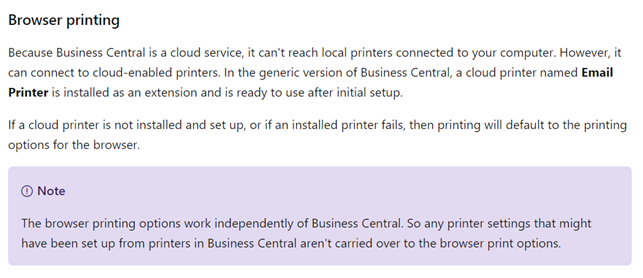
- Print using system dialog will apply default printer settings and select the local printer.
Expanding the More Settings section, you might see that you could also enable the classic Printer dialog (CTRL+SHIFT+P) as it was in earlier versions with Windows Client.
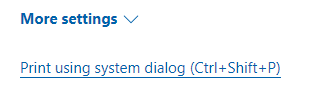
System dialog will open selecting the local default printer and will not transport any of the previous printer parameters, no matter if they are changed or not.
- Find Printer Extension in the AppSource marketplace.
Just visit
https://appsource.microsoft.com/en-us/marketplace/apps?product=dynamics-365%3Bdynamics-365-business-central&page=1
Cloud marketplace ISVs typically also have the same extension add-on also ready to be delivered on-premises. Investigate the market to find out the best solution that would fits also your on-premises solution.
- Create your own Cloud Printer Extension
Same assumption for SaaS is valid for On-Premises. Described here:
https://docs.microsoft.com/en-us/dynamics365/business-central/dev-itpro/developer/devenv-reports-printing
- Custom development solutions through Azure Functions.
These are also possible as per https://demiliani.com/2019/01/29/dynamics-365-business-central-and-direct-printing/
NOTE: this blog post applies to any web client version that makes use of HttpClient data type (Dynamics NAV 2018 onwards). You might adapt the blog post and apply .NET interop calls with even earlier versions.
- Server side direct printing (Schedule A Report feature) is fully allowed for on-premise deployment. The experience is now fully enabled to print server side since cumulative update 15.3 where printers virtual table has been rewritten. The experience has also been enhanced with Printer Management page in version 16.x.
Printing server side is always warmly recommended with on-premises deployment for several reasons:
- Better performance (it does not have any resource demanding UI facade)
- More resources (runs server side)
- Runs unattended (users do not have to wait for the printing job to finish to do other tasks)
- Direct, not interactive, printing (as per a.)
NOTE: Schedule a report feature will default to the appropriate printer added in the printer selection page starting from 16.4 (August 2020).


