Ok, but I'll have to make this quick (I'm supposed to be working).
I'll assume that you know how to create a Case workflow and have it trigger when a Case is created.
1) Add a step to the workflow - Create record: Email. Note, this is not the same as Send Email.
2) In the email properties, set up all required fields excluding the To field.
3) Add another step to the workflow. You should see the CRM2011InternalEmail selection at the bottom of the list. Select ~Email Team from the sub-list.
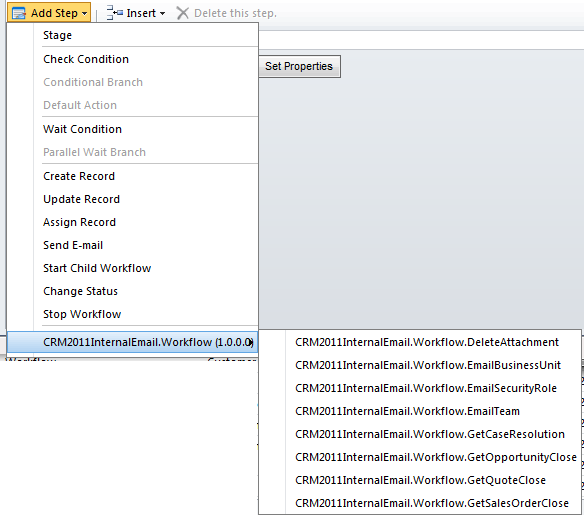
4) Click the Set Properties button.
5) On the properties form, click in the Email To Send field (but not on the lookup icon).
6) On the right of the properties form, select Create (E-mail) from the bottom of the Look for drop-down.
7) Ensure that the drop-down directly below shows E-mail Message.
8) Click the Add button. E-mail Message (Create (E-mail)) should appear in the selection box beneath.
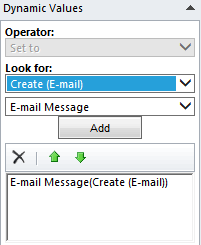
9) Click the OK button. This should populate the Email To Send field.
10) In the Recipient Team Name field, click the lookup icon and select the required team.
11) In the Send The Email field, select True (this will trigger the e-mail to be sent after the team e-mails have been added).
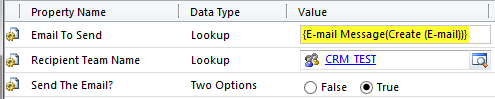
12) Save and Close the Properties form.
13) Activate the workflow.
That's it! If you have set it all up correctly, when you create a case, the workflow will create an email and send it to the selected team's members.
Have a play around with it in your test environment. You will find that it is pretty easy to use and quite flexible.
Sorry I can't go into more detail at the moment. Maybe I'll blog it later.
I hope this helps.







