web
You’re offline. This is a read only version of the page.
close
Skip to main content

Announcements

No record found.

News and Announcements icon
Community site session details

Community site session details

Session Id :
Customer experience | Sales, Customer Insights,...
Answered

Email-Activities and history: how to change the shown date

(0) ShareShare
ReportReport
Posted on by 104

Hello guys,

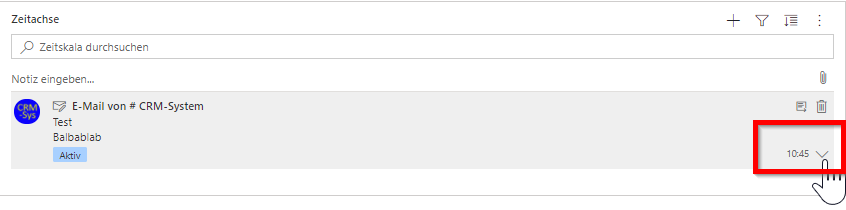
as you know, MS Dynamics shows activities in the time line or AKA history. One of those activies are e.g. emails, see example in screenshot.

In the Dynamics documentation, I have found how to change the shown fields in the history: The fields come from the card form, and the displayed fields in the history are from the header and the details section: https://docs.microsoft.com/en-us/dynamics365/customer-service/customer-service-hub-user-guide-timeline-admin#customize-a-card-from-within-timeline

However, one of my customer wants to use a different date than the standard date, which apparenty is the "last modified" date field (in the screenshot, the "10:45" date). How can I change this date field, e.g., to the "created on" date? Apparently, it is not done via the email card form, as this field does not appear there at all, but is shown anyhow. :-) So it seems that it is drawn from somewhere else.

BR Flo
pastedimage1612782015335v1.png

I have the same question (0)
  • Community Member Profile Picture
    on at

    If you open the activities tab/pane, have you tried changing the below setting?

    pastedimage1612817453476v1.png

  • Verified answer
    LuHao Profile Picture
    40,892 on at

    Hi Flo,

    Unfortunately, it is impossible to change the date to "created on".

    If you change the Task form to the Card Form, then there will be no date in the timeline.

    pastedimage1612850974589v2.png

    pastedimage1612850855495v1.png

    The only way to display "Create On" of Task in the timeline is to move the "Create On" field to the position of the first three fields of the Task Card Form.

    pastedimage1612851148317v3.png

    But this "Create On" will be displayed on the left side of the Task in the timeline instead of the right side.

    pastedimage1612851284997v4.png

    In short, there is no way to change the original "Modified On" to "Create On".

  • Florian S. Profile Picture
    104 on at

    Hello Hao,

    thanks a lot, your solution did it.

    BR

    Florian

Under review

Thank you for your reply! To ensure a great experience for everyone, your content is awaiting approval by our Community Managers. Please check back later.

Helpful resources

Quick Links

Introducing the 2026 Season 1 community Super Users

Congratulations to our 2026 Super Stars!

Meet the Microsoft Dynamics 365 Contact Center Champions

We are thrilled to have these Champions in our Community!

Congratulations to the March Top 10 Community Leaders

These are the community rock stars!

Leaderboard > Customer experience | Sales, Customer Insights, CRM

#1
ManoVerse Profile Picture

ManoVerse 192 Super User 2026 Season 1

#2
11manish Profile Picture

11manish 129

#3
CU11031447-0 Profile Picture

CU11031447-0 100

Last 30 days Overall leaderboard

Product updates

Dynamics 365 release plans
