






How to Restore Dynamics 365 Portal Solutions If You Have Reset Your CRM Instance
 MagnetismXRM
 6,230
6,230
 Like
Like Share
Share
 Report
With each Dynamics 365 subscription you have the option to create a Dynamics Web Portal which is integrated with CRM. This Web Portal can be configured from the Office 365 Admin Portal by navigating to the Dynamics 365 area, selecting the applications tab and selecting to configure the Portal Add-On. Details for installing a trial portal can be found in this blog if you are unfamiliar with configuration https://www.magnetismsolutions.com/blog/jordanhohepa/2018/04/13/how-to-create-a-microsoft-dynamics-365-trial-portal.
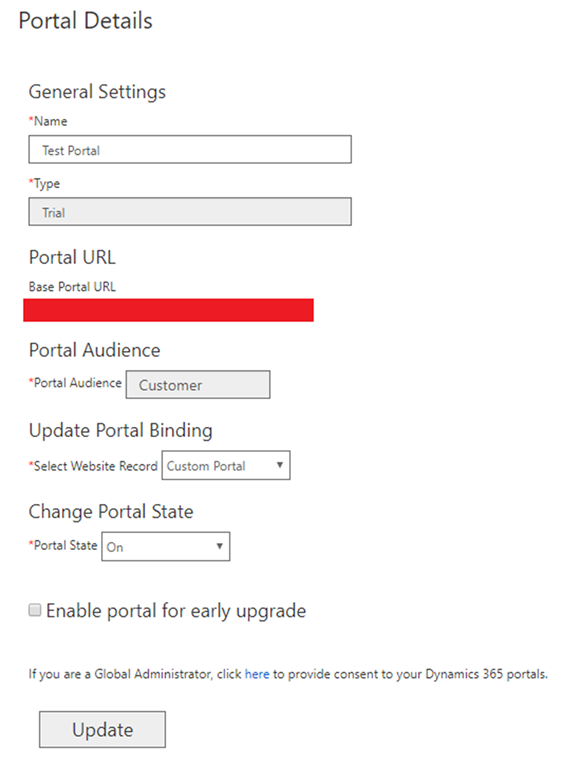
The screenshot above shows the Portal Details page for a Trial Portal I have configured which is currently live. During the installation process, portal related entities and records are automatically created for the default portal and for portal configuration. If for instance you need to do something like restore a backup or reset your CRM instance, these records and entities will no longer exist, and your portal will no longer be accessible.

The screenshots above and below were taken after a CRM instance reset. The Dynamics 365 Administration Center still shows the Test Portal as being configured even after the entities, solutions and records have been removed from CRM.

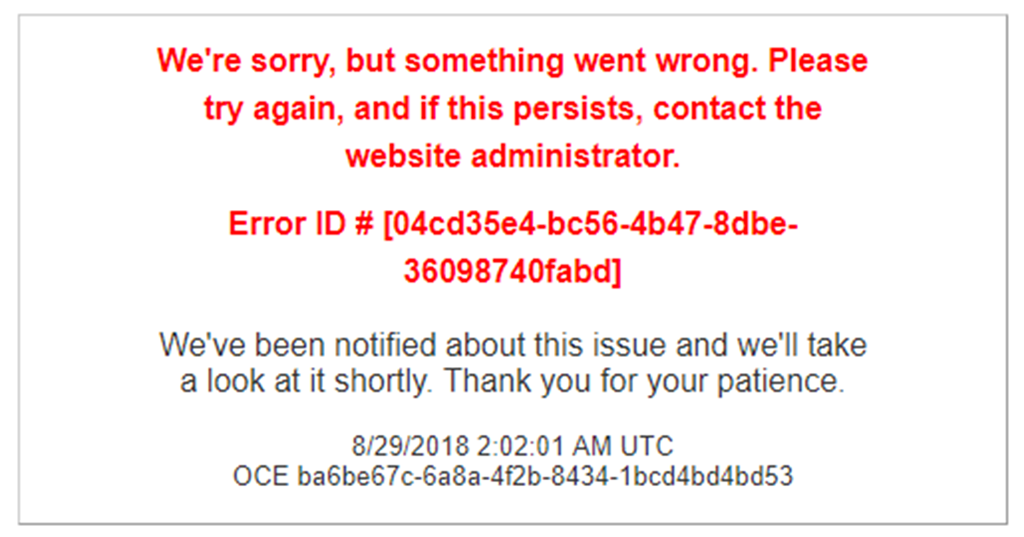
The screenshot below also shows the page you would receive when trying to access the web portal.
Luckily if this ever happens to you, you can to easily reset the portal instance from the portal admin page. From the manage applications page seen earlier, if you select manage on the portal add-on application you’ll be taken to the portal admin page. From here you can select Manage Dynamics 365 Instance and then select Update Dynamics 365 Instance. This will let you select which instance you want to configure as shown in the screenshot below. With this you can select all the same options as when you first configured the portal.
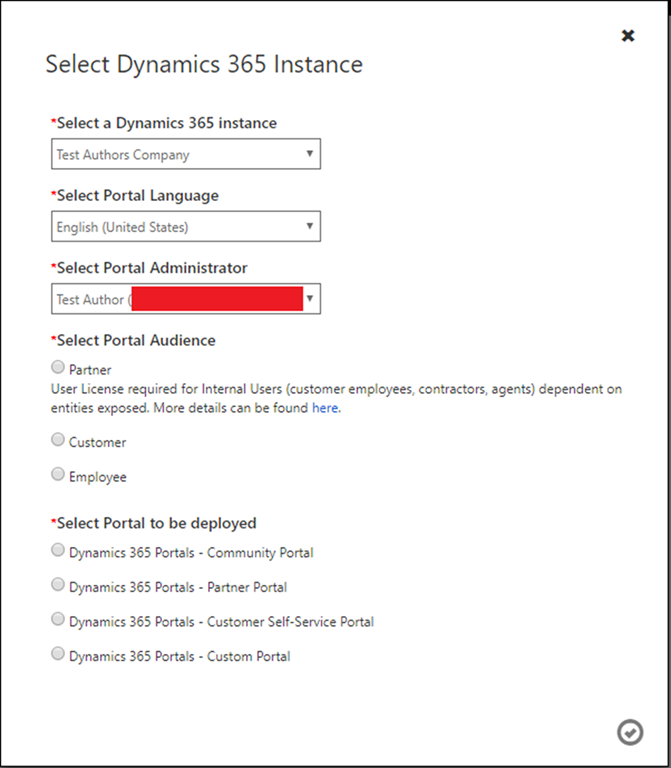
Once the portal configuration has completed all the portal related items will be back in your CRM instance. This will reset the portal back to zero, so any changes you made before the reset will no longer exist.
*This post is locked for comments