One of the most common challenges in Accounts Payable is tracing which product receipts have been matched to which invoices. This problem becomes even more complex when product receipts involve non-stocked items. In this post, I'll explore how to trace the link between product receipts and invoices — both through the Dynamics 365 Finance interface and by querying the underlying database tables directly.
Tracing the Match for Stocked Products
For the purposes of this post, "stocked products" refers to all released products with the “Stocked” flag enabled in their Item model group:
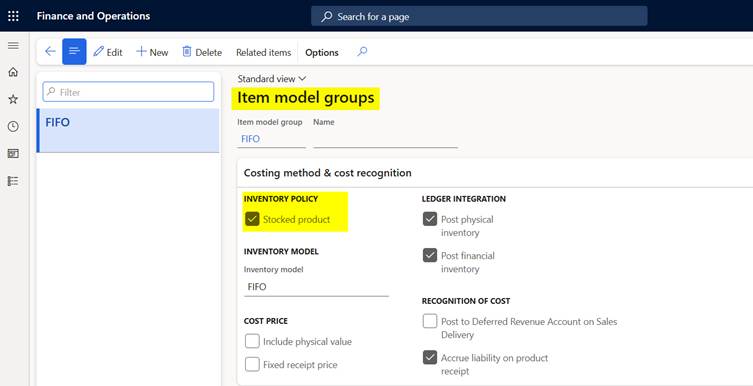
These can be either Services or Products. What matters is that when the Stocked flag is active, inventory transactions are posted — and with them, the references to both the product receipt and the posted invoice are recorded.
The quickest way to get a broad view of which product receipts were matched to which invoices is through the transaction list. Navigate to Inventory management > Inquiries and reports > Transactions and add the following columns: “Reference”, “Number”, “Invoice”, and “Packing Slip”:

Tracing the Match for Non-Stocked Products
When dealing with non-stocked products or procurement categories, there is no direct link visible in the system interface, since no inventory transactions are generated. The only available workaround is to look at the line number, item, and purchase order on the invoice line, then navigate back to the Purchase Order to check in which packing slip that line was received on the referenced Purchase Order:
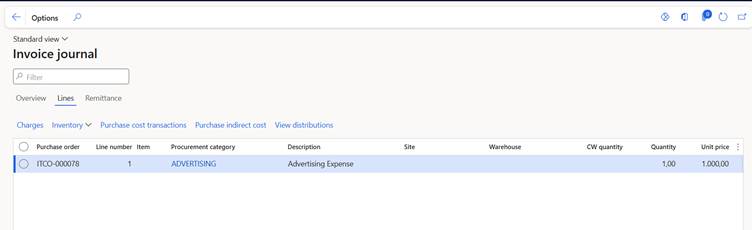
Even this approach has its limits: it does not establish a direct link between the product receipt and the invoice. If two receipts were posted against the same line, there is no way to determine, from the interface alone, which receipt corresponds to which invoice.
Tracing the Link at Line Level Using Database Tables
For a precise, line-by-line match between product receipts and invoices, the answer lies in the Dynamics 365 database tables. Three tables are involved:
- VendPackingSlipTrans: stores product receipt line data (join with VendPackingSlipJour if header information is needed). The key field here is SourceDocumentLine, which uniquely identifies each product receipt line. Note that this field is hidden by default in the table browser, so a developer will need to make it visible or extract it for you.
- VendInvoiceTrans: stores vendor invoice line data (join with VendInvoiceJour if header information is needed). The key field is SourceDocumentLine, which uniquely identifies each vendor invoice line.
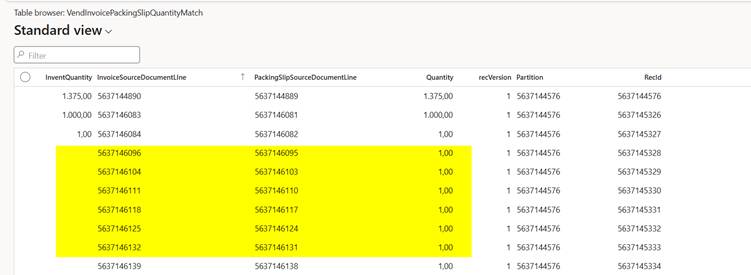
- VendInvoicePackingSlipQuantityMatch: the joining table that creates the actual line-by-line link. It contains two fields: InvoiceSourceDocumentLine and PackingSlipSourceDocumentLine which together map each packing slip line to the corresponding invoice line it was invoiced against, along with the invoiced quantity. Non-stocked product lines are also present in this table and can be identified by an empty `InventQuantity` field:
Conclusion
Tracing the match between product receipts and invoices in Dynamics 365 Finance can range from straightforward to surprisingly complex, depending on the nature of the items involved. For stocked products, the inventory transaction inquiry offers a quick and accessible overview. For non-stocked products, the standard interface falls short but the database layer tells the full story. By leveraging the VendInvoicePackingSlipQuantityMatch table alongside VendPackingSlipTrans and VendInvoiceTrans, it is possible to achieve complete visibility at the line level, regardless of item type. This kind of traceability can prove useful in many contexts.
That’s all folks, see you next time!





