web
You’re offline. This is a read only version of the page.
close
Skip to main content

Notifications

Announcements

Community site session details

Community site session details

Session Id :

Preview PDF Files in FactBox and via Action Buttons in Business Central

Aman Kakkar Profile Picture Aman Kakkar 2,568

Hi Everyone! 👋

Today, let’s learn how to preview PDF files directly within a FactBox as well as through Action Buttons in Microsoft Dynamics 365 Business Central.

This can be really useful when you want users to quickly glance at attached documents (like invoices or supporting PDFs) right from the journal lines — without the need to download or open them externally.

Src code - https://github.com/amankakkar2002/Preview-PDF-Files-in-FactBox-and-via-Action-Buttons-in-Business-Central


🧩 Understanding the Approach

Before we start, there are two different preview methods we’ll talk about:

FactBox Preview (with image conversion)

  • Converts the PDF pages into images (PNG) to display inside the FactBox.
  • The image quality may slightly reduce due to conversion.
  • Requires runtime 16 or higher because it relies on the new ExtendedDatatype for the Media type introduced in BC runtime 16.

Action Button Preview (native PDF view)
  • Opens the actual PDF file directly without conversion, preserving full quality.

  • Works perfectly for quick previews without the FactBox setup.


Let's start with the Factbox Preview

🧱 Step 1: Create a Table for Storing the Media

We’ll start by creating a simple custom table to store only the Incoming Document Entry No. of attachment as a reference point. We will create the Media field at runtime from PDFs to show them in Factbox.

table 50091 "Incoming Document Factbox T"
{
    fields
    {
        field(1; "Document Entry No."; Integer)
        {
            Caption = 'Document Entry No.';
        }
        field(2; "Document Attached"; Media)
        {
            Caption = 'Document Attached';
            ExtendedDatatype = Document;
            DataClassification = CustomerContent;
        }
    }
    keys
    {
        key(PK; "Document Entry No.")
        {
            Clustered = true;
        }
    }
}


    🧮 Step 2: Create the FactBox Page

    Next, we’ll build a CardPart page to preview our document image.

    Here, we’ll convert the PDF into a PNG and store it in the Media field we just created.

    page 50091 "Incoming Document Preview P"
    {
        PageType = CardPart;
        SourceTable = "Incoming Document Factbox T";
        InsertAllowed = false;
        DeleteAllowed = false;
        ModifyAllowed = false;
        Caption = 'Incoming Document Preview';
    
        layout
        {
            area(Content)
            {
                field("Document Attached"; Rec."Document Attached")
                {
                    ApplicationArea = All;
                    ShowCaption = false;
                }
            }
        }
    
        trigger OnAfterGetCurrRecord()
        begin
            GeneratePreview();
        end;
    
        local procedure GeneratePreview()
        var
            IncomingDocumentAttachment: Record "Incoming Document Attachment";
            PDFDocument: Codeunit "PDF Document";
            TempBlobImage: Codeunit "Temp Blob";
            TempBlobPDF: Codeunit "Temp Blob";
            InStrImage: InStream;
            InStr: InStream;
            OutStr: OutStream;
            FileName: Text;
        begin
            // Get the incoming document attachment file
            IncomingDocumentAttachment.Reset();
            IncomingDocumentAttachment.SetRange("Incoming Document Entry No.", Rec."Document Entry No.");
            if IncomingDocumentAttachment.FindFirst() then begin
    
                // Save file name
                FileName := IncomingDocumentAttachment.Name + '.' + IncomingDocumentAttachment."File Extension";
    
                // Calculate the blob file
                IncomingDocumentAttachment.CalcFields(Content);
    
                // Create Instream for the file
                IncomingDocumentAttachment.Content.CreateInStream(InStr);
    
                // Load the instream into PDFDoc
                PDFDocument.Load(InStr);
    
                // Create Outstream for Image
                TempBlobImage.CreateOutStream(OutStr);
    
                // Create Instream for Image
                TempBlobPDF.CreateInStream(InStrImage);
    
                // Convert PDF page to image
                PDFDocument.ConvertToImage(InStrImage, Enum::"Image Format"::Png, 1);
    
                // Clear the field and import your image into the Media field
                Clear(Rec."Document Attached");
                Rec."Document Attached".ImportStream(InStrImage, FileName, 'image/png');
                Rec.Modify(true);
            end;
        end;
    }

    ⚙️ Step 3: Add the FactBox to the General Journal

    Let’s now extend the General Journal page and attach our FactBox to it.

    pageextension 50091 "GenJnlLineTestExt" extends "General Journal"
    {
        layout
        {
    
            addlast(factboxes)
            {
                part("Document Preview Factbox"; "Document Preview Factbox Page")
                {
                    SubPageLink = "Incoming Document Entry No." = field("Incoming Document Entry No.");
                    ApplicationArea = All;
                }
            }
        }
    }

    🪄 Step 4: Automatically Store Document Entry

    Whenever an incoming document is attached, we’ll ensure it’s recorded in our custom table using an event subscriber.

    codeunit 50091 "Incoming Document Factbox C"
    {
        [EventSubscriber(ObjectType::Table, database::"Incoming Document Attachment", OnAfterInsertEvent, '', false, false)]
        local procedure OnAfterInsertEvent(RunTrigger: Boolean; var Rec: Record "Incoming Document Attachment")
        var
            IncomingDocumentFactboxT: Record "Incoming Document Factbox T";
        begin
            if not IncomingDocumentFactboxT.Get(Rec."Incoming Document Entry No.") then begin
                IncomingDocumentFactboxT.Init();
                IncomingDocumentFactboxT."Document Entry No." := Rec."Incoming Document Entry No.";
                IncomingDocumentFactboxT.Insert();
            end;
        end;
    
        [EventSubscriber(ObjectType::Table, database::"Incoming Document Attachment", OnAfterModifyEvent, '', false, false)]
        local procedure OnAfterModifyEvent(RunTrigger: Boolean; var Rec: Record "Incoming Document Attachment")
        var
            IncomingDocumentFactboxT: Record "Incoming Document Factbox T";
        begin
            if not IncomingDocumentFactboxT.Get(Rec."Incoming Document Entry No.") then begin
                IncomingDocumentFactboxT.Init();
                IncomingDocumentFactboxT."Document Entry No." := Rec."Incoming Document Entry No.";
                IncomingDocumentFactboxT.Insert();
            end;
        end;
    }

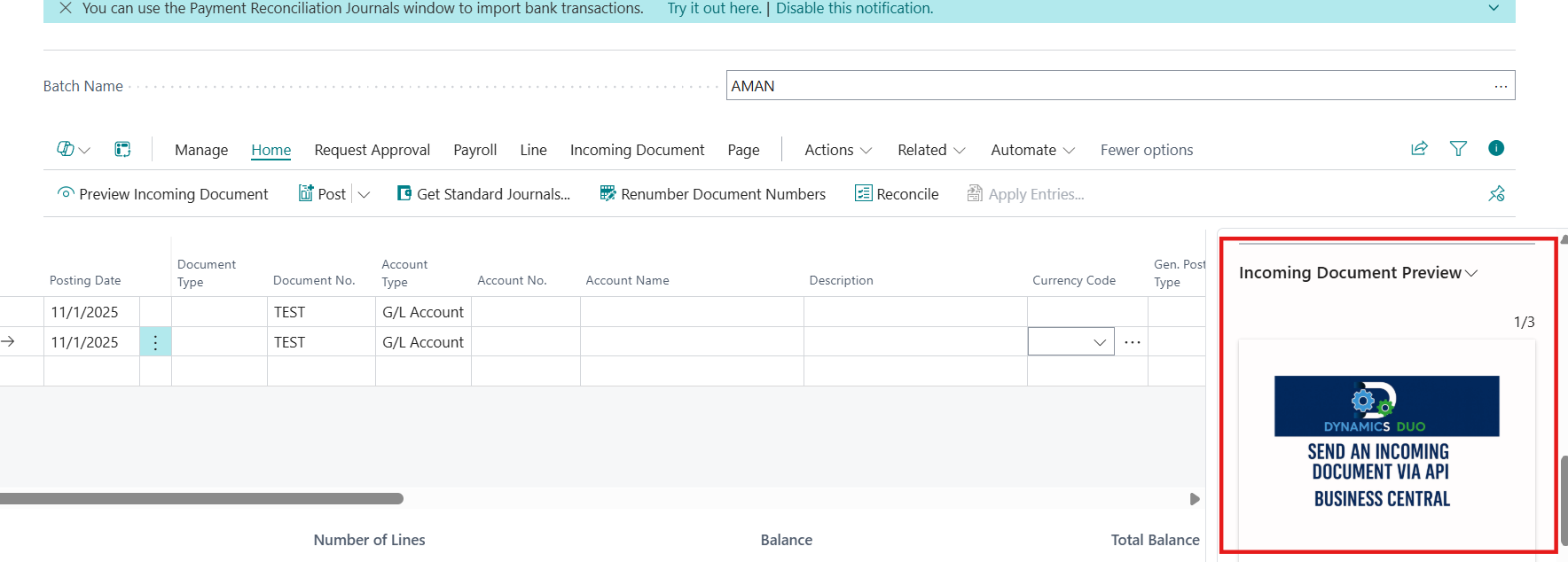
    Now you can publish your extension, and the FactBox will show a live preview of your attached PDFs — rendered as images 🎉


    📄 Optional: Add Multi-Page PDF Navigation

    If your PDF has multiple pages, you can extend your FactBox to show Next and Previous buttons to browse through pages. Change the CardPart code to the below mentioned -
    page 50091 "Incoming Document Preview P"
    {
        PageType = CardPart;
        SourceTable = "Incoming Document Factbox T";
        InsertAllowed = false;
        DeleteAllowed = false;
        ModifyAllowed = false;
        Caption = 'Incoming Document Preview';
    
        layout
        {
            area(Content)
            {
                field(ImageCount; ImageCount)
                {
                    ApplicationArea = All;
                    ShowCaption = false;
                }
                field("Document Attached"; Rec."Document Attached")
                {
                    ApplicationArea = All;
                    ShowCaption = false;
                }
            }
        }
    
        actions
        {
            area(Processing)
            {
                action(Next)
                {
                    ApplicationArea = All;
                    Image = NextRecord;
                    trigger OnAction()
                    begin
                        if PageNumber >= TotalPages then
                            exit;
                        PageNumber += 1;
                    end;
                }
                action(Previous)
                {
                    ApplicationArea = All;
                    Image = PreviousRecord;
                    trigger OnAction()
                    begin
                        if PageNumber <= 1 then
                            exit;
                        PageNumber -= 1;
                    end;
                }
            }
        }
    
        trigger OnAfterGetCurrRecord()
        begin
            if Rec."Document Entry No." <> xRec."Document Entry No." then
                PageNumber := 1;
            GeneratePreview(PageNumber);
        end;
    
        local procedure GeneratePreview(PageNumber: Integer)
        var
            IncomingDocumentAttachment: Record "Incoming Document Attachment";
            PDFDocument: Codeunit "PDF Document";
            TempBlobImage: Codeunit "Temp Blob";
            TempBlobPDF: Codeunit "Temp Blob";
            InStrImage: InStream;
            InStr: InStream;
            OutStr: OutStream;
            FileName: Text;
        begin
            // Get the incoming document attachment file
            IncomingDocumentAttachment.Reset();
            IncomingDocumentAttachment.SetRange("Incoming Document Entry No.", Rec."Document Entry No.");
            if IncomingDocumentAttachment.FindFirst() then begin
    
                // Save file name
                FileName := IncomingDocumentAttachment.Name + '.' + IncomingDocumentAttachment."File Extension";
    
                // Calculate the blob file
                IncomingDocumentAttachment.CalcFields(Content);
    
                // Create Instream for the file
                IncomingDocumentAttachment.Content.CreateInStream(InStr);
    
                // Load the instream into PDFDoc
                PDFDocument.Load(InStr);
                TotalPages := PDFDocument.GetPdfPageCount(InStr);
                ImageCount := Format(PageNumber) + '/' + Format(TotalPages);
    
                // Create Outstream for Image
                TempBlobImage.CreateOutStream(OutStr);
    
                // Create Instream for Image
                TempBlobPDF.CreateInStream(InStrImage);
    
                // Convert PDF page to image
                PDFDocument.ConvertToImage(InStrImage, Enum::"Image Format"::Png, PageNumber);
    
                // Clear the field and import your image into the Media field
                Clear(Rec."Document Attached");
                Rec."Document Attached".ImportStream(InStrImage, FileName, 'image/png');
                Rec.Modify(true);
            end else
                ImageCount := '0/0';
        end;
    
        trigger OnOpenPage()
        begin
            PageNumber := 1;
        end;
    
        var
            ImageCount: Text[30];
            PageNumber: Integer;
            TotalPages: Integer;
    }


    🖱️ Preview PDF via Action Button

    If you prefer viewing the actual PDF file in full quality, we can simply trigger the preview using an action button. Although you can view it from the Incoming Documents Factbox, it will make you understand how the code works at backend.

    Here’s how we can add it to the General Journal page:

    pageextension 50091 "GenJnlLineTestExt" extends "General Journal"
    {
        layout
        {
    
            addlast(factboxes)
            {
                part("Document Preview Factbox"; "Incoming Document Preview P")
                {
                    SubPageLink = "Document Entry No." = field("Incoming Document Entry No.");
                    ApplicationArea = All;
                }
            }
        }
        actions
        {
            addlast(IncomingDocument)
            {
                action("Preview Incoming Document")
                {
                    ApplicationArea = all;
                    Promoted = true;
                    PromotedIsBig = true;
                    PromotedCategory = Process;
                    Image = View;
                    trigger OnAction()
                    var
                        IncomingDocument: Record "Incoming Document";
                        IncDocAttachmentOverview: Record "Inc. Doc. Attachment Overview";
                        IncomingDocumentAttachment: Record "Incoming Document Attachment";
                        SortingOrder: Integer;
                    begin
                        if not IncomingDocument.Get(Rec."Incoming Document Entry No.") then
                            Error('No incoming document found.');
    
                        IncomingDocumentAttachment.Reset();
                        IncomingDocumentAttachment.SetRange("Incoming Document Entry No.", Rec."Incoming Document Entry No.");
                        if IncomingDocumentAttachment.FindFirst() then begin
                            InsertFromIncomingDocumentAttachment(IncDocAttachmentOverview, IncomingDocumentAttachment, SortingOrder, IncDocAttachmentOverview."Attachment Type"::"Supporting Attachment", 0);
                            ViewFile(IncomingDocumentAttachment, IncDocAttachmentOverview.Name + '.' + IncDocAttachmentOverview."File Extension");
                        end;
                    end;
                }
            }
        }
    
        local procedure ViewFile(var IncomingDocumentAttachment: Record "Incoming Document Attachment"; FileName: Text)
        var
            FileInStream: InStream;
        begin
            IncomingDocumentAttachment.CalcFields(Content);
            IncomingDocumentAttachment.Content.CreateInStream(FileInStream);
            File.ViewFromStream(FileInStream, FileName, true);
        end;
    
        local procedure InsertFromIncomingDocumentAttachment(var TempIncDocAttachmentOverview: Record "Inc. Doc. Attachment Overview" temporary; IncomingDocumentAttachment: Record "Incoming Document Attachment"; var SortingOrder: Integer; AttachmentType: Option; Indentation2: Integer)
        begin
            Clear(TempIncDocAttachmentOverview);
            TempIncDocAttachmentOverview.Init();
            TempIncDocAttachmentOverview.TransferFields(IncomingDocumentAttachment);
            AssignSortingNo(TempIncDocAttachmentOverview, SortingOrder);
            TempIncDocAttachmentOverview."Attachment Type" := AttachmentType;
            TempIncDocAttachmentOverview.Indentation := Indentation2;
            TempIncDocAttachmentOverview.Insert(true);
        end;
    
        local procedure AssignSortingNo(var TempIncDocAttachmentOverview: Record "Inc. Doc. Attachment Overview" temporary; var SortingOrder: Integer)
        begin
            SortingOrder += 1;
            TempIncDocAttachmentOverview."Sorting Order" := SortingOrder;
        end;
    }

    This uses the standard logic from table 137 – “Inc. Doc. Attachment Overview” to fetch and display the attached file, ensuring compatibility with existing Business Central functionality.


    ✅ Wrapping Up

    And that’s it!

    You now have two ways to preview PDF attachments in Business Central:

    • FactBox View — Converts and displays a snapshot preview directly within the page.
    • Action Button View — Opens the actual PDF in full fidelity.

    Both are powerful and can be used depending on your user experience goals.

    💡 Tip: If you’re using PDFs with multiple pages or large attachments, the FactBox conversion approach may slightly impact performance — so use it carefully in high-volume journal pages.


    END

    Hope this helps!

    Aman K

    code snippet widget

    Comments