







Microsoft Dynamics GP Add-In for Microsoft Word not enabling despite several attempts to install
Views (4673)
 MG-16101311-0
 26,225
 Like
Like Share
Share
 Report
Just recently, I ran into a situation with the Microsoft Dynamics GP Add-In for Microsoft Word where, after following all the installation steps and on-screen prompts, I could not get the Microsoft Dynamics GP Templates section to show up under the Developer's ribbon in Microsoft Word 2010.
The customer was also running a 32-bit version of Microsoft Office, clearly indicating that the issue was not related to the version of the Office product being ran - Word Templates are still not fully compatible with 64-bit Office platforms.
A first troubleshooting step under these circumstances is to make sure that the Microsoft Dynamics GP Add-In for Microsoft Word is enabled under the COM Add-Ins window in Microsoft Word. You can access the COM Add-Ins window by clicking on the button of the same name on the Developer's ribbon - please refer to the first picture above.
When I highlighted the Microsoft Dynamics GP Add-in for Microsoft Word component, the Load Behavior indicated Not Loaded. A runtime error occurred during the loading of the COM Add-in. While this was not a good thing, it was also a good thing, since it provided me with a key piece of information: the add-in was effectively installed, just not loading/enabling for some reason. This brought the attempts to reinstall and repair to a halt which was a good thing.
So now, I needed to figure out why the add-in wasn't loading. I figured in this case it would be appropriate to fire up my good old friend Process Monitor (ProcMon) to get a glimpse into what was going on.
After (a good 2 hours!) running some traces by attaching ProcMon to the WINWORD.EXE process, I noticed that each time I launched Microsoft Word, it would try to find the Microsoft.Office.Tools.Word.dll assembly when attempting to register the the GP add-in for Word. That was the proverbial light at the end of the tunnel! In doing some additional research, that assembly is an integral part of the Microsoft Visual Studio Tools for Office (VSTO) Runtime. The version for Office 2010 is VSTO 4.0.
You can download VSTO 4.0 from the Microsoft Download Center.
For more information on VSTO 4.0 click here.
Hopefully this saves you a lot of frustrations.
Until next post!
MG.-
Mariano Gomez, MVP
IntellPartners, LLC
http://www.IntellPartners.com/


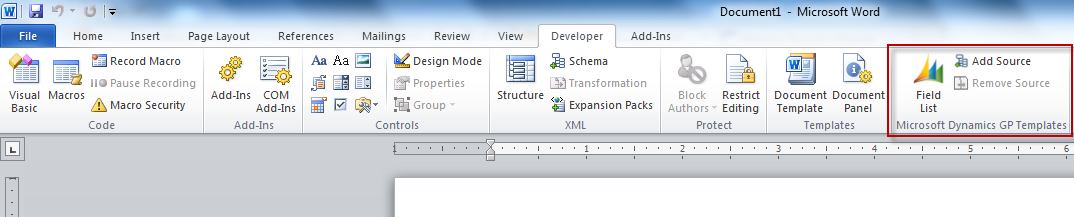 |
| Microsoft Dynamics GP Add-In for Microsoft Word properly registered in Microsoft Word |
 |
| Microsoft Dynamics GP Add-In for Microsoft Word not registered in Microsoft Word |
The customer was also running a 32-bit version of Microsoft Office, clearly indicating that the issue was not related to the version of the Office product being ran - Word Templates are still not fully compatible with 64-bit Office platforms.
A first troubleshooting step under these circumstances is to make sure that the Microsoft Dynamics GP Add-In for Microsoft Word is enabled under the COM Add-Ins window in Microsoft Word. You can access the COM Add-Ins window by clicking on the button of the same name on the Developer's ribbon - please refer to the first picture above.
 |
| COM Add-Ins window |
So now, I needed to figure out why the add-in wasn't loading. I figured in this case it would be appropriate to fire up my good old friend Process Monitor (ProcMon) to get a glimpse into what was going on.
After (a good 2 hours!) running some traces by attaching ProcMon to the WINWORD.EXE process, I noticed that each time I launched Microsoft Word, it would try to find the Microsoft.Office.Tools.Word.dll assembly when attempting to register the the GP add-in for Word. That was the proverbial light at the end of the tunnel! In doing some additional research, that assembly is an integral part of the Microsoft Visual Studio Tools for Office (VSTO) Runtime. The version for Office 2010 is VSTO 4.0.
You can download VSTO 4.0 from the Microsoft Download Center.
For more information on VSTO 4.0 click here.
Hopefully this saves you a lot of frustrations.
Until next post!
MG.-
Mariano Gomez, MVP
IntellPartners, LLC
http://www.IntellPartners.com/
This was originally posted here.
*This post is locked for comments