Business Scenario:
A customer needs to set sales prices based on specific customer attributes such as country of origin, order channel, or order type. Additionally, sometimes sales prices should be determined by product attributes. The standard trade agreement cannot accommodate this scenario, but with the new Pricing Management feature, this can be achieved.
Prerequisite:
Enable the Pricing management feature from Feature management.
Go to Pricing Management > Setup > Trade agreement prices > Trade agreement journal names.
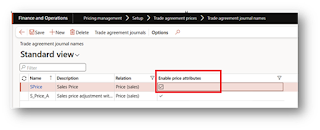 |
| Enable Price Attributes for Journals |
Trade Agreement Journal Names
For our example, we consider customer attributes as Country of Origin and Customer Segment, and product attributes as Bluetooth and Brand. We need to define these attributes and their attribute types.
Additionally, there is a new toggle on the attribute form that we need to enable.
 Create a customer attribute group as below:
 And Product Attribute groups as follows:
 Product Attribute GroupMap this customer attribute group to Pricing management parameters as below:
 Customer attributes can be verified from the customer master as below:
 Add newly created attributes to Price attributes group as shown below:
 Now we need to define the price component code:
 Price attribute group combination will be auto-populated. Now we can define the Trade agreement journal with following combination:
 Testing:
 E.g. Customer Attributes and Product attributes combination as follow:B2B, UK and Alpine Ski house and Yes – Price will be $1000B2B, UK and Alpine Ski house and No – Price will be $1300B2B, UK and Litware Inc. and No – Price will be $1350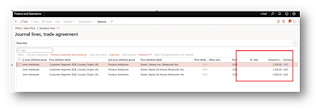
 Customer Attributes:
 Product Attributes- D0001, D0002 and D0003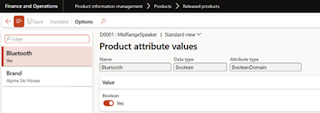
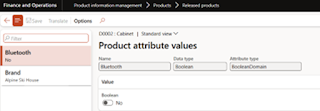
 Now create a Sales Order based on above example and see the result.
 Sales Order Result Happy Learning!!
#MicrosoftDynamics365 #PricingManagement #SupplyChain #ERP #BusinessOptimization #CustomerAttributes #ProductAttributes #SalesPricing #D365


