




 3,566
3,566 Like
Like Share
Share
 Report
I was looking for any tools that I can use for importing data into AX in the fastest way. So far the way described below is the most suitable for me.
- Open Microsoft Excel
- Click on the Insert -> See all
- Select Microsoft Dynamics AX and click Add
Note: if you do not see it, you need to install it using the link below
O365: How to install in the Excel Microsoft Dynamics AX Add-in
Once you’ve done the above, follow the steps below


Click Add server information link

Specify URL address to the Dynamics AX env and click OK
On the Confirm change dialog click Yes


Click on the Sign in button

Select user account
Select that it’s work user account
Specify the password
Click on the Design link

Click on the Add table link
Select data entity from the drop-down list
Data will be inserted into this source table later on.


Click Next button
Select all fields in the Available fields section and click Add button in the Selected fields section


Click Done button
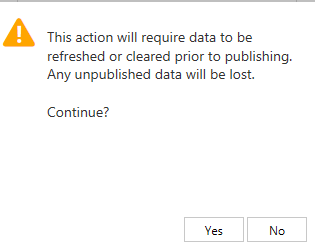
On the opened dialog, click Yes button
Make sure that columns are filled

Click on the Refresh button

Make sure that data for all data entities is displayed

You can add any filter you’d like by clicking on the Filter button
Click on the Add a filter field and specify the filter


Click Done
Refresh the sheet again by clicking Refresh button

If you want to add another data entity then just create new Excel Sheet and repeat all steps above
Expand the range

Insert your own data into each spreadsheet
Click Publish

Go to O365 and verify the imported data.

Nothing difficult!
That’s it for now!
*This post is locked for comments