



 Like
Like Share
Share
 Report
This year’s blog introduces a new payroll topic focused on the SECURE 2.0 Act. This legislation was enacted to boost retirement savings, simplify retirement rules, and reduce employer costs for establishing retirement plans—ultimately helping employers offer better opportunities and outcomes for their employees.
Starting January 1, 2026, employees aged 50 or older who earned more than $150,000 in FICA wages from the employer in the prior year (indexed for inflation) must make all catch-up contributions on a Roth (after-tax) basis. The Act requires employers that offer catch-up contributions to treat the catch-up contributions made by "high wage earners" as post-tax Roth contributions. This requirement applies to most retirement plans.
A "high wage earner" under the Act is an employee whose wages from the employer sponsoring the plan during the preceding calendar year exceeded $150,000 (indexed annually). The wage threshold is based on Social Security (FICA) wages paid to the individual by the employer sponsoring the plan.
There are no changes in the Dynamics GP 2025 year-end update specifically around SECURE 2.0 Act. This blog is intended to give you some ideas of how to manage this in Dynamics GP with existing functionality.
I have created some new simple SmartList to help you identify employees over the threshold amount and a SmartList for calculating employee age if you need it.
Below is the Payroll Year-End Wage view from the above document, once you have it installed, you can restrict by year and sort by the Social Security Wages to identify High Income earners.
Employees 50 and older qualify for standard catch-up and employees 60-63 qualify for a "Super" catch-up. Each contribution has different limits for the year.
Out of the High Income earners noted above, they also have to meet the age requirement.
Here is a sample SQL script you can create to a view that will show you the age of the employees and use it as a SmartList like below.
CREATE VIEW vw_EmployeeAgeDetails AS SELECT EMPLOYID, LASTNAME, FRSTNAME, DEMPINAC, INACTIVE, BRTHDATE, DATEDIFF(YEAR, BRTHDATE, GETDATE()) - CASE WHEN MONTH(GETDATE()) < MONTH(BRTHDATE) OR (MONTH(GETDATE()) = MONTH(BRTHDATE) AND DAY(GETDATE()) < DAY(BRTHDATE)) THEN 1 ELSE 0 END AS EmployeeAge FROM UPR00100;
CREATE VIEW vw_EmployeeAgeDetails AS SELECT EMPLOYID, LASTNAME, FRSTNAME, DEMPINAC, INACTIVE, BRTHDATE, DATEDIFF(YEAR, BRTHDATE, GETDATE()) - CASE WHEN MONTH(GETDATE()) < MONTH(BRTHDATE) OR (MONTH(GETDATE()) = MONTH(BRTHDATE) AND DAY(GETDATE()) < DAY(BRTHDATE)) THEN 1 ELSE 0 END AS EmployeeAge FROM UPR00100;
Next you would need to set up new deduction codes for the employee that qualifies and wants to participate, and the code would be taxed.
You would use start dates to determine when they kick in based on regular 401K maximum is met (easy to tell with salary that make the same all the time)
You can also use maximums on these deductions of telling when to stop, etc.
Example
Setup Roth Catch Up Deduction Code for 50 – 60
Setup Roth Catch up 61-63
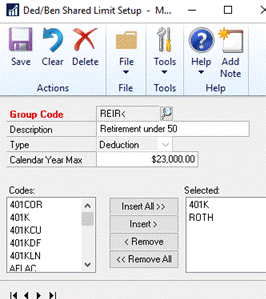
You can also use share maximums if it works for customers to combine the two together, but usually these codes will have their own maximum limit.
This is under Tools | Setup | Payroll | Den/Ben Shared Limit.
Example
You would use start dates to determine when they kick in based on regular 401K maximum is met (easy to tell with salary that make the same all the time)
You can also use maximums on these deductions of telling when to stop, etc.
Example
Setup Roth Catch Up Deduction Code for 50 – 60
Setup Roth Catch up 61-63
You can also use share maximums if it works for customers to combine the two together, but usually these codes will have their own maximum limit.
This is under Tools | Setup | Payroll | Den/Ben Shared Limit.
Example
If your retirement planning in Dynamics GP needs a more automated tracking solution, please review Integrity Data's Enhanced Retirement Plan product.
Be sure to refer to the 2025 Year-End Blog Schedule to review current and upcoming blog posts and other helpful resource links related to Year-End Closing for Dynamics GP.
Thanks
Terry Heley
Microsoft
Microsoft
*This post is locked for comments