




 1,856
1,856 Like
Like Share
Share
 Report
Creating surveys in D365 Customer Voice and adding multiple languages provides organisations with a way to request feedback in their language of choice. I’ve got a post about how to add the various languages to your survey, and how you can embed a survey on a webpage and set a specific language. What if you want to share the survey on social media or as a direct link, but want to make sure a specific language is set automatically for the respondent viewing and submitting the survey? For this, we can use a language parameter in the URL. Let’s take a look!
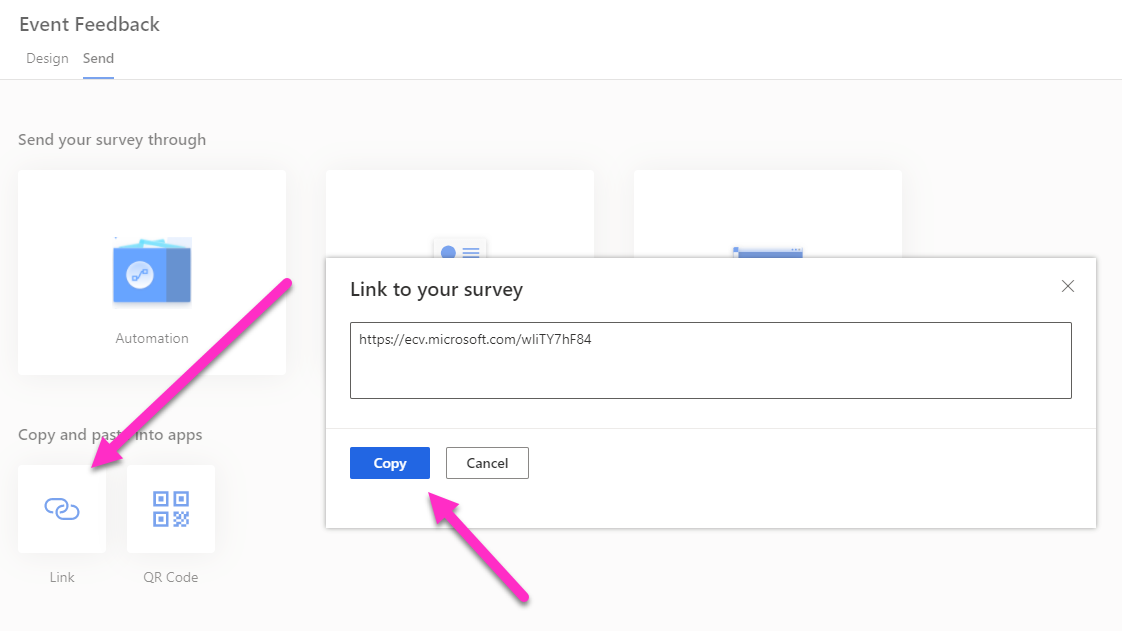
First, click on the Send tab on your survey. Then click on the Link option. This gives you a shortened link you can copy.
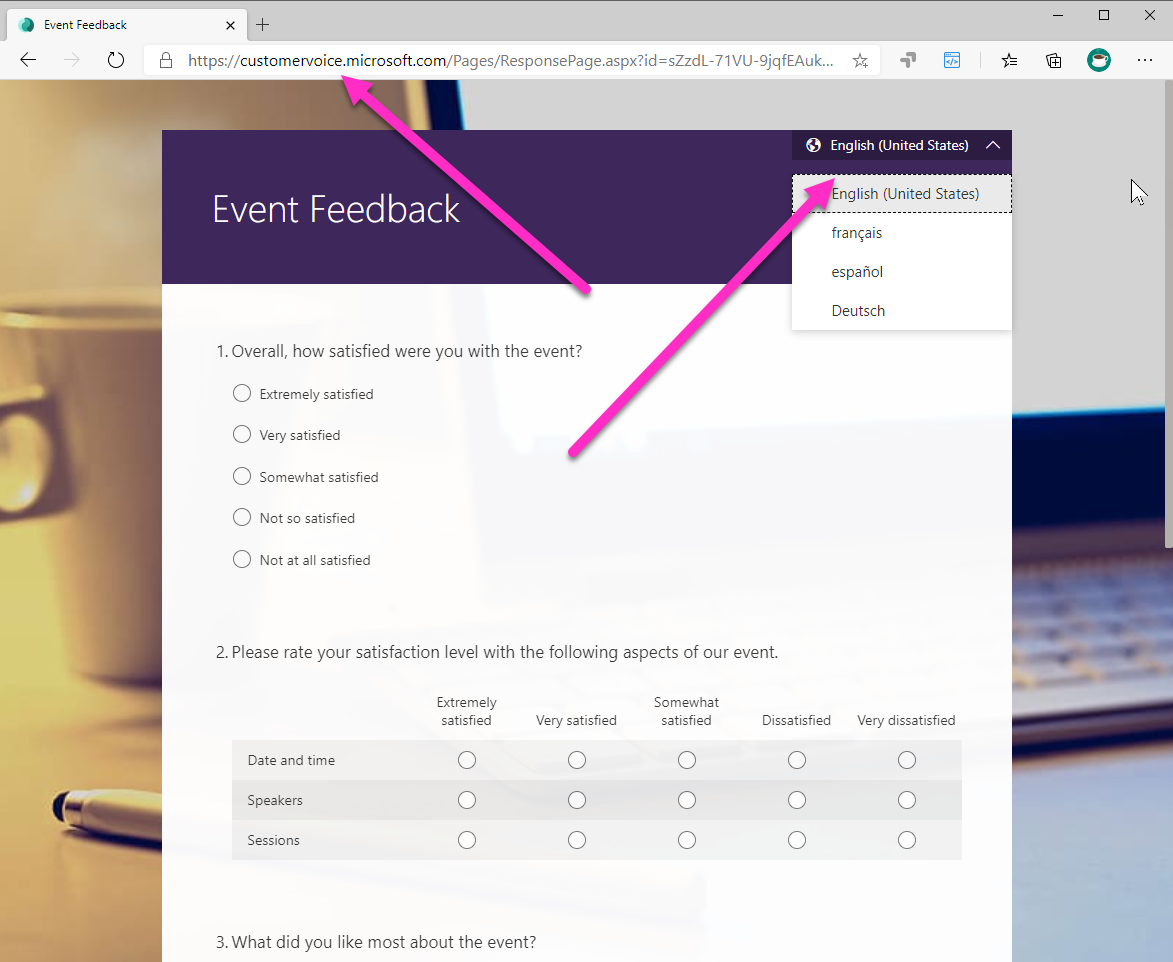
Paste the copied link in to your browser. This will then display the full link which you can copy. Notice that the dropdown menu at the top right of the survey will show all of the languages you have it translated in to.
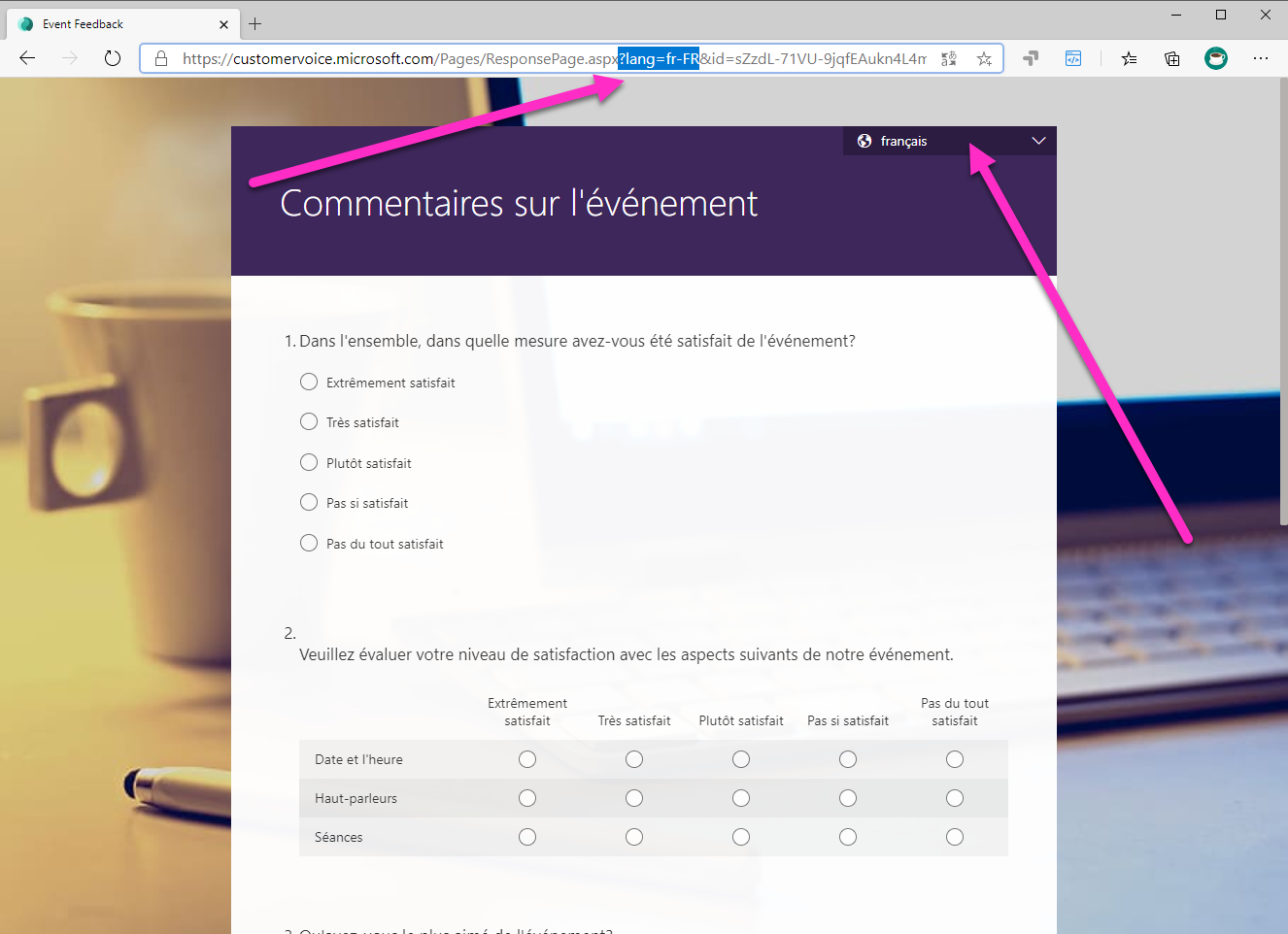
To set the survey to display a specific language automatically, add in the following parameter right after the aspx? part of the URL, and before the id=: lang=
Then after the equals, add the specific language code for the translated language you used on your survey and want to display. So, in the example below, we have lang=fr-FR. Finally, add an ampersand (&) after the language code. This joins the language code with the next parameter which is the id of the survey.
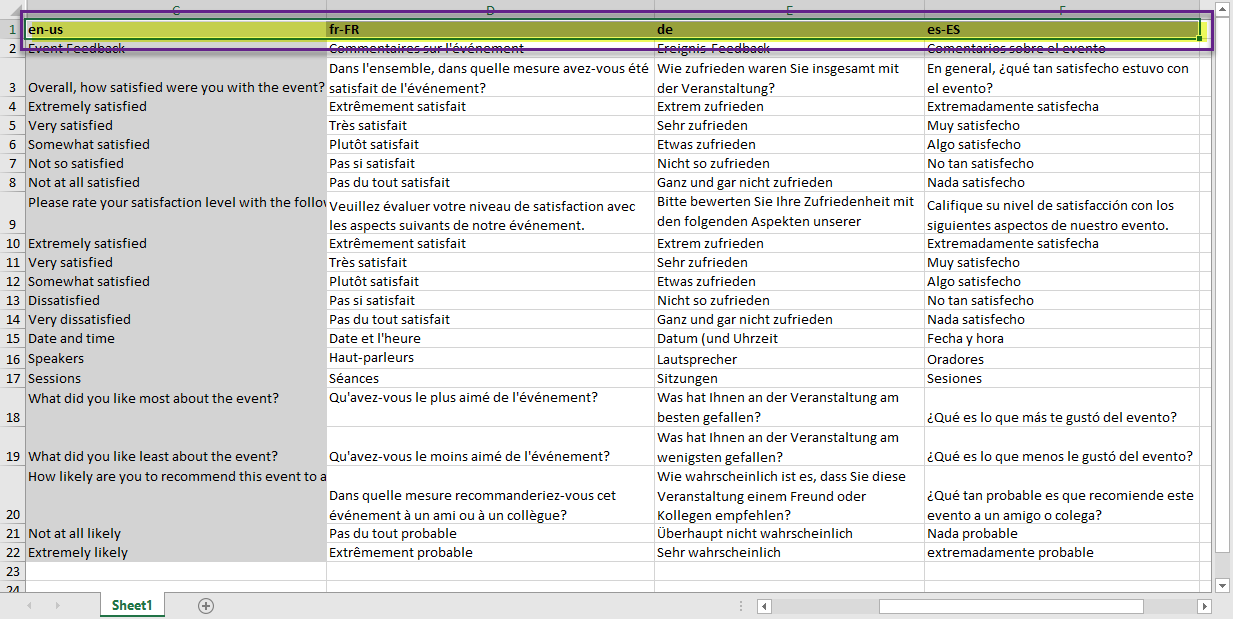
If you are not sure what language code to use, go back to the Languages menu and download the excel file. All of the languages you have added to your survey will be displayed in different columns. The header for each column will display the language code you need to use.
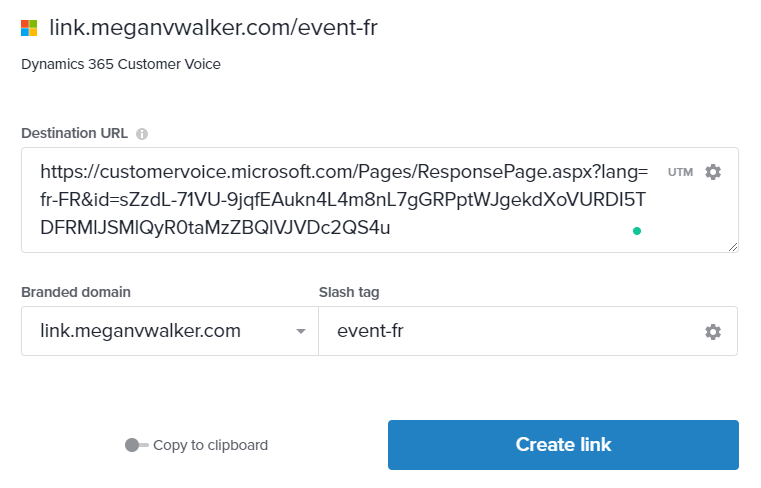
If you want to then share nicer links, you could use a free tool like Rebrandly, which I wrote about here. You can then paste in the url including the language parameter, and create a nice neat custom URL to use instead.
You can watch a video on how to do this here.
*This post is locked for comments