






Application Insights instrumentation key to Application Insights connection string
Views (41)
 Mohana Yadav
 61,218
Super User 2026 Season 1
61,218
Super User 2026 Season 1
 Like
Like Share
Share
 Report
Monitoring and Analyzing Telemetry is one of the powerful features of D365 Business Central.
We must enable Application Insights to Send Telemetry to Azure Application Insights.
Please go through below Microsoft Docs link for details
I have noticed below Notification on my environment.
The environment uses an Application Insights instrumentation key. Change it to an Application Insights connection string. Go to Enable Sending Telemetry to Application Insights for more information.

Earlier We must have used only Application Insights instrumentation key to enable this feature to send telemetry in Dynamics 365 Business Central admin center but now we must use Application Insights connection string.
How and where to get this Application Insights connection string?
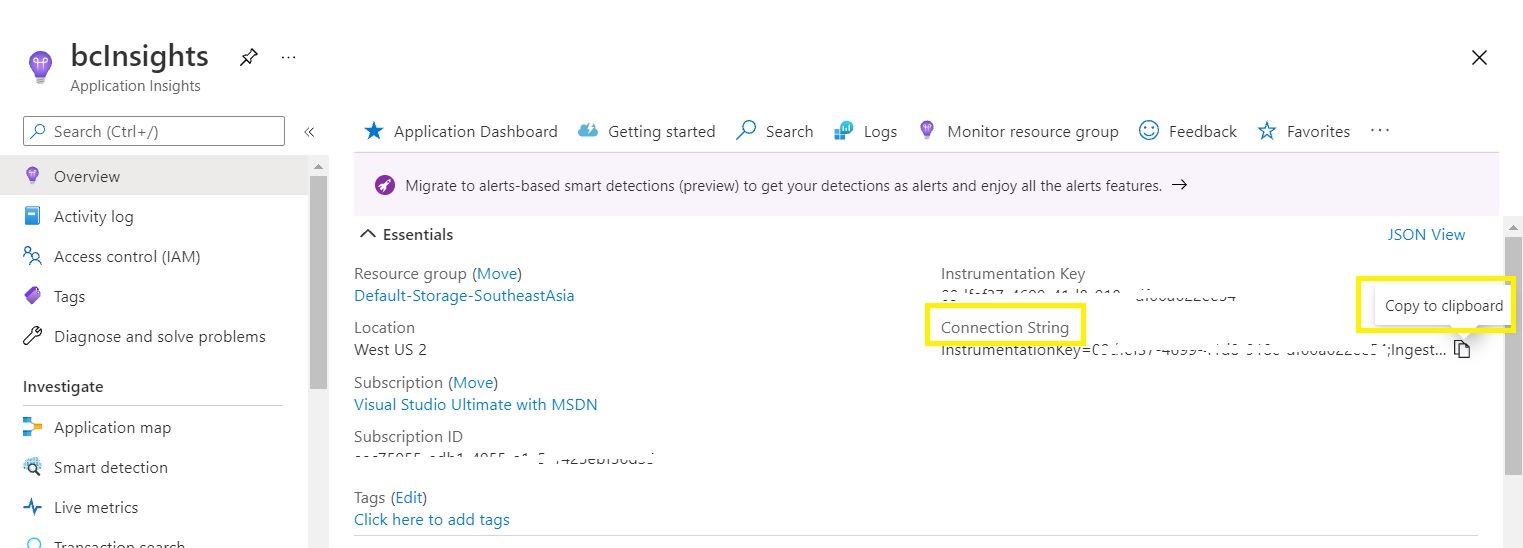
Sign in to the Azure portal
Search for Application Insights

Click on the Application Insights which we have used/created earlier.
“Connection String” will be available under the instrumentation key
Use “Copy to Clipboard” to copy full string.
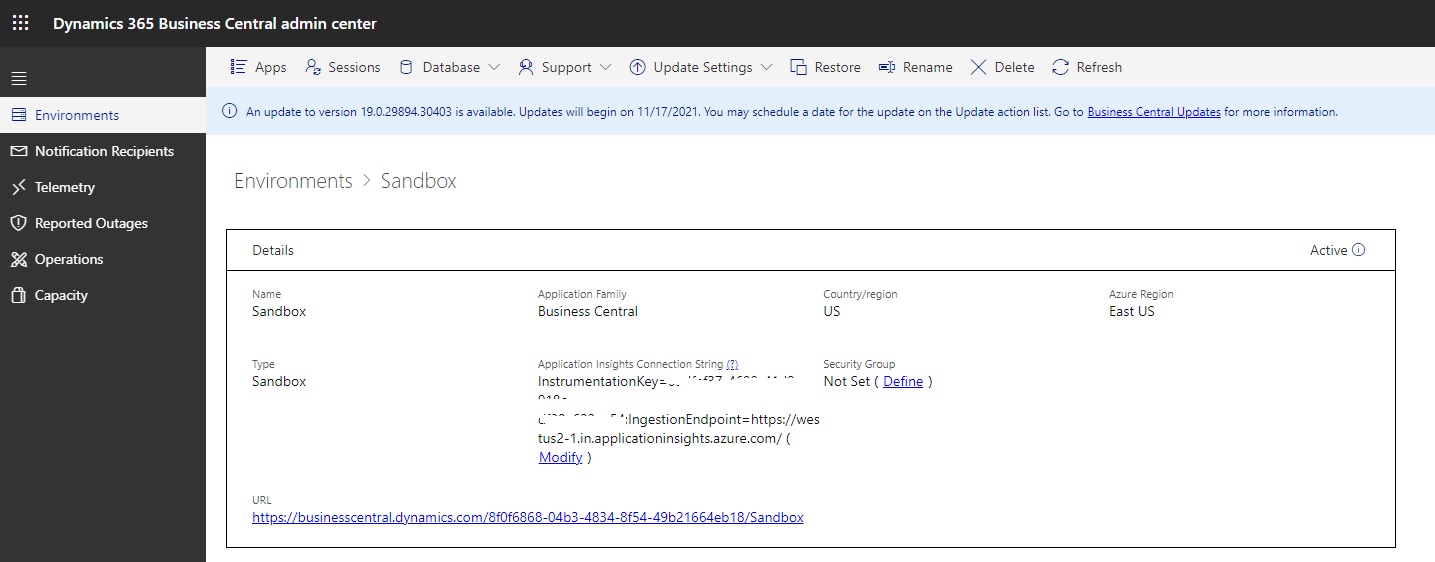
Go back to Dynamics 365 Business Central admin portal and open the Environment which has this notification
Click on Modify link of Application Insights connection string
Make sure that Enable Application Insights is enabled.
Enter the Connection string that we copied from Azure portal.
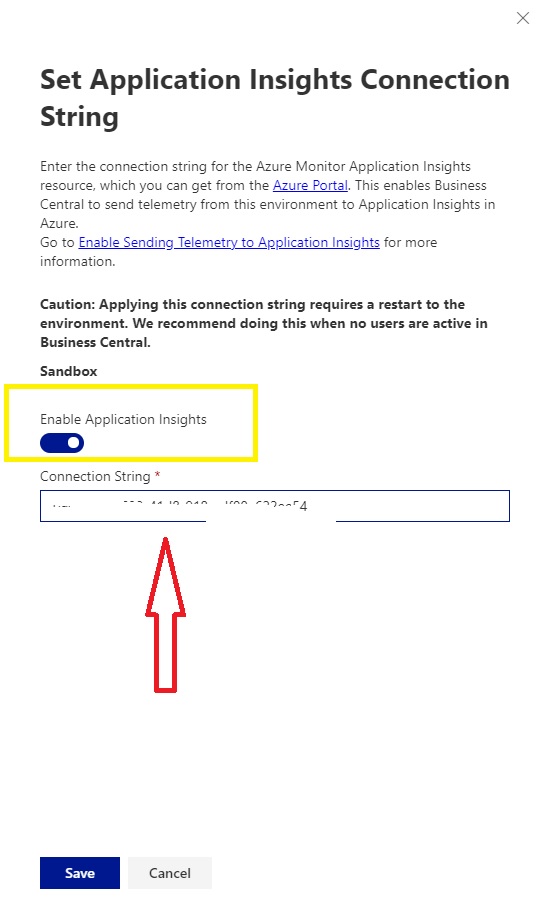
Click on Save
Now the notification will be gone after refreshing the environment.
This was originally posted here.
*This post is locked for comments