




 Like
Like Share
Share
 Report
Introduction:
This blog explains how to configure Notes on Entity in D365 Portal.
Steps of Implementation:
Below steps explain how to configure Notes section on Partner Work Order form in D365 Partner Field Service Portal.
- Create new Section for Notes on Form in D365 Field Service.
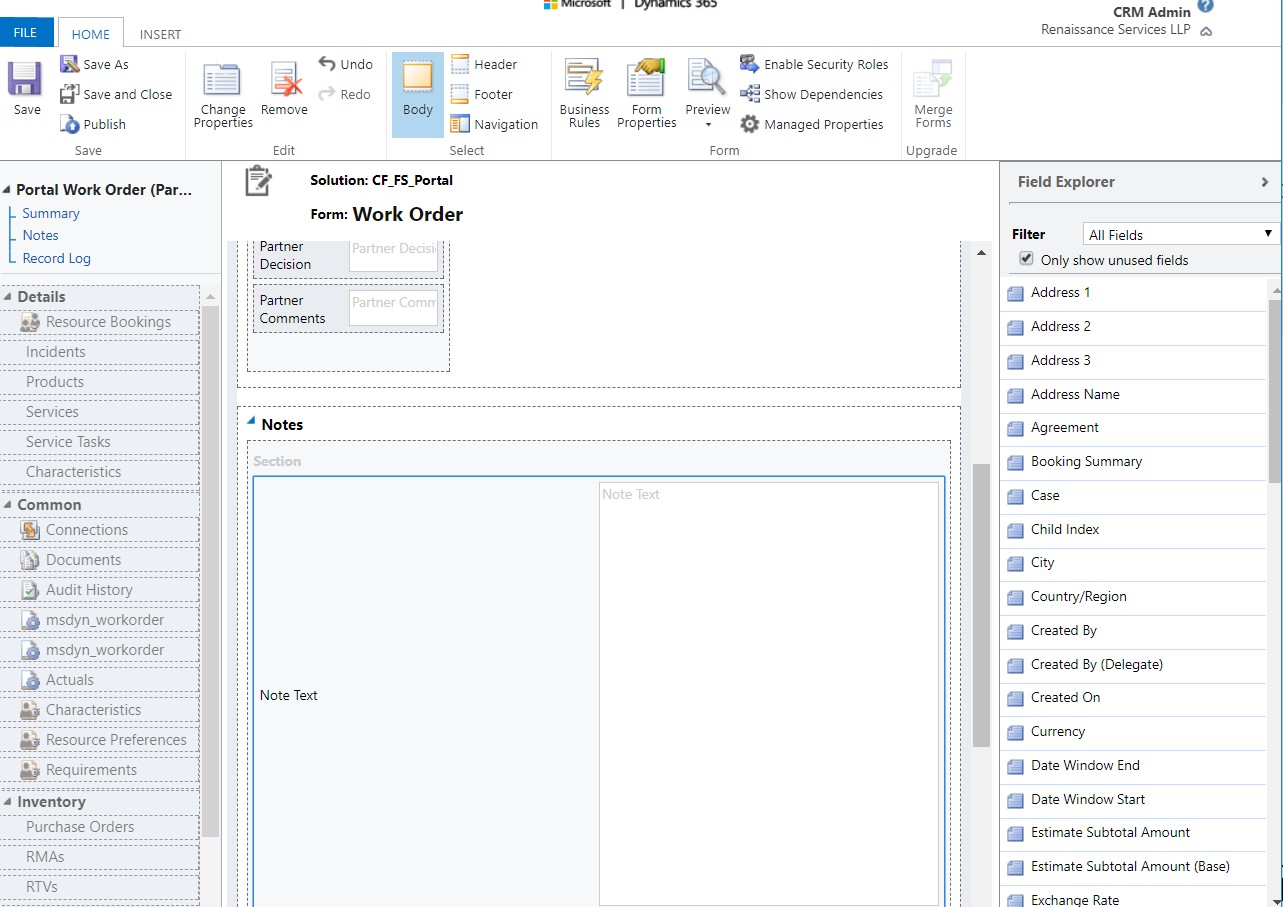
- Save and publish the changes.
- Navigate to the Portal -> click on the Entity Permission -> click on the new button.
- Create entity permission for Work order and screenshot for reference.
- Set Scope to “Global”.
- Enable all Privileges
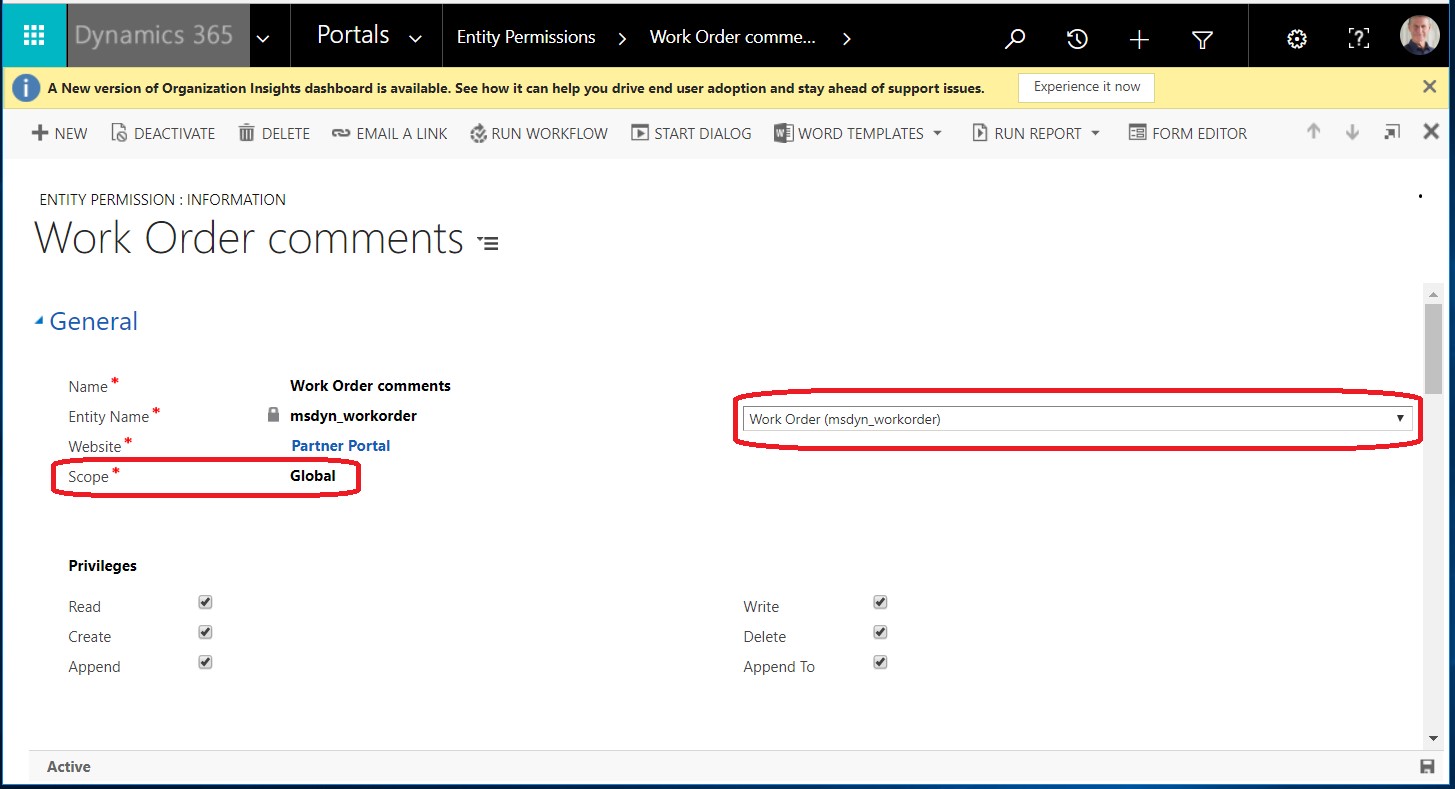
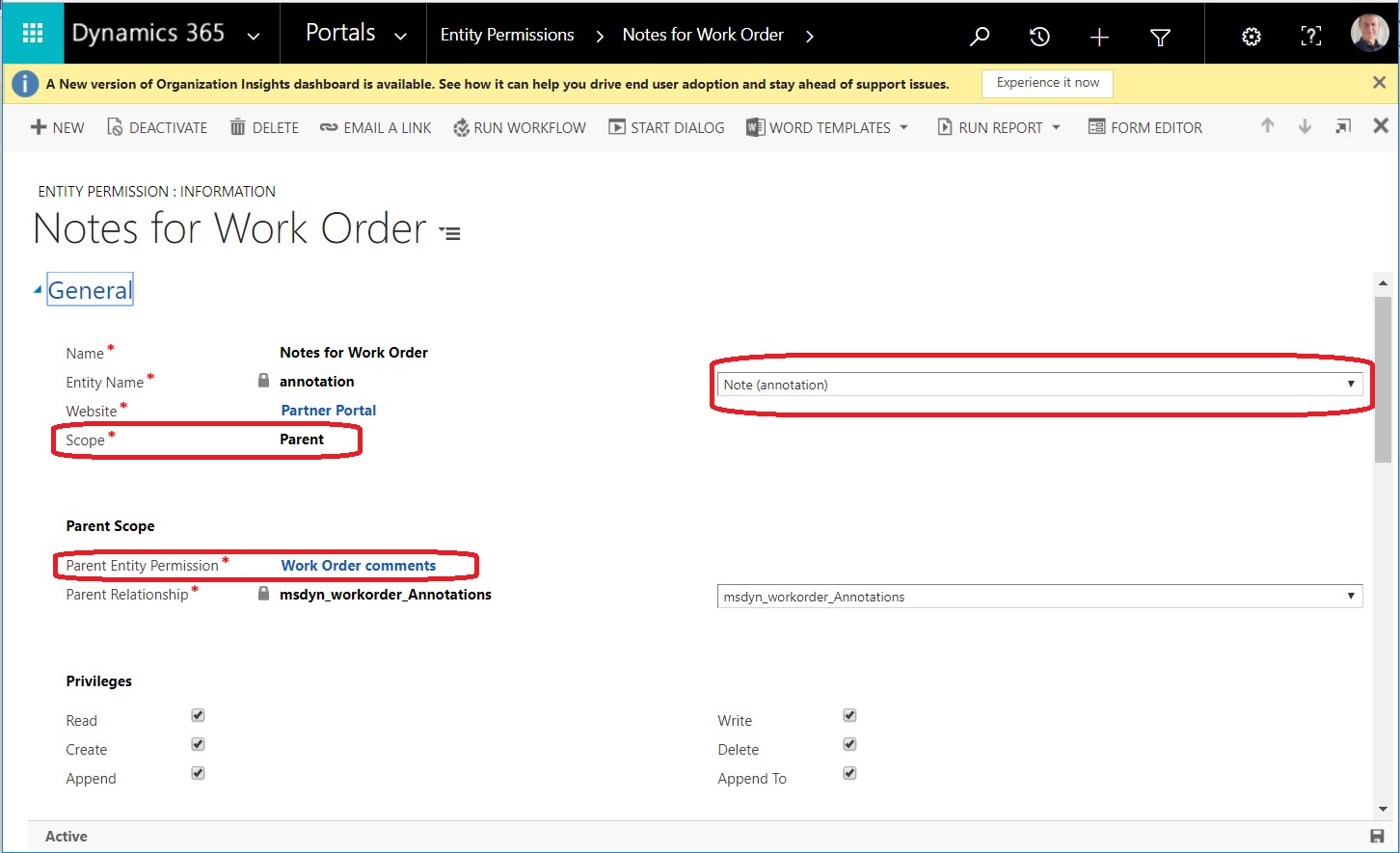
- In this record -> go to child entity permission sub grid follow below steps and screenshot for reference.
- Create “Note” entity permissions for Work order.
- Set Scope to “Parent”
- Parent Entity Permission as “Work Order Comments”
- Enable all Privileges
- Navigate to the Portal -> click on the Entity Forms -> Open Work Order Entity Form.
- Set Tab Name as “None” on Entity Form and save record.Refer the below screenshot.
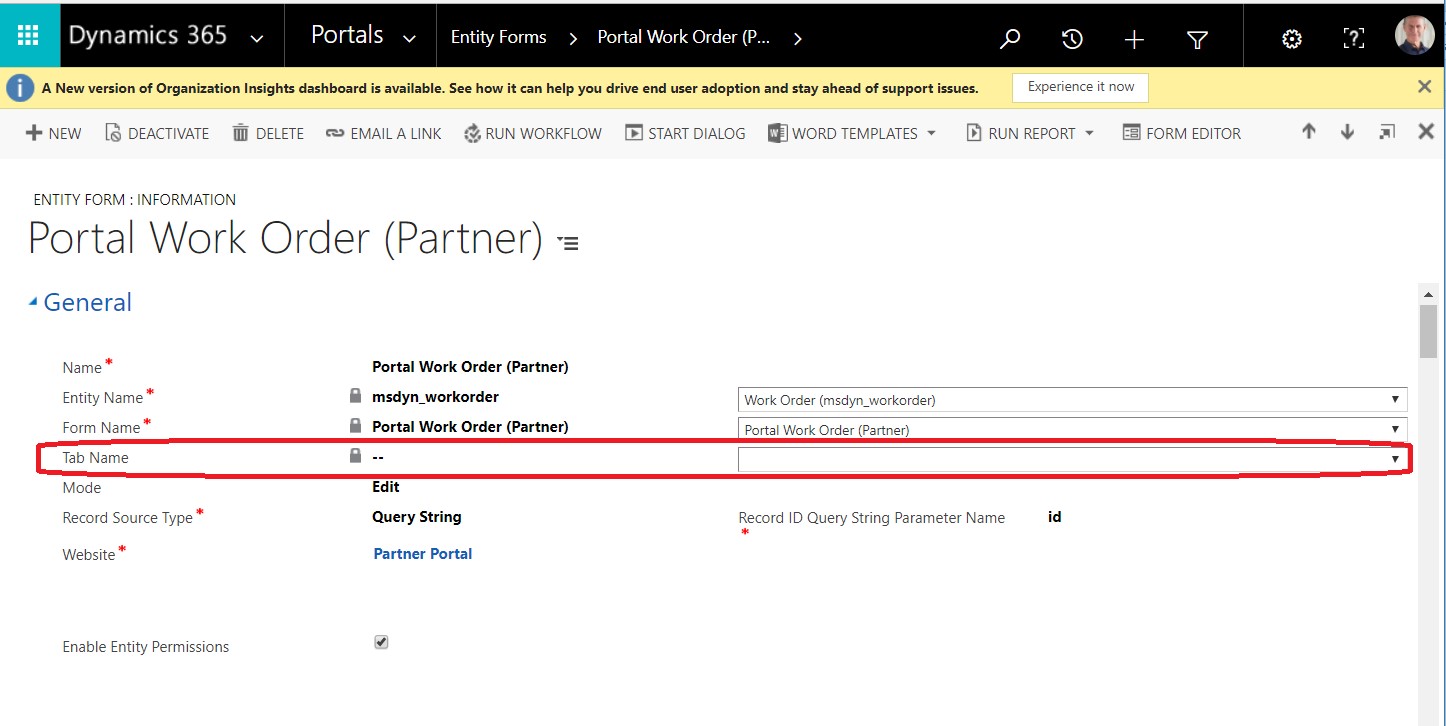
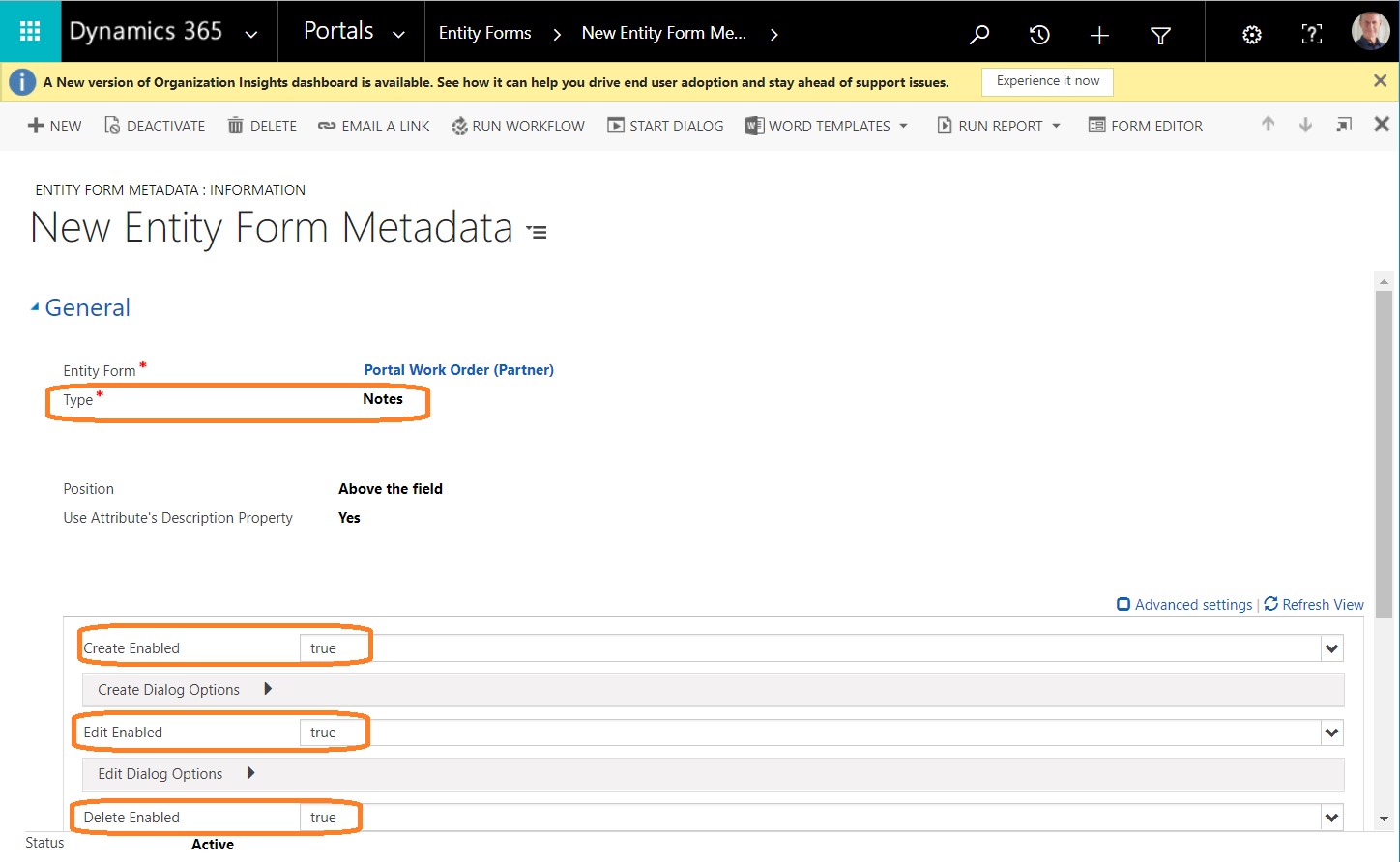
- Add Notes in Entity Form Metadata and screenshot for reference.
Conclusion:
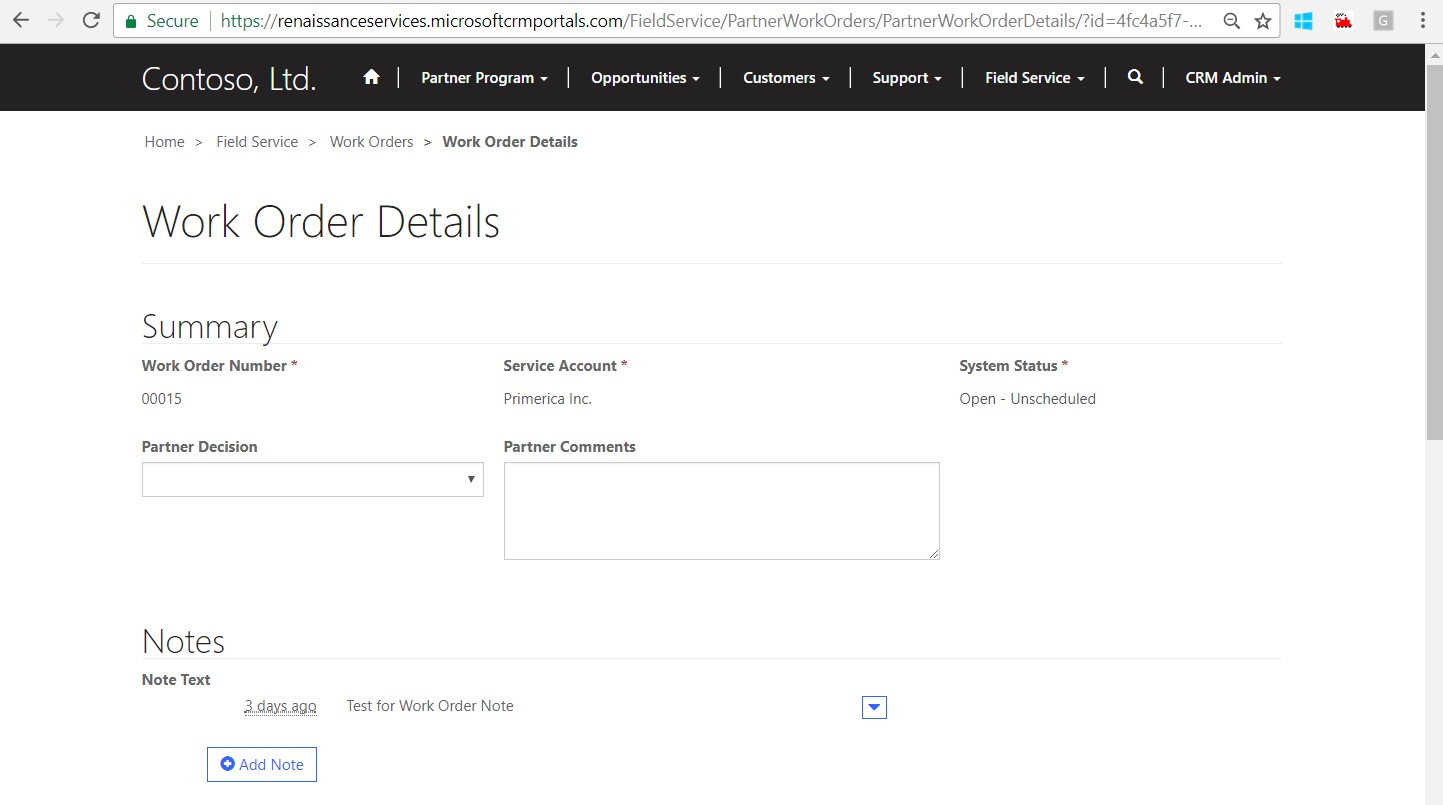
Above description in blog configure Notes on Entity in D365 Portals and below is screenshot for reference.
The post Configure Notes on Entity in D365 Portal appeared first on CloudFronts - Microsoft Dynamics 365 | Power BI | Azure.
*This post is locked for comments