




 4,188
4,188 Like
Like Share
Share
 Report
Introduction:
What is Drop Shipment?
Drop Shipment is the shipment feature to ship the items directly from the vendor to the Customer.
Shipment sent to the customer from the vendor can be easily tracked using item tracking and Requisition worksheet makes it easier to carry out the Purchase order.
Pre-requisites: Business Central
Procedure:
- Check the Item for item tracking and Replenishment type as Purchase with Vendor No

2. Create Sales order and enter the Item (in my e.g. 80006) and enable drop shipment

3. Close the sales order page and search for Requisition worksheet . Click on Drop shipment menu and select Get Sales order

4. Enter the Sales document no. and click on OK. The Sales order loads as below.
Click on the Process and select the Carry out Action Message

5. Enable print if you wish to print the Purchase order or you can print it later. click on OK

5. A new Purchase order is created. Search for Purchase orders and open the latest Purchase order.

6. If you wish to check if the Purchase order (PO) is really a drop shipment then in the Lines click on order, select drop shipment and select sales orders. The Sales order page will load.

7. Close and sales order page and navigate back to the Purchase order. As the Item 80006 has Item tracking setup, we need to assign Item tracking.
To assign Item tracking, click on Line and select Item tracking Lines

8. When the Item tracking page loads, click on Process and select Create Customized SN

9. Enter the Customized Serial No. and Increment as 1 and click on OK

10. Item tracking lines is generated as below image. When you click on close it will prompt you if you would like to synchronize item tracking with sales order line. Click on yes
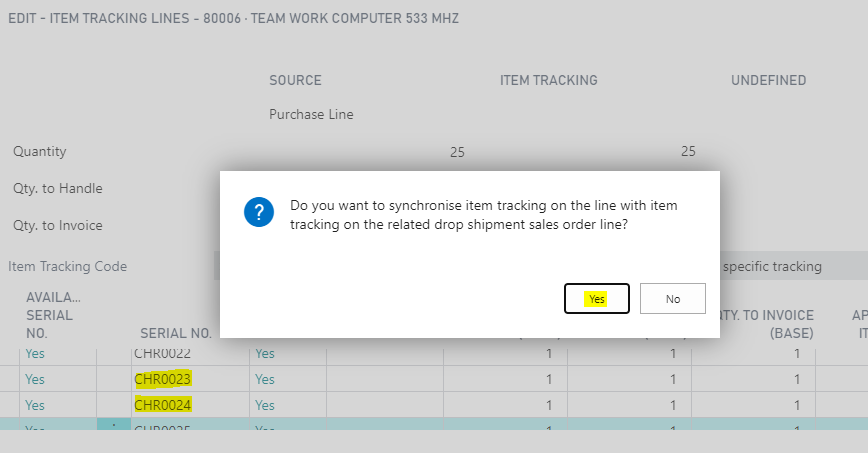
This means the same Item tracking lines will be generated for Sales order line as well.
11. If we open Sales orders from the Purchase order using step 6 and check item tracking lines. Same item tracking is assigned for Sales order as well.

12. If we post the receipt for Purchase order, the shipment of the sales order will be posted automatically. To post the Purchase order, click on posting then post, select Receive and click on OK

13. On Posting, Quantity received on PO will be 25 also if you check the Sales order, the shipment will be posted with quantity shipped as 25 along with their item tracking lines.


14. Navigate to Item tracking Lines and you will see negative and positive entries. The negative entries is always the shipment and here in the below example the Document No 102044 is the posted sales shipment No
The positive entries with Document No as 107037 is the posted purchase receipt No.

Thanks for reading!
Hope this article helped you gain more insights. Do let me know in the comments your suggestions.
*This post is locked for comments