




 2,582
2,582 Like
Like Share
Share
 Report
Introduction: In my previous blog, I have mentioned the steps required to setup ACH payments to vendors in NAV.
After all the setups are done, the next step will be to Export and Transmit the ACH payment file. In this blog, I will be giving the procedure for the same.
Pre-requisite:
Microsoft Dynamics NAV 2017 (North America NA version).
Procedure:
Step 1: Navigate to Payment Journal.
I have created a new payment general journal batch named ‘ACH’.
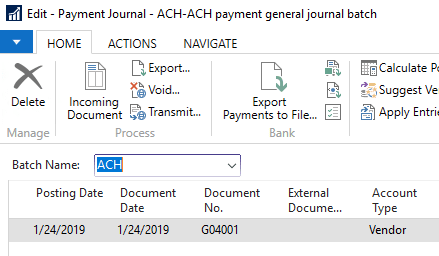
Step 2: Select ‘Suggest Vendor Payments’ which processes open vendor ledger entries and creates a payment suggestion as lines in the Payment Journal window.

Enter the Last Payment Date and the Posting Date.
Enable Find Payment Discounts, Summarize per Vendor to create one line per vendor for each currency in which the vendor has ledger entries.
Select the Bal. Account Type as ‘Bank Account’ and select the bank from which ACH payment has to be made in Bal. Account No. Select the Bank payment type as ‘Electronic Payment’.

Select a filter as payment method code is ‘ACH’ so that open vendor ledger entries with vendor payment method code as ACH are displayed.


Step 3: Export payments on journal lines to a file prior to transmitting the file to the bank. Select the ‘Export’ action.


Output method is basically for the Remittance advice. Select the output method to save it.
Step 4: The export file will be created automatically and saved in the Export folder.

Now logon to the bank, upload the file and once verification is given from the bank that everything is perfect then it can be transmitted.
Step 5: To transmit the payment, click on transmit.


After transmitting the payment, NAV will remove the notepad file from export folder and transfer it in the transmit folder.

Step 6: Last step is to post the payment.


Note: To edit the format of the export file as per the bank requirement, you need to edit format of the Codeunit 10090 – Export Payments (ACH).

Using the above procedure, it is possible to do ACH payments to vendors in Microsoft Dynamics NAV.
Thanks for reading my blog!


*This post is locked for comments