Introduction
In many India GST implementations of Microsoft Dynamics 365 Finance & Operations (D365 FO), businesses require additional invoice identifiers (such as internal Invoice ID, voucher number, or customized invoice reference) to be included in GSTR‑1 and GSTR‑2 reports.
While standard GSTR ER configurations cover statutory fields, organizations often need to extend reports without modifying standard objects. This is where Electronic Reporting (ER) proves powerful.
This blog explains how to extend the Invoice ID field in GSTR‑1 and GSTR‑2 by performing below extension and modification as below steps:
| Steps | Layer | Purpose |
| 1 | Extending the GSTR ER Model | Defines abstract data structure (logical view) |
| 2 | Updating the ER Model Mapping | Maps model fields to D365 FO data sources |
| 3 | Modifying the ER Format | Controls output layout (csv) |
Note: All changes are done using configuration extensions, ensuring upgrade safety.
Requirement
A. GSTR‑1 vs Books Reconciliation
During GSTR‑1 filing, businesses often face challenges reconciling:
- Legal GST invoice number (used in GSTR)
- Internal system invoice/Voucher ID (used in ERP & audits)
By exposing the system Invoice ID in GSTR output:
- GST filings become directly traceable to D365 FO transactions
- Reconciliation between Sales Register vs GSTR‑1 becomes faster
- Errors due to duplicate or overwritten invoice numbers are reduced
Especially useful during departmental audits, notices, and reconciliations.
B. GSTR‑2 / ITC Eligibility Validation
For GSTR‑2 related analysis (or auto‑drafted ITC reconciliation):
- D365 Invoice ID enables clear linkage between:
- Vendor invoice in D365
- GSTR‑2B / 2A data
- Helps identify:
- Missed ITC
- Duplicate vendor invoices
- Incorrect ITC claims tied to the same internal invoice
This is critical as ITC litigation and scrutiny have significantly increased
Configuration
Step1: Extending the GSTR ER Model
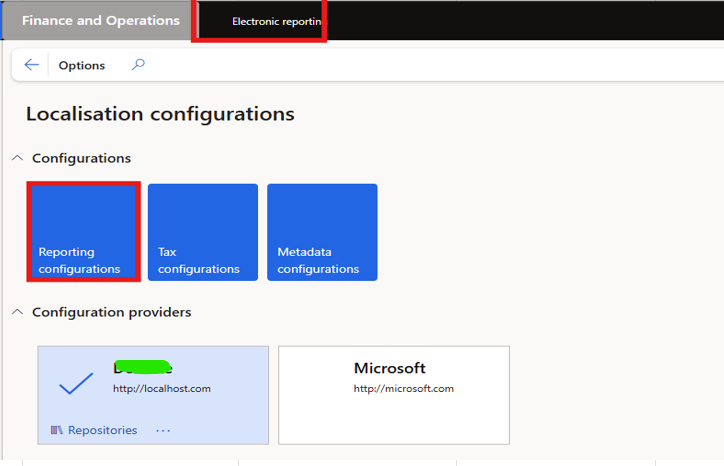
Step2. Updating the ER Model Mapping
Step3: Modifying the ER Format
Currently, taking GSTR1 in this blog as an example
Add string field for "Credit debit note for new return" "Header" sequence
Add string field for "credit debit note for new return" "Lines" sequence
Note: For lines, value need not be provided on dialogue box for "Value" field as we will bind the line field with the mapping
Repeat above steps for "Invoice and bill of supply for new return" for Header and Line "Sequence"
Only field at line level is to be bind for both:
1. "Credit debit note for new return" string field should bind with "Credit debit note filter"
2. "Invoice and bill of supply for new return" string field should bind with "invoice filter"
Below green highlighted screenshot is not a step to follow but just a note where mapping is to be done:
Go to Mapping and Bind "credit debit note for new return" "LINES" field (D365 Invoice Id) with "D365_InvoiceId" under "credit debit note filter" on right part of the screen. And save it
Note: Similarly repeat for "Invoice and bill of supply for new report" "LINES" field (D365 Invoice Id) with "D365_InvoiceId" under "Invoice filter" on right part of the screen. And save it
After saving go one step back and mark complete this GSTR extended model
Map the same GSTR-1 / GSTR-2 extended version on Tax > setup > Tax Configuration > Report configurations > Select the new extended report format
Testing: Run the GSTR report by selecting extended configuration
Now run the GSTR report, the extended field "D365 Invoice Id" will be visible on the report with value filled in.
Thank You 🙂
Happy Learning!


