Introduction
In the first article in this series, From Manual Steps to Governed Automation: Dataverse and D365 Delivery with MCP, I followed one Dataverse maintenance ticket from the Azure DevOps work item through to delivery. The functionality showcased was the creation of a JavaScript web resource, linked to the form, to display a warning when the expense amount exceeded the cap defined for the selected expense category. The main idea was simple: automate repetitive work, while keeping human decisions and runtime verification in the loop.
This second article zooms in on one capability: creating and maintaining a model-driven app command button from natural language.
The ticket is deliberately ordinary: add a Submit button to an Expense Report form. It must refuse submission when there are no expense lines or when the total is zero, and set the report to Submitted when the checks pass.
Normally, I would use the modern Command Designer. On older solutions, I might also need XrmToolBox and Ribbon Workbench. For this run, I did not open either one to build the button. I described the change to the agent, and the MCP server handled the Dataverse operations behind it.
The interesting part is not only that a button appears. The agent reads the environment, proposes a plan, stops for approval, creates the JavaScript web resource and command, packages the change, and records the delivery. I still verify the result in the app.
One implementation detail also mattered in this run: the form-context parameter used by the MCP tool. I keep the observed value in the article because it affected the handler, but I treat it as an implementation detail, not as a public Microsoft contract.
As in the first article, this is a technical walkthrough, not a product pitch. The focus is the maintenance flow itself: what the agent reads, what the MCP changes, where a human decides, and what is finally delivered.
Environment note. All screenshots come from a non-production demo environment and use synthetic data. No customer data, production credentials or secrets are shown.
The ticket

211 – Add a Submit button on the expense report form
As an employee, I want to submit my expense report from the form itself, so that I no longer have to email the administrator to say it is ready.
Scope
• A Submit command button on the expense report form.
• Submission is refused when the report carries no expense line, or when its total is zero.
• A submitted report moves to the Submitted status.
• The button appears on the form and only there.
• Both refusal cases show a message naming the reason.
• The status is set only when the checks pass.
The ask, in plain language
The requirement stayed at the business level. I did not configure the command by hand. The agent worked from the ticket and the conversation, then used MCP tools to inspect the current app and prepare the implementation.
From there, the technical work moved behind the MCP layer: read the existing command bar and form, create the JavaScript web resource, create the command, publish it, and prepare the delivery.
That is the before-and-after in this post: the same Dataverse change, without manually opening Command Designer or Ribbon Workbench to build it.
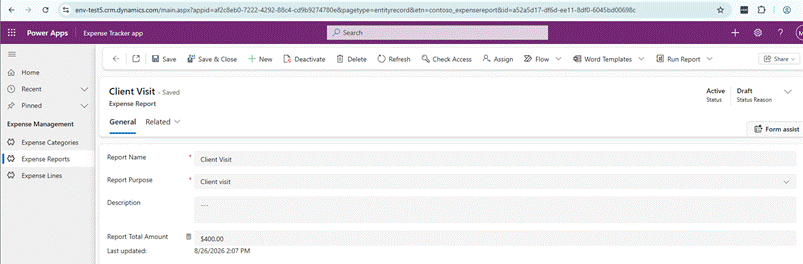
Screenshot 01 — The expense report form before the ticket. Save, Delete, Refresh — and nothing that submits.
The ticket looks simple, but each line hides a design choice.
"On the form and only there" defines the command-bar location. "Its total is zero" raises a second question: which total should the button trust? This model has a rollup total that is refreshed on its own schedule. And "moves to Submitted" assumes that the status value already exists. Those are the details the agent has to check before it can build anything.
Before: how this is done by hand
The demo environment expired before I could capture the manual screens, so I will keep this part to the sequence itself. This is the path I would normally follow with the modern Command Designer.
1. Write the JavaScript — Editor
Create the click handler, queries and user messages.
2. Create the web resource — Maker portal
Create the JavaScript web resource, upload the file and publish it.
3. Open the command bar — App designer
Open the app, select the table and open its command bar.
4. Choose the command location — Command Designer
Select where the command should appear: main form, main grid, subgrid or associated view.
5. Create the command — Command Designer
Add a new command and define its label.
6. Choose the icon — Command Designer
Select an icon from the Fluent icon set.
7. Configure the JavaScript action — Command Designer
Select the JavaScript library and enter the function name.
8. Pass the form context — Command Designer
Add the PrimaryControl parameter required by this handler.
9. Save and publish — Command Designer
Save the command and publish the changes.
10. Version the script — Git client
Commit the JavaScript to the source repository.
11. Create the pull request — Azure DevOps
Open the pull request for review.
12. Update the work item — Azure DevOps
Add the delivery comment, link the pull request and update the work item state.
Twelve manual operations across several tools and screens for one small command button. The important point is not the number itself; it is the handoffs between code, Power Apps, source control and Azure DevOps.
For this handler, the PrimaryControl parameter is required because the JavaScript function needs the form context. The designer lets you add it, but it is easy to miss. If the handler does not receive the context it expects, the button can appear correctly while the action still fails.
Source control is another easy step to skip. A button can work in Dataverse while the JavaScript behind it never reaches the repository. Then the next person cannot review or diff the change.
I also keep button visibility in the command itself rather than manipulating the page DOM from JavaScript. That keeps the behavior inside the supported command model.
The classic path: Ribbon Workbench
On many Dynamics 365 systems, there is also a classic path: XrmToolBox with Ribbon Workbench. It remains useful when you are maintaining classic ribbon customizations.
The important point for this article is that classic and modern commands use different models. Classic commands are based on ribbon XML; modern commands use the modern commanding model and are solution components. The same JavaScript idea can exist in both, but the configuration underneath is different.
In a classic command, the form context is passed with a CrmParameter whose value is PrimaryControl. Microsoft documents that model. In this article, however, the button is a modern command created through the MCP tooling.
After: the same task from the conversation
For this run, I did not open Command Designer or Ribbon Workbench to build the button. From this point on, the agent drives the work through MCP tools, while the same governance rules from the first article still apply: read first, plan, approve, write, deliver and verify.
It starts by refusing to read the ticket

Screenshot 02 — The work item, in To Do. Nothing has been reviewed yet, and that is what the next screen turns on.
Before the ticket is read, the server checks which Dataverse environment it is connected to: organization id, URL and the identity used for writes. Friendly names are not unique, so the organization id is the reliable identifier.
Then I asked it to read work item 211. It refused.
readable: false
reason: Work item 211 is in state 'To Do', which is not a validated state
(Active, Doing, Committed, In Progress).
guidance: Read refused: a human must review the ticket first and move it to a
validated state. Do not proceed.
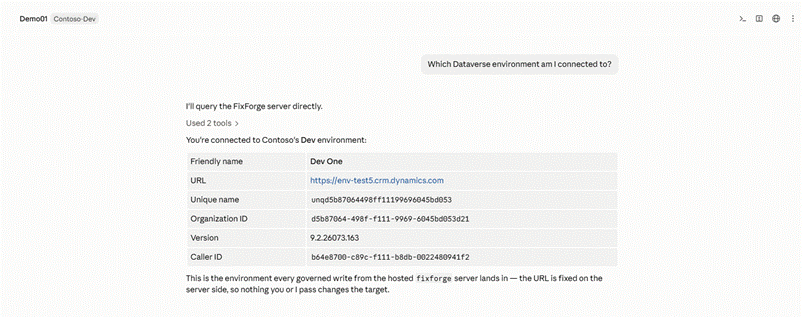
Screenshot 03 — Organization id, URL and the identity the writes will run under, read before anything else. Two clients can both call their environment Dev One.
The server returned the work item id, type, state and title, but held back the description. That is deliberate: the ticket body is treated as untrusted input until a human has reviewed it and moved the work item to an allowed state.
I moved 211 to a validated state and asked again.
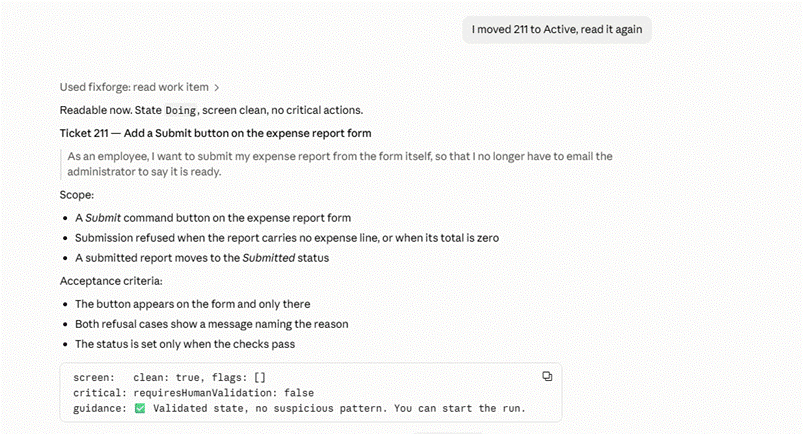
Screenshot 04 — The same call after a human moved the ticket, with the opposite result. The security screen runs here too and reports clean.
What it read before it planned
This is the part I care about most: reading the real environment before generating or changing anything.

Screenshot 05 — The plan, after five live reads. The row that changed the design is the rollup: a column a background job refreshes on its own schedule cannot be trusted at click time.
Before proposing the plan, the agent made five live checks:
Command buttons on the Expense Report — None found, with and without the form filter.
Ribbon JavaScript web resource — It did not exist.
Libraries on the form — None were attached.
Form contents — Six columns, with no expense-line subgrid.
Expense line to report relationship — A lookup exists, together with the amount column.
The reads showed that the command and its JavaScript web resource did not exist yet, so this ticket starts from a clean creation path.
Two reads changed the implementation plan.
There is no expense-line subgrid on the form, so the button cannot rely on form controls to check whether lines exist. It needs to query the related expense lines.
The total column is a rollup. Because rollups are refreshed separately, the value on the report can be older than the expense lines the user just changed. Since the button already has to query the lines for the "no line" check, the plan derives the total from those retrieved lines as well.
The agent explained the decision like this:
I take the total from the retrieved lines, not from contoso_reporttotalamount. Since I must query the lines anyway for the "no line" check, I'll derive the total from that same query. One round trip answers both checks, and neither depends on a job having run.
This is why the environment reads matter: the implementation is based on the actual data model, not only on the wording of the ticket.
Gate G1: the decision before the build
The plan stopped at G1 because one point was still unknown: whether the Submitted status value existed on this table. The metadata snapshot was stale and the refresh operation timed out, so the agent did not guess. I checked that point manually before approving the plan.
For me, that is the right behavior: when a read is not reliable, the agent stops and asks for a decision instead of inventing a value.
Before approving the plan, I checked one more detail: how does the command pass the form context to the JavaScript handler?
The modern Command Designer lets a command pass parameters to JavaScript. In the command representation used by my MCP tool, the form-context parameter appeared as:
This is the value written by the MCP tool for PrimaryControl in this run:
add_command_button — table contoso_expensereport, label Submit, location Form,
function CONTOSO.Contoso_expensereportRibbon.onSubmit,
parameters [{"type":5}] ← PrimaryControl
In my tests, omitting that parameter meant the handler did not receive the form context it expected. Microsoft documents passing parameters to JavaScript commands, but I did not find this specific JSON representation in the public documentation. I therefore treat [{"type":5}] as an observed implementation detail of the model used by my tooling, not as a public platform contract.
The build and server-side validation
The approved build created the ticket solution, the JavaScript web resource, the command and the source-control changes. Before deployment, the server-side scanner stopped the script for review.
The scanner reported unsupported patterns in the script.
Web resource 'ffm_/contoso_expensereport/ffm_contoso_expensereportribbon.js' refused:
10 unsupported pattern(s) —
line 6: window.top (unsupported — breaks with platform updates)
line 41: alert( (use Xrm.Navigation.openAlertDialog)
The findings turned out to be false positives.
The window.top match came from a comment that warned against using window.top. The scanner was reading the warning as if it were executable code.
The alert matches came from a private helper named alert whose implementation called Xrm.Navigation.openAlertDialog. The rule matched the method name without understanding the call.
I adjusted both rules in the MCP server: comments are ignored, and the alert rule targets the global alert() call rather than any method with the same name. It was a useful reminder that governance rules also need to be precise enough not to block supported code.
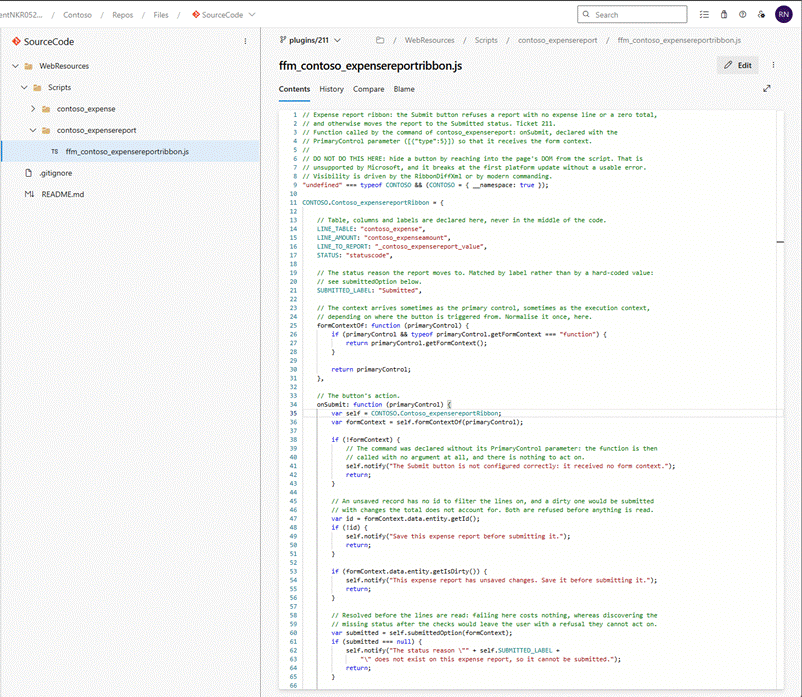
Screenshot 06 — The committed script. Table and column names declared once at the top, the context normalised in one place, and the checks ordered so that failing costs nothing.
The script keeps table and column names in one place, normalises the context once, and runs the cheapest checks before querying the expense lines. The code is intentionally simple; the interesting part is how it is created, governed and delivered.
// Resolved before the lines are read: failing here costs nothing, whereas
// discovering the missing status after the checks would leave the user with a
// refusal they cannot act on.
var submitted = self.submittedOption(formContext);
Gate G2 and delivery
What the ticket produced, and nothing else
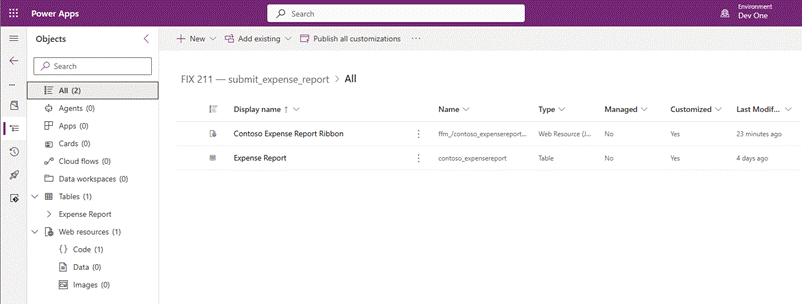
Screenshot 07 — The ticket solution: the web resource and the table it belongs to. Two objects, and the button.
The exported ticket solution contains the command, the JavaScript web resource and the table component it belongs to. The rest of the client model is not pulled into the ticket solution.
That is the point of a per-ticket solution: include only what the change needs and avoid bringing unrelated table assets into the delivery.
In this environment, the solution object list shown in the screenshot did not surface the command even though the exported solution contained it. Microsoft documents modern commands as table components that can be included in solutions, so I treat what I saw here as a UI or representation issue in this environment, not as a general platform rule.

Screenshot 08 — The delivery. One pull request was created automatically; the code pull request required manual completion because the two tooling components used different branch names.
G2 is the delivery decision. After approval, the server prepared the delivery report, pull requests and work item update, then published the changes and released the locks.
One delivery step required manual completion in this run. The workstation and server sides of the tooling were using different branch names for the same delivery, so I created the code-review pull request manually and linked it to the work item. The Dataverse change itself was already built and published.

Screenshot 09 — The work item after delivery: both pull requests linked, and a comment recording what was built, how it behaves, and what was not verified.
The code-review pull request was completed manually for this run. Both pull requests are linked to the work item, so the delivery remains traceable.

Screenshot 10 — The delivery report committed to the customizations repository: the run, the approved plan, and every operation with its parameters.
The delivery report records what was built, what the environment looked like before the writes, and the operations executed.
It stays in the repository next to the change it explains.

Screenshot 11 — The code-review pull request linked to the work item.
This is the code-review pull request completed manually for this run because of the branch-name mismatch. The work item links both pull requests.
Final runtime validation
The final step is simple: open the app and test the button exactly as a user would. This complements the automated checks with a direct validation of the user experience.
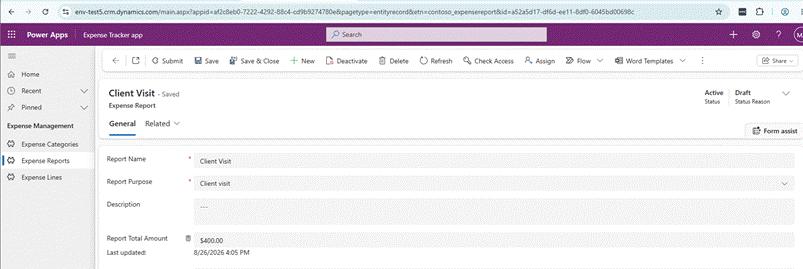
Screenshot 12 — The same form as at the start of this post. One button more.

Screenshot 13 — A report with no expense line. The refusal names the reason and tells the user what to do about it.

Screenshot 14 — A valid report: submitted, and the status written only once both checks passed.
The zero-total case follows the same function and shows its own message. The status is changed only after both checks pass.
A small change afterwards, still from the conversation
After the ticket was delivered, I looked at the button and decided I did not like the icon.
This is a normal maintenance request: change one property of a working component without disturbing everything around it.
I asked the agent about changing the icon. It did not update anything immediately. It first returned four Fluent icon options for me to choose from.
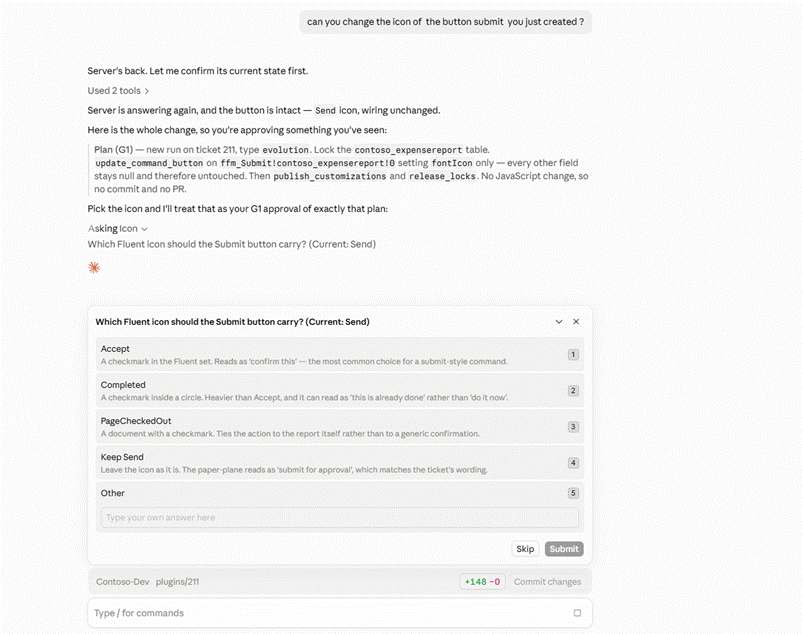
Screenshot 15 — Four Fluent icons, each with a sentence on how a user would read it.
Each option came with a short explanation of how a user might read it. I chose the Accept icon.
That choice belongs to the human. The tool can present options, but it should not decide the user experience for me.
Then it showed the plan, before the choice counted as approval.
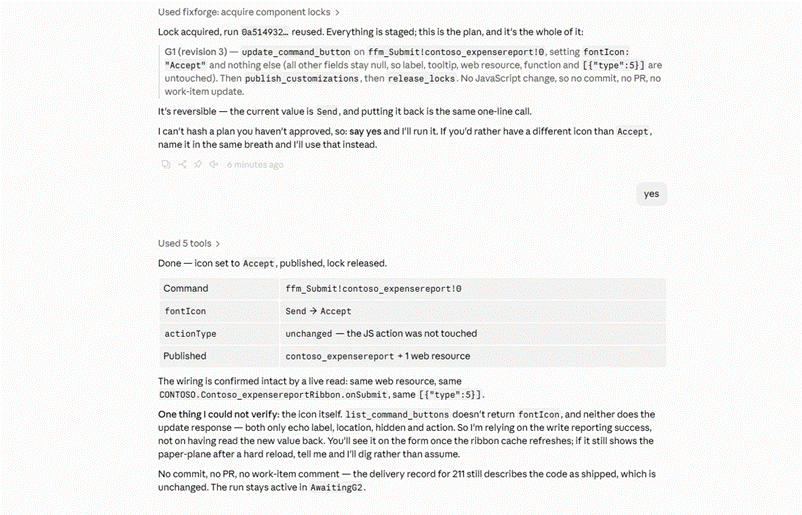
Screenshot 16 — The plan for a one-line change, its result, and what the agent says it could not verify.
The update plan was deliberately small: change only the icon, publish, and leave every other command property untouched.
G1 (revision 3) — update_command_button on ffm_Submit!contoso_expensereport!0,
setting fontIcon: "Accept" and nothing else (all other fields stay null, so
label, tooltip, web resource, function and [{"type":5}] are untouched). Then
publish_customizations, then release_locks. No JavaScript change, so no commit,
no PR, no work-item update.
It's reversible — the current value is Send, and putting it back is the same
one-line call.
Two details matter here.
First, fields that were not part of the request stayed untouched. The label, tooltip, web resource, function and command parameters were not rewritten.
Second, the JavaScript did not change, so there was no source-code commit or pull request for this small UI update.
After the write, the agent was clear about one point that still needed runtime verification:
The update call succeeded, but the response used in this run did not return the icon value. I therefore verified the new icon directly in the app after the ribbon cache refreshed.
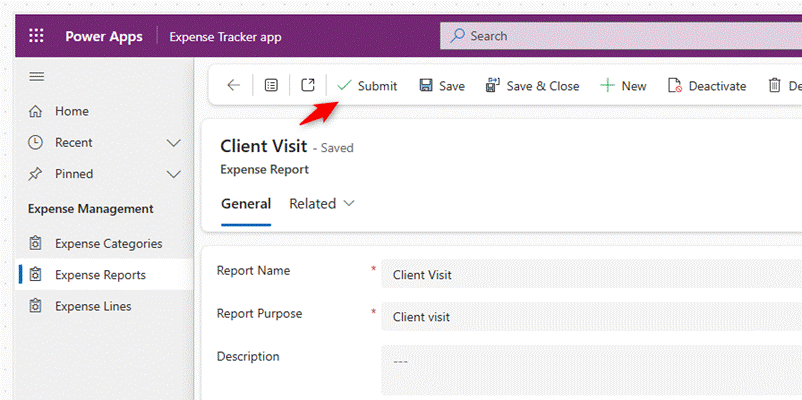
Screenshot 17 — The form once the ribbon cache refreshed.
What this run shows
I did not time the manual and MCP-assisted paths, so this article is not a speed comparison. What it shows is that the command can be created and maintained from the conversation while the environment reads, approvals, writes and delivery remain explicit and traceable.
The demo Dataverse environment expired while I was writing this post, while the Azure DevOps artifacts survived: repositories, pull requests, work items and delivery reports. It was a useful reminder to version the baseline as carefully as the changes built on top of it.
Microsoft references
• Customize the command bar - Power Apps
• Modern commanding overview - Power Apps
• Manage commands in solutions - Power Apps
• Pass data from a page as a parameter to Ribbon actions - Power Apps
What comes next
Next: a plug-in, end to end. I will start from an empty project, follow the client conventions, build the assembly, register the right step and use plug-in traces when something goes wrong. The goal is the same: stay in the conversation while the MCP handles the platform operations behind it.
Then: automated tests alongside the plug-in. The agent will generate and run the tests, and I will look at the test counts as well as the exit code. A successful build is not useful if no test actually ran.
If there is a Dataverse or Dynamics 365 maintenance task you would like to see taken apart this way, let me know in the comments.


