






Dynamic 365 Business Central: Managing Credit Limits and Overdue Balances
Views (161)
 Khushbu Rajvi.
 22,792
Super User 2026 Season 1
22,792
Super User 2026 Season 1
 Like
Like Share
Share
 Report
When managing customers in Microsoft Dynamics 365 Business Central, controlling credit exposure is very important. Business Central provides a useful feature that helps businesses manage customer credit by using Credit Limits, Balance Due checks, and Credit Warnings.
These settings help users receive warnings when creating sales documents if a customer exceeds their allowed credit amount or has overdue payments.
Business Central checks whether the customer’s balance exceeds the defined credit limit.
If the limit is exceeded, the system shows a warning to inform the user.
It is important to note that Business Central only shows a warning, and the document can still be posted if required.
If the Credit Limit field is left blank, it means that no credit limit is defined for that customer.
Locate the Credit Warnings field on the General FastTab
Here you can select how the system should warn users.
Both Warnings
The system checks both:
Credit Limit
The system compares the customer’s balance with the Credit Limit field.
A warning is shown if the balance exceeds the allowed limit.
Overdue Balance
The system checks whether the customer has any overdue balance.
If overdue payments exist, a warning will appear.
No Warning
No credit warnings will be shown when creating sales documents.
In this example:
In the General FastTab, configure the Credit Warnings field.
For this scenario:
In this example:
The system shows the notification:
"The customer's credit limit has been exceeded."
This helps users understand why the warning was triggered.
Regards,
Khushbu Rajvi
These settings help users receive warnings when creating sales documents if a customer exceeds their allowed credit amount or has overdue payments.
What is the Credit Limit?
The Credit Limit field on the Customer Card defines the maximum amount of outstanding balance that a customer is allowed before the system generates a warning.
When users create documents such as: Sales Quotes, Sales Orders, Sales Invoices, Journal entries
When users create documents such as: Sales Quotes, Sales Orders, Sales Invoices, Journal entries
Business Central checks whether the customer’s balance exceeds the defined credit limit.
If the limit is exceeded, the system shows a warning to inform the user.
It is important to note that Business Central only shows a warning, and the document can still be posted if required.
If the Credit Limit field is left blank, it means that no credit limit is defined for that customer.
Why Credit Limits are Useful
Credit limits help organizations:- control customer credit exposure
- avoid excessive outstanding balances
- monitor overdue payments
- enforce consistent credit policies
Warning Setup in Business Central
Business Central also allows users to decide which type of warning should appear when creating sales documents.
To configure this setting:
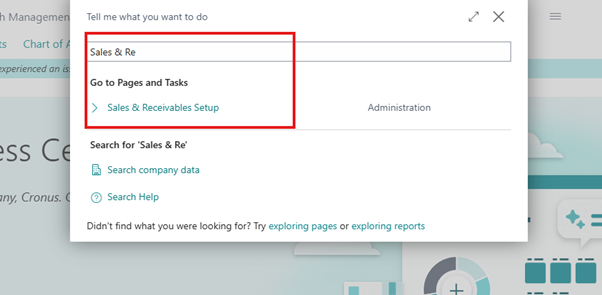
Open Search (Alt + Q). Type Sales & Receivables Setup. Open the page.
To configure this setting:
Open Search (Alt + Q). Type Sales & Receivables Setup. Open the page.
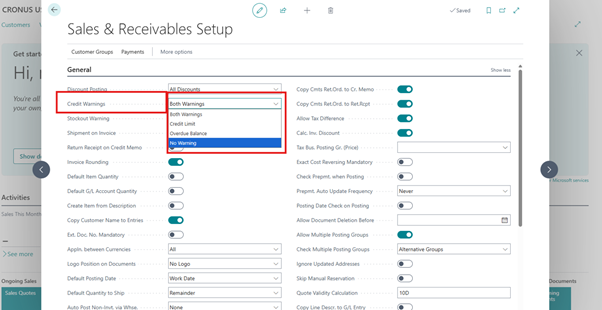
Locate the Credit Warnings field on the General FastTab
Here you can select how the system should warn users.
Warning Options
Business Central provides the following options:
Both Warnings
The system checks both:
- Credit Limit
- Overdue Balance
A warning appears if the customer exceeds the credit limit or has an overdue payment.
Credit Limit
The system compares the customer’s balance with the Credit Limit field.
A warning is shown if the balance exceeds the allowed limit.
Overdue Balance
The system checks whether the customer has any overdue balance.
If overdue payments exist, a warning will appear.
No Warning
No credit warnings will be shown when creating sales documents.
Practical Example:
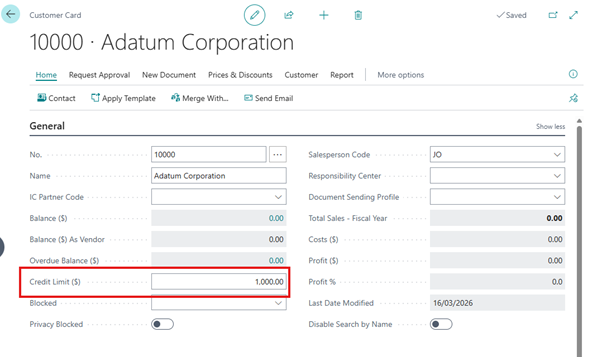
Define the Credit Limit on the Customer Card
First, open the Customer Card and define the credit limit for the customer.In this example:
- Customer: Adatum Corporation
- Credit Limit = 1,000
This means the customer's total outstanding balance should not exceed 1,000 before a warning is triggered.
Configure Credit Warning in Sales & Receivables Setup
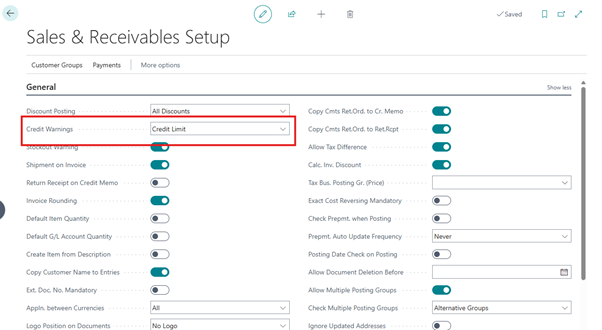
Search → Sales & Receivables SetupIn the General FastTab, configure the Credit Warnings field.
For this scenario:
- Credit Warnings = Credit Limit
With this setup, Business Central checks whether the customer's balance exceeds the defined credit limit whenever a sales document is created.
Create a Sales Order
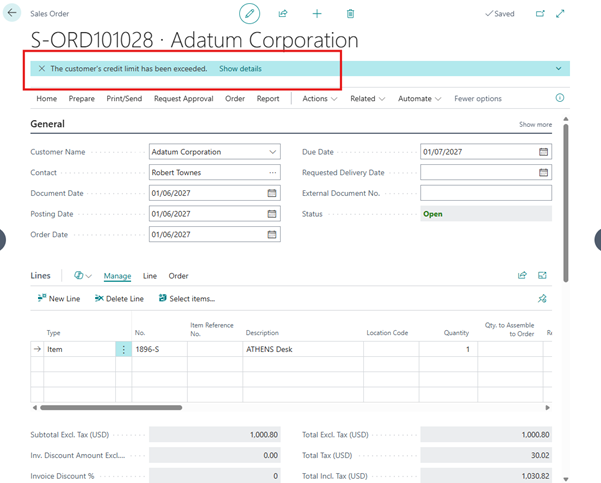
Now create a Sales Order for the same customer.In this example:
- Sales Order amount: 1,030.82
- Customer Credit Limit: 1,000
The system shows the notification:
"The customer's credit limit has been exceeded."
Review Credit Limit Notification
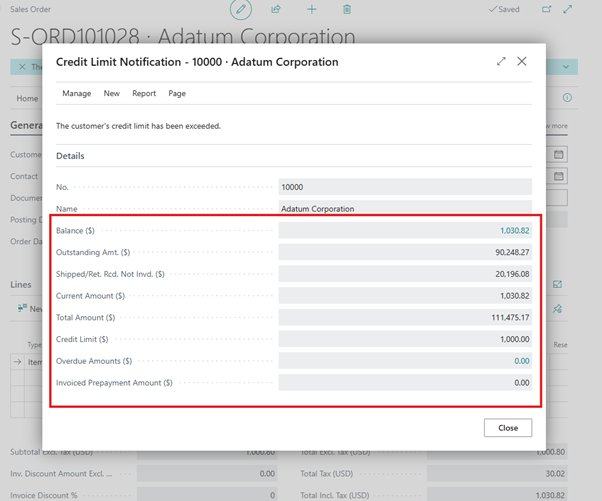
When you select Show details, Business Central displays additional information.This helps users understand why the warning was triggered.
Important Note
Even though the credit limit is exceeded, Business Central still allows the user to continue and post the document. The system only shows a warning unless additional controls are implemented.Conclusion
Managing customer credit is an important part of financial control in any organization. The Credit Limit and Credit Warning settings in Business Central help businesses monitor customer balances and reduce the risk of unpaid invoices.
By properly configuring these settings, companies can maintain better credit discipline while still allowing flexibility when needed.
Thanks for Reading…!!😊
By properly configuring these settings, companies can maintain better credit discipline while still allowing flexibility when needed.
Thanks for Reading…!!😊
Regards,
Khushbu Rajvi
*This post is locked for comments