







Create count tile in workspace
Views (2114)
 Maha Jamali
 487
487
 Like
Like Share
Share
 Report
This post will be helpful for creating count tile in work space. There are two methods through which we can create tile : One is by personalizing form manually and another is through code. Tile count is something new in D365 as comparison to AX2012.
Let’s say we have a requirement of adding a new tile in sales order processing and inquiry work space that will show all sales orders with delivered status.
Below are the steps which can be followed for creating tile count in work space.
1. Create a project and add a query artifact in it. “DeliveredSalesOrdersQuery”
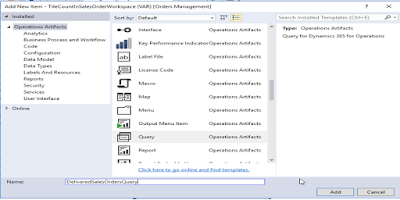
2. Add SalesTable as datasource in “DeliveredSalesOrdersQuery”. Set dynamic fields property to “Yes” and add range in it for showing sales orders whose status is delivered.

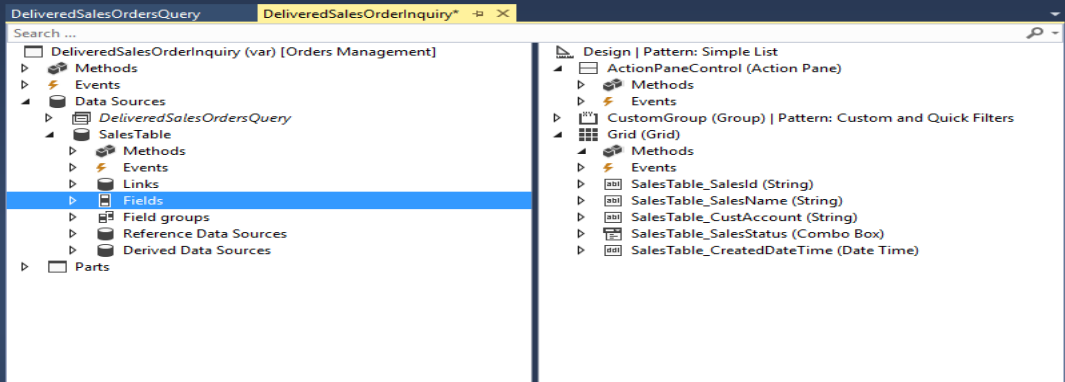
3. Add a new form namely “DeliveredSalesOrderInquiry”.
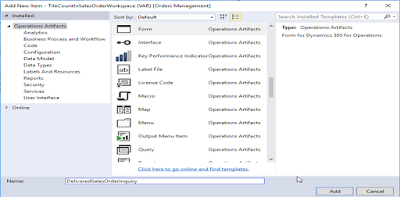
4. Add query “DeliveredSalesOrdersQuery” in form DeliveredSalesOrderInquiry and set pattern as simple list.
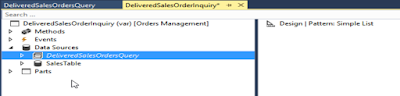
5. Add action pane and grid in DeliveredSalesOrderInquiry form. We need to add action pane and custom filter group in order to avoid violation of pattern.

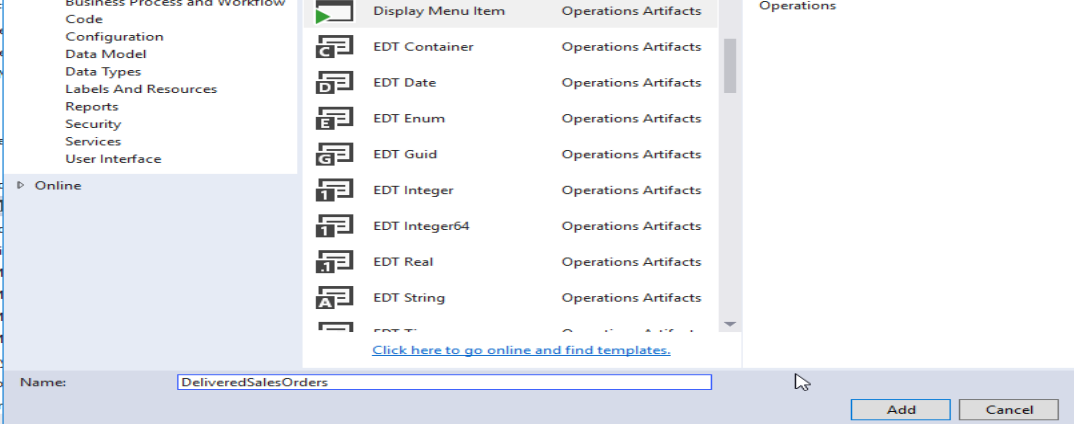
6. Add a display menu item namely DeliveredSalesOrders .
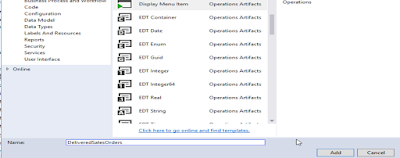 7. Set following properties on menu item
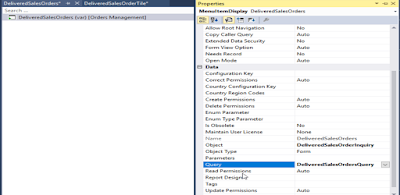
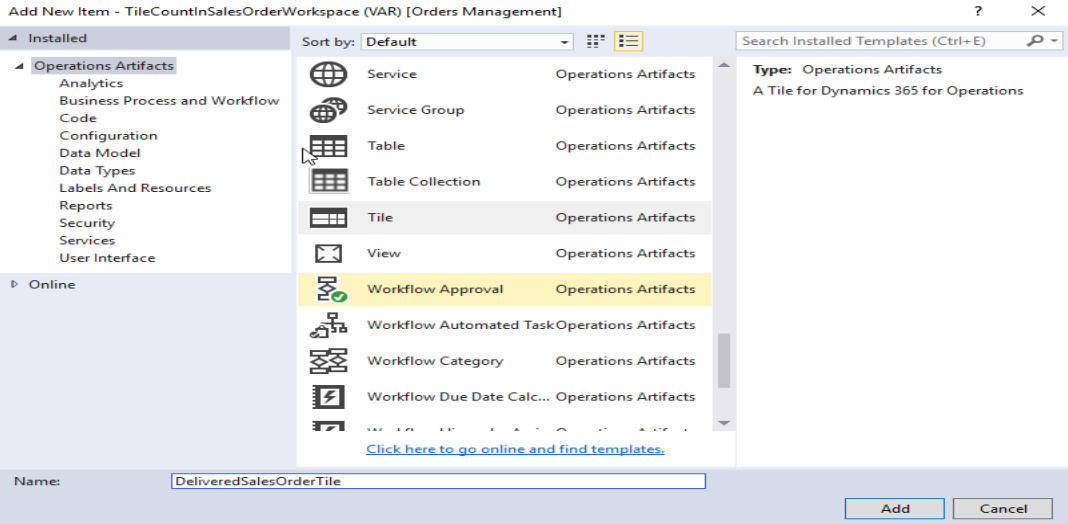
8. Add a new tile namely DeliveredSalesOrderTile
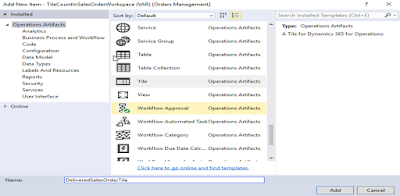
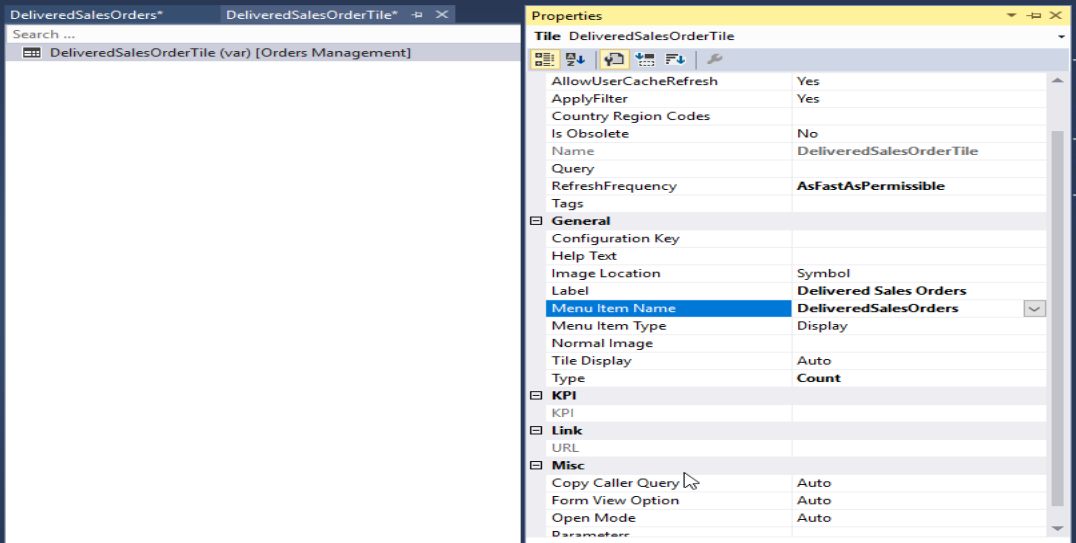
9. Set following properties on tile

10. Create an extension for SalesOrderProcessingWorkspace

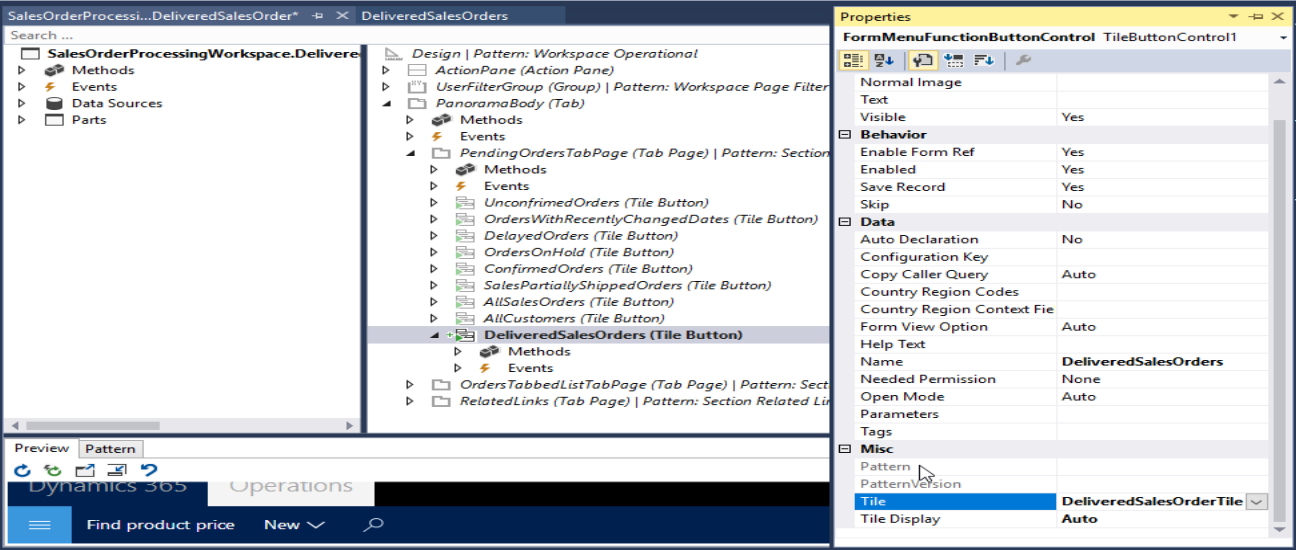
11. Add a tile button in newly created extension SalesOrderProcessingWorkspace. Set DeliveredSalesOrders in tile property and Auto in Tile display property.

12. Build complete project.
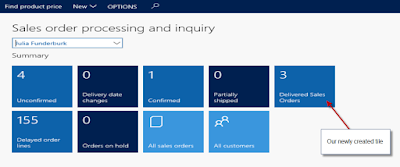
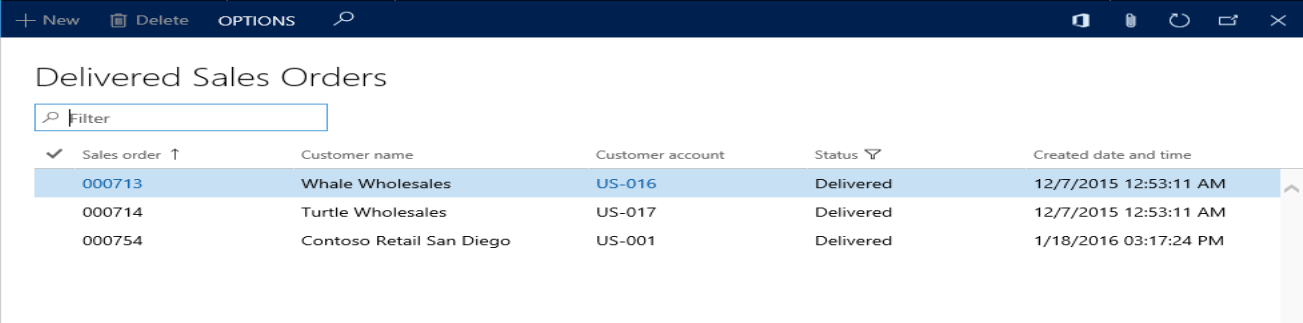
13. New tile created on following navigation : Workspaces -> Sales order Processing workspace -> Delivered sales order.

Let’s say we have a requirement of adding a new tile in sales order processing and inquiry work space that will show all sales orders with delivered status.
Below are the steps which can be followed for creating tile count in work space.
1. Create a project and add a query artifact in it. “DeliveredSalesOrdersQuery”

2. Add SalesTable as datasource in “DeliveredSalesOrdersQuery”. Set dynamic fields property to “Yes” and add range in it for showing sales orders whose status is delivered.

3. Add a new form namely “DeliveredSalesOrderInquiry”.

4. Add query “DeliveredSalesOrdersQuery” in form DeliveredSalesOrderInquiry and set pattern as simple list.
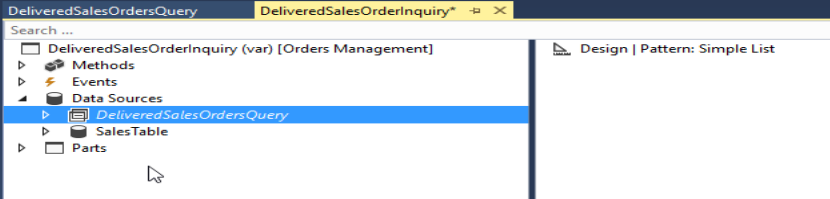
5. Add action pane and grid in DeliveredSalesOrderInquiry form. We need to add action pane and custom filter group in order to avoid violation of pattern.
6. Add a display menu item namely DeliveredSalesOrders .

8. Add a new tile namely DeliveredSalesOrderTile
9. Set following properties on tile
10. Create an extension for SalesOrderProcessingWorkspace

11. Add a tile button in newly created extension SalesOrderProcessingWorkspace. Set DeliveredSalesOrders in tile property and Auto in Tile display property.
12. Build complete project.
13. New tile created on following navigation : Workspaces -> Sales order Processing workspace -> Delivered sales order.

This was originally posted here.


*This post is locked for comments