




 Like
Like Share
Share
 Report
Phase 2/4:
SSIS Integration Map for Invoice Header from SQL Server to Microsoft CRM:
The Map after Completion will look as follows.
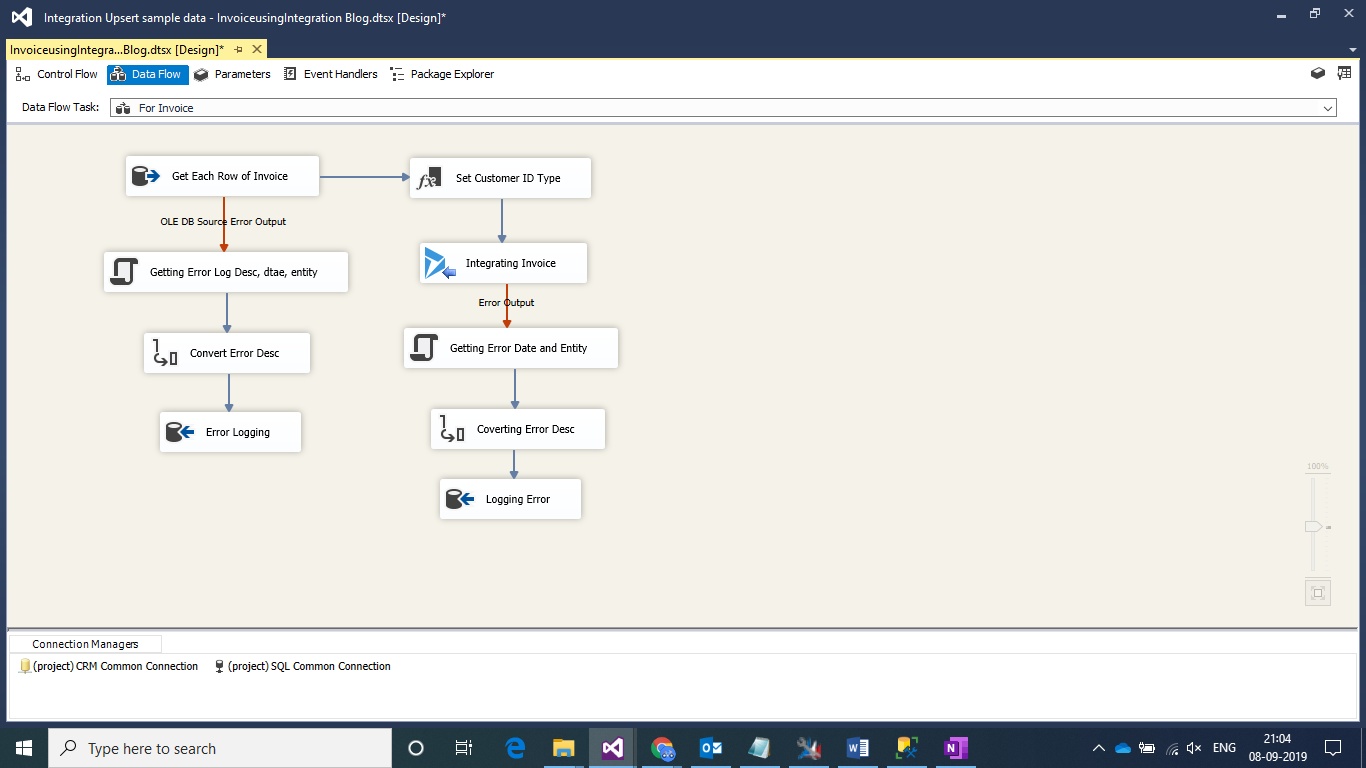
Step 1:
Add an OLEDB Source and configure it as follows: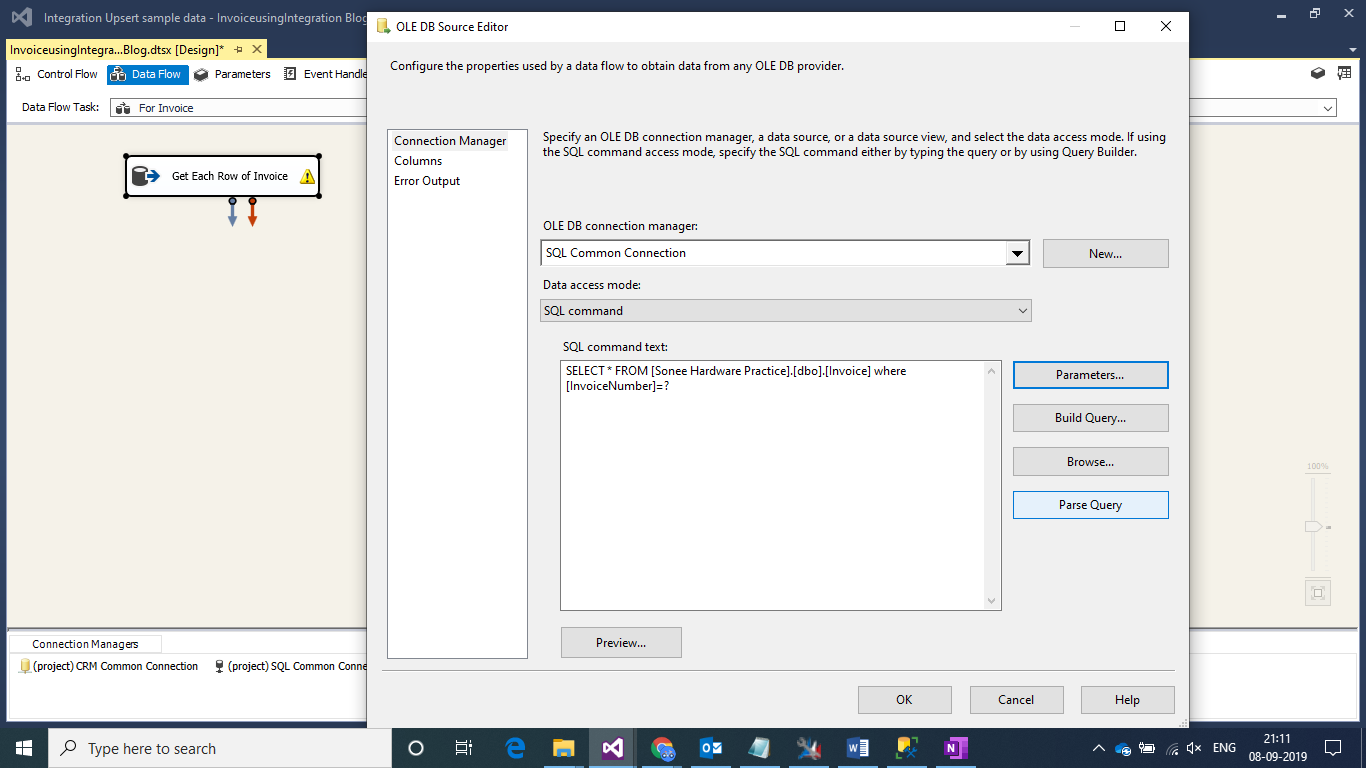
Click on Parameters and configure it as follows:
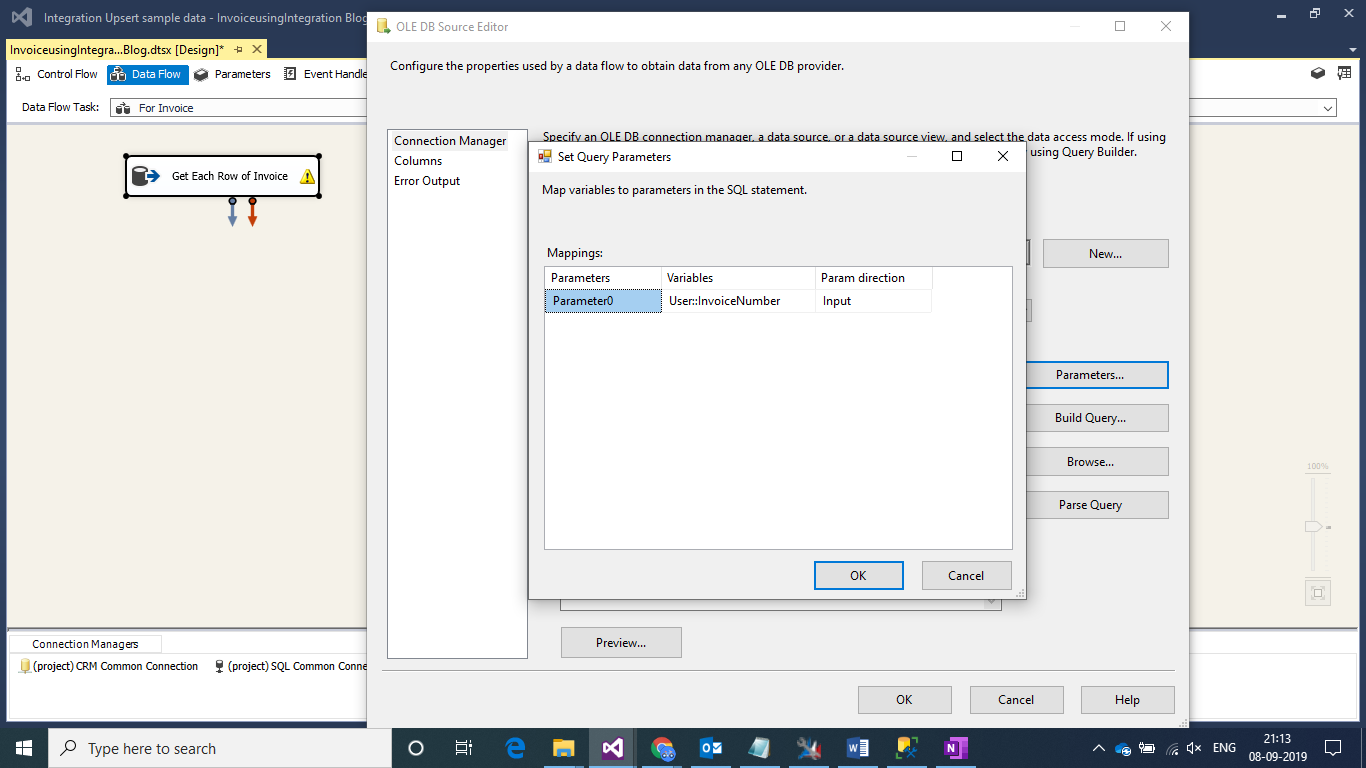
Step 2:
Add a derived column transformation to specify the Customer Type i.e 2 which indicates that Customer type is an Account.
Also, we will map the Invoice Number to name, so we will create a copy of it.
There is a single PriceList for all Invoices in my case so I have hardcoding for Lookup Purpose.
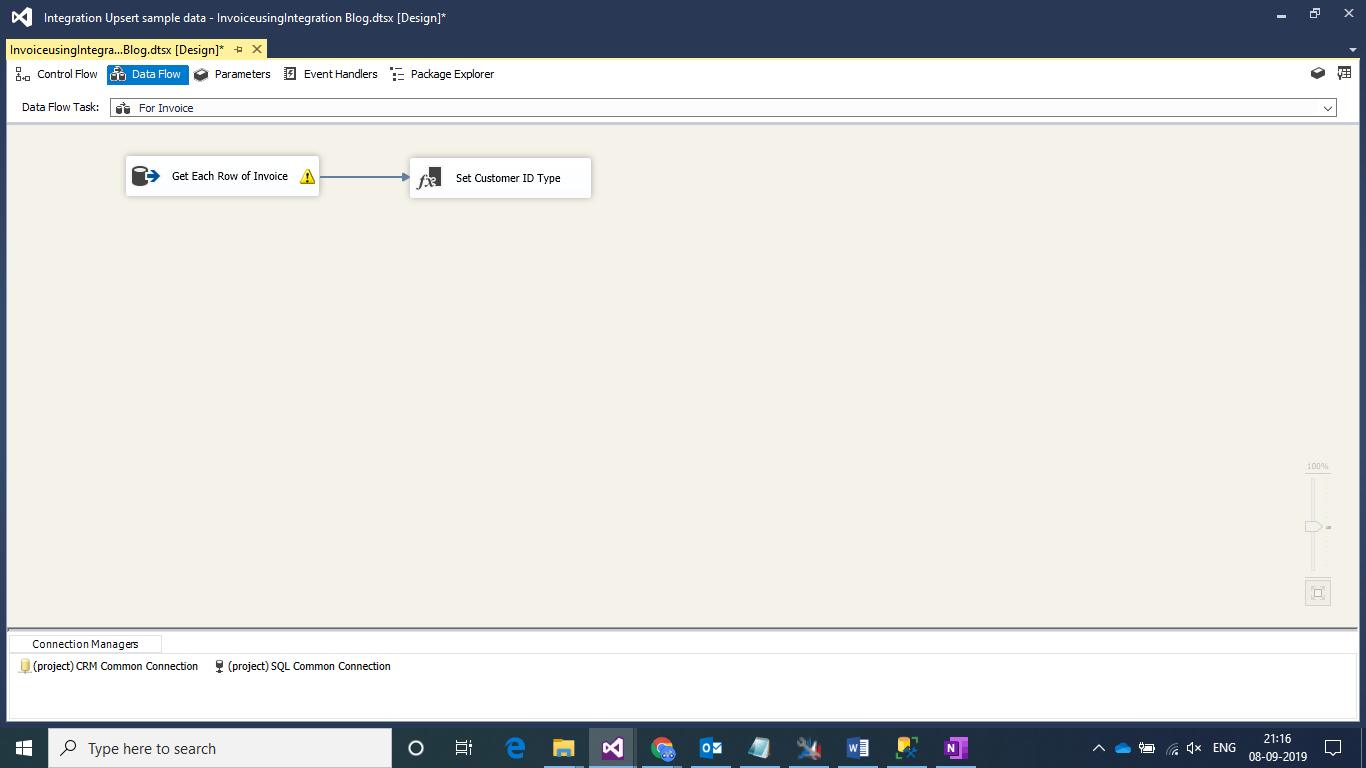
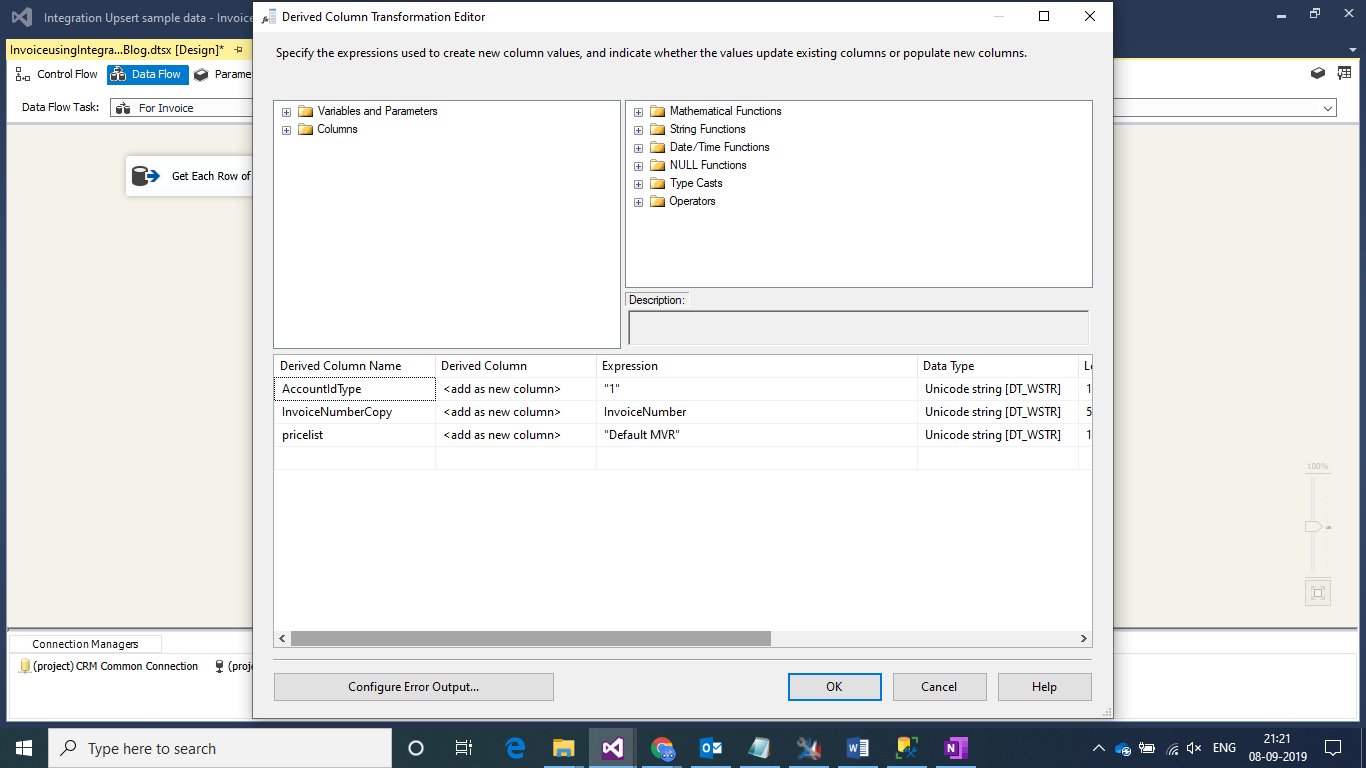
Step 3:
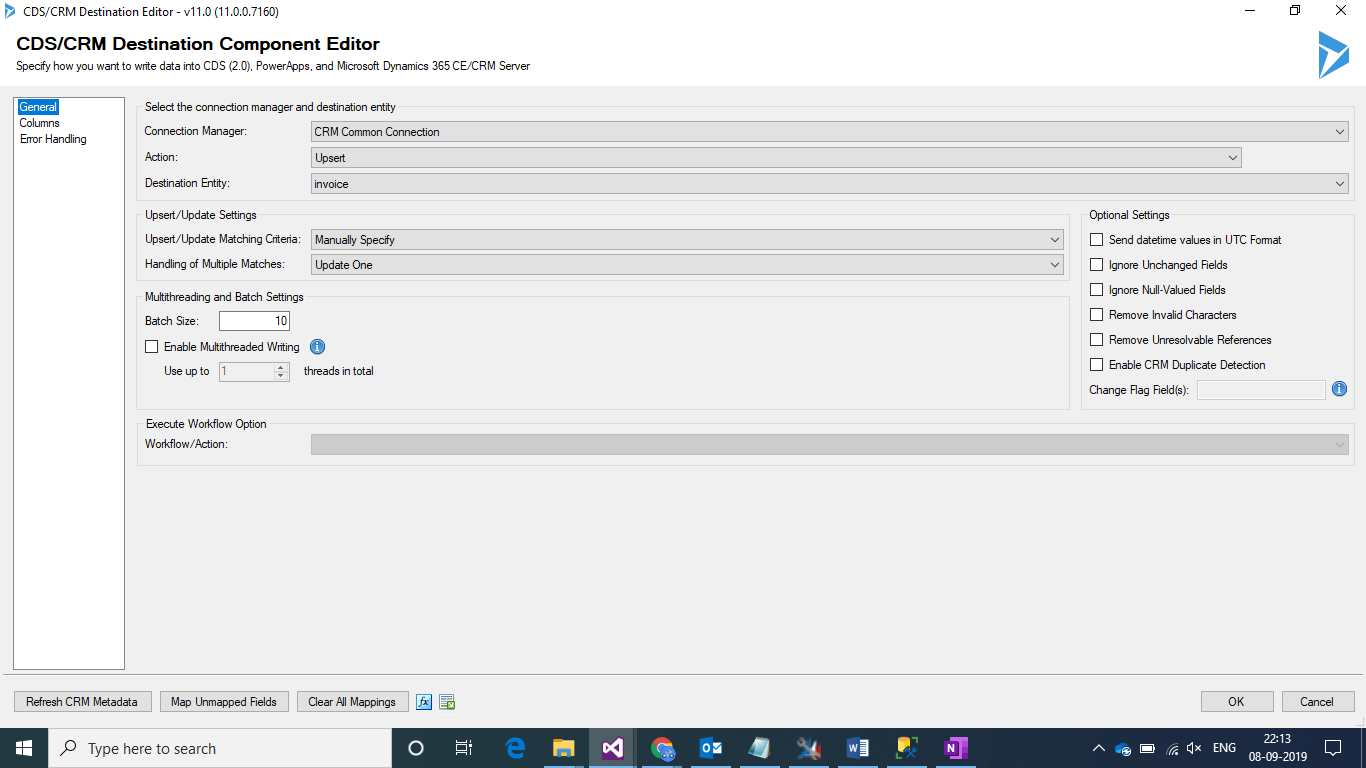
Add a CRM destination Block and configure it as follows:
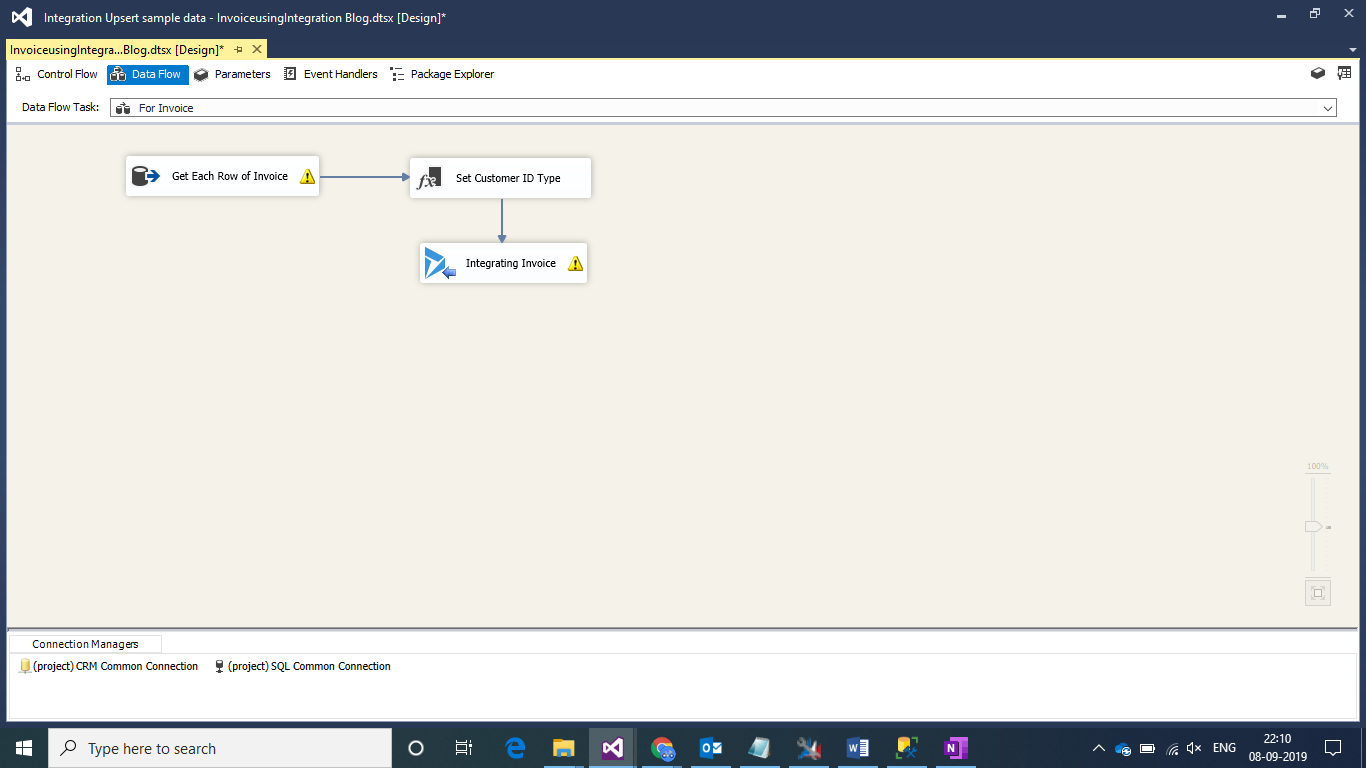
We will use Upsert Criteria specified on Invoice Number for Integration. The fields mapped are as following.
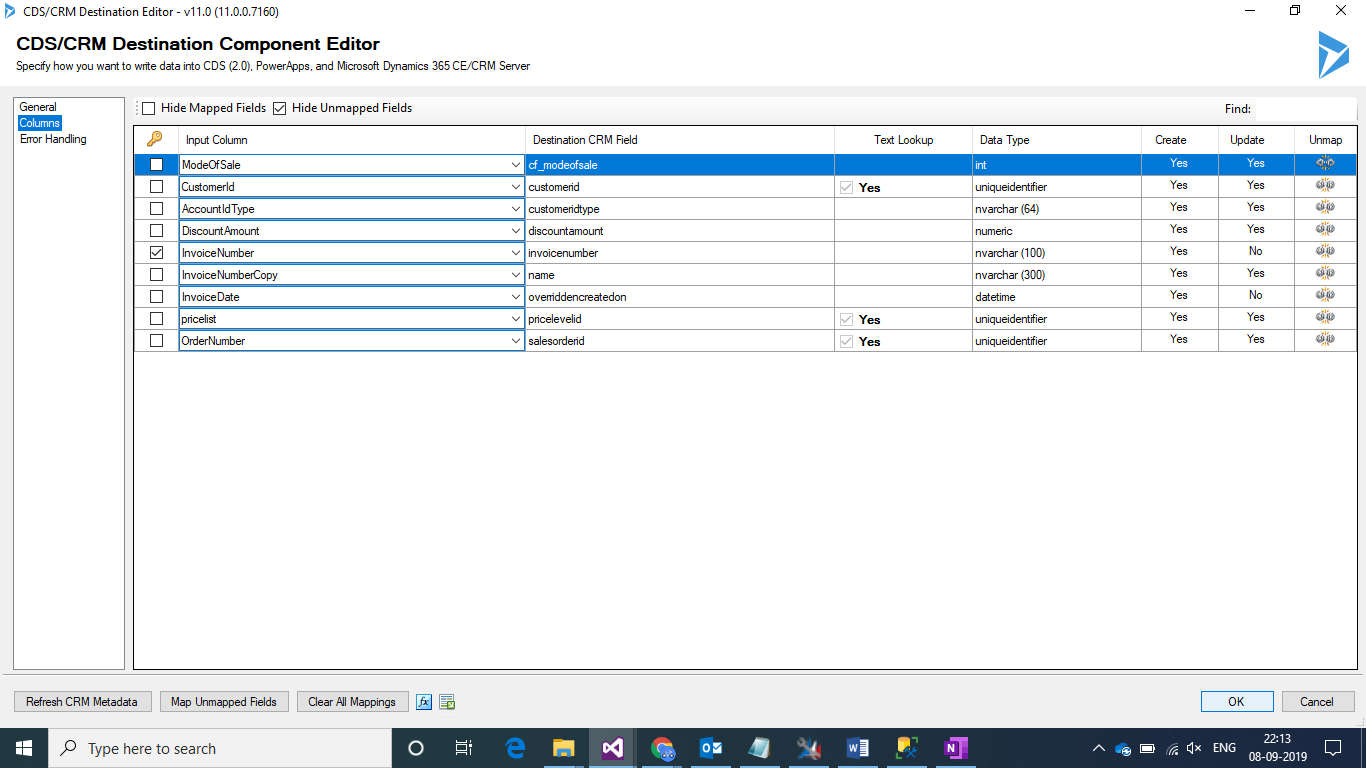
Step 4:
Add the remaining blocks for Custom Error Handling as explained in the Blog in Link:
Note:
This is the second part of the 4 part blog series.
Part 1/4: Using FOR EACH Loop with KingswaySoft Connector for CRM Invoice Integration.
Part 2/4: SSIS Integration Map for Invoice Header from SQL Server to Microsoft CRM.
Part 3/4: SSIS Integration Map for Invoice Details from SQL Server to Microsoft CRM.
Part 4/4: Delete Logic for Invoice in case of Incomplete Integration of Invoice details Logic.
The post Using For Each Loop in SSIS for Invoice Integration from SQL Server to Microsoft D365 Sales Using KingswaySoft Connector for CRM: Part 2 appeared first on .
*This post is locked for comments