







Collections in PowerApps
Views (5895)
 Maha Jamali
 487
487
 Like
Like Share
Share
 Report
Today, I will be discussing about the collections and how to use/manage them in powerapps. Let's begin with a scenario where we want to add list of items in a store and can perform addition or deletion on them. For storing data we require a data source/ table but here we will be using collection for this purpose.
Collection : It is used to store data that can be used in your app or we can define it as a set or group of similar items.
-Login to PowerApps.
-Create a canvas app from blank.
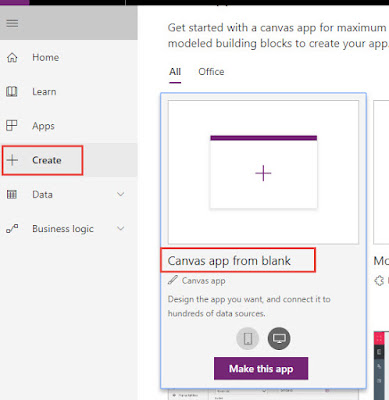
- Add a screen and select on Start function which will be used for creating collection.
Syntax : Collect (CollectionName, Items)
This method takes two parameters : Collection name and items which are required to be added in collection table.
Add following formula into it.
Collect(ItemsDemoList, {Items:ItemId.Text, ItemNames:ItemName.Text,ItemQuantity:Quantity.Text, ItemPrice:Price.Text})
It will create a table with columns : ItemId, ItemName, Quantity and Price.
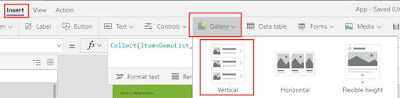
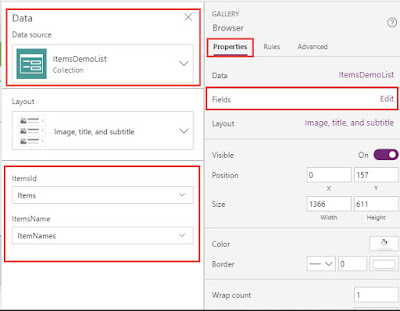
 Now for viewing data we will add a gallery control on a screen and will set its datasource to ItemsDemoList. I have mapped Title1 and subTitle fields with ItemId and ItemNames.
Add a collection
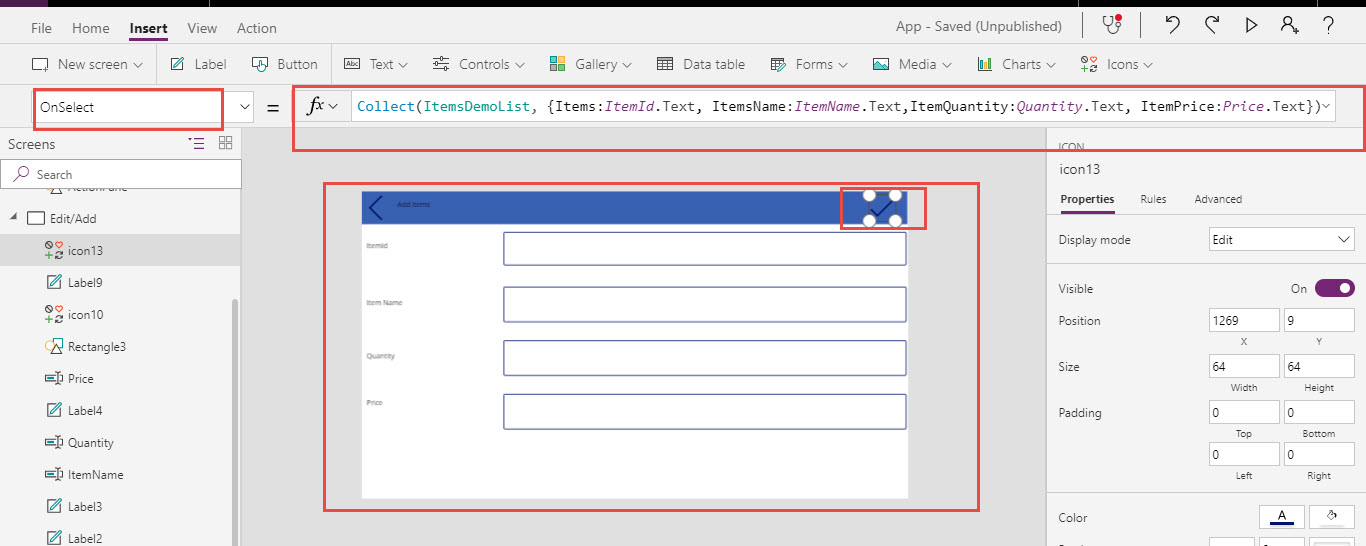
Now for adding a collection : I have created a screen which will have following fields
ItemId, ItemName , Quantity and Price.
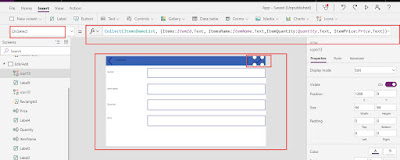
On its header I have added a icon and set below mentioned expression on that icon.
Collect(ItemsDemoList, {Items:ItemId.Text, ItemsName:ItemName.Text,ItemQuantity:Quantity.Text, ItemPrice:Price.Text})
 Remove collection
For removing element from collection. I have added a delete icon on browser screen and added following expression on it which will be used for deleting selected value from collection.
Remove(ItemsDemoList, ThisItem)

This item will be giving selected item which we are going to delete from the collection.
Clear collection
For instance if we want to delete or clear whole collection then we need to use this expression.
Clear (CollectionName)
Example :Clear(ItemsDemoList)
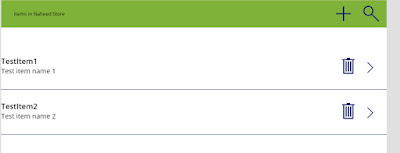
Final output will be :
Note: At first your app will be showing no data because our collection is empty.
Add items screen

Browse screen
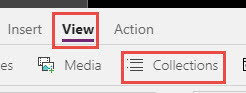
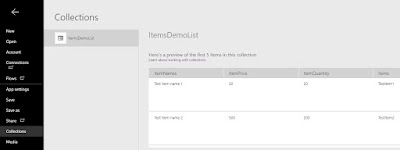
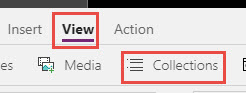
You can also verify your data within collection by going on this navigation : View -> Collections -> ItemDemoList collection
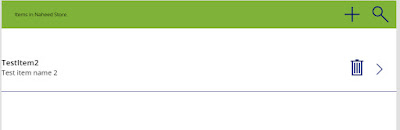
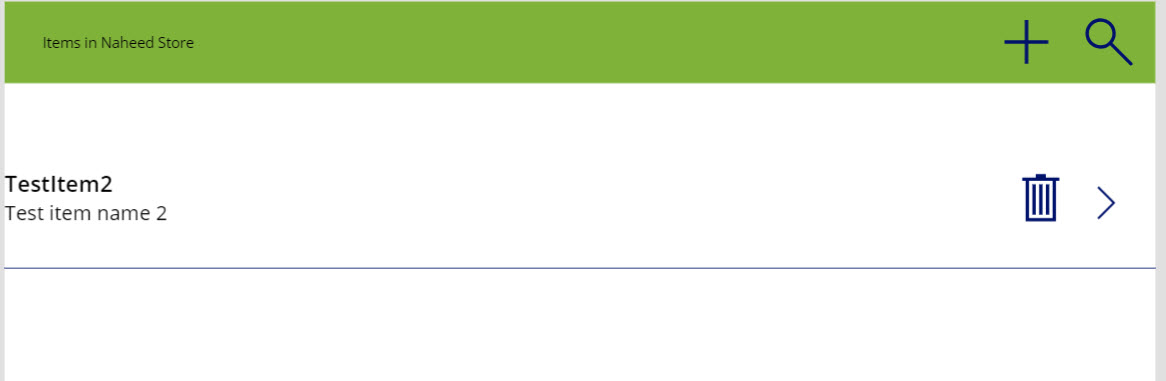
Removed item from collection by clicking on delete icon in browser screen. In my case one item has been deleted now the browse screen will be showing remaining items.
Collection : It is used to store data that can be used in your app or we can define it as a set or group of similar items.
-Login to PowerApps.
-Create a canvas app from blank.

- Add a screen and select on Start function which will be used for creating collection.
Syntax : Collect (CollectionName, Items)
This method takes two parameters : Collection name and items which are required to be added in collection table.
Add following formula into it.
Collect(ItemsDemoList, {Items:ItemId.Text, ItemNames:ItemName.Text,ItemQuantity:Quantity.Text, ItemPrice:Price.Text})
It will create a table with columns : ItemId, ItemName, Quantity and Price.


Add a collection
Now for adding a collection : I have created a screen which will have following fields
ItemId, ItemName , Quantity and Price.
On its header I have added a icon and set below mentioned expression on that icon.
Collect(ItemsDemoList, {Items:ItemId.Text, ItemsName:ItemName.Text,ItemQuantity:Quantity.Text, ItemPrice:Price.Text})
For removing element from collection. I have added a delete icon on browser screen and added following expression on it which will be used for deleting selected value from collection.
Remove(ItemsDemoList, ThisItem)

This item will be giving selected item which we are going to delete from the collection.
Clear collection
For instance if we want to delete or clear whole collection then we need to use this expression.
Clear (CollectionName)
Example :Clear(ItemsDemoList)
Final output will be :
Note: At first your app will be showing no data because our collection is empty.
Add items screen

Browse screen

You can also verify your data within collection by going on this navigation : View -> Collections -> ItemDemoList collection

Removed item from collection by clicking on delete icon in browser screen. In my case one item has been deleted now the browse screen will be showing remaining items.
This was originally posted here.
*This post is locked for comments