




 22,309
 Like
Like Share
Share
 Report
Deleting an environment in Business Central is a serious administrative action. It removes access for all users and deletes all application and business data.
However, deletion doesn’t always mean immediate permanent loss. There are important rules and behaviors you should understand before proceeding.
Before You Delete an Environment
Make sure:
Open the Business Central Administration Center.
In the navigation pane, select Environments.
Select the environment you want to delete.
In the action ribbon at the top, choose Delete.
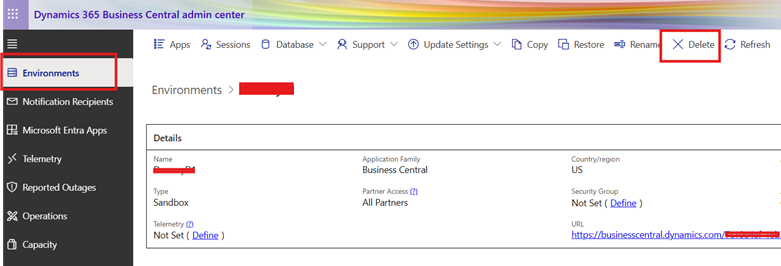
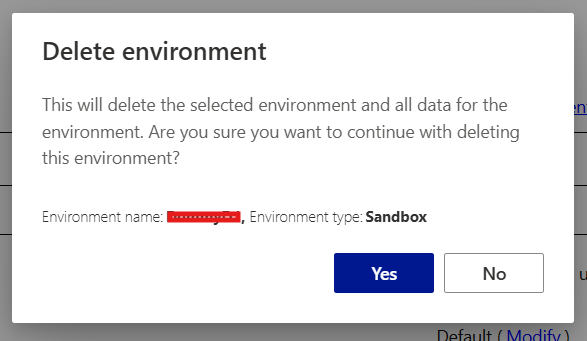
Confirm by selecting Yes.
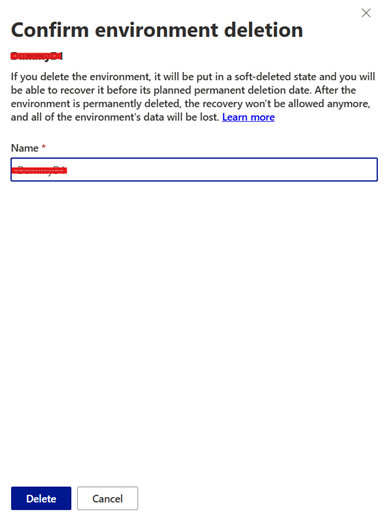
On the confirm environment deletion write the name and click on delete action.
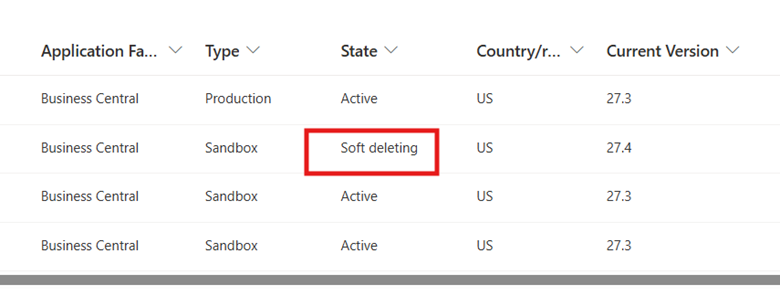
You can see the status of environment.
👉 In the next blog, we’ll cover how to recover a deleted environment and what to expect during recovery.
Thanks For Reading…!!
Regards,
Khushbu Rajvi
However, deletion doesn’t always mean immediate permanent loss. There are important rules and behaviors you should understand before proceeding.
Before You Delete an Environment
Make sure:
- No users are currently working in the environment (they’ll be disconnected immediately).
- Required data exports or backups are completed.
- Integrations and external connections are reviewed.
- Stakeholders are informed.
Steps to Delete an Environment
Follow these steps from the Business Central Admin Center:Open the Business Central Administration Center.
In the navigation pane, select Environments.
Select the environment you want to delete.
In the action ribbon at the top, choose Delete.
Confirm by selecting Yes.
On the confirm environment deletion write the name and click on delete action.
You can see the status of environment.
Once confirmed:
- The environment becomes inaccessible.
- All application and business data is removed from active use.
- The environment enters a retention period (soft delete).
When you delete an environment:
- It enters a 14-day retention period (soft delete).
- It is automatically renamed with a timestamp suffix (for uniqueness).
- It is removed from active environments.
- It does not count toward your environment quota.
- It does not receive updates during retention.
When an Environment Cannot Be Deleted
You cannot delete an environment if:- It is linked to a Power Platform environment (unlink first).
- It is in certain failed states that trigger immediate permanent deletion.
- It is restricted by administrative policies.
Best Practices:
- Always delete during a maintenance window (especially production).
- Communicate to users in advance.
- Double-check you’re deleting the correct environment.
- Consider copying the environment to a sandbox before deletion if data might be needed.
👉 In the next blog, we’ll cover how to recover a deleted environment and what to expect during recovery.
Thanks For Reading…!!
Regards,
Khushbu Rajvi
*This post is locked for comments