Overview
In this blog we will look at features within Dynamics 365 Supply Chain Management that can optimize the performance of posting sales order and purchase order journals.
Introduction
The distribution or composition of the data within an environment can have a direct relationship to how a system should be configured to optimize various processes, therefore what works for one customer may not work for another. This has meant that in the past additional rounds of performance testing have been required to identify the most appropriate configuration for each customer. For example, a customer that has sales orders with an average of 10 lines each, might require a different configuration to another customer that has sales orders with an average of 100 lines each, which might require a different configuration for a customer that has some sales orders with thousands of lines.
The ability to multi-thread sales order posting has been available for a while. Therefore, we’ll review the configurations that are available and the optimization advisor capabilities to help customers identify the optimal configuration. We will also introduce the new capabilities for purchase order processing.
These configurations apply to sales order confirmation, picking list, packing slip and invoice posting. The new purchase order optimizations apply to purchase inquiry, confirmation, and product receipt.
Configurations
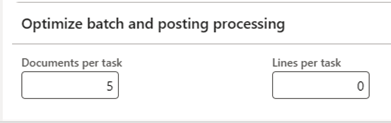
Sales Order: Accounts receivable > Accounts receivable parameters > Updates > Optimize batch and posting processing.
Purchase Order: Procurement and sourcing > Setup > Procurement and sourcing parameters > Delivery > Batch (GA in 10.0.32)
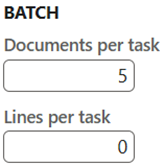
Documents per task
This value represents the maximum number of sales order documents to be processed by each batch task. For example, if a customer has 100 sales orders to be confirmed in a batch job, and this value set to 5 then each task would get 5 documents (sales orders), thus 20 tasks would be created. Based on thread availability, up to 20 tasks could be processed in parallel.
One consideration with this approach is that if one sales order has disproportionality more lines than other sales orders, one task might run for a lot longer, thus skewing the overall batch run time.
By default, this is set to 5 and will default to 5 if set lower, for example, if the user sets this value to 2, the system will still process 5 documents for each batch task.
Lines per task
Introduced in 10.0.19 for sales orders, this value is used to set the maximum number of sales order lines that can be processed by each batch task.
For example, if this value is set to 500 and a customer has sales orders that sometimes have 2,000 lines, a batch task will take the first 500 lines and then the next task will take the next 500 lines etc….
If Lines per task is not zero (0) then Documents per task will be ignored.
By default, this value is set to 0, the system will used a minimum value of 100 if this is set to a value less than 100 and greater than 0. For example, if a user sets this value to 50, the system will still process 100 lines per batch task.
If using Lines per task it will not split a sales order.
Optimization advisor
Within Dynamics 365 there is an optimization advisor that can help customers and partners configure the system for their specific data compositions.
For sales orders and purchase orders there is a rule named Batch task size optimization advisor. By default, the Run frequency is set to Unscheduled.
System administration > Periodic tasks > Maintain diagnostics validation rule.

Users can change the Run frequency of the rule by editing it, or they can run all the Unscheduled rules. This can be done by going to the schedule diagnostics form and running the optimization rules either immediately or scheduling a batch job.
System administration > Periodic tasks > Schedule diagnostics validation rule
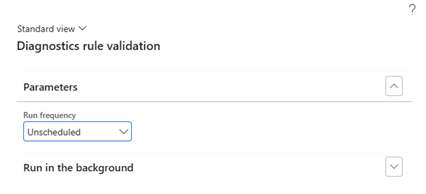
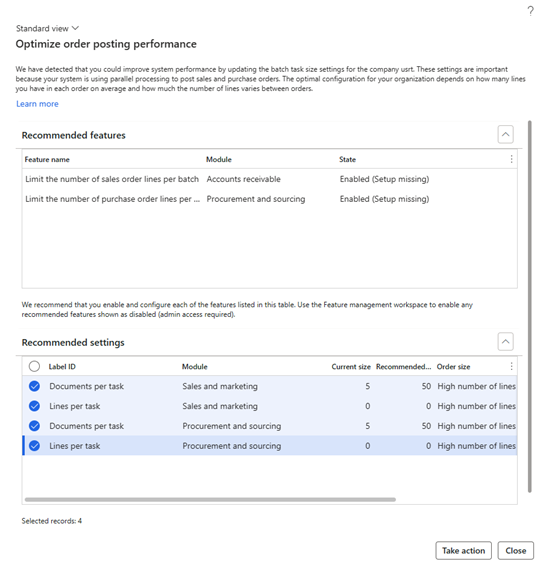
Once the rules have been run, the user can view the results in the Optimization advisor. For sales order and purchase order optimization the user should look for the Optimization opportunity called Optimize order posting performance.
System administration > Optimization advisor
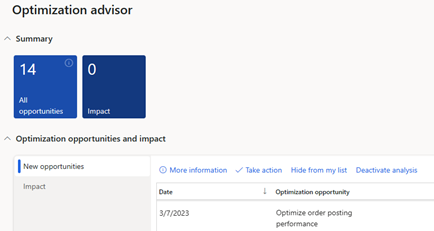
The user can then click on More information to see the recommendation. If they click on Take action the parameters will be updated with the recommended values.
Summary
In this blog we have outlined the new features to optimize the performance of posting sales order and purchase order journals, and how customers and partners can use the optimization advisor to set the recommended configurations to optimize the sales order and purchase order posting process.
Note, we’ve looked specifically at sales orders and purchase orders, there are other capabilities available for Free Text Invoice optimization, you can learn more about these by watching this TechTalk:





