




 Like
Like Share
Share
 Report
Introduction:
In this blog article, we will learn how to create entity Store in Dynamics 365 For Finance and Operations.
Steps:
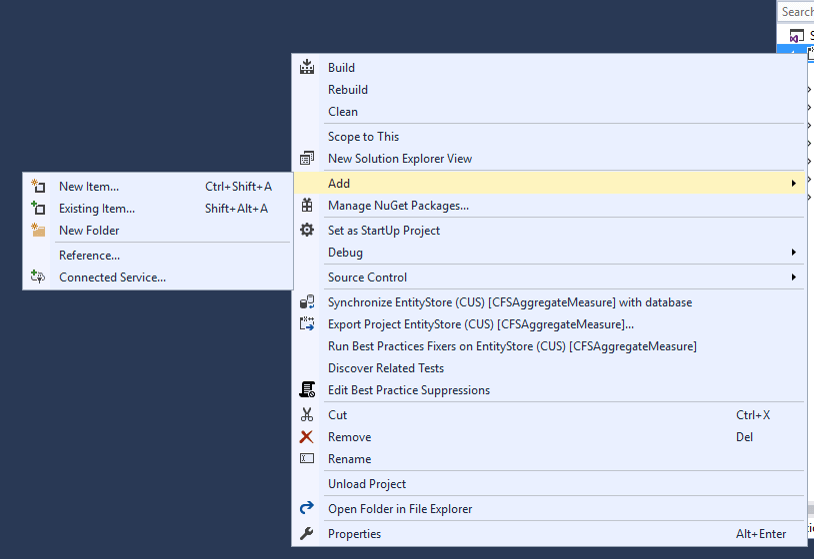
1. Add new Items
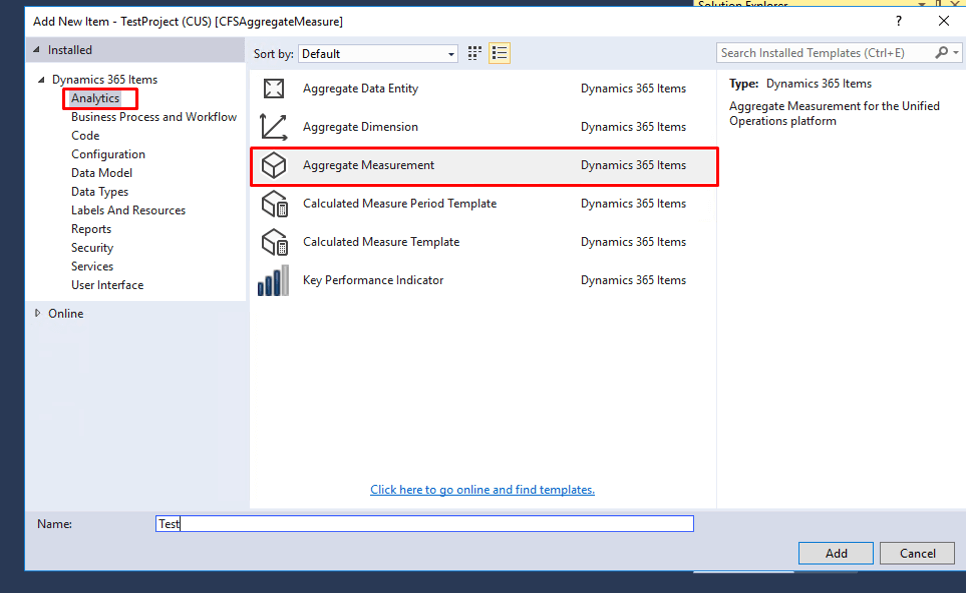
2. Under Dynamics 365 items –> Analytics –>Aggregate Measure.
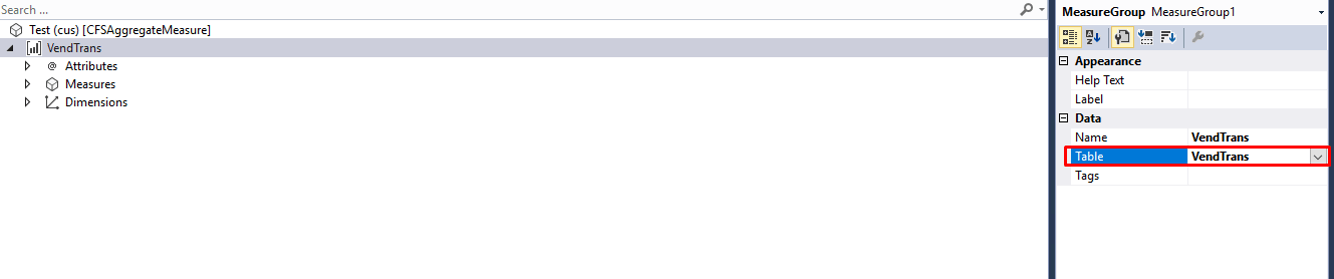
3. Assign a table to the aggregate measure.
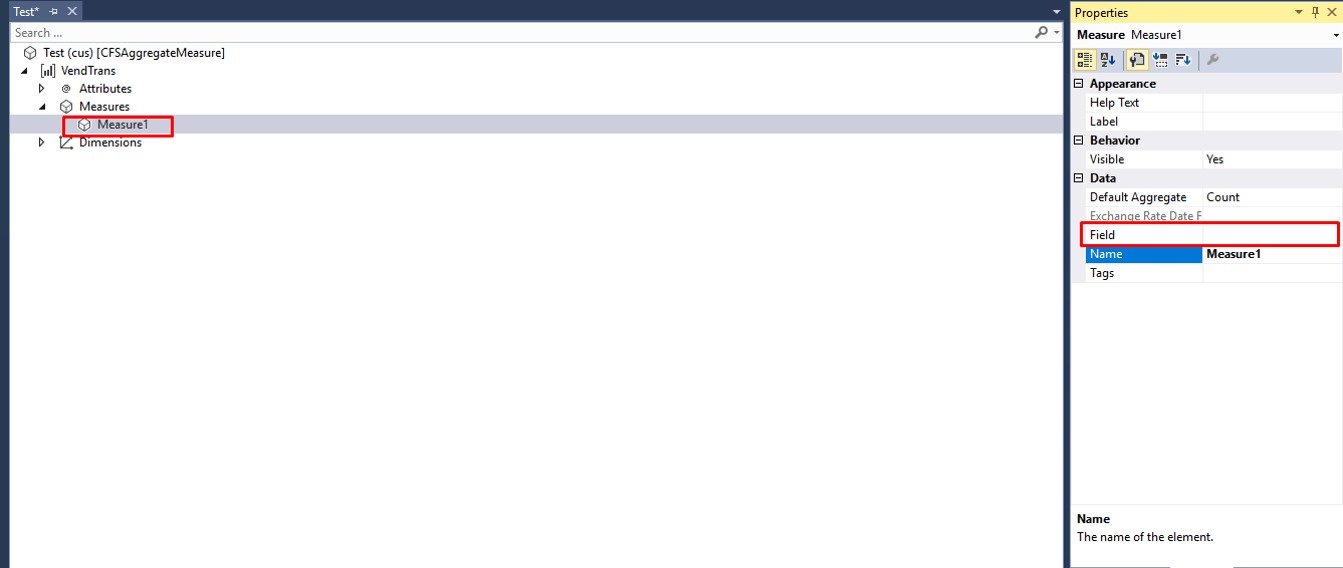
4. Add Measures to the aggregate Measure . Mention the field and Set appropriate properties of the measure.
5. Create a new dimension.
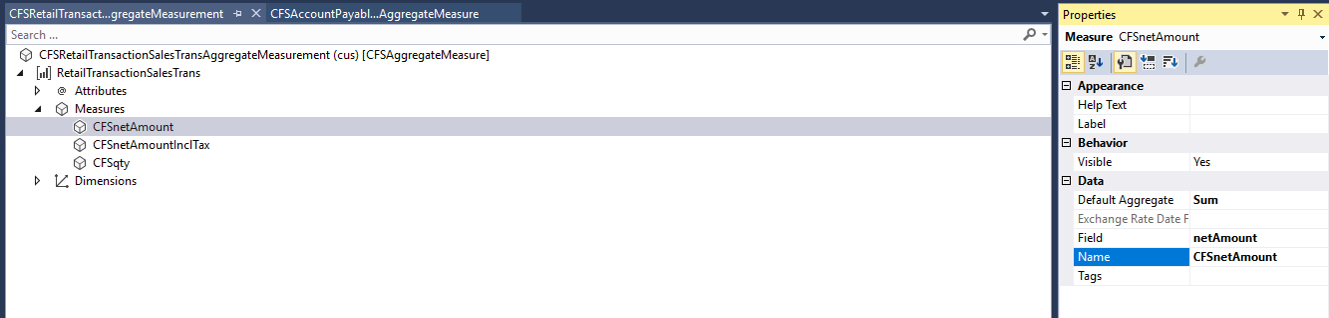
6. Assign a table or view to your Dimension.
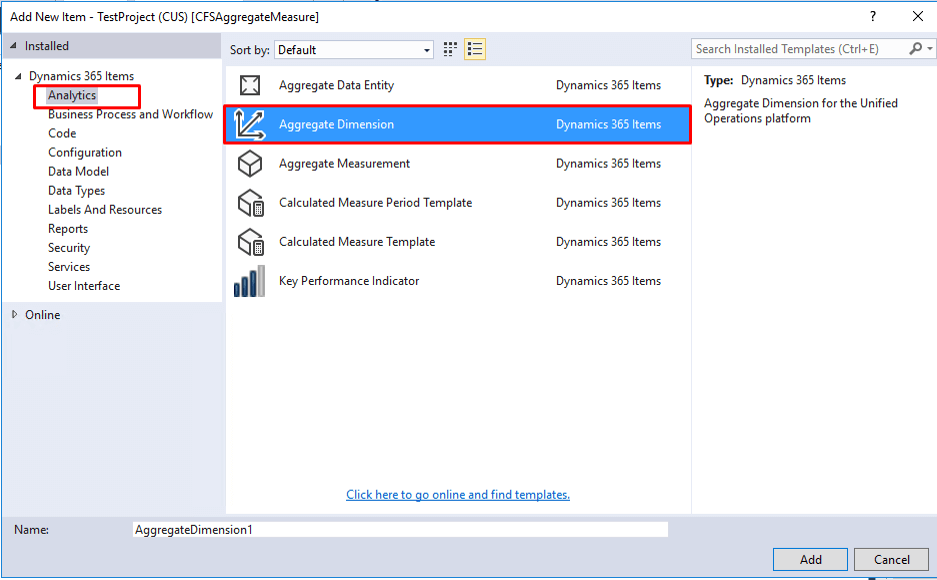
7. Now from the solution explorer drag the newly created dimension to the aggregate measurement.
The aggregate dimension will have system generated dimensions already present by default.
Select the dimensional field and make appropriate relations.
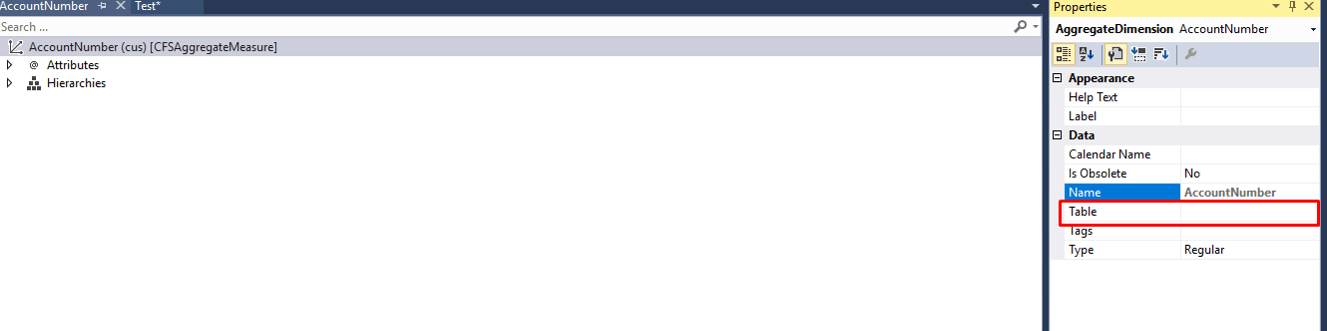
Save the Project. Clean and rebuild the project. Synchronize the database .
This entity store will be available under entity store in Dynamics 365 for Finance and Operations.
The post Creating Entity Store in Dynamics 365 For Finance and Operations appeared first on CloudFronts - Microsoft Dynamics 365 | Power BI | Azure.
*This post is locked for comments