web
You’re offline. This is a read only version of the page.
close
Skip to main content

Notifications

Announcements

No record found.

Community site session details

Community site session details

Session Id :
Finance | Project Operations, Human Resources, ...
Answered

Configurable business documents d365, add new field (ER)

(0) ShareShare
ReportReport
Posted on by 20

Hello!

The requirement is to add a new field to the report, so my actions were:

1) Add field to model, save changes, change status to complete

2) Add field to model mapping, save changes, change status to complete


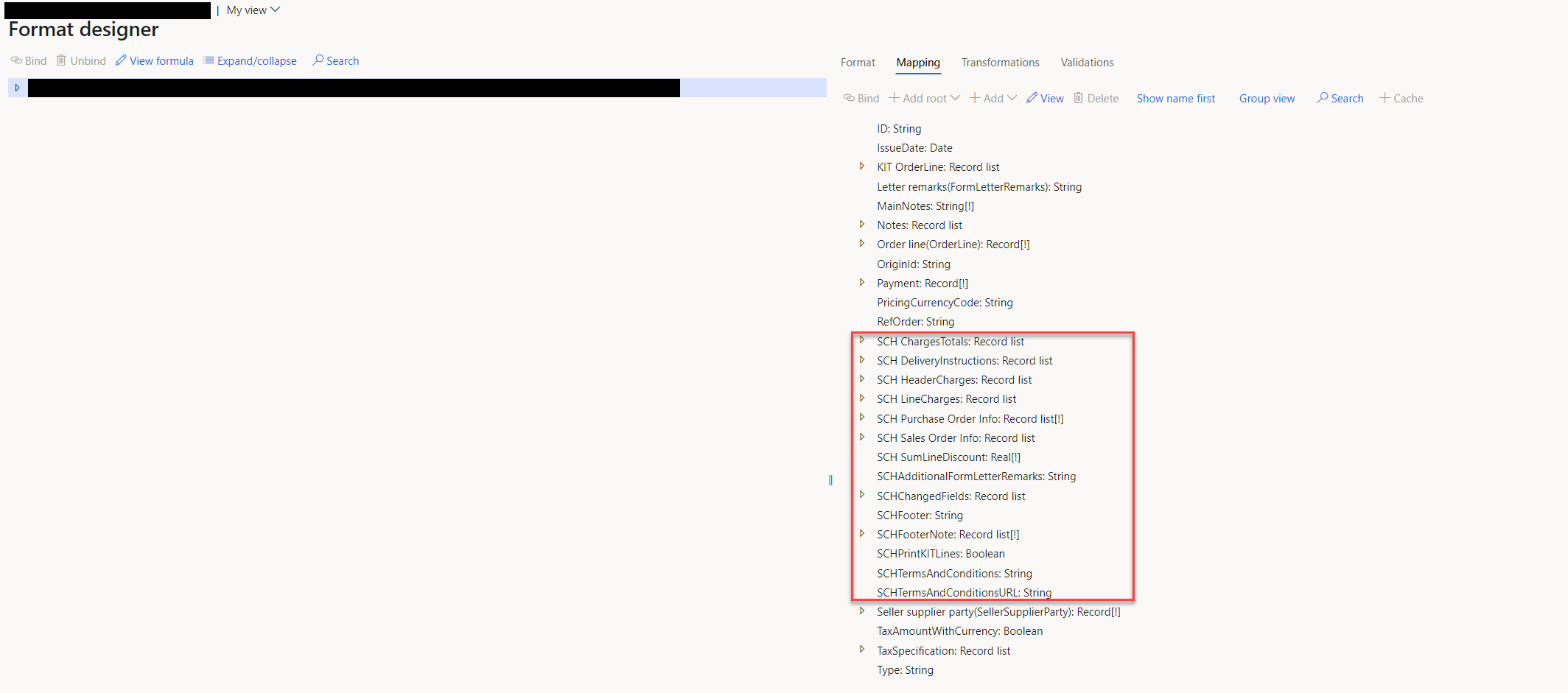
After that, I expected to see this field at the format level, but this did not happen. I tried to do «Get this version» and «Rebase», but it also did not help.

So i can see this field in Model mapping designer, but cannot see on format designer:

pastedimage1627297920044v1.png

pastedimage1627297988718v2.png

The AX version is:

Installed product version : 10.0.20 (10.0.886.48)

Has anyone experienced this behavior before? Is it really necessary to create a new report configuration every time there is a need to add a field?

I have the same question (0)
  • Ludwig Reinhard Profile Picture
    Microsoft Employee on at

    Hi,

    What report do you use?

    What field do you want to add (standard field, custom field)

    What are the datasource of your report and in which of those datasources does the field you want to add reside?

    Would be great if you could elaborate.

    The screenprints provided do not provide sufficient information.

    Many thanks,

    Ludwig

  • Alexey Nakhabenko Profile Picture
    20 on at

    Hi,

    I am using a sales confirmation report, the field I want to add is custom and I want to add it to SalesConfirmHeaderTmp. This field is initialized by the initializeSalesOrderConfirmationHeader() method.

  • greengrimms Profile Picture
    1,400 on at

    Hi Alexey,

    Right, in order to access the field you created in your data model, you must create a new version (you do this by changing the status) and Rebase the Format after, using that version.

    If you've already done that, the field should be visible in your Format.

    Is that the only field you added in this new version? Are there any other fields not showing up?

    Also, have you tried running the format? One thing that could be causing this is that the datasource you bound to that field is invalid. You could try using a different datasource and see if that changes anything, and work a solution from there.

  • Verified answer
    Sukrut Parab Profile Picture
    71,710 Moderator on at

    HI Alexey ,

    You are able to see this field in mapping designer as mapping designer is used to map datasources to your data model.  Make sure you are using correct version which contains field you added of your data model when you created model mapping and then select correct version of model mapping to create new format. You don't have to create format every time you add a new field . Make sure you have completed your data model  before you jump over to design your format.  

    In order to map field from data model to your  report format field, you have to create field in format as well  and then map new format field to the field you created in data model.

Under review

Thank you for your reply! To ensure a great experience for everyone, your content is awaiting approval by our Community Managers. Please check back later.

Helpful resources

Quick Links

Responsible AI policies

As AI tools become more common, we’re introducing a Responsible AI Use…

Neeraj Kumar – Community Spotlight

We are honored to recognize Neeraj Kumar as our Community Spotlight honoree for…

Leaderboard > Finance | Project Operations, Human Resources, AX, GP, SL

#1
Martin Dráb Profile Picture

Martin Dráb 664 Most Valuable Professional

#2
André Arnaud de Calavon Profile Picture

André Arnaud de Cal... 522 Super User 2025 Season 2

#3
Sohaib Cheema Profile Picture

Sohaib Cheema 303 User Group Leader

Last 30 days Overall leaderboard

Product updates

Dynamics 365 release plans