web
You’re offline. This is a read only version of the page.
close
Skip to main content

Announcements

News and Announcements icon
Community site session details

Community site session details

Session Id :
Customer Service forum

How to Embed Images in KB Articles

(0) ShareShare
ReportReport
Posted on by 20

I tried to follow the link below:

https://community.dynamics.com/crm/b/crmpowerobjects/archive/2018/01/08/how-to-embed-images-and-videos-in-kb-articles

But theres no way to add the image file???

Please help me

Thank you

I have the same question (0)
  • Suggested answer
    Adrian Begovich Profile Picture
    1,032 Moderator on at

    Hi James2019,

    Make sure that you followed all the steps in the article correctly.

  • RaviKashyap Profile Picture
    55,410 Moderator on at

    Hi,

    Are you facing any issues? The article should help you add images.

  • Suggested answer
    LeoAlt Profile Picture
    16,341 Moderator on at

    Hi James,

    I have tried the steps provided by your link and it worked well.

    If you are using Dynamics 365 V9.X, you should go to Custom Service Hub to add KB articles.

    community65.png

    community68.png

    If you still can not add the image, please check the following points.

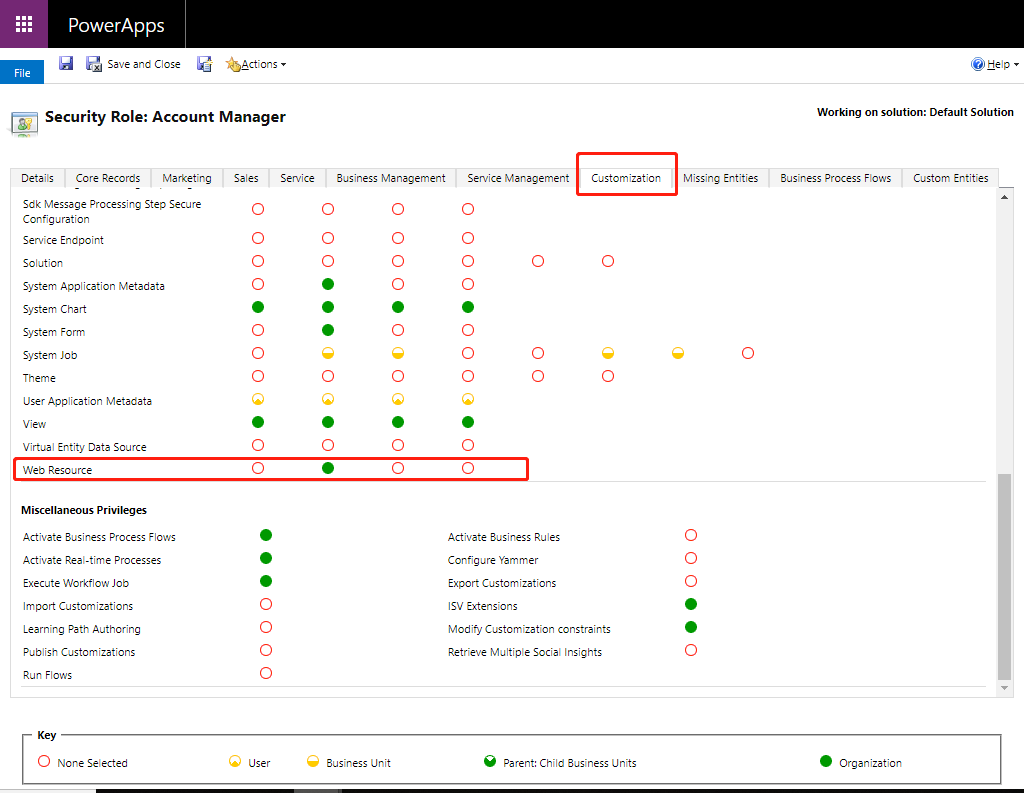
    1.Did you successfully add the image to web resource?

    If not, confirm that you have the permissions to write/edit web resources.
    community64.png

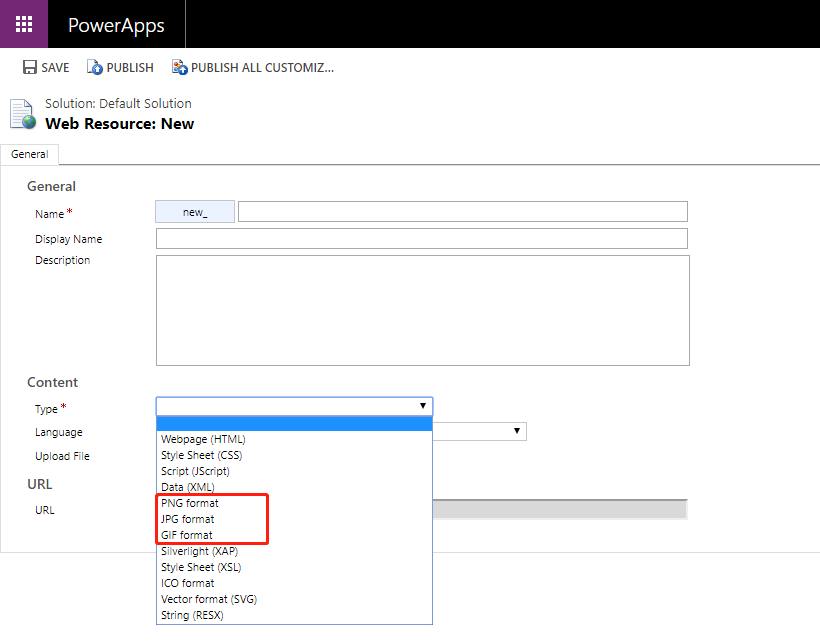
    2.Which image file you want to add to KB articles?
    community65.png

    We could only add .png, .jpeg, or .gif files.

    3.Did the system provide any issue?

    Could you kindly share more information to let us help you better.

    Hope it helps.

    Best Regards

    Leo

  • James2019 Profile Picture
    20 on at

    Yes i did, but when i go to to Web resource. there is no way to add the image.

  • James2019 Profile Picture
    20 on at

    When i go to settings>Customizations> Customize the system>Web resources

    Theres is no way to add the image

  • James2019 Profile Picture
    20 on at

    Hi Leo,

    i cant find the screenshot in step 2 where i can add the image.

  • Suggested answer
    RaviKashyap Profile Picture
    55,410 Moderator on at

    Hi,

    When you create the new web resource, you can select the type pf the file which could be either png, jpeg, gif. Once selected, you will get an option to upload the file, select fil, save the record and then use it as per the article.  Refer this:

    webimage.png

    Hope this helps.

  • James2019 Profile Picture
    20 on at

    oh ok so i need to create web resourcE?

  • James2019 Profile Picture
    20 on at

    how can i create a new web resource?

  • Verified answer
    RaviKashyap Profile Picture
    55,410 Moderator on at

    When you go to settings>Customizations> Customize the system>Web resources, you then need to click on the "New" button. This will open th above popup to add new web resource.

Under review

Thank you for your reply! To ensure a great experience for everyone, your content is awaiting approval by our Community Managers. Please check back later.

Helpful resources

Quick Links

November Spotlight Star - Khushbu Rajvi

Congratulations to a top community star!

Forum Structure Changes Coming on 11/8!

In our never-ending quest to help the Dynamics 365 Community members get answers faster …

Dynamics 365 Community Platform update – Oct 28

Welcome to the next edition of the Community Platform Update. This is a status …

Leaderboard > Customer Service

Last 30 days Overall leaderboard

Featured topics

Product updates

Dynamics 365 release plans