web
You’re offline. This is a read only version of the page.
close
Skip to main content

Notifications

Announcements

No record found.

Community site session details

Community site session details

Session Id :
Customer experience | Sales, Customer Insights,...
Answered

How to set option set’ value in D365Portal

(0) ShareShare
ReportReport
Posted on by 5

Hello, I am trying to get value from a custom option set and set in  another field (“title”) from Case table. I am using Customer self service portal. How can I achieve this? Any lead is appreciated.

I have the same question (0)
  • Suggested answer
    ankit_singhal Profile Picture
    560 on at

    Please check the link below.

    www.alphabold.com/.../

  • Verified answer
    Inogic Profile Picture
    703 on at

    Hi,

    As per my understanding, you want to get and set the values of the custom Option Set field in the portal for the Title in the Case Table section. 

    For which, I have shared the screenshot below from my test scenario, you can Select from the Options in the Topic section to change the Title. 
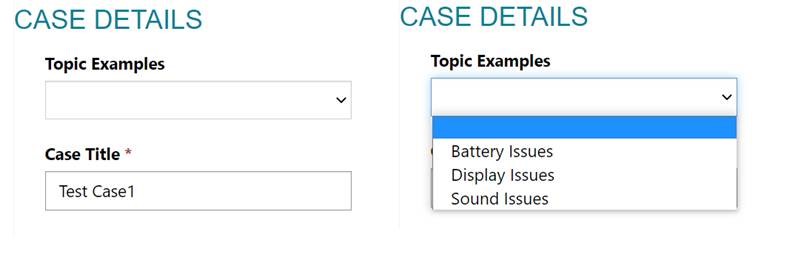
    D365-Portal.jpg

    You have to follow below steps:

    1. Navigate to the js File of the respective web page, 

            > click on the edit code (You have to login in Vs code)

    2. Sync the Vs Code

            > tap the Sync button on the Portal design studio after edit code

    3. Find the Element id 

            > Logical names are Id for Element if not then you can achieve this with inspect


    Initially you need write some lines in js for the respective page, here’s a screenshot for your reference.
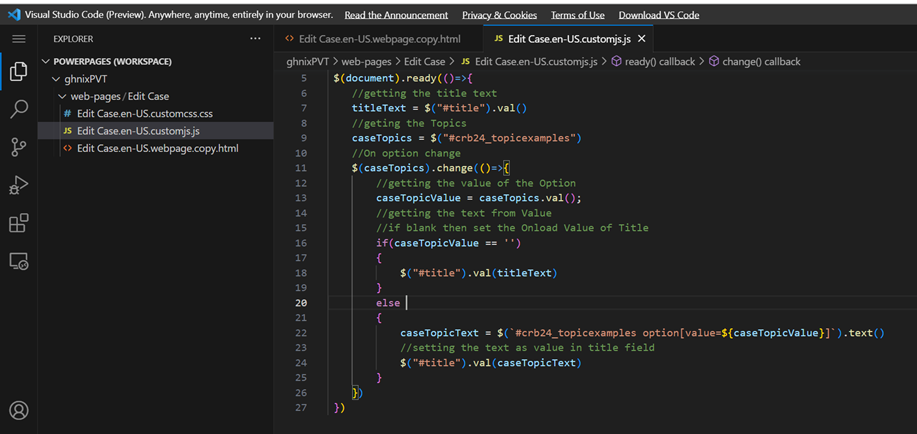
    D365-Portal1.png

    You have to use the field id for your own scenario, (Logical names are the id for Element in HTML), you may refer to the below code to be added in the js file.


     $(document).ready(()=>{

        //getting the title text

        titleText = $("#title").val()

        //geting the Topics

        caseTopics = $("#crb24_topicexamples")

        //On option change 

        $(caseTopics).change(()=>{

            //getting the value of the Option

            caseTopicValue = caseTopics.val();

            //getting the text from Value 

            //if blank then set the Onload Value of Title

            if(caseTopicValue == '')

            {

                $("#title").val(titleText)

            }

            else 

            {

                caseTopicText = $(`#crb24_topicexamples option[value=${caseTopicValue}]`).text()

                //setting the text as value in title field

                $("#title").val(caseTopicText)

            }

        })

     })
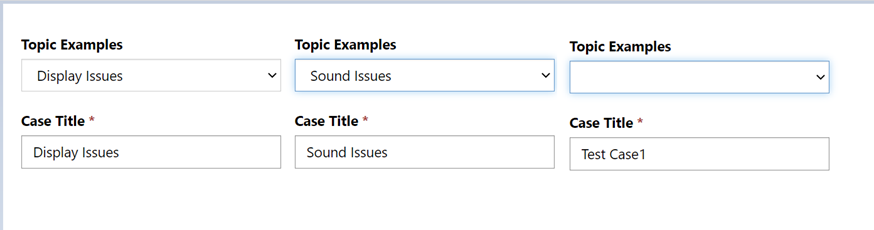
    D365-Portal2.png

    Hope this was helpful.


    Thanks!

  • Bauer Profile Picture
    5 on at

    Thank You Sam for the detailed suggestion. That worked for me.

    Thank you so much for the help.

Under review

Thank you for your reply! To ensure a great experience for everyone, your content is awaiting approval by our Community Managers. Please check back later.

Helpful resources

Quick Links

Responsible AI policies

As AI tools become more common, we’re introducing a Responsible AI Use…

Neeraj Kumar – Community Spotlight

We are honored to recognize Neeraj Kumar as our Community Spotlight honoree for…

Leaderboard > Customer experience | Sales, Customer Insights, CRM

#1
Tom_Gioielli Profile Picture

Tom_Gioielli 137 Super User 2025 Season 2

#2
#ManoVerse Profile Picture

#ManoVerse 57

#3
Jimmy Passeti Profile Picture

Jimmy Passeti 50 Most Valuable Professional

Last 30 days Overall leaderboard

Product updates

Dynamics 365 release plans


