web
You’re offline. This is a read only version of the page.
close
Skip to main content

Notifications

Announcements

No record found.

Community site session details

Community site session details

Session Id :
Finance | Project Operations, Human Resources, ...
Answered

How can I know what changes have been made in a form extension?

(1) ShareShare
ReportReport
Posted on by 45

I am looking at a form that belongs to the Application Suite model. There are other models that have an extension to that form. What is the most practical way to find out what modifications were made to the form in an extension?

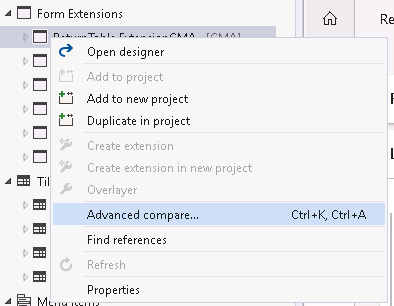
I right clicked the form extension in the Application Explorer and tried Advanced compare...

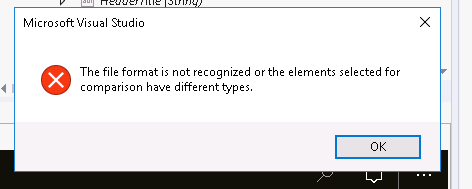
I selected the XML file that I wanted to compare it to but it gave me the error: "The file format is not recognized or the elements selected for comparison have different types."  I couldn't find documentation on how the Advanced Compare feature is supposed to work.

Any help or ideas would be greatly appreciated .
pastedimage1600363474160v1.png

pastedimage1600363644628v2.png

I have the same question (0)
  • Suggested answer
    nmaenpaa Profile Picture
    101,160 Moderator on at

    Try to open it in designer and see if you have some other options in right click menu. Also when you have it open in designer you see all extension elements in bold font.

  • dynamics356user Profile Picture
    45 on at

    Hi Nikolaos

    I opened the form extension in the designer and there doesn't seem to be any helpful options. I have attached screenshots.

    I have noticed in the past that extension elements will have a bold font. It's not practical to use for finding changes because I would need to expand all the items and  sub items one by one. I started doing that here but I'm already at 50 clicks to expand the items and still haven't found a bold label. It would be a little better if there was an Expand All option but even that doesn't exist.

    pastedimage1600365284545v1.png

    pastedimage1600365406632v2.png

  • Verified answer
    Joris dG Profile Picture
    17,775 on at

    When you open the form extension, in the "search" bar at the top enter E: and hit enter (E for extension, I presume).

  • dynamics356user Profile Picture
    45 on at

    That is awesome! Thanks Joris.

    If you don't mind me asking how did you figure that out? I feel like I'm missing out on some useful features that are not so obvious.

  • Suggested answer
    Joris dG Profile Picture
    17,775 on at

    I know some people.

    Originally this was mostly for filtering on overlayering, finding layering conflicts etc. All concepts that are really only still relevant for upgrades from older version. But the extension E: filter still makes sense.

Under review

Thank you for your reply! To ensure a great experience for everyone, your content is awaiting approval by our Community Managers. Please check back later.

Helpful resources

Quick Links

Responsible AI policies

As AI tools become more common, we’re introducing a Responsible AI Use…

Neeraj Kumar – Community Spotlight

We are honored to recognize Neeraj Kumar as our Community Spotlight honoree for…

Leaderboard > Finance | Project Operations, Human Resources, AX, GP, SL

#1
Martin Dráb Profile Picture

Martin Dráb 611 Most Valuable Professional

#2
André Arnaud de Calavon Profile Picture

André Arnaud de Cal... 529 Super User 2025 Season 2

#3
Sohaib Cheema Profile Picture

Sohaib Cheema 285 User Group Leader

Last 30 days Overall leaderboard

Product updates

Dynamics 365 release plans