web
You’re offline. This is a read only version of the page.
close
Skip to main content

Notifications

Announcements

No record found.

Community site session details

Community site session details

Session Id :
Customer experience | Sales, Customer Insights,...
Suggested Answer

D365 grid control in UCI

(1) ShareShare
ReportReport
Posted on by 129

As we all know in v9 UCI, this piece of code is no longer working: myGrid.control.SetParameter("fetchXml", fetchXml); 

MS did not even provide an alternative to this method so I have a problem because a lot of our grids use this method.

Now looking at the grid control methods, I found this  "setFilterXml(filter)" but MS did not document what the "filter" format is and I don't think it is completed yet.

So I have I this situation:
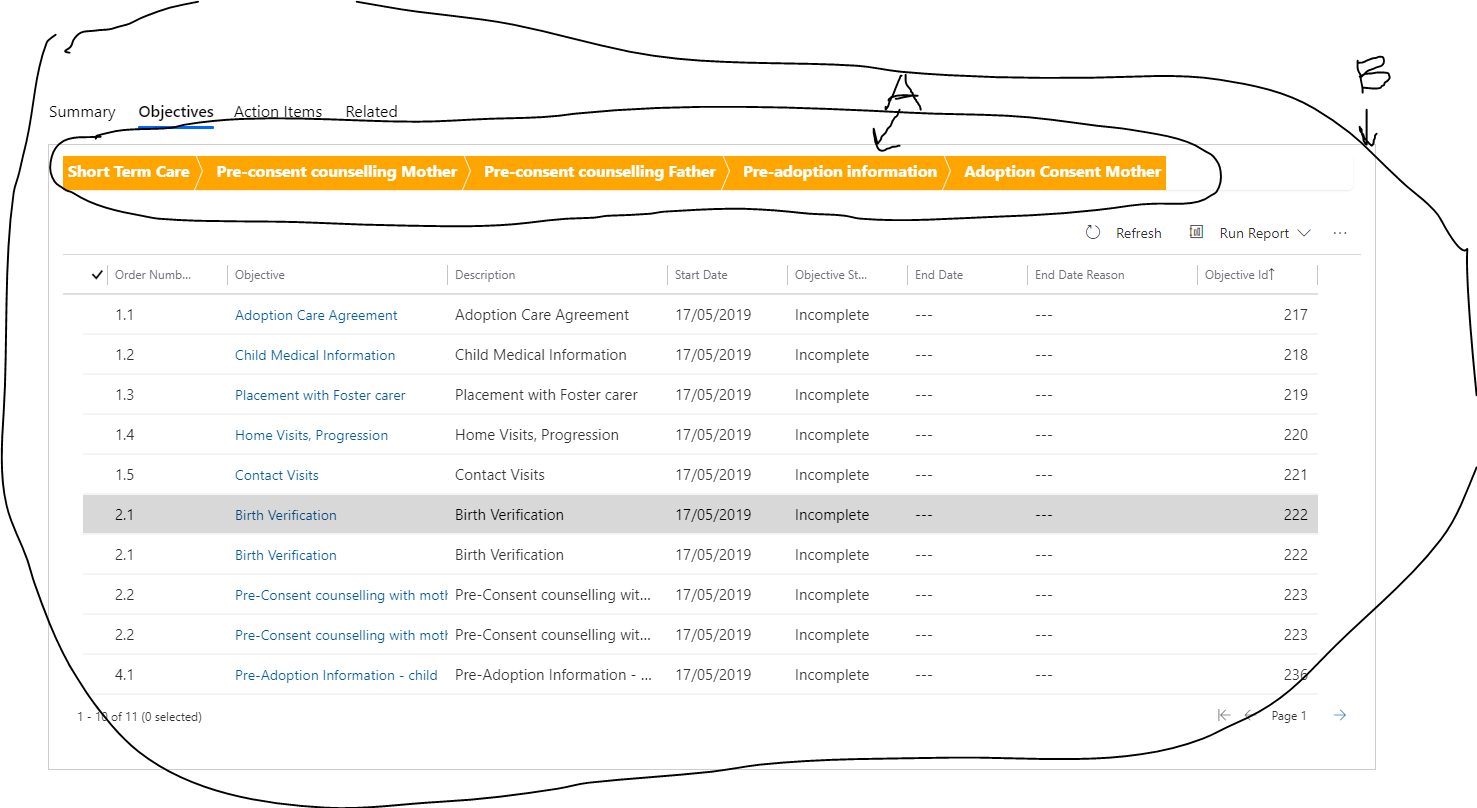
pastedimage1573601564418v1.png

A - the orange bars at the top is a web resource inside an iFrame. The parent form is "B".

In "B", there is the grid which gets its data from a View.

The "A" orange bar contains the various "Stages" of a "Plan".

The "B" grid contains the "Objectives" of a specific "Stage".

So when I click a bar section of "A", the associated "Objectives"  are show in the "B" grid.

You could say, the "A" bar behaves like a Lookup but if you look closely at it, the bar resembles sort of like a "workflow" (stages).

So those stages in "A" are in order and each section of the bar is given a specific colour depending on its status.

So "orange" colour is like "Incomplete".

Whereas a green colour means "Completed"... and so on.

Now because the "grid.control.setParameter()" no longer works, all of the associated "Objectives" are shown.

If I click one of the bar section, nothing happens because "grid.control.setParameter()" fails.

So what the heck am I going to do? I could use JS and do a FetcXML, get back the JSON response and populate that grid control but no I can't.

There is no method available to let me do that one.

https://docs.microsoft.com/en-au/powerapps/developer/model-driven-apps/clientapi/reference/grids

Now the bar "A" section is not really a lookup so don't suggest the use of Lookup filters.

I could render the grid as a table and populate the rows with data from FetchXML but that grid control is much better for displaying the rows of data.

Just realised that this might be possible:

Because I know what bar "Stage" I clicked, I could go through the grid control rows and hide those rows of Objectives that are not associated with the selected Stage. ????

Is there anyone there who can suggest another way?

a2z

I have the same question (0)
  • a2z Profile Picture
    129 on at

    As far as I can see, there is no way to make specific grid rows hidden. So stuff that idea about hiding the rows,

    So I thought, why not use the filter because you can enable the Search filter for a grid control.

    pastedimage1573614745363v2.png

    So I did this in JS.

    var data = objSubGrid.getGrid().getRows().getByFilter(stageId)

    Just to see if "getByFilter()" actually works. Of course I was assuming the getByFilter uses the search text field highlight in the image above.

    What did I get? Err....nothing. Empty collection.

    getByFilter is not even documented in here: https://docs.microsoft.com/en-au/powerapps/developer/model-driven-apps/clientapi/reference/grids

    a2z

  • a2z Profile Picture
    129 on at

    Anybody else can make some suggestions or a work around?

    Thanks

    a2z

  • a2z Profile Picture
    129 on at

    Someone suggested the following:

    [View:https://docs.microsoft.com/en-au/powerapps/developer/model-driven-apps/clientapi/reference/grids/viewselector/setcurrentview:750:50]

    The JS code:

    function setView(executionContext) {
        var ContactsIFollow = {
            entityType: 1039, // SavedQuery
            id: "3A282DA1-5D90-E011-95AE-00155D9CFA02",
            name: "Contacts I Follow"
        }
        // Get the gridContext
        var formContext = executionContext.getFormContext();
        var gridContext = formContext.getControl("Contacts");

        // Set the view using ContactsIFollow
        gridContext.getViewSelector().setCurrentView(ContactsIFollow);
    }

    Well, that is ok if I only have several views but for me to allow for all Stages, I have to create 92 Views as their are 92 types of Stages.

    a2z

  • Suggested answer
    a2z Profile Picture
    129 on at

    I may have found an alternative, thanks to this question from the D365 Forum:

    https://community.dynamics.com/crm/f/microsoft-dynamics-crm-forum/299697/dynamics-365-unified-interface-inject-fetchxml-into-subgrid/982885#982885

    pastedimage1574231172366v1.png

    So I did that:

    var gridControl = parent.Xrm.Page.getControl("grdObjectives");
    gridControl._gridControl.setFilterXml(FetchXml);
    gridControl._gridControl.refresh();

    And it is working.

    a2z

  • Suggested answer
    Ali Hamza Profile Picture
    170 on at
    Hi, 
     
    [Replying to a very long thread, but may be someone get benefit out of it, therefore posting]
     
    So we can use setFilterXml method, I am not sure this method is deprecated or not by Microsoft Dynamics Team. 
     
    But as of now it is working fine in Model Driven Apps.
     
    like  (you can use formcontext, i just used Xrm.Page to test it in simple way)
     
    Xrm.Page.getControl("Subgrid_new_1").setFilterXml('<filter><condition attribute="ali_contact" operator="eq" value="{64adec48-99d1-ef11-a72e-6045bde05d1f}"/></filter>');
     
     
    Regards
    Ali
  • Suggested answer
    Daivat Vartak (v-9davar) Profile Picture
    7,835 Super User 2025 Season 2 on at
    Hello a2z,
     

    You've accurately described the challenge of the deprecated grid.control.SetParameter("fetchXml", fetchXml) in UCI and the limitations of the available alternatives. Your realization about iterating through the grid rows and hiding them based on the selected stage is a valid and potentially viable workaround, given the constraints.

    Let's explore that approach and consider other possibilities, even if they have their own limitations:

    1. Iterating and Hiding Rows (Your Realization):

    This approach involves the following steps:

    • Identify the Clicked "Stage" in the Web Resource (A): Your web resource needs to communicate which "Stage" bar was clicked to the parent form (B) via JavaScript. This can be done using window.parent.Xrm.Page.getAttribute("your_stage_field_on_parent").setValue(clickedStageValue); or a similar mechanism to set a value on the parent form.

    • Trigger JavaScript on the Parent Form (B): Attach an OnChange event handler to the field you're using to store the clicked "Stage" value on the parent form.

    • Get the Grid Control: Inside your JavaScript function on the parent form, get a reference to the grid control using formContext.getControl("your_grid_control_name").

    • Get All Grid Rows: Use the getGrid().getRows() method to retrieve a collection of all rows in the grid.

    • Iterate Through Rows: Loop through each row in the GridRowCollection.

    • Access Row Data: For each row, use getRow(index).getData().getEntity().attributes.get("your_stage_lookup_field_in_grid").getValue() to get the value of the "Stage" lookup field (or whatever field links the Objective to the Stage) in that row.

    • Determine Visibility: Compare the "Stage" value in the grid row with the value of the clicked "Stage" (which you stored in a field on the parent form).

    • Hide Rows: If the "Stage" values don't match, use the getRow(index).setVisible(false) method to hide that row. If they match, ensure it's visible using getRow(index).setVisible(true).

    Pros:

    • Doesn't rely on setting a new FetchXML for the entire grid.

    • Utilizes available Client API methods.

    • Potentially less resource-intensive than reloading the entire grid.

    Cons:

    • All Objectives are initially loaded, which might be a performance concern if there's a very large number of records.

    • The filtering is happening client-side, so the initial load might take longer.

    • You need to ensure the "Stage" linking field is consistently populated in your Objective records.


    •  

    2. Using setFilterXml (If It Becomes Viable):

    While you mentioned the lack of documentation and potential incompleteness of setFilterXml, it's worth keeping an eye on the official documentation and community discussions. If Microsoft fully implements and documents this method, it could be a more direct alternative to setParameter("fetchXml") for filtering.

    • Monitor Documentation: Regularly check the Microsoft Power Apps documentation for updates to the GridControl Client API, specifically for setFilterXml.

    • Community Insights: Follow Power Apps community forums and blogs where developers might be experimenting with and sharing information about setFilterXml.


    •  

    3. Simulating a Subgrid with a Filtered View (Configuration-Based):

    Instead of directly manipulating the existing grid, you could consider:

    • Creating Multiple Views: Create pre-filtered views for the "Objectives" entity, where each view filters the Objectives based on a specific "Stage".

    • Dynamically Showing/Hiding Subgrids: Place multiple subgrids on the parent form (B), one for each "Stage" view. Initially, hide all subgrids. When a "Stage" is clicked in your web resource (A), make the corresponding subgrid visible and hide the others.

    Pros:

    • Leverages configuration rather than extensive JavaScript for filtering.

    • Data loading is handled by the platform's view mechanism.

    Cons:

    • Can clutter the form with multiple subgrids in the customization interface.

    • Might not be as visually integrated as a single grid being dynamically filtered.

    • Requires creating and maintaining multiple views.


    •  

    4. FetchXML and Manually Rendering a Table (Your Mentioned Avoidance):

    While you want to avoid this, for completeness, you could:

    • Use JavaScript to build and execute a FetchXML query based on the clicked "Stage".

    • Retrieve the data as a JSON response.

    • Dynamically create an HTML table within a section of your form and populate it with the retrieved data.

    Pros:

    • Gives you complete control over the displayed data.

    Cons:

    • You lose the built-in features and UI of the Dynamics 365 grid control (sorting, filtering, paging, etc.), which you would have to implement yourself.

    • Significantly more development effort.


    •  

    Recommendation:

    Given the current limitations and your desire to utilize the existing grid control, your approach of iterating through the rows and hiding/showing them based on the selected "Stage" is the most pragmatic solution using the available Client API.

    Key Implementation Details for Iterating and Hiding:

    • Efficiently Identify the "Stage" Link: Ensure the field in your "Objectives" grid that links to the "Stage" is readily accessible and its values are reliable.

    • Performance Considerations: If you have a very large number of Objectives, consider if the initial load time is acceptable. You might need to explore pagination or other techniques if performance becomes an issue.

    • User Experience: Provide clear visual feedback to the user when a "Stage" is selected, so they understand that the grid content has been filtered.

    •  

    In summary, while the deprecation of setParameter("fetchXml") is a significant hurdle, your idea of client-side row manipulation is a reasonable workaround within the current Client API capabilities. Keep an eye on the documentation for setFilterXml as a potential future solution.

     
    If my answer was helpful, please click Like, and if it solved your problem, please mark it as verified to help other community members find more. If you have further questions, please feel free to contact me.
     
    My response was crafted with AI assistance and tailored to provide detailed and actionable guidance for your Microsoft Dynamics 365 query.
     
    Regards,
    Daivat Vartak

Under review

Thank you for your reply! To ensure a great experience for everyone, your content is awaiting approval by our Community Managers. Please check back later.

Helpful resources

Quick Links

Responsible AI policies

As AI tools become more common, we’re introducing a Responsible AI Use…

Neeraj Kumar – Community Spotlight

We are honored to recognize Neeraj Kumar as our Community Spotlight honoree for…

Leaderboard > Customer experience | Sales, Customer Insights, CRM

#1
Tom_Gioielli Profile Picture

Tom_Gioielli 74 Super User 2025 Season 2

#2
Daniyal Khaleel Profile Picture

Daniyal Khaleel 32 Most Valuable Professional

#3
Gerardo Rentería García Profile Picture

Gerardo Rentería Ga... 31 Most Valuable Professional

Last 30 days Overall leaderboard

Product updates

Dynamics 365 release plans



