web
You’re offline. This is a read only version of the page.
close
Skip to main content

Notifications

Announcements

No record found.

Community site session details

Community site session details

Session Id :
Finance | Project Operations, Human Resources, ...
Answered

How to move field in a Tab Page to a specific Group.

(0) ShareShare
ReportReport
Posted on by 197

Hello Finance community readers,

I have a PurchTable.WWIExtension where I have added a field from an added data source.  The field is WWINamedPlace, and it is contained in the PurchPurchaseOrderHeader.WWIExtension.  So I've added PurchPurchaseOrderHeader as a data source in PurchTable.WWIExtension.

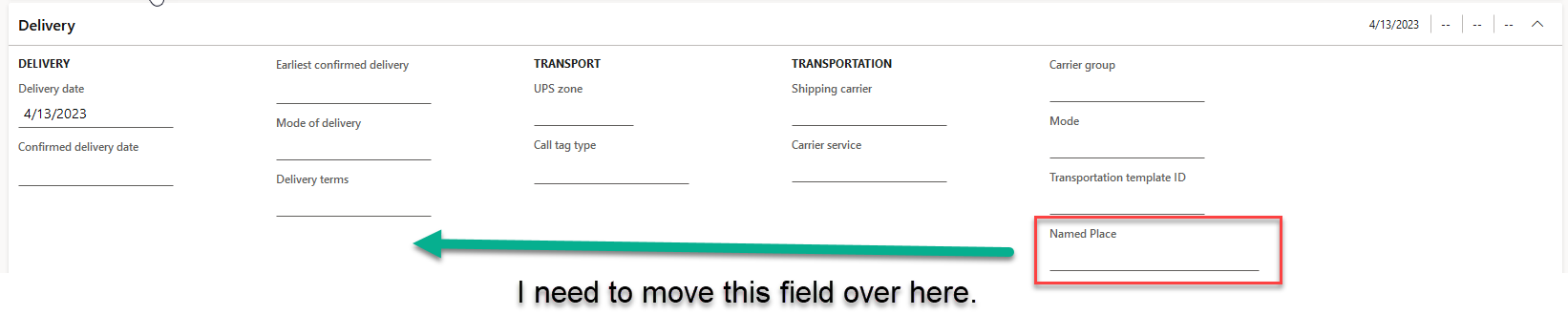
I want to move the PurchPurchaseOrderHeader_WWINamedPlace into the Delivery (Group) in the same Tab.  Right now it is in the tab, but it's just the last item in the tab, and not in the right group. 

Visually that looks like this in Visual studio, and my interface:
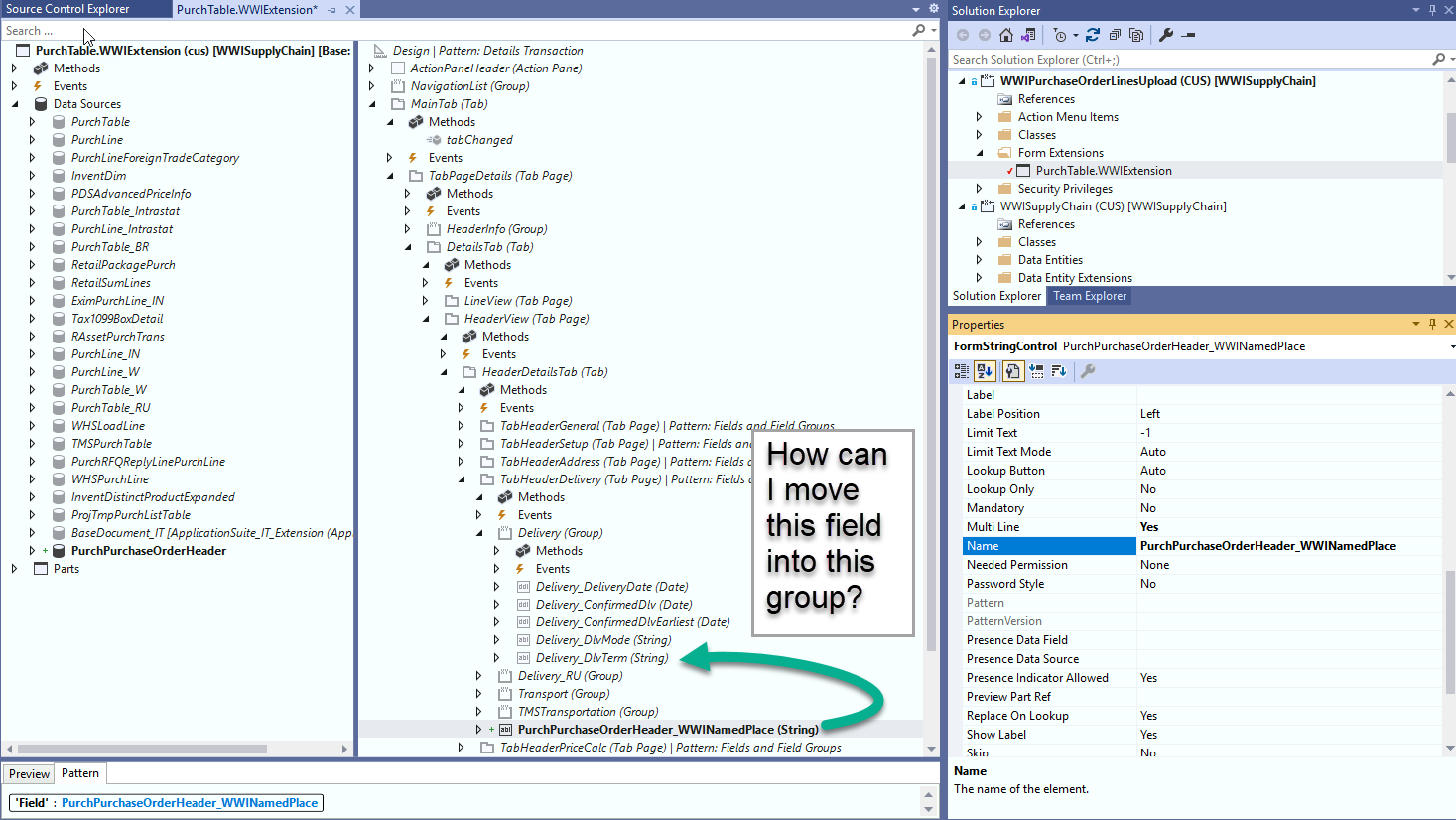
pastedimage1684953755298v2.png

In related posts I think the answer is to use more construction (not the right word) elements in the right hand pane of my form designer.  But I haven't come across a good MS Support page or MS Learn or other community post about it so far.

Any help would be greatly appreciated, thank-you for reading my post.

I have the same question (0)
  • Mohit Rampal Profile Picture
    12,565 Moderator on at

    Hi, You need to add your field in 'Delivery' Field Group in PurchTable table. As per screenshot, its a different Datasource 'PurchPurchaseOrderHeader', if field is in this datasource then you can't add it in Delivery group.

  • jt1024 Profile Picture
    197 on at

    Hello Mohit,

    Thank-you for your time as always.

    I tried that, it won't let me put my new data field in that group.  

    I had to duplicate the Delivery Group and copy all of it's fields into the duplicate, from there I copied my desired field, WWINamedPlace into the new group. I set the original group to not be enabled or visible.

    Would there be some reason why it wouldn't let me put my field into the original group?

    This is what it looks like now:

    So the top Delivery (Group) is enabled: No, Visible: No.

    This seems to work properly in my form. The Delivery2 (Group) uses the same data fields.

    It's a kludge work around though.

  • Mohit Rampal Profile Picture
    12,565 Moderator on at

    It will work but not a good design, field groups are for fields in a same table. Field the standard field group is used in code level to control its visibility based on some conditions then you have to write same for your custom group which is extra and unnecessary work.

  • jt1024 Profile Picture
    197 on at

    Hmm,

    I see your point, and I agree with your direction here.

    I wonder why I can't add the field I created to the normal pre-existing group.  Any ideas?

    - Jim

  • Verified answer
    Mohit Rampal Profile Picture
    12,565 Moderator on at

    Because your field belongs to PurchPurchaseOrderHeader Datasource and the Delivery field group is linked to PurchTable Datasource. These fields are auto populated from Delivery Field group in PurchTable table and in form design we need to provide Datasource and field group name.

  • jt1024 Profile Picture
    197 on at

    I had stumbled across that earlier in the day, but didn't have the confidence to tear down what I had to go this way.  

    But now that you've expertly guided me this way, I've deleted what I had done the wrong way, created the new field, and added it to the Delivery Field Group as you suggested, and it automatically shows up on my form extension!

    Plus... the data is editable and saves!  Wohoo!

    Thanks again Mohit!  

  • Mohit Rampal Profile Picture
    12,565 Moderator on at

    That's the correct design, You're welcome :)

Under review

Thank you for your reply! To ensure a great experience for everyone, your content is awaiting approval by our Community Managers. Please check back later.

Helpful resources

Quick Links

Responsible AI policies

As AI tools become more common, we’re introducing a Responsible AI Use…

Neeraj Kumar – Community Spotlight

We are honored to recognize Neeraj Kumar as our Community Spotlight honoree for…

Leaderboard > Finance | Project Operations, Human Resources, AX, GP, SL

#1
Martin Dráb Profile Picture

Martin Dráb 660 Most Valuable Professional

#2
André Arnaud de Calavon Profile Picture

André Arnaud de Cal... 549 Super User 2025 Season 2

#3
Sohaib Cheema Profile Picture

Sohaib Cheema 307 User Group Leader

Last 30 days Overall leaderboard

Product updates

Dynamics 365 release plans