web
You’re offline. This is a read only version of the page.
close
Skip to main content

Notifications

Announcements

No record found.

Community site session details

Community site session details

Session Id :
Service | Customer Service, Contact Center, Fie...
Answered

Adding extra chart cells after creation of dashboard

(0) ShareShare
ReportReport
Posted on by 50

Hi all,

I'm new to charting in dynamics....

Is it possible to add another chart cell to a dashboard after creation?

I have 2 charts on the dashboard and i need to add another chart to the dashboard.

Have i got to start the dashboard again from scratch?

Cheers,

I have the same question (0)
  • Suggested answer
    LeoAlt Profile Picture
    16,331 Moderator on at

    Hi partner,

    You could edit the dashboard directly to add or delete components like charts or sub grid.

    There are 2 ways to modify a dashboard.

    For example I want to add a new chart in existing dashboard "Sales Activity Social Dashboard".

    Way 1:

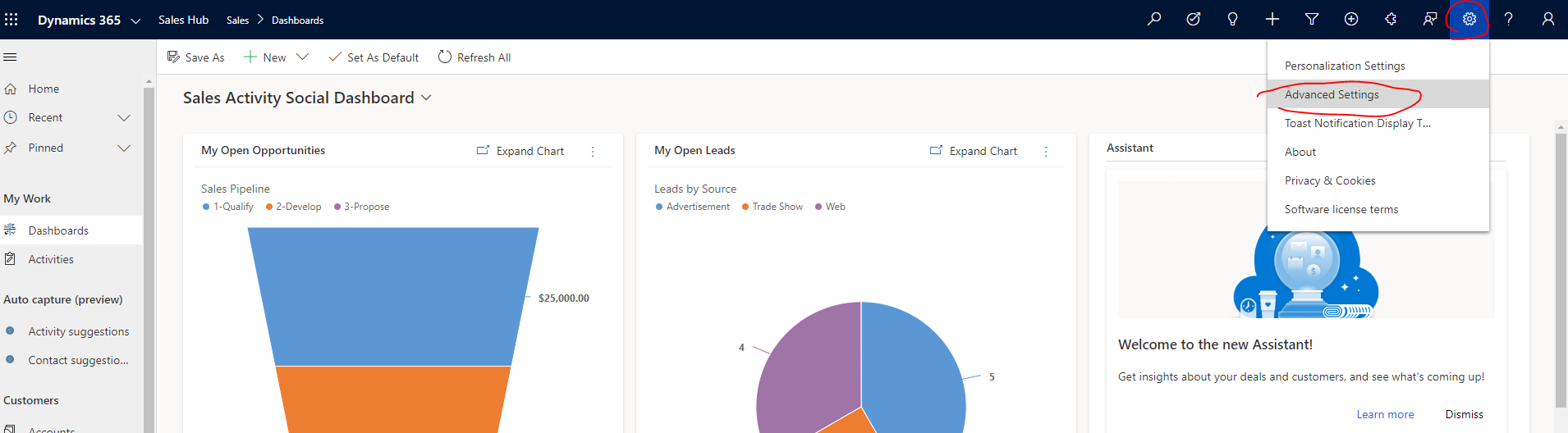
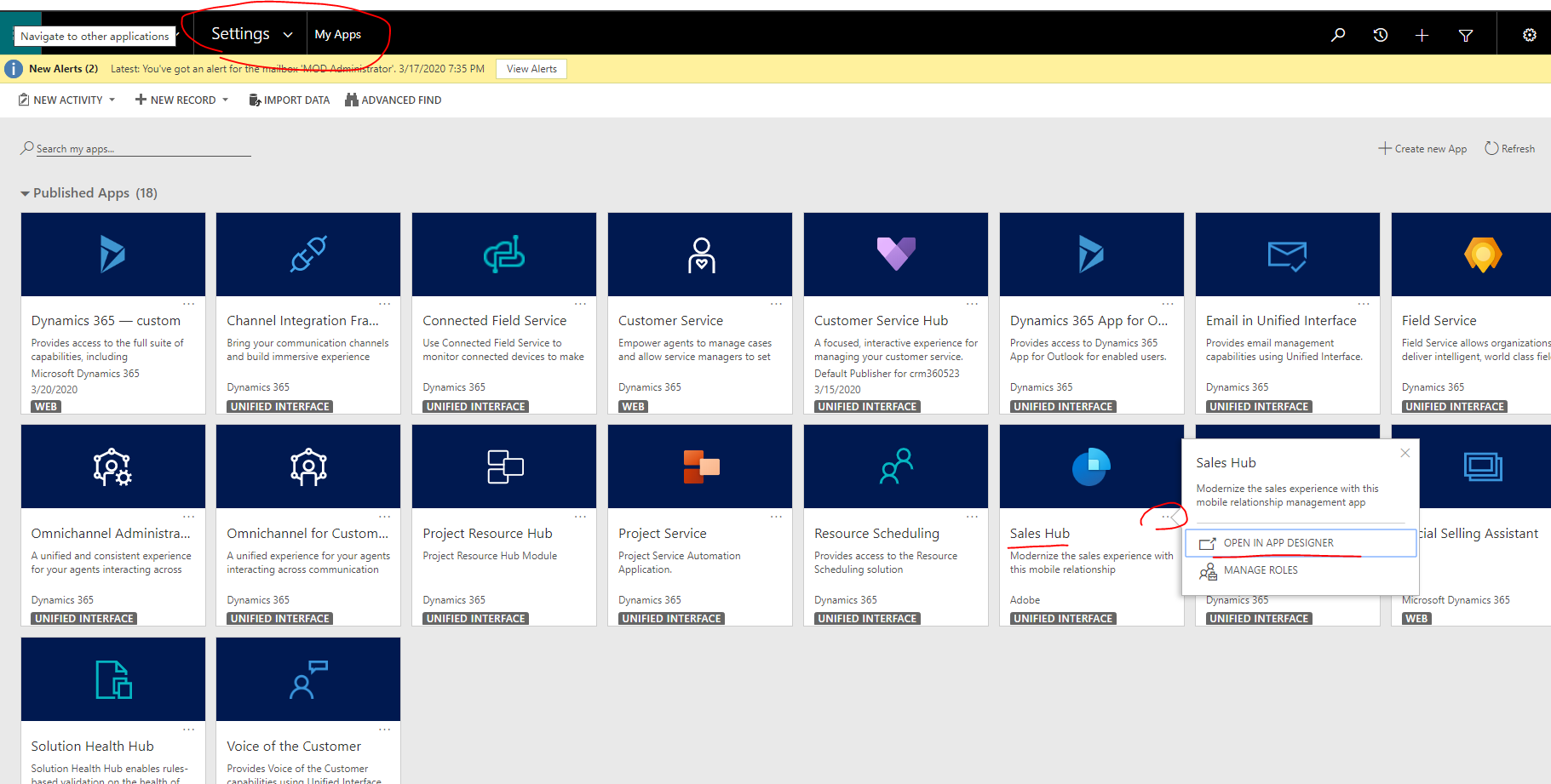
    1.Go to Advanced Settings->My apps, since this dashboard is in Sales Hub, so I open the Sales Hub app designer.
    pastedimage1584668527876v1.png

    pastedimage1584668662898v2.png

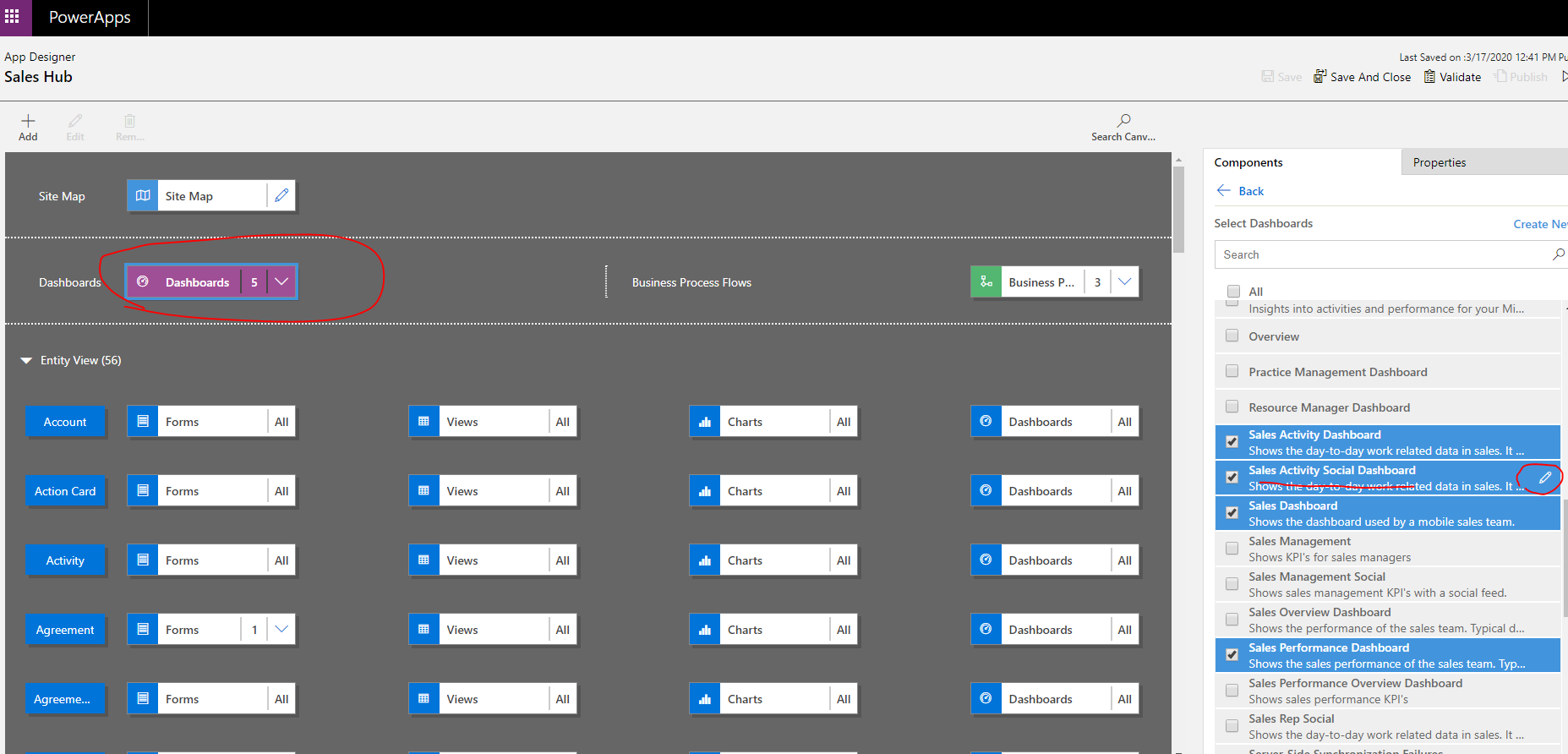
    2.Select "Dashboards" and find the dashboard in dashboard list.
    pastedimage1584668757611v3.png

    Click the edit icon to open the dashboard editor form.

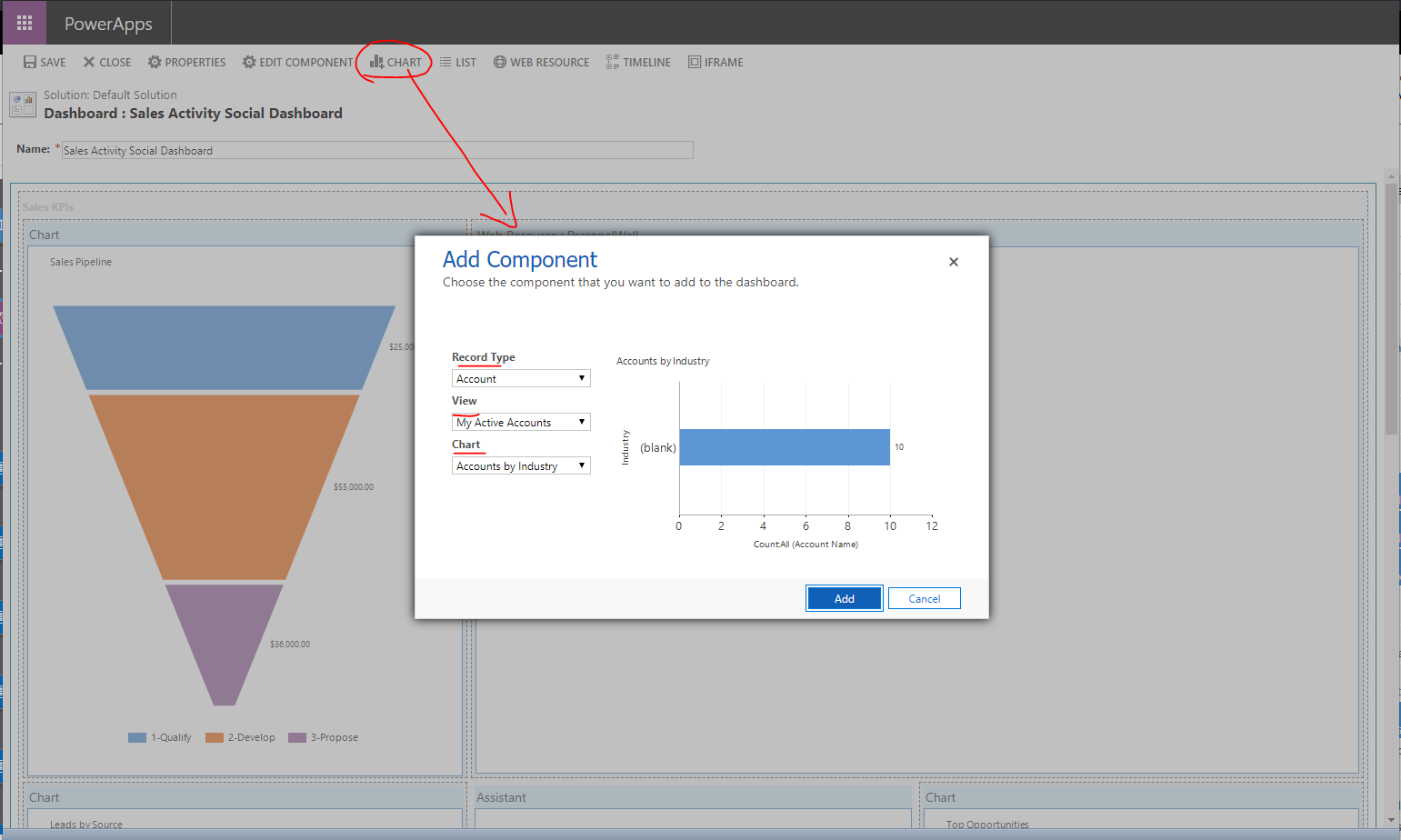
    3.Now you've entered the dashboard editor form, here we could modify the existing dashboards as we want.

    Click on "Char" to add a new chart. For example I want to add "Accounts by Industry" to this dashboard.
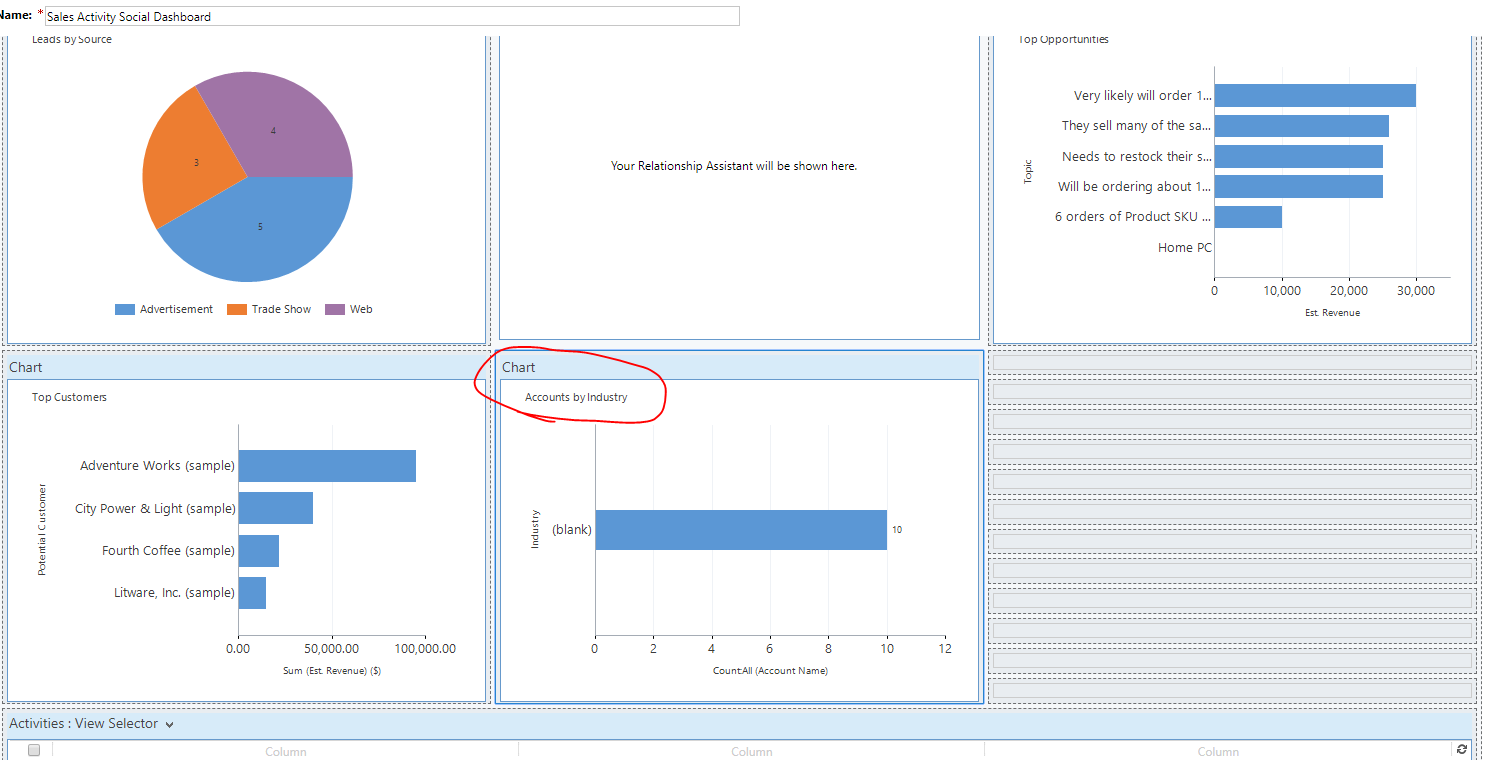
    pastedimage1584668838022v4.png

    pastedimage1584668941240v5.png

    Back to app designer, Save and publish.

    pastedimage1584669164764v7.png

    We could see that the new chart had been added to the dashboard successfully.
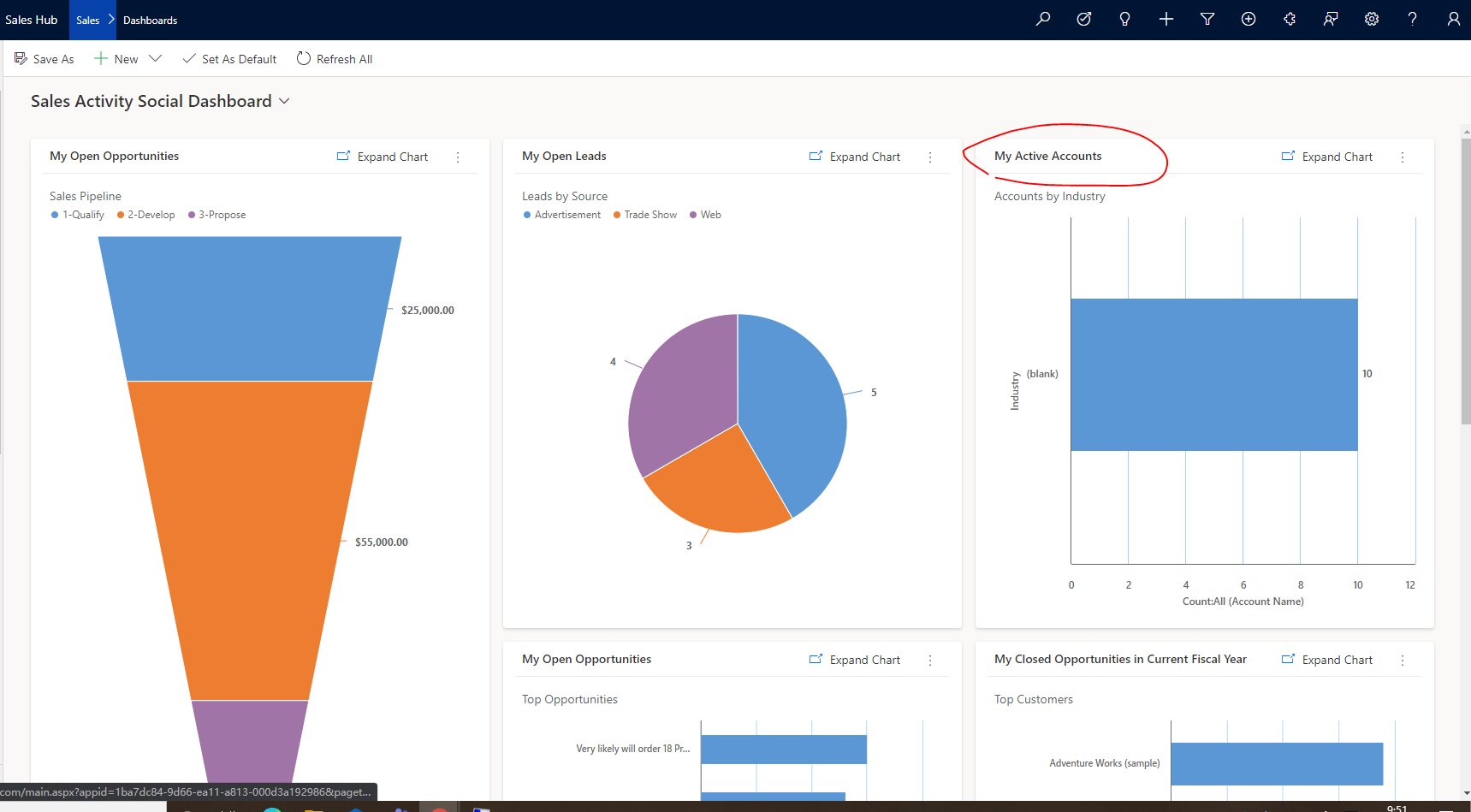
    pastedimage1584669133140v6.png

    Way 2:

    Go to Advanced Settings->Customizations->Customize the system->Dashboards.

    Select the dashboard you want to modify and double click to open the dashboard editor.
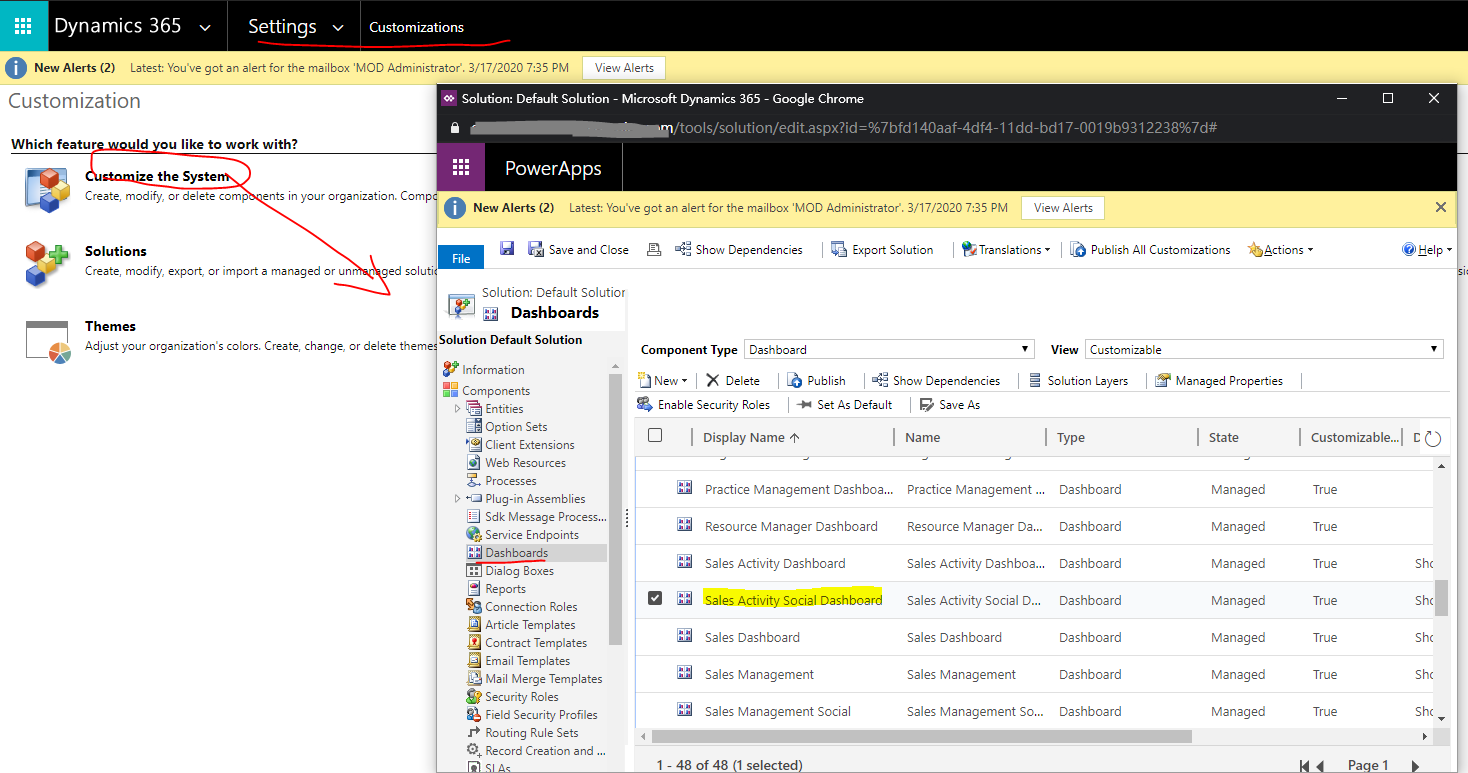
    pastedimage1584669316420v8.png

    The rest of the job is to edit the dashboard in the same way as above.

    You could also refer to the following docs.

    https://docs.microsoft.com/en-us/dynamics365/customerengagement/on-premises/customize/create-edit-dashboards

    https://docs.microsoft.com/en-us/dynamics365/customerengagement/on-premises/customize/configure-interactive-experience-dashboards

    Hope it helps.

    Best Regards,

    Leo

  • DarrenMog Profile Picture
    50 on at

    Hi Leo,

    Thanks for the reply and the information.

    My issue is that i have space for 2 charts on my dashboard and i need to add another chart but there isn't space.

    Is it possible to split the current cells so i end up with 3 cells for 3 charts?

    Cheers

  • Verified answer
    Paul_Owen Profile Picture
    2,027 on at

    If you originally created a 4 chart dashboard but only used 2 charts and set them to take up 2 spaces then you will have space to add 2 more if you reduce the width of the existing but if it was a 2 colum dashboard you will have to create from scratch.

    Regards

    Paul

  • DarrenMog Profile Picture
    50 on at

    Cheers Paul.

Under review

Thank you for your reply! To ensure a great experience for everyone, your content is awaiting approval by our Community Managers. Please check back later.

Helpful resources

Quick Links

Responsible AI policies

As AI tools become more common, we’re introducing a Responsible AI Use…

Neeraj Kumar – Community Spotlight

We are honored to recognize Neeraj Kumar as our Community Spotlight honoree for…

Leaderboard > Service | Customer Service, Contact Center, Field Service, Guides

#1
Tom_Gioielli Profile Picture

Tom_Gioielli 61 Super User 2025 Season 2

#2
Siv Sagar Profile Picture

Siv Sagar 52 Super User 2025 Season 2

#3
Daniyal Khaleel Profile Picture

Daniyal Khaleel 42 Most Valuable Professional

Last 30 days Overall leaderboard

Featured topics

Product updates

Dynamics 365 release plans



