Hi Ezra,
What you want to do is definitely possible, but you are trying to edit the wrong field. The Quantity Received field is updated by the system and cannot be manually edited.
The first thing you want to do on the Purchase Order is to right click on one of the column headers under the Lines heading, and click on Choose Columns. Then, make "Qty. to Receive" and "Qty. to Invoice" fields visible.
When you return to the Purchase Order, you should see those fields as well.
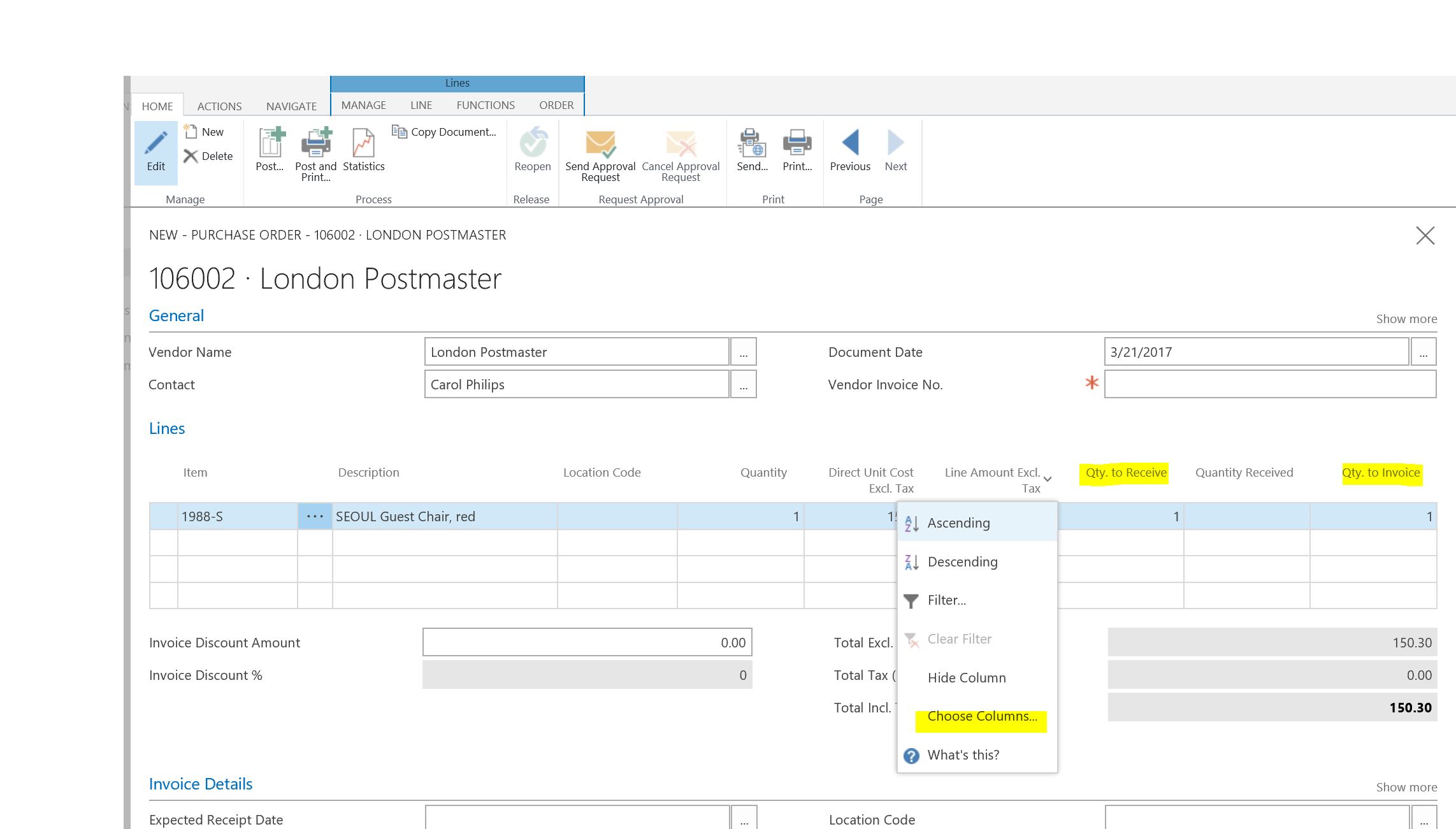
Here's how it works. If you want to order 12 pieces in total, but receive a partial shipment of 7 pieces into inventory:
In the Item line, put 12 in the Quantity field, and 7 in the Qty. to Receive field (by default, it may put 12 in there; you can overwrite it). When you click out of that field, it should also update the Qty. to Invoice field and show 7 there.
Here are two situations, and how you would handle each
Situation 1: The shipment arrived with an invoice
In this case, be sure to enter the Invoice no. in the "Vendor Invoice No." in the header of the Purchase Order. Then click on Post in the ribbon, and select "Receive and Invoice" and click OK. This will have the impact of receiving 7 pieces into inventory, and also create a payable for these 7 pieces.
When you look at the Purchase Order after posting, you will see the Quantity Received field showing 7; the Qty. to Receive and Qty. to Invoice fields will show 5 (since that is how many pieces remain from the total of 12 pieces ordered).
Situation 2: The shipment arrived, but you haven't received an invoice from the vendor yet
In this case, don't worry about filling in the Vendor Invoice No. field in the header. Just click on Post, then select the "Receive" option, and click OK. This will have the impact of receiving 7 pieces into inventory, but no payable is created at this time.
Back on the Purchase Order page, you will see Quantity Received = 7, Qty. to Receive = 5, and Qty. to Invoice = 12.
When the Vendor sends an invoice for these 7 pieces, update the Qty. to Invoice field to 7, enter the Invoice No. in the Vendor Invoice No. field in the Purchase Order header, click Post, and select "Invoice" (or "Receive and Invoice"), and click OK. The system will then record the payable for 7 pieces as well.
Final thought: When you have posted receipts and invoices for all 12 pieces, the Purchase Order will disappear. You can find the posted documents under Posted Purchase Receipts and Posted Purchase Invoices; and you can see the payable from Vendor Ledger Entries (from the Vendor card).
Hope this helps!


