web
You’re offline. This is a read only version of the page.
close
Skip to main content

Notifications

Announcements

No record found.

Community site session details

Community site session details

Session Id :
Customer experience | Sales, Customer Insights,...
Answered

Unable to connect with dynamics 365 using C# Web API

(0) ShareShare
ReportReport
Posted on by 319

Hello Experts,

I am trying to connect with dynamics 365 using C# web api but I am not able to connect getting error always. I am sharing the code snipped. Kindly have a look.

pastedimage1649349763406v1.png

While using this code getting below error.

pastedimage1649350236176v2.png

I have registered the Application to the azure, Generated the Client secret also created the application user with the current application id.

Still getting the error.

 I can not use the Auth type Office 365 as it is depreciated. Please help to generate the OrgService to perform the CRUD operation in dynamics 365 using webapi. 

I have the same question (0)
  • Suggested answer
    Guido Preite Profile Picture
    54,086 Moderator on at

    please check the connection string if is written correctly, Url and not url and remove the empty spaces before and after the = sign

  • M. N. Quraishi Profile Picture
    319 on at

    I have checked and tested again but the same issue I am facing.

  • Inogic Profile Picture
    703 on at

    Hi,

    Please verify the connection string is as below:

    connectionstring = “AuthType=ClientSecret; url=orgnizationurl; ClientId=clientid; ClientSecret=secretkey";

    Also, Add security protocol tls file before connection as below

    ServicePointManager.SecurityProtocol = SecurityProtocolType.Tls12;

     _crmServiceClient = new CrmServiceClient(connectionstring);

    Hope this helps.


    Thanks!

  • M. N. Quraishi Profile Picture
    319 on at

    Hello Sam,

    Getting below error when using your code:

    pastedimage1649413979864v1.png

    I have used below code. also tried to write in a single line as well but still getting error.

    pastedimage1649414100005v2.png

    Kindly have a look and help me to resolve the issue.

  • Verified answer
    M. N. Quraishi Profile Picture
    319 on at

    Hello Everyone,

    Thanks for your support.

    I have investigated and resolved the issue. Actually there was a previous version installed in my machine that was  Microsoft.CrmSdk.CoreAssemblies -Version 9.0.0.0

    That's why I was getting the issue. So now the sdk was replaced with Microsoft.CrmSdk.CoreAssemblies -Version 9.0.2.42 and now it's working fine.

    After several try I found that This assembly contains the code Microsoft.Xrm.Sdk.Organization.OrganizationDetail.get_EnvironmentId()  in the trace log.

    So simply I have replaced the sdk and working as expected.

    Thanks.

  • Ashokrmy Profile Picture
    5 on at

    Hi Mohd Nazish

    I have the same problem and I tried a lot to solve it with no luck could you please share your full connection code and all the references that you use.

    Thanks.

  • Suggested answer
    M. N. Quraishi Profile Picture
    319 on at

    Hello Ashokrmy,

    Sorry for the late response I had an emergency I was in hospital.

    Kindly have a look below steps:

    First of all you need to register your web api to the azure portal within the App Registration button.

    pastedimage1650434901380v1.png

    Now click on New Registration button.

    pastedimage1650435070513v2.png

    Provide any meaningful name of the app. select the tenant and also provide the redirect Uri and click on Register button. You can refer attached screen shot.

    pastedimage1650435398387v3.png

    after successfully registration copy the Application (Client) Id and paste it somewhere for future use. And now click on certificate and secret.
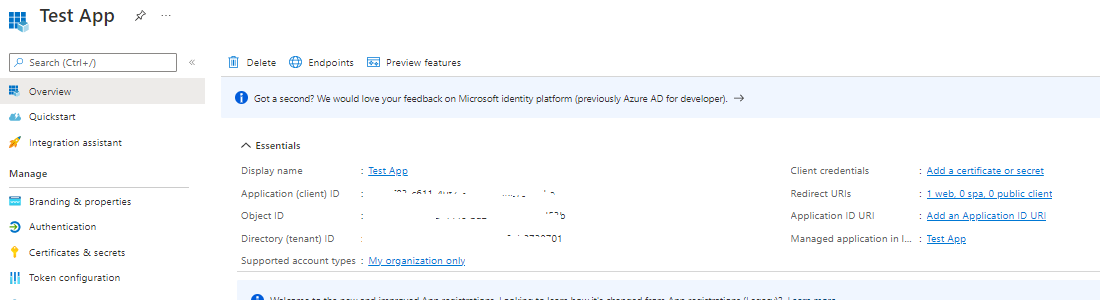
    pastedimage1650439115965v1.png

    Now click on New Client Secret Button

    pastedimage1650435846671v5.png

    Now provide the Description and Expires time and Click on Add button.

    pastedimage1650436006020v6.png

    Now copy the Value and keep it safe as you can not find the Client secret once the page reloaded.

    pastedimage1650436175938v7.png

    Now add the app permissions to provide the same Navigate to API Permissions => Add a Permission => Select Dynamics 365 CRM.

    pastedimage1650438854342v1.png

    Now have a look below screenshot and follow the steps.

    pastedimage1650438990235v2.png

    Next step you have to Grant the admin consent for the app to do that you have to navigate to API Permissions => Grant Admin Consent for test app. to do that you should have Global Administrator rights/permissions.

    pastedimage1650437450010v12.png

    Now you have to Create the Application User within your dynamics 365 CRM. To create the application user you can follow below steps. 

    1. Login to https://admin.powerplatform.microsoft.com/environments 

    2. Now Navigate to: Environment => Select your environment => Settings.

    pastedimage1650436485895v8.png

    Now navigate to Users + Permissions => Application Users

    pastedimage1650436659196v9.png

    Now add your Application that you have registered to the Azure Portal earlier, Select the Business Unit from the drop down and also Provide the security Roles. I have provided the System Administrator, System Customizer Roles to the application n user.

    pastedimage1650437018051v10.png

    pastedimage1650437107586v11.png

    if the Application user created successfully.

    Now you are all set now you have to write you code. Kindly have a look below code.

    string connectionString ="AuthType=ClientSecret;" +"url=https://Your Organization.crm.dynamics.com;" +"ClientId=Paste the client Id here that you coplied earlier;" +"ClientSecret=Paste your client secret here";
    ServicePointManager.SecurityProtocol = (SecurityProtocolType)3072;
    CrmServiceClient svc = new CrmServiceClient(connectionString);

    if (svc.IsReady)
    {
       Console.WriteLine("Connection Created");
    }
    Console.ReadLine();

    I am also pasting the screenshot of the code. Kindly have a look.

    pastedimage1650438014160v13.png

    Also you have added the supported and Latest version of Microsoft.Xrm.Sdk. you can use below install nuget using below command.

    Install-Package Microsoft.CrmSdk.CoreAssemblies -Version 9.0.2.42

  • Ashokrmmy Profile Picture
    20 on at

    Thanks a lot it worked and I hope you are felling good now.

  • M. N. Quraishi Profile Picture
    319 on at

    Hello Ashokrmy,

    Thanks for asking. My son was there in hospital due to high fever. He is fine now.

  • Ashokrmmy Profile Picture
    20 on at

    I have another question I have some Dynamics 365 reports that I created using Visual studio using Microsoft fetchxml and I can't connect to CRM after the new updates however I can do that until the new updates

    I'm using this connection

    pastedimage1651760118941v1.png

    Can you help me on that.

    Thanks in advance.

Under review

Thank you for your reply! To ensure a great experience for everyone, your content is awaiting approval by our Community Managers. Please check back later.

Helpful resources

Quick Links

Responsible AI policies

As AI tools become more common, we’re introducing a Responsible AI Use…

Neeraj Kumar – Community Spotlight

We are honored to recognize Neeraj Kumar as our Community Spotlight honoree for…

Leaderboard > Customer experience | Sales, Customer Insights, CRM

#1
Tom_Gioielli Profile Picture

Tom_Gioielli 74 Super User 2025 Season 2

#2
Daniyal Khaleel Profile Picture

Daniyal Khaleel 32 Most Valuable Professional

#3
Gerardo Rentería García Profile Picture

Gerardo Rentería Ga... 31 Most Valuable Professional

Last 30 days Overall leaderboard

Product updates

Dynamics 365 release plans
