Hi Ryan,
To edit entity view in Power Apps, follow below steps:
1. Sign in to Power Apps.
2. Select Solutions in the left navigation.
3. Solution configurations will be open, after that search entity for which you need to edit views(search account entity), and from the searched result, expand entity and and then click on view.
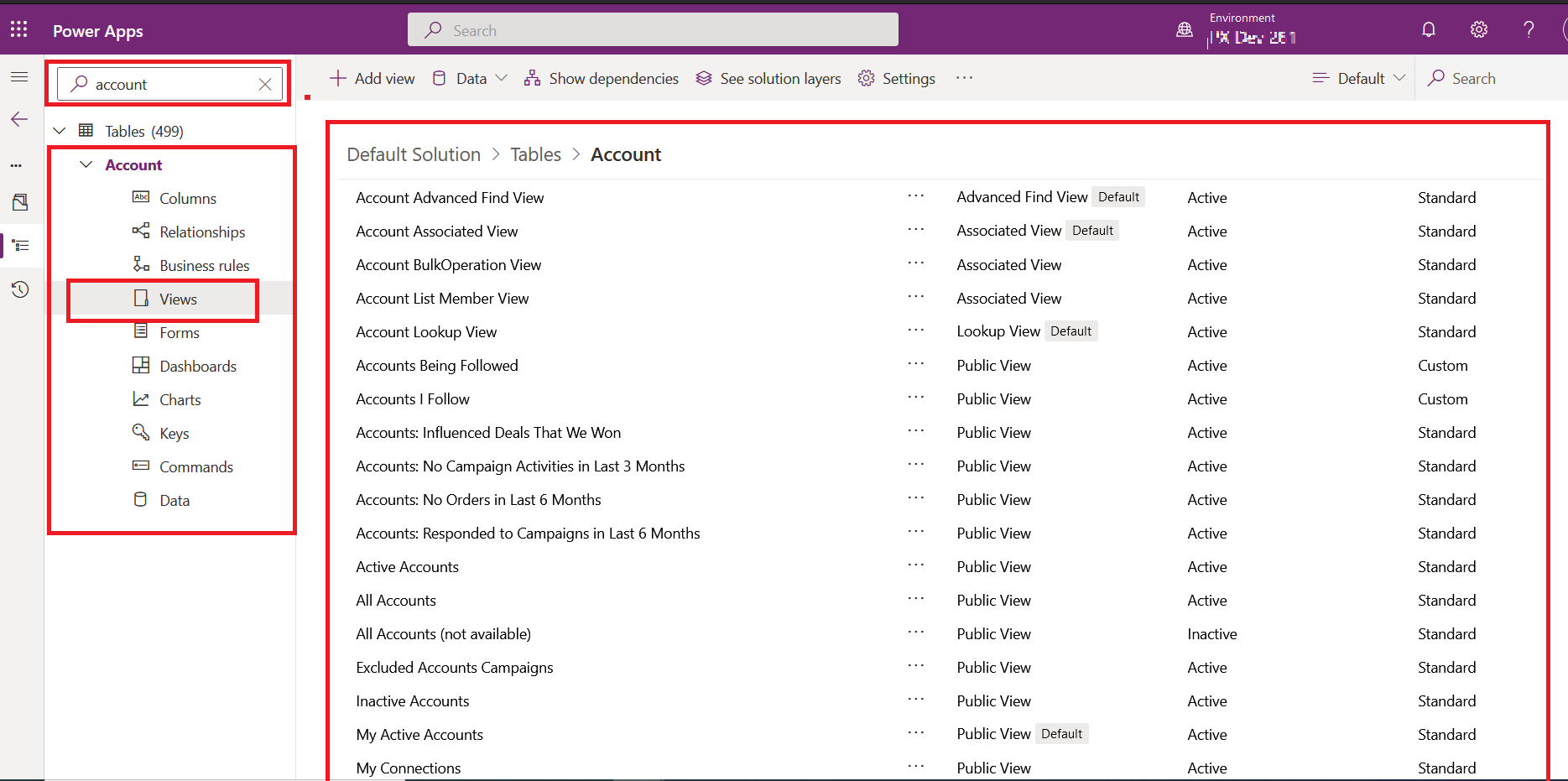
4.By clicking on any view, the view related configurations will be opened.
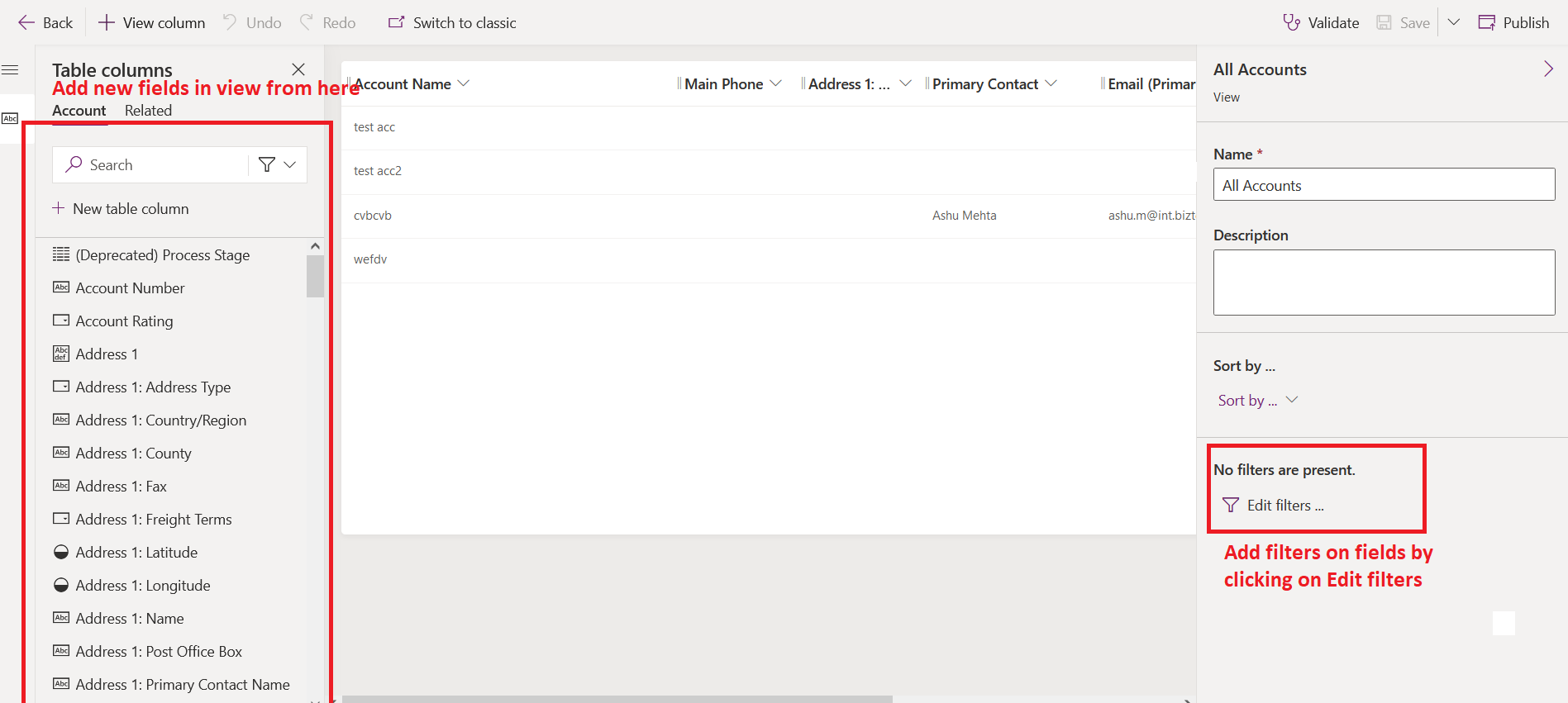
5. You can add new fields from left side field list, and edit or add new filters for view from rights side configurations Edit filters options. Now click on Edit filter to add condition for inactive accounts.
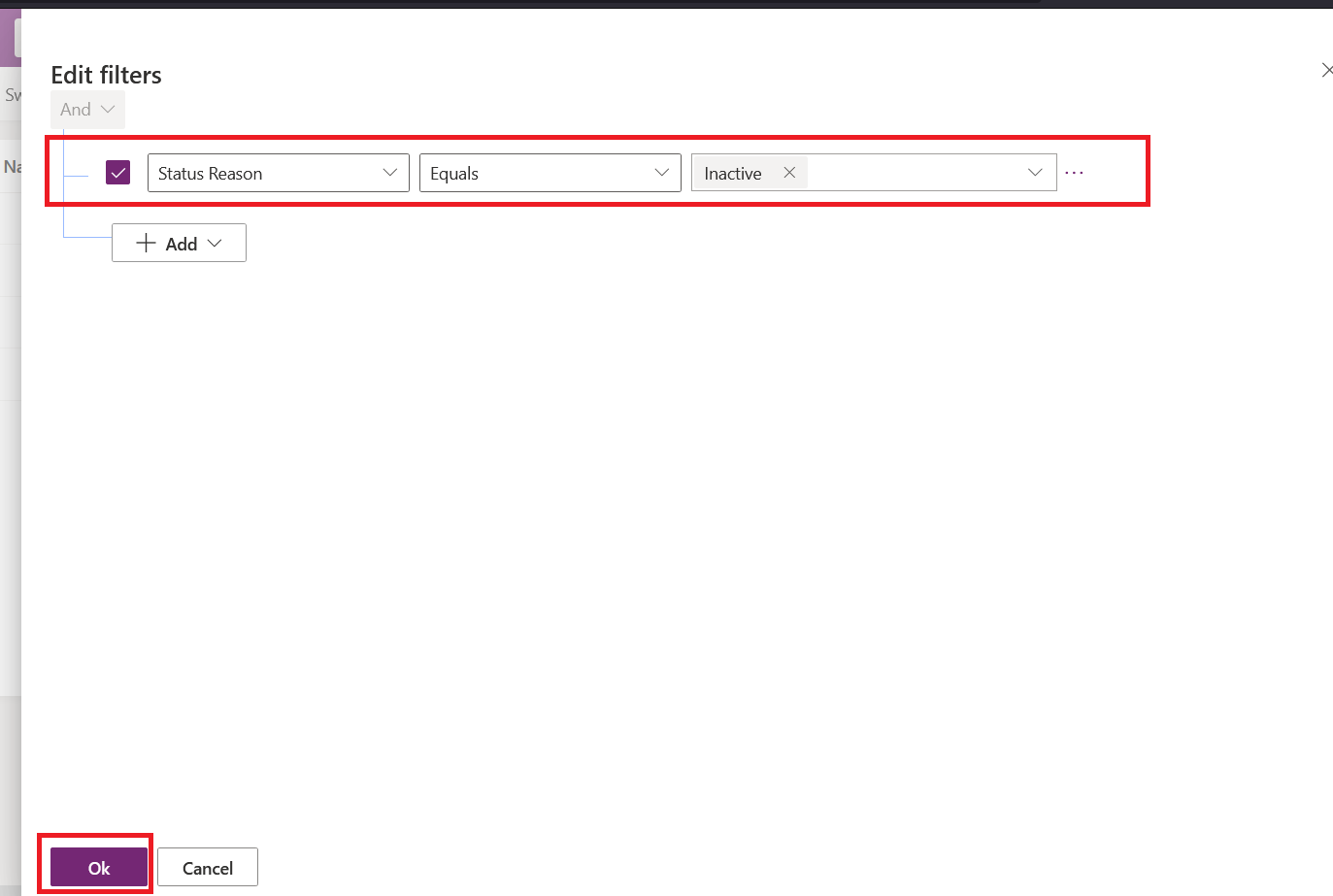
6. In Edit filter screen, add condition for inactive filter and click on ok to save it.
7. After that save the settings from top rights and publish it.
8. Now for edited views, all inactive accounts will be display by selecting that view.
Or you can directly filter records form any view from entity list, by filter option.
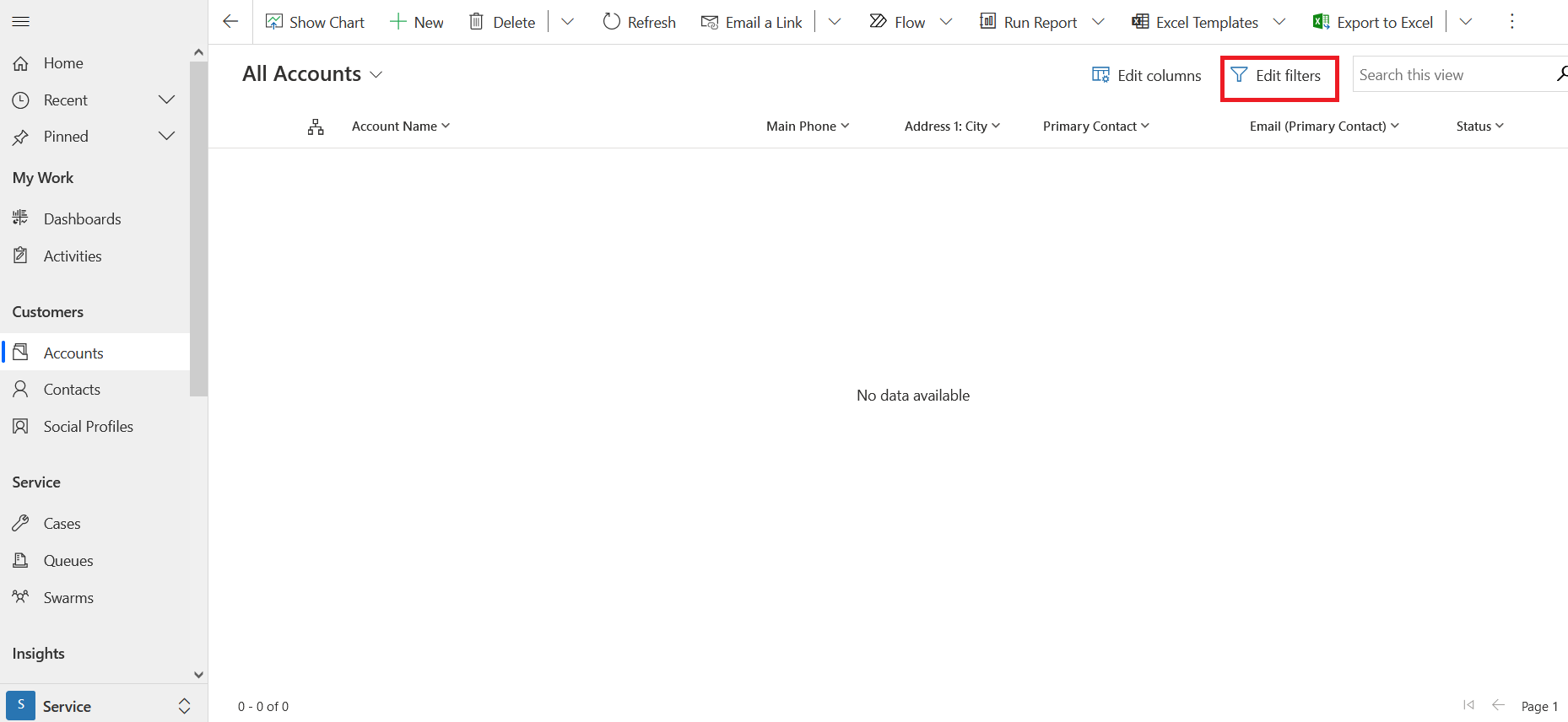
To find records based on specific field values, click on Edit filter beside search input in entity list.
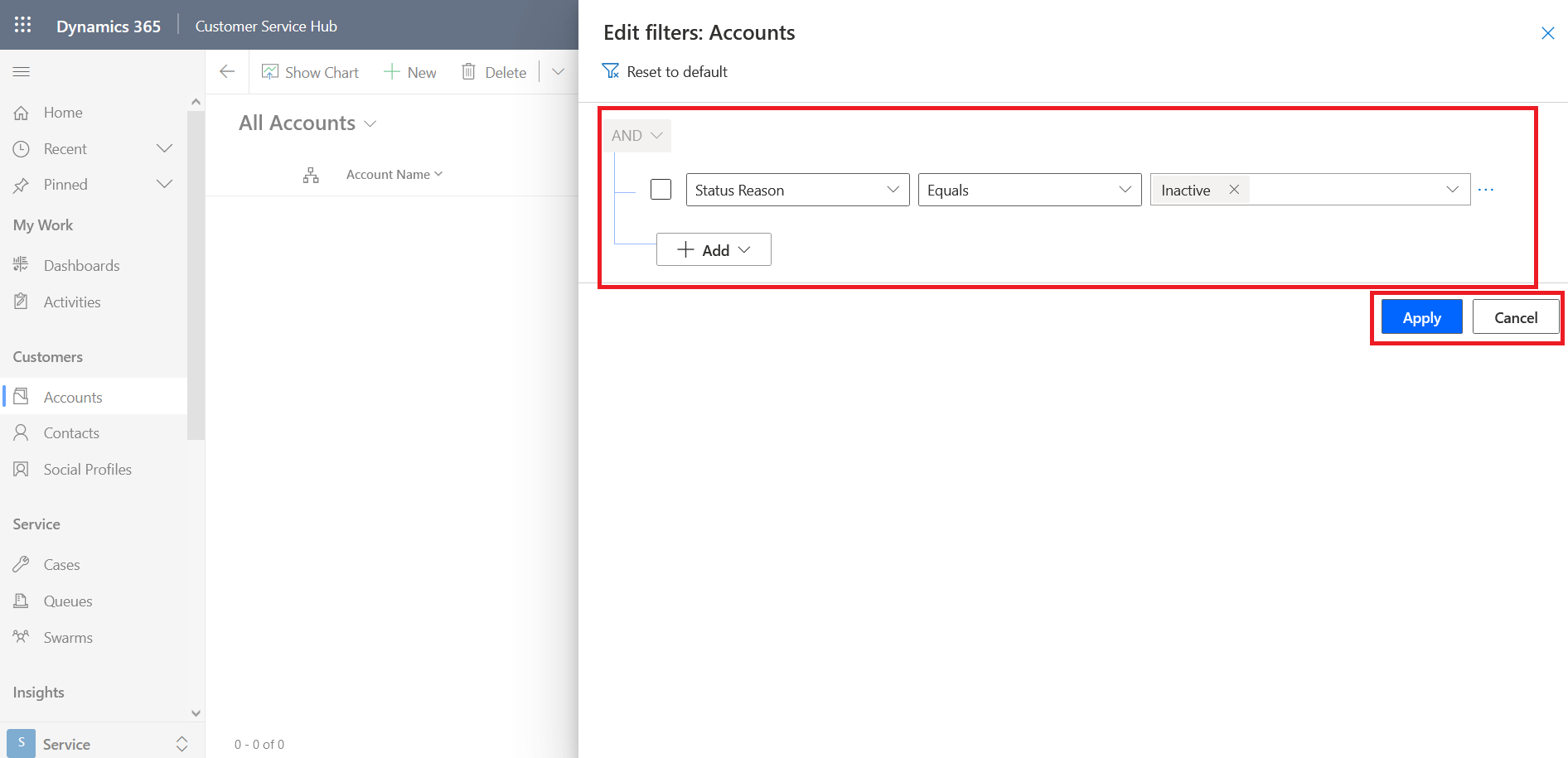
The view filters already available in edit filter panel, on top of that you can add your new conditions, then click on apply to view filtered result data.
I hope it helps,
Thanks.
Please mark as verified if the answer is helpful. Welcome to join hot discussions in Dynamics 365.


