web
You’re offline. This is a read only version of the page.
close
Skip to main content

Notifications

Announcements

No record found.

Community site session details

Community site session details

Session Id :
Microsoft Dynamics AX (Archived)

When I Deploying All Dynamics AX Report on Server I getting error in three location.

(0) ShareShare
ReportReport
Posted on by 201

On Report Server :

The specified client configuration does not contain valid WCF settings

Description: An unhandled exception occurred during the execution of the current web request. Please review the stack trace for more information about the error and where it originated in the code.


Exception Details: System.ArgumentException: The specified client configuration does not contain valid WCF settings.

On AX Client :

Report Server Configuration ID

Info message:
Testing reporting server connection

error message:
Unable to connect to sssqlrs__/Reports_AX__ for the report server at SSSQLRS01N02. Make sure that SQL Server Reporting Services is configured correctly matching the report server configuration in the Microsoft Dynamics AX client.
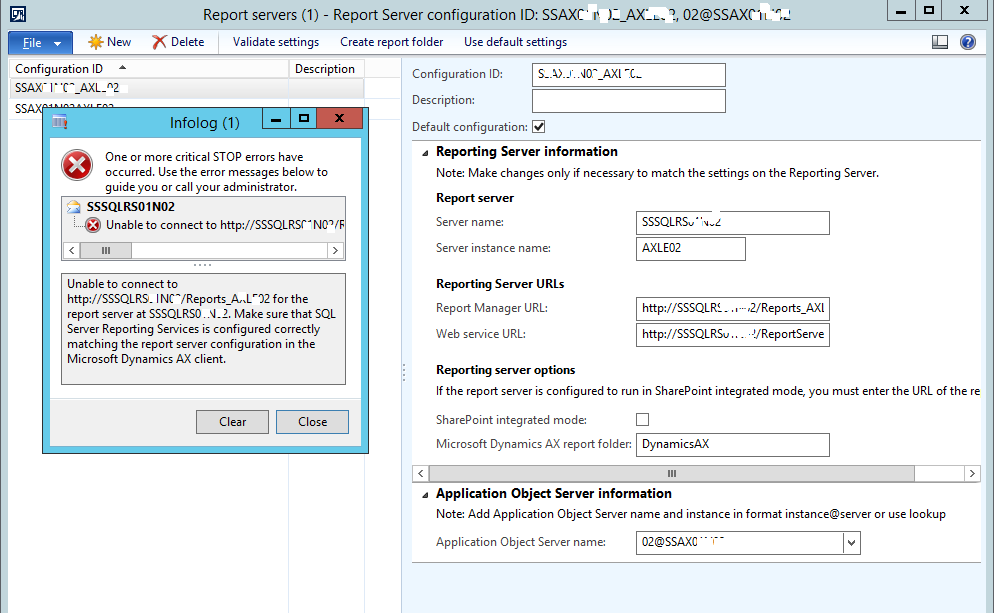
SSRSIssue.png

Microsoft Dynamics AX Configuration Utility :

According reporting server when after refresh configuration when click WCF configuration I 2 message which mention below.
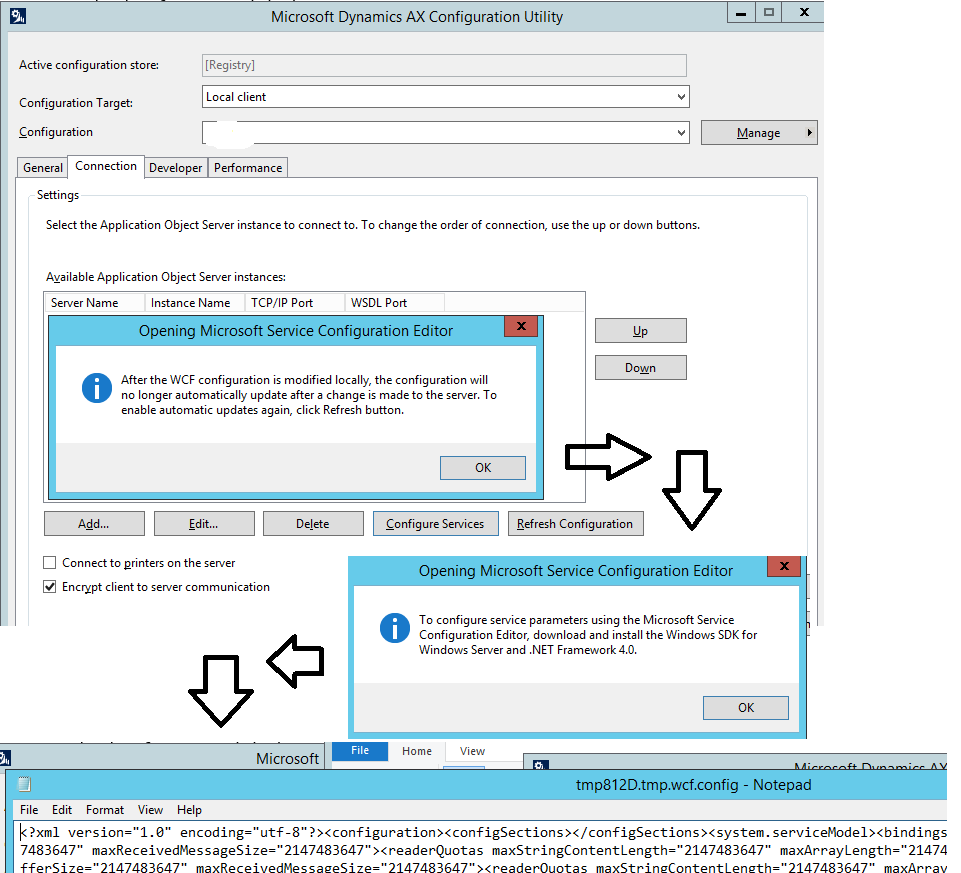
ssrs-error.png


*This post is locked for comments

I have the same question (0)
  • Suggested answer
    Vilmos Kintera Profile Picture
    46,149 on at

    You seem to be missing some prerequisites. As the dialog requests, have you tried installing the .Net framework in question. You do need WCF to be built, since the reporting instance does communicate via web services and RPC calls.

    The second issue could be caused by the firewall actively blocking communication. Once your WCF is built, you could temporarily try to disable Windows Firewall on AX AOS/SQL/Reporting server for the Domain profile.

  • ShaikhAtif Profile Picture
    201 on at

    Other instance reports are working, .Net framework is install already. when I build WCF I getting error.

    community.dynamics.com/.../ssrs-error.png

  • Vilmos Kintera Profile Picture
    46,149 on at

    Read the error, it says to install Windows SDK and .Net Framework 4.0

    Each major .net version needs separate deployment, so if you have different versions, those won't work. Also put on the SDK.

  • Math Dax Profile Picture
    on at

    You do not need to install Windows SDK and .Net Framework 4.0 and no need to install the SDK. This is only if you want to modify the WCF configuration.

    In order to troubleshoot your issue, can you open IE and try to access the Report Manager URL and Web Service URL.

  • ShaikhAtif Profile Picture
    201 on at

    I open IE and try to access the Report Manager URL and Web Service URL Result below :

    Report Manager & Server : not working

    sdsd.png

    After restart Reporting Service :

    sdsd.png

    WSDL URL : is working

    WSDL-URL.png

  • Suggested answer
    Vilmos Kintera Profile Picture
    46,149 on at

    Error is still saying WCF is missing.

    What you could do is where AX is running fine and it can talk to the AOS, open up the AX Client Configuration Utility. Refresh WCF there, then export the AX Configuration to file using the menu on the right hand side. Do it both for Local client and Business connector configuration.

    Then you could just copy the exported AXC file to your report server, open the client configuration utility again, and import it. That way you took over a correct, working WCF setting and after a restart the report server, it should be able to communicate with your AOS just fine.

  • ShaikhAtif Profile Picture
    201 on at

    When i Validate Setting  Report Server Configuration Respective ID on AX Client On Server Side

    I get Error :

    Unable to connect to http://SSSQLRS/Reports_AX for the report server at SSSQLRS. Make sure that SQL Server Reporting Services is configured correctly matching the report server configuration in the Microsoft Dynamics AX client.

  • ShaikhAtif Profile Picture
    201 on at

    I restore file in report server

    Report configuration is validating on Dynamics AX Client : Report Server Configuration form.

    Execute any report on AX i get error :

    Error while setting server report parameters. Error message: The DefaultValue expression for the report parameter ‘AX_CompanyName’ contains an error: Request for the permission of type 'System.Security.Permissions.EnvironmentPermission, mscorlib, Version=2.0.0.0, Culture=neutral, PublicKeyToken=b77a5c561934e089' failed. (rsRuntimeErrorInExpression).

    MS Dynamics AX Configuration Utility:

    When click on 'Configure Services' button then i get message after that click on 'OK' button popup another message which related to 4.0 Framework. detail highlight on below figure.


    7737.sss.png

  • Verified answer
    ShaikhAtif Profile Picture
    201 on at

    Resolution:

    1- The resolution we found was to use "FullTrust" permission set in place of "Execute" for the "Report_Expressions_Default_Permissions" in the rssrvpolicy.config.

    2- Complete the following procedure to create a new configuration of Microsoft Dynamics AX and to export the configuration settings to a file.

    1. Click Start > Administrative Tools > Microsoft Dynamics AX 2012 Configuration to open the Microsoft Dynamics AX Configuration Utility.

    2. Click Manage > Create configuration. The Create Configuration window is displayed.

    3. Enter a name for the configuration, and then click OK. The configuration is created.

    4. Click the Connection tab.

    5. Verify that the server name, instance name, and port information for the Application Object Server (AOS) are correct.

    6. Click Refresh to update the configuration.

    7. Click Manage > Export configuration to file. The Export Configuration window is displayed.

    8. Save the configuration to a file by following these steps:

      1. Name the file Microsoft.Dynamics.AX.ReportConfiguration.axc.

      2. Save the file to the appropriate location, depending on the version of SQL Server that you are using.

        • If you are using SQL Server 2014, save the file to: \Program Files\Microsoft SQL Server\MSRS12.[SSRSInstanceName]\Reporting Services\ReportServer\bin.

    3- Restart AOS and Reporting Service.

    4- Deployed SSRS Reports

    Method 1 - In AOT >> SSRS Reports >> [SSRSReportName] >> Right click on Report >> Deployed Element.
    Method 2 - In Administrator : MS Dynamics AX PowerShell >> Run Command >> Publish-AXReport -Id [SSRS report Configuration ID]  -ReportName *

    5- Execute Report from SSRS Report Manager then Execute Report from MS Dynamics AX Client.

Under review

Thank you for your reply! To ensure a great experience for everyone, your content is awaiting approval by our Community Managers. Please check back later.

Helpful resources

Quick Links

Responsible AI policies

As AI tools become more common, we’re introducing a Responsible AI Use…

Neeraj Kumar – Community Spotlight

We are honored to recognize Neeraj Kumar as our Community Spotlight honoree for…

Leaderboard > 🔒一 Microsoft Dynamics AX (Archived)

#1
Priya_K Profile Picture

Priya_K 4

#1
Martin Dráb Profile Picture

Martin Dráb 4 Most Valuable Professional

#3
MyDynamicsNAV Profile Picture

MyDynamicsNAV 2

Last 30 days Overall leaderboard

Featured topics

Product updates

Dynamics 365 release plans



