Hi partner,
We can automatically track all emails in Oulook's folders via folder-level tracking, or manually track any email via 'Tracked to Dynamics 365' category in Outlook.
1. folder-level tracking
Please read these two documents first:
https://docs.microsoft.com/en-us/power-platform/admin/configure-outlook-exchange-folder-level-tracking
https://docs.microsoft.com/en-us/power-platform/admin/track-outlook-email-by-moving-it-tracked-exchange-folder
First we create a subfolder within the Inbox in the Outlook.

Then move all old emails that need to be tracked into this subfolder.
Next we enable Folder-level tracking.
-
Click Settings > Email Configuration.
-
Click Email Configuration Settings.
-
Confirm that Process Email Using is set to Server-Side Synchronization.
-
Enable Use folder-level tracking from Exchange folders (server-side synchronization must be enabled).
-
Configure other tracking options on this page, and then click OK.

Finally set up a tracked folder.
-
In the web app, on the nav bar, click Options  .
.
-
In the Set Personal Options dialog box, click the Email tab, and then under Select the email messages to track in Dynamics 365, click Configure Folder Tracking Rules.
-
In the Folder-Level Tracking dialog box, under Exchange Folder, click + New Folder Mapping, click the down arrow in the box that appears, and then select the folder you want to track.

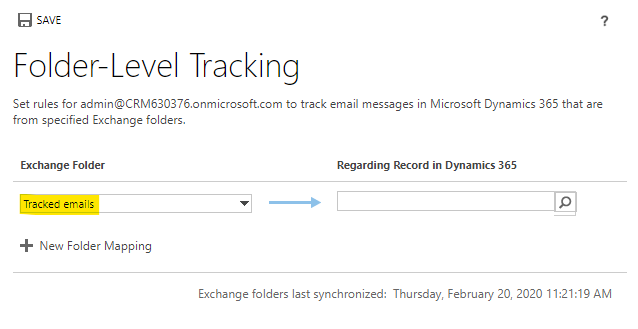
All emails in this subfolder, including the old ones, will be tracked.
2. 'Tracked to Dynamics 365' category
Please read these two documents first:
https://docs.microsoft.com/en-us/power-platform/admin/use-outlook-category-track-appointments-emails
In Outlook, right-click an email and select Tracked to Dynamics 365 in Category, then this email will be tracked to D365.


