web
You’re offline. This is a read only version of the page.
close
Skip to main content

Notifications

Announcements

No record found.

Community site session details

Community site session details

Session Id :
Customer experience | Sales, Customer Insights,...
Suggested Answer

To show the Parent field, add all related fields to the Product form.

(0) ShareShare
ReportReport
Posted on by 17

We are dealing with a strange issue on Product Main form.

"Parent field is hidden because related fields are missing in the form. To show the Parent field, add all related fields to the form"
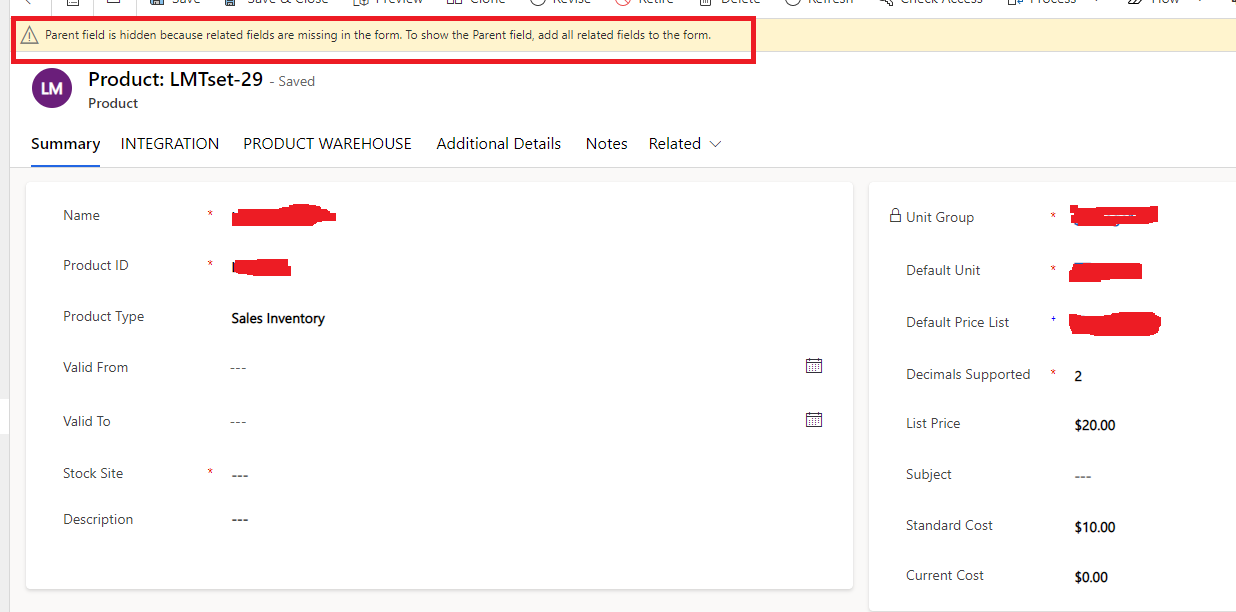
ParentProduct.png

We added all of the product fields to the Product Main form and published it. Even after this, we are still seeing the same warning message.

In this case, we also tried the Microsoft support solution.
https://learn.microsoft.com/en-us/troubleshoot/dynamics-365/sales/troubleshoot-products-issues#issue-reparenting-isnt-working-or-the-parent-field-isnt-visible

I'm not sure if we did everything correctly. The steps are outlined below.

1. Created a new solution and only included the Product Main form.

2. Exported this solution as Unmanaged solution.

3. Under customizations.xml page added the mentioned code under existing parentproductid row.

4. This is the existing XML node.

<row>
<cell id="{75ac24ed-a31e-a1e4-dbd5-3c38e6b42ab4}" showlabel="true" locklevel="0" colspan="2" ordinalvalue="10003" solutionaction="Added">
<labels>
<label description="Parent" languagecode="1033" />
</labels>
<control id="parentproductid" classid="{270BD3DB-D9AF-4782-9025-509E298DEC0A}" datafieldname="parentproductid" disabled="false" uniqueid="{9c61b774-c7a1-cb9e-210b-a926b543b4cc}">
<parameters>
<AutoResolve>true</AutoResolve>
<DisableMru>false</DisableMru>
<DisableQuickFind>false</DisableQuickFind>
<DisableViewPicker>false</DisableViewPicker>
<DefaultViewId>{8BA625B2-6A2A-4735-BAB2-0C74AE8442A4}</DefaultViewId>
<AllowFilterOff>false</AllowFilterOff>
</parameters>
</control>
</cell>
</row>

5. Added the additional node in customizations.xml below the above existing node.

<row>
<cell id="{faaa2942-4737-4721-9a19-7dcbf4eb2911}" showlabel="true" locklevel="0" colspan="2">
<control id="editableParentControl" classid="{270BD3DB-D9AF-4782-9025-509E298DEC0A}" datafieldname="parentproductid" disabled="false">
<parameters>
<DefaultViewId>{19d7f2e0-e427-40fb-85e8-53e7cef2b166}</DefaultViewId>
<IsInlineNewEnabled>false</IsInlineNewEnabled>
<DisableMru>true</DisableMru>
</parameters>
</control>
</cell>
</row>

6. Save the changes, zip the solution files, and import the new solution in the organization.

7. Publish all changes and navigate to the Product form; the message remains on the screen.

I'm not sure if this is what was required or if we did it incorrectly. We'd appreciate it if anyone could correct us or point us in the right direction.

Regards,
Mahesh

I have the same question (1)
  • autumn Profile Picture
    5 on at
    Did you ever solve this? We have the same issue.
  • Suggested answer
    Community member Profile Picture
    2 on at
    Hi,
     
    I too encountered the exact same issue, and managed to resolve it! One more step is needed, in addition to adding the node with the editableParentControl control to the customizations.xml you also need to update the control of the parentproductid node. It looks something like this:
     
                                <row>
                                  <cell id="{ea9eecc3-a989-d0c5-7001-541770dccbc5}" showlabel="true" locklevel="0">
                                    <labels>
                                      <label description="Parent" languagecode="1033" />
                                    </labels>
                                    <control id="parentproductid" classid="{270BD3DB-D9AF-4782-9025-509E298DEC0A}" datafieldname="parentproductid" disabled="false" uniqueid="{a1968ee2-e226-7749-115b-2ae21a9d8b91}" />
                                  </cell>
                                </row>
     
    Change the control node such that it becomes:
     
                                    <control id="parentproductid" classid="{270BD3DB-D9AF-4782-9025-509E298DEC0A}" datafieldname="parentproductid" disabled="true">
                                      <parameters>
                                        <DefaultViewId>{19d7f2e0-e427-40fb-85e8-53e7cef2b166}</DefaultViewId>
                                        <IsInlineNewEnabled>false</IsInlineNewEnabled>
                                        <ShowAsBreadcrumbControl>true</ShowAsBreadcrumbControl>
                                        <DisableMru>true</DisableMru>
                                      </parameters>
                                    </control>
     
    Then perform steps 6 and 7 as mentioned above, and voilà: message gone!

Under review

Thank you for your reply! To ensure a great experience for everyone, your content is awaiting approval by our Community Managers. Please check back later.

Helpful resources

Quick Links

Responsible AI policies

As AI tools become more common, we’re introducing a Responsible AI Use…

Neeraj Kumar – Community Spotlight

We are honored to recognize Neeraj Kumar as our Community Spotlight honoree for…

Leaderboard > Customer experience | Sales, Customer Insights, CRM

#1
Tom_Gioielli Profile Picture

Tom_Gioielli 70 Super User 2025 Season 2

#2
Gerardo Rentería García Profile Picture

Gerardo Rentería Ga... 33 Most Valuable Professional

#3
Daniyal Khaleel Profile Picture

Daniyal Khaleel 32 Most Valuable Professional

Last 30 days Overall leaderboard

Product updates

Dynamics 365 release plans



