web
You’re offline. This is a read only version of the page.
close
Skip to main content

Notifications

Announcements

No record found.

Community site session details

Community site session details

Session Id :
Microsoft Dynamics NAV (Archived)

Update ClickOnce Version by Replacing Deployment Files with New CU files

(0) ShareShare
ReportReport
Posted on by 462

Hi,

how do we update the clickonce clients?

Right now we have clickonce packages on a server xxx.yyy/customer/clickonce/ClickOnceDeploymentFiles/ ...


We know we need to make the new client files available, So that when the User open his ClickOnce the Client will be updates to the new Version. but how?

What I tried till now (2 different ways):

First Way:
- I replaced the .../Deployment/Applicationsfiles folder with the neu CU deployment Files. But I didn't replace the manifest!

- I also updated the manifest version No. with the new Bulid no.

- Also I made the required minim version to be 9.0.0.0
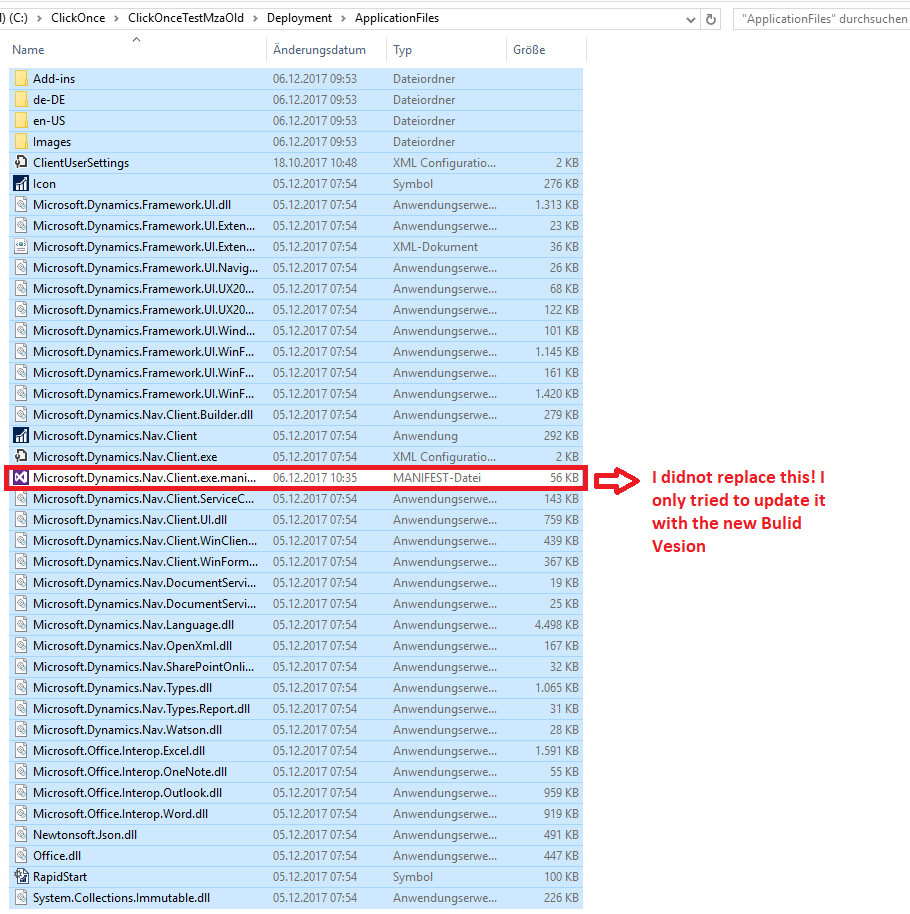
Unbenannt1.png

5466.Unbenannt2.png

Results:

  When the user open his click once is starts normally & nothing happens  :(

Second Way:

I made a new installation for the new Bulid + I renamed the new Folder to have the same name like the old deployment folder + I deleted the old Deployment folder!

Results:

  When the user open his click once it gave back an error & it cannot start the client, I have to install ClickOnce then it will work! --> I want to avoid this


So can anyone tell me please how can I make Clickone to update it self once the user open it? We have almost 50 user which uses clickonce, I donot want to make a new deployment! coz if i did so i have to deinstall the old client and reinstall the new client on 50 Pcs.

*This post is locked for comments

I have the same question (0)
  • Verified answer
    M.Zayed Profile Picture
    462 on at

    Update Steps -----> I managed it :)

    Phase 1 (New installation CU xx):

    - Make new installation/Deployment Folder with name CU XX

    Phase 2 (Update Old installation):

    - Copy all files from Deployment folder (From New CUxx)   EXCEPT!!   (Config Files Datei)

    - Past the File in the Old installation deployment folder!

    Phase 3 (Submainfest):

    - !!!!!!!!!!!!Start Mageui as ADMINSTRATOR!!!!!!!

    - Modify the Sub-mainfest Version to = “new version Code 9.0.0.xxx”

    - Load the New Files a gain in the MainFest

    - Save & Close the SubMainfest

    Phase 4 (Mainfest):

    - Modify the main Mainfest  

           . Version                  = New version No.

           . Least version      = New version Code

           . Load the Submainfest Files again

    - Safe the certificates!

    - Start Your Cliernt

  • Mitr Profile Picture
    192 on at

    Hello Mr. Zayed,

    I  am stuck at the same place and new bee to NAV.

    so not able to understand.

    Can you please provide me the screenshots how this can be done.

    It will really help me where I am stuck..

    Please help

    Thanks

Under review

Thank you for your reply! To ensure a great experience for everyone, your content is awaiting approval by our Community Managers. Please check back later.

Helpful resources

Quick Links

Responsible AI policies

As AI tools become more common, we’re introducing a Responsible AI Use…

Neeraj Kumar – Community Spotlight

We are honored to recognize Neeraj Kumar as our Community Spotlight honoree for…

Leaderboard > 🔒一 Microsoft Dynamics NAV (Archived)

#1
HoangNam Profile Picture

HoangNam 7

Last 30 days Overall leaderboard

Featured topics

Product updates

Dynamics 365 release plans



