Hi ghdunn,
1. Ribbon Workbench is a popular solution which could help us manage command bar button(ribbon button) easily, we can edit these buttons in GUI without to modify customization.xml in exported solution.
You can download from its official web site:
https://www.develop1.net/public/rwb/ribbonworkbench.aspx
2. It will send a download link to your email, then you can import the zip file as solution into CRM.
3. After you import it successfully, you can find the entrance icon in Settings > Solutions.
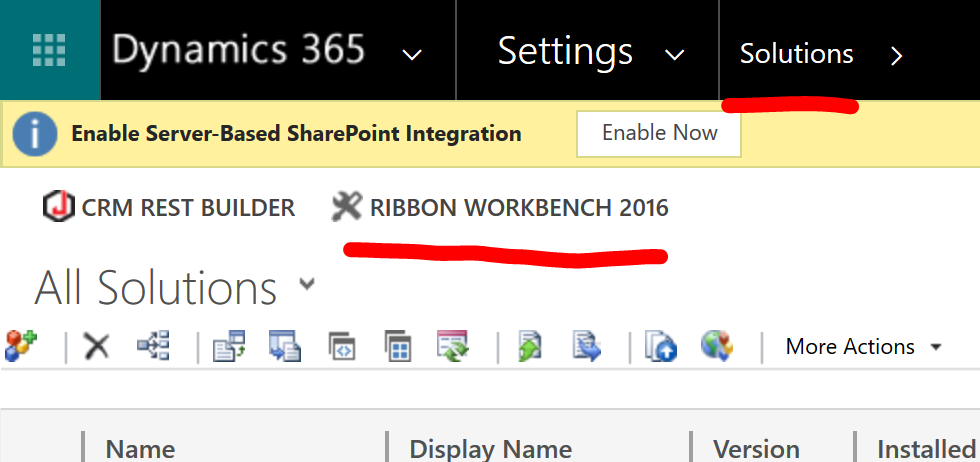
4. As you mentioned, create a simple solution and only include Lead entity inside it.

5. In Ribbon workbench page, you can see all buttons of lead entity after import the solution with lead.
the Lead qualify button is in Form section(1),
there are many same buttons for this function(2, qualify process is complex),
right click button and select Customize Command,
then the qualify command will appear(3),
finally we can find the web resource which controls qualifying process(4).
It's called Lead_main_system_library.js.

6. Open browser and search the file in Source(chrome) or Debugger(firefox) tab,
I recommend Chrome, you can open the file in a new tab to view source code.
In conclusion, could you share me your business requirement about how would you like to use the button in Model Driven Application?
As what we know and see, this function is built with complex display rules and executing code,
thus qualifyLead action is a simplified access to achieve system qualify lead feature.
Regards,
Clofly







