D365 Marketing Forms offer CAPTCHA functionality. However, this may not be the best option to use if you’d like to implement CAPTCHA.

Downsides of OOB CAPTCHA are:
- Hard to read letters
- Audio is hard to understand
- I thought I typed the letters correctly, but it still wouldn’t accept it

We’d like a CAPTCHA functionality that is easy to use, easy to understand and quick to complete
Google reCAPTCHA is a good substitute as they have different options for CAPTCHA, it is easy to use, and it is free! You just need a google account to set up the site keys. The different options are:
- reCAPTCHA v2 – checkbox
- reCAPTCHA v2 – Invisible
- reCAPTCHA v2 – Android
- reCAPTCHA v3
For this form, we decided to use reCAPTCHA v2 – checkbox. To add, follow the steps below:
1. Setup your reCAPTCHA settings from Google reCAPTCHA Admin site. Save the site key as this will be needed in code.

Also, add the website domain where you will be adding the reCAPTCHA element. Add this under the ‘Domains’ section on the admin site.
2. On your D365 marketing form, add the below code where you want the CAPTCHA to appear.
<div id="html_element"></div>
Note that we do not add the javascript that renders the CAPTCHA into the marketing form. For some reason, the form blocks the reCAPTCHA scripts to function properly. We need to add the reCAPTCHA scripts where you would embed the form.
For this example, we want the reCAPTCHA to appear before the Message input element and the Submit button.

Code behind of this form is:

3. Change the status of your form to ‘Go Live’. Then go to Form Hosting tab. First, add a new Form Page to generate the embed code for your form.

Fill out the required fields. Once saved, the embed code will be auto generated.

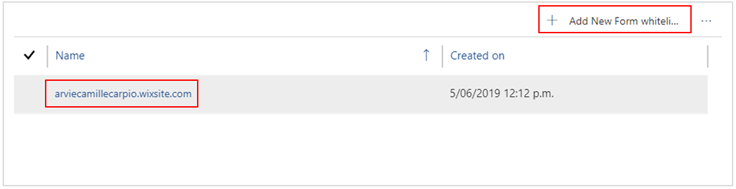
4. Next, make sure the website where you would embed the form is whitelisted. Add a new Form Whitelist record and enter the domain of the website on the Name field.
5. On the web page where you would embed the D365 Marketing form, add the script below either within the head element (<head></head>) or before the embedded form. It is important to add this script before the embed form to ensure that the onloadCallback method has already been loaded before it gets called by another script. The script below has a timeout of 3 seconds before calling the function that would render the reCaptcha element. This is to ensure that the embedded form has already been loaded prior to calling the reCatpcha render method.
<script type="text/javascript">

      var onloadCallback = function() {

        setTimeout(function(){grecaptcha.render('html_element', {

          'sitekey' : 'your_site_key'

        });},3000);

      };

 </script>
6. Still on the same html page, add this script below the D365 marketing form, or just before the closing body tag. This will load the google reCAPTCHA.
<script src="">www.google.com/.../api.js async defer></script>
For this example, the complete code that we would insert into the website is below:
7. Reload the page where you’ve embedded the form with the reCaptcha element. It should show the D365 Marketing form with the reCaptcha tickbox as below.


