web
You’re offline. This is a read only version of the page.
close
Skip to main content

Notifications

Announcements

No record found.

Community site session details

Community site session details

Session Id :
Customer experience | Sales, Customer Insights,...
Answered

Appointment, Contacts & Tasks are not synchronizing with Outlook

(0) ShareShare
ReportReport
Posted on by 10

Hello,

Please, help me with my problem.

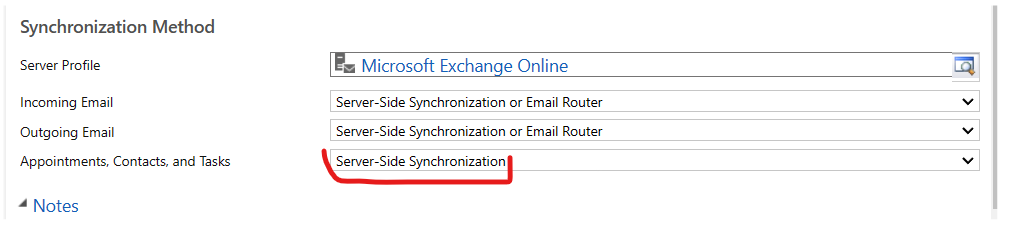
I have already configured Dynamics 365 Sales synchronizing with Outlook: both emails and appointments etc. But I noticed that the email synchronization is working good but Appointment, Contacts & Tasks are not synchronizing with Outlook.

You can check the configuration:
pastedimage1676947743228v3.png

What should I do in this situation?

Thank you in advance.

I have the same question (0)
  • Verified answer
    Leah Ju Profile Picture
    Microsoft Employee on at

    Hi YurasPol,

    Can you clarify the direction of the unsynchronized? Are these records not synced to Dynamics or to Outlook?

    --Tracking Appointment, Contacts & Tasks in Dynamics 365 for Outlook is a manual process.

    --Synchronization of Appointment, Contacts & Tasks from Customer Engagement to Dynamics 365 for Outlook is automatic.

    1.Synced records to Outlook

    (1)Verify the mailbox is configured to synchronize appointments, contacts, and tasks.

    --Go to Settings > Email Configuration Mailboxes and then change the view to Active Mailboxes.

    --Open the mailbox record for the user.(Synchronization of appointments, contacts, and tasks is only supported for user mailboxes.)

    --And set Appointment, Contacts, and Tasks to Server-Side Synchronization. (default = none).

    pastedimage1677031001360v1.png

    (2) Verify the properties in your synchronization filters:

     https://learn.microsoft.com/en-us/power-platform/admin/choose-records-synchronize-dynamics-365-outlook-exchange 

    2.Track Outlook Appointment, Contacts & Tasks to Dynamics

    https://learn.microsoft.com/en-us/dynamics365/outlook-addin/user-guide/track-outlook-contacts 

  • YurasPol Profile Picture
    10 on at

    Hello Leah,

    Thank you so much for such detail instruction.

    I checked every point and found out the follow:

    pastedimage1677075592561v1.png

    I verified the properties in my synchronization filters. They are well:

    pastedimage1677075782993v2.png

    pastedimage1677075814254v3.png

    I cannot find a solution for the Screenshot 1: how to change the Appointment, Contacts and Tasks status from "Not run" to "Success"?

    Could you please help me with it?

    Thank you in advance.


  • Verified answer
    Leah Ju Profile Picture
    Microsoft Employee on at

    Hi YurasPol,

    Try to click the Test & Enable Mailbox button:

    pastedimage1677118817333v1.png

  • Suggested answer
    YurasPol Profile Picture
    10 on at

    Hello Leah,

    Thank you so much! It’s all working now!

Under review

Thank you for your reply! To ensure a great experience for everyone, your content is awaiting approval by our Community Managers. Please check back later.

Helpful resources

Quick Links

Responsible AI policies

As AI tools become more common, we’re introducing a Responsible AI Use…

Neeraj Kumar – Community Spotlight

We are honored to recognize Neeraj Kumar as our Community Spotlight honoree for…

Leaderboard > Customer experience | Sales, Customer Insights, CRM

#1
Tom_Gioielli Profile Picture

Tom_Gioielli 137 Super User 2025 Season 2

#2
#ManoVerse Profile Picture

#ManoVerse 57

#3
Jimmy Passeti Profile Picture

Jimmy Passeti 50 Most Valuable Professional

Last 30 days Overall leaderboard

Product updates

Dynamics 365 release plans



